Prerequisites
- IDEA StatiCa Enterprise license (SSO is not available for standard commercial licenses)
- Your organization uses a single Microsoft tenant. Federated tenants are not supported.
- Guest accounts in Microsoft Entra are not supported.
- All your IDEA StatiCa license users must be under one license for SSO to work correctly.
- If you want to restrict access to IDEA StatiCa within your organization, you must do this on your side in the Enterprise Application settings in Microsoft Entra by assigning users or user groups, as described in the manual.
- You do not need to create users manually. Users who have access to the integration app in Microsoft Entra will be automatically created and appear in the User Portal after their first successful login.
- Your users’ existing usernames and passwords will remain valid until their first SSO login. After that, they will be able to sign in only through SSO.
- Users in your organization with Trial licenses will be converted automatically to commercial users after logging in with SSO for the first time.
SSO Configuration
Step 1: Access the SSO Settings
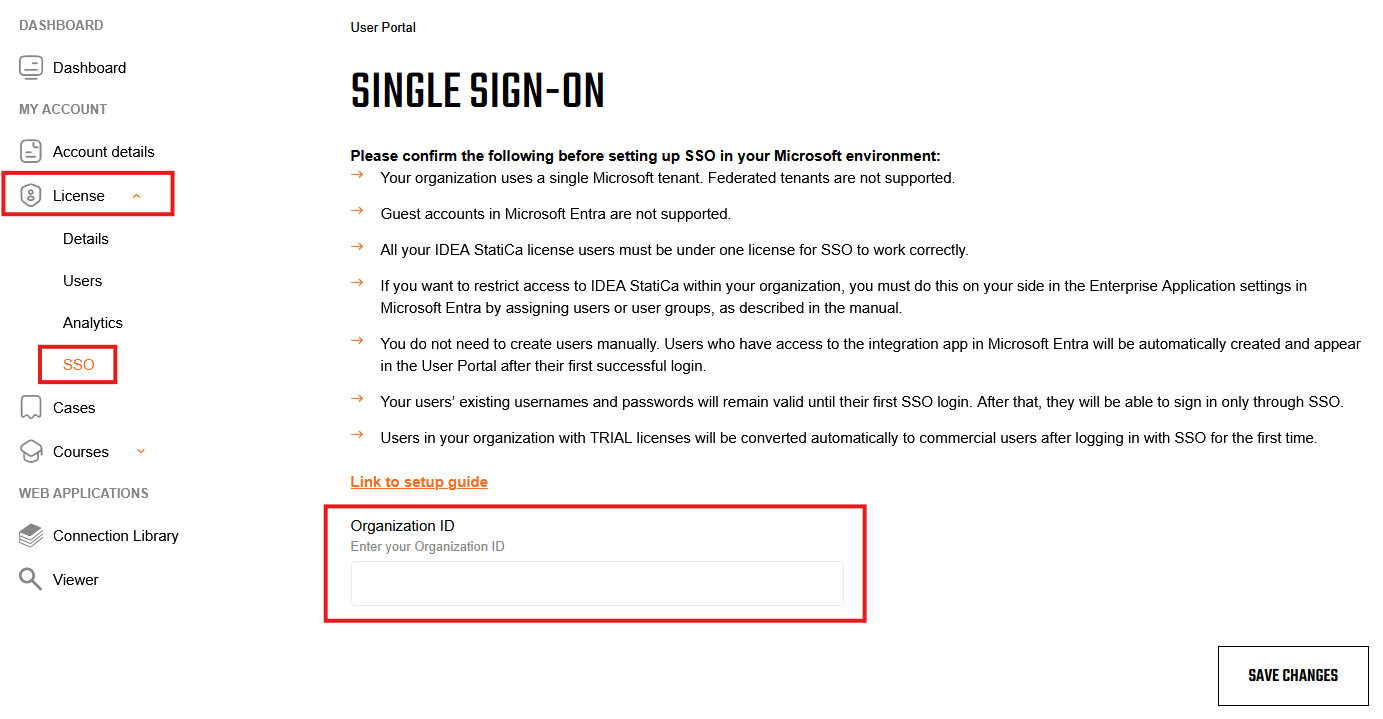
- Log in to the User Portal on the website as the license administrator.
- In the left navigation panel, select License.
- Select SSO.
Step 2: Pair Your Organization
In the SSO settings page, enter your Microsoft Tenant ID. This will pair your license with your organization.
| Where to find your Microsoft Tenant ID? You can find your Microsoft Tenant ID in the Microsoft Entra admin center under Overview > Tenant ID. |
Step 3: Complete SSO Activation
- Sign in at least once using SSO, preferably as the Microsoft Entra application administrator. This initial sign-in allows you to add the enterprise SSO application to your environment.
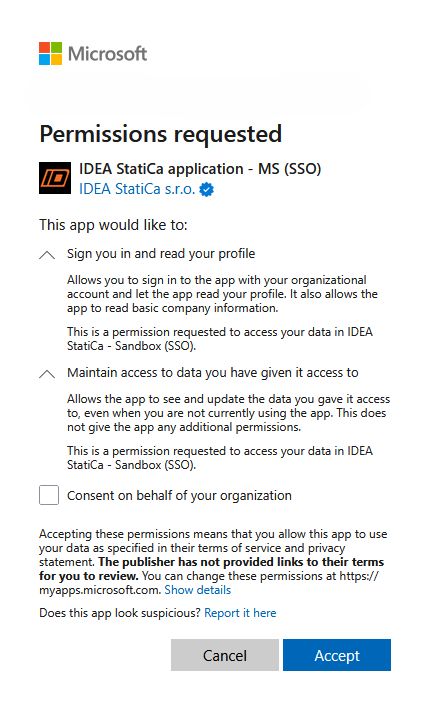
- When prompted, confirm the permission dialog to grant the necessary access.
- Once confirmed, SSO is configured and ready to use.
- Users in your organization are now able to sign in using their existing Microsoft account via SSO.