


Thanks for getting onboard IDEA StatiCa! We will get you up to speed in minutes. After you purchase the IDEA StatiCa license, we send you two emails – one to activate your account and one with introductory content.
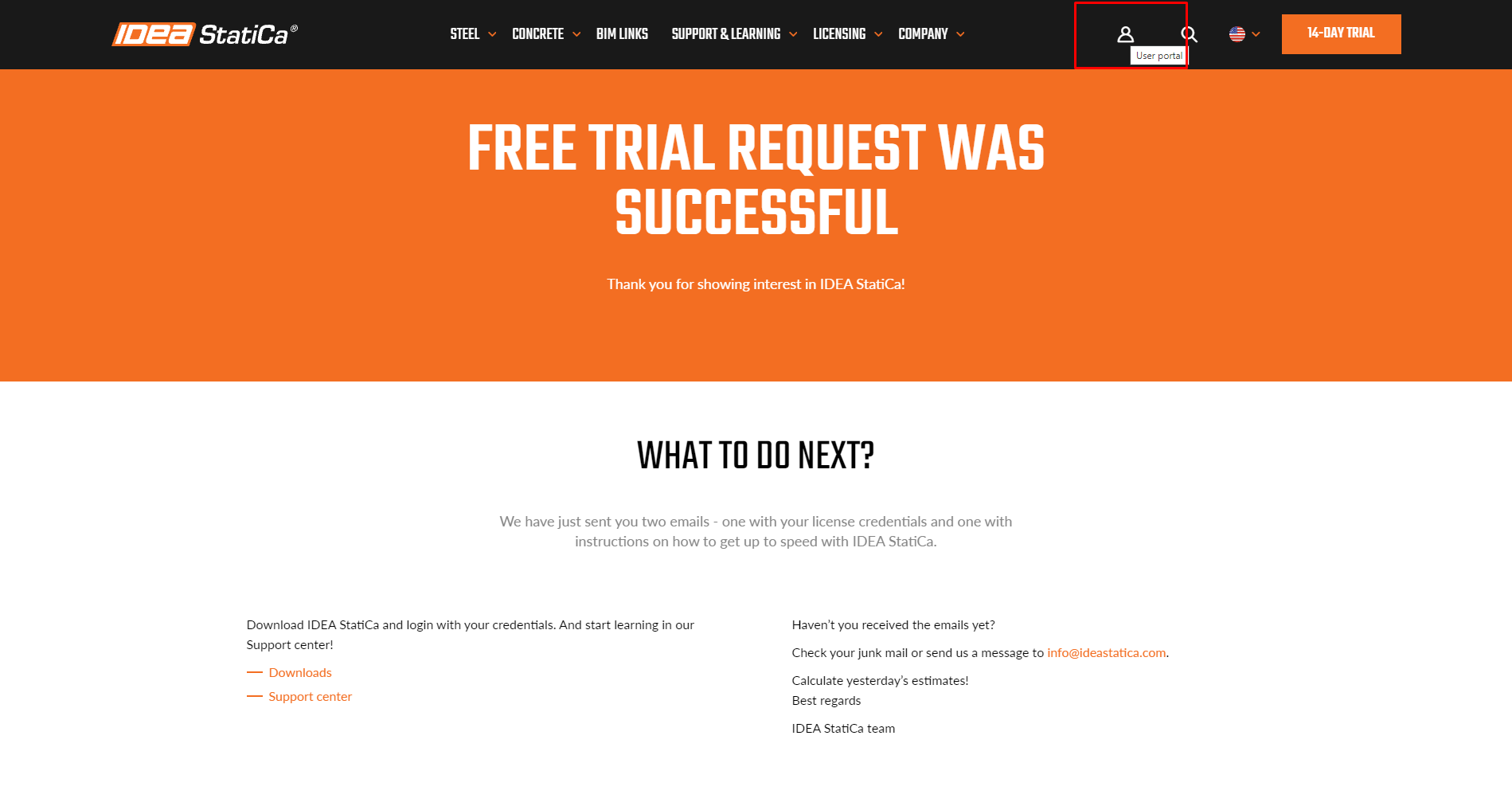
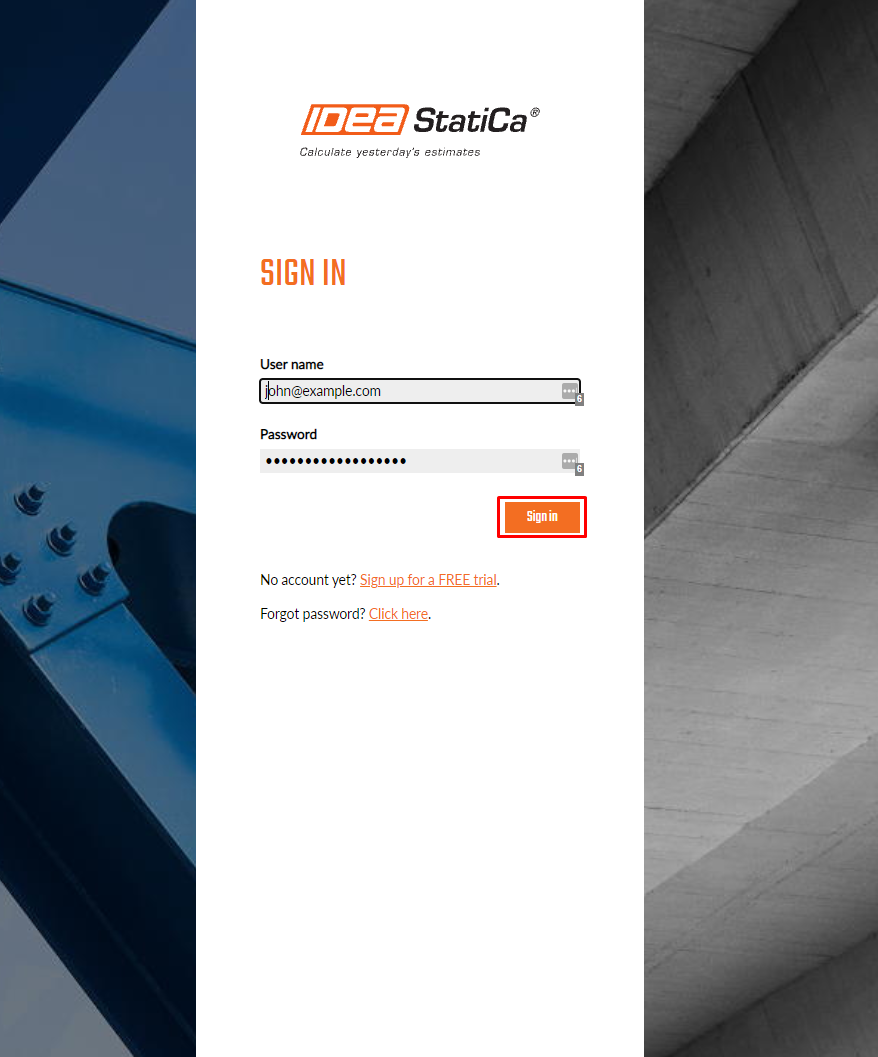
Go to the IDEA StatiCa web page at https://www.ideastatica.com/ and click on the User portal icon. Use these credentials to log in for the first time, as an admin of your organization.
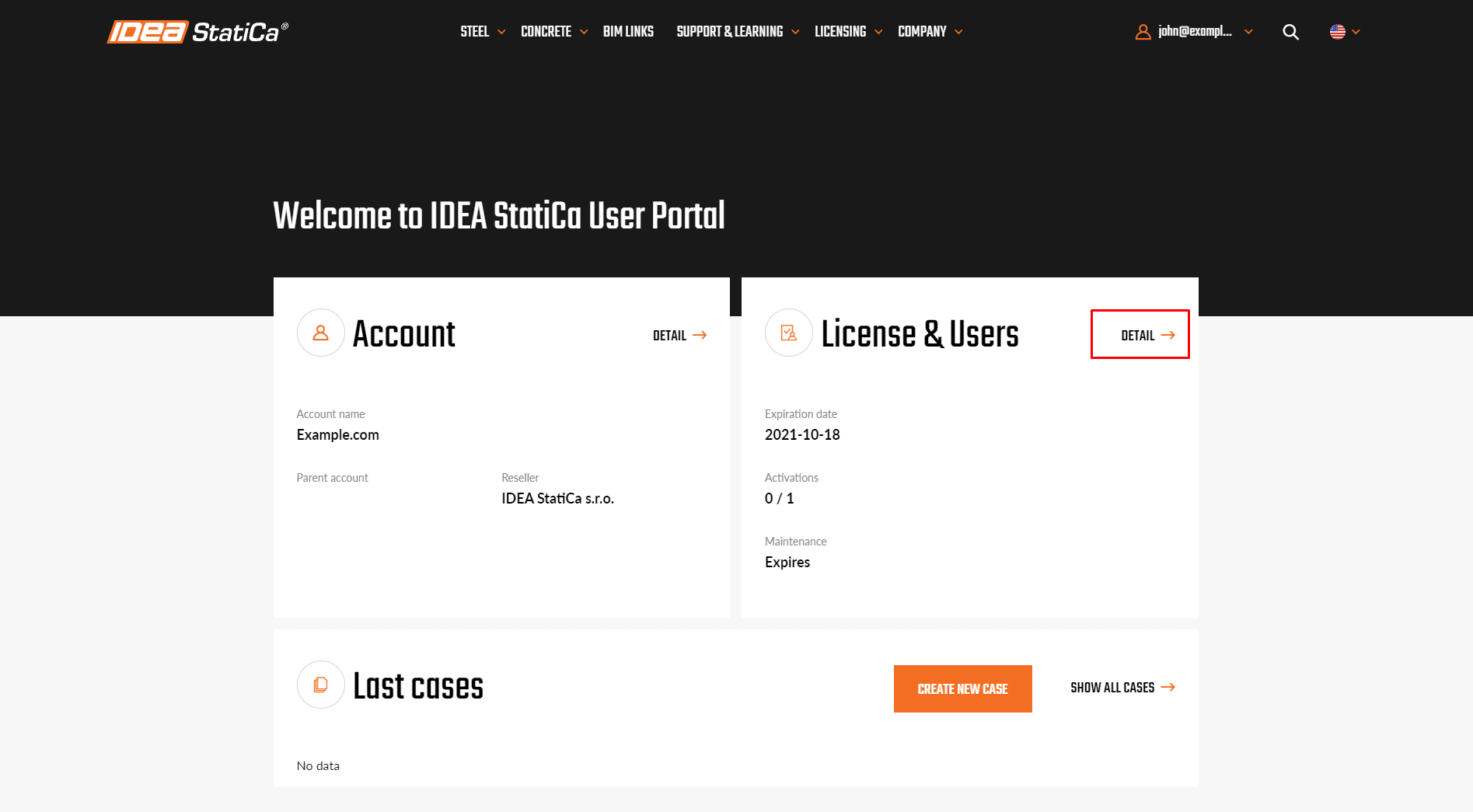
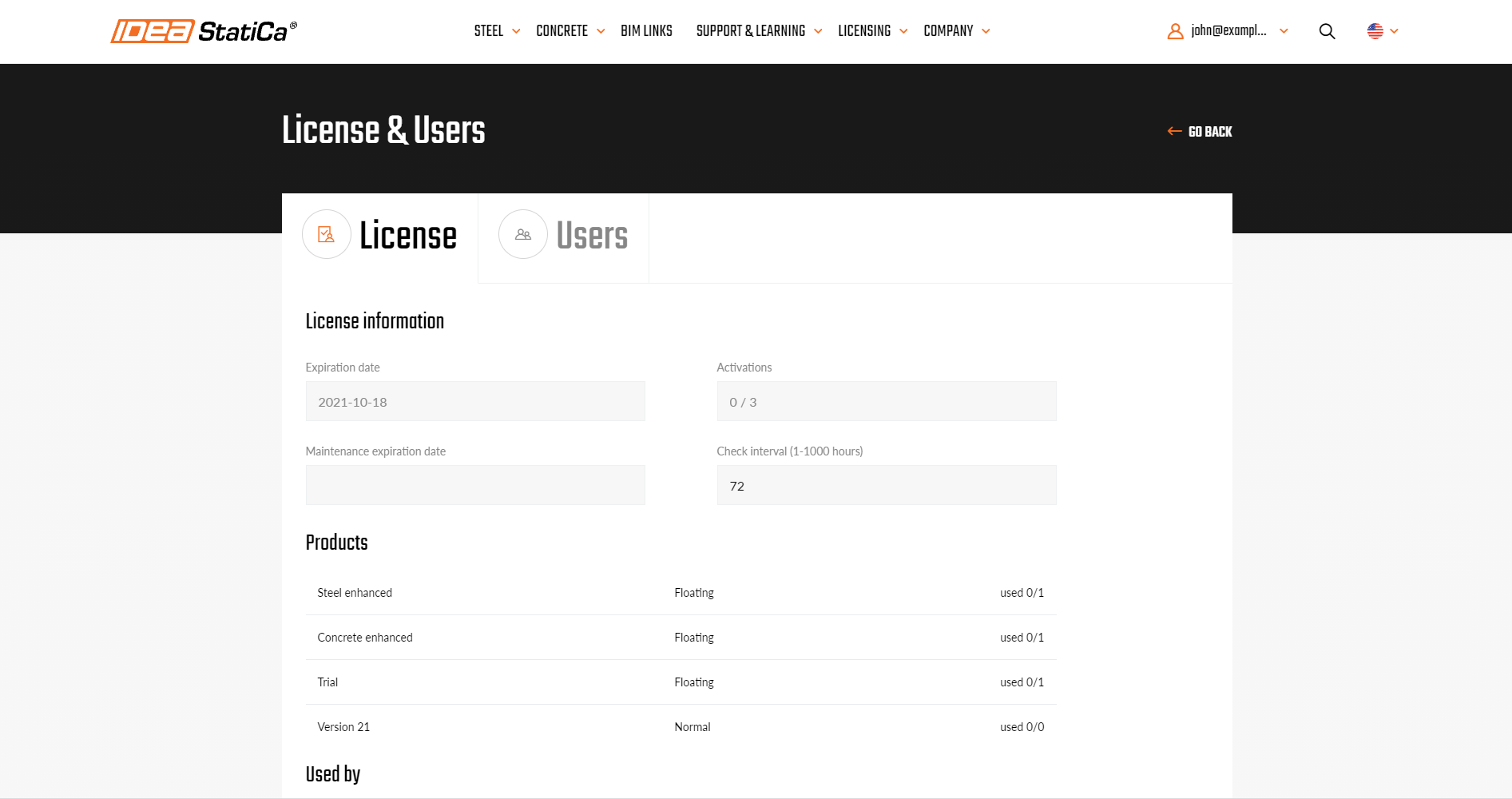
This is your IDEA StatiCa Customer portal, it can be accessed only by people you define. In the Licenses section, you can see the overview of licenses your organization is entitled to, as well as currently used seats.
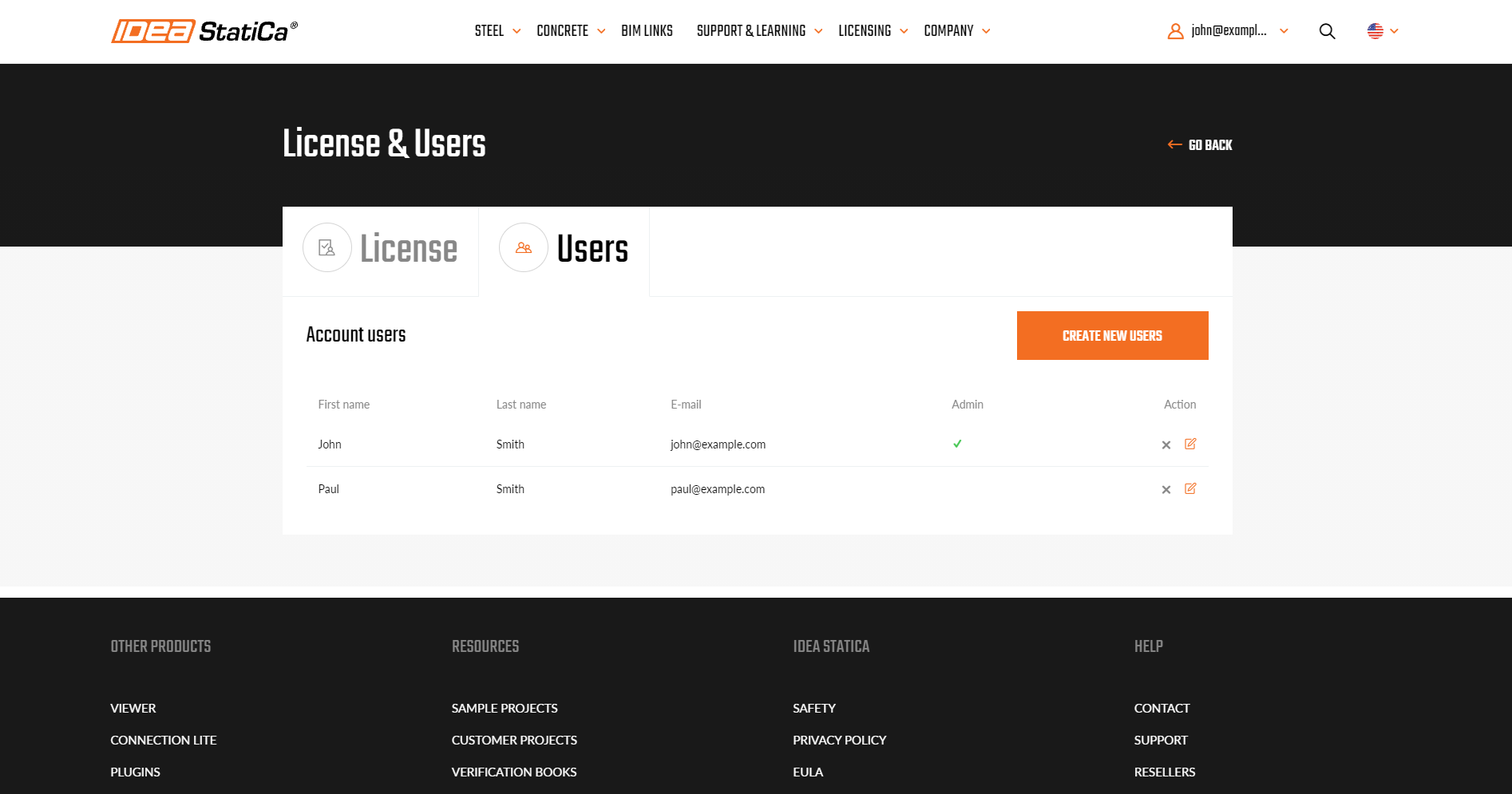
How to add new users to your license
Go to Users and start creating new users you want to be assigned to your company license. The best practice is to set the “User name” the same as the email. Please be informed that the system is case sensitive, therefore we recommend using only lowercase letters and numbers.
By default, all new users are added without admin rights. If you want to create another admin in your organization, tick the “Admin” checkbox.
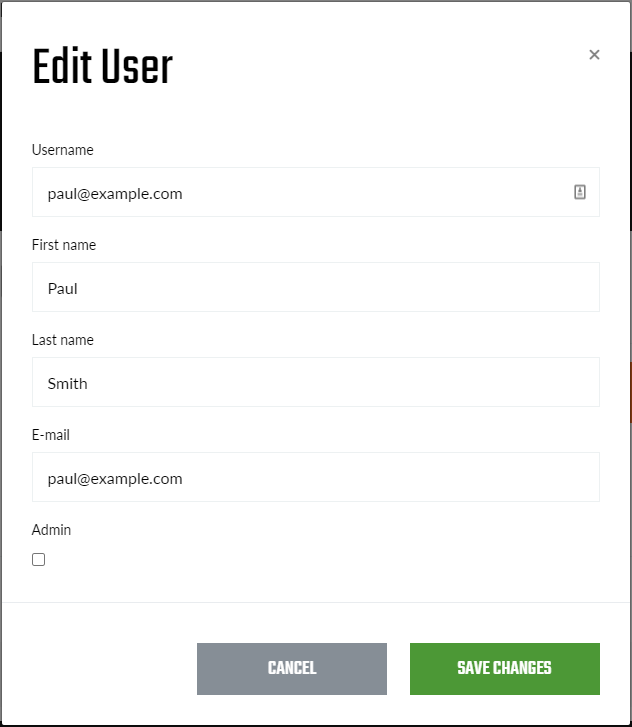
All created users are listed. If you delete a user, he/she will disappear from this list. The list is real-time and all changes made are instantly applied throughout your organization.
Once you have created a new user, he or she automatically receives an invitation email.
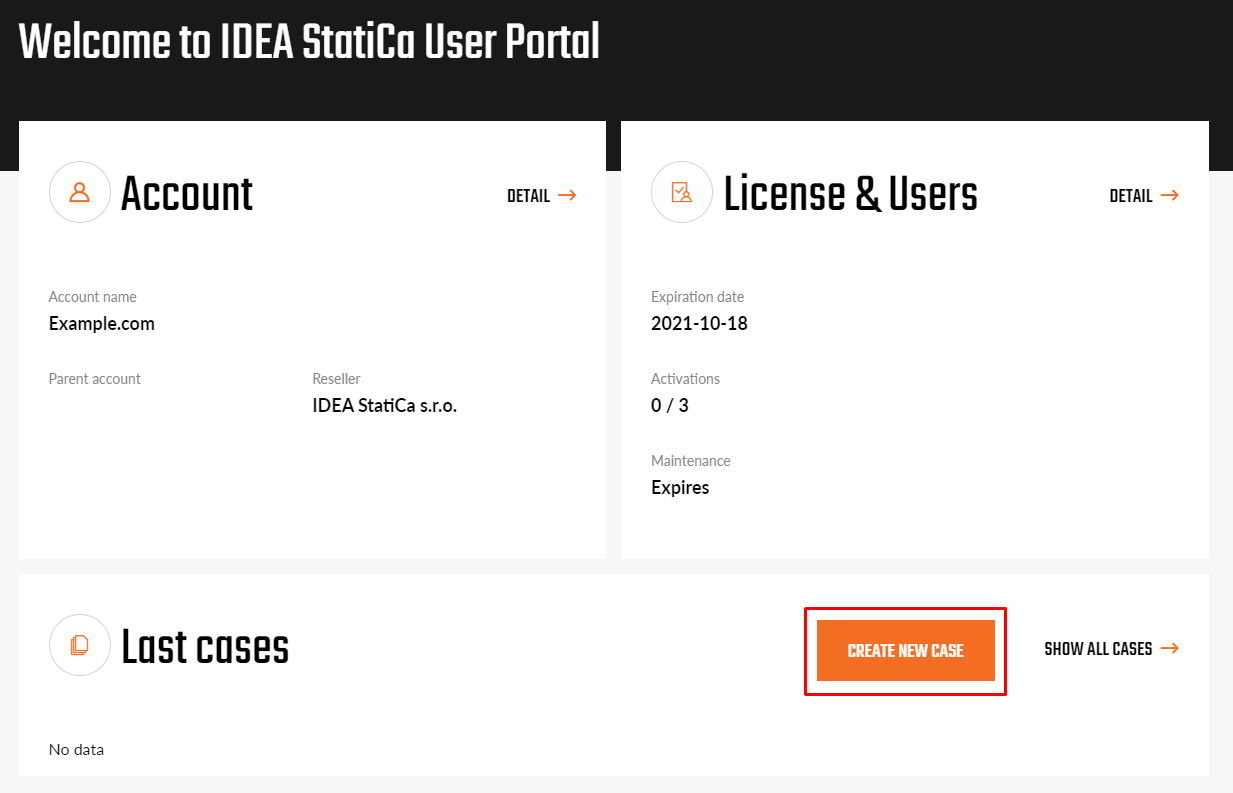
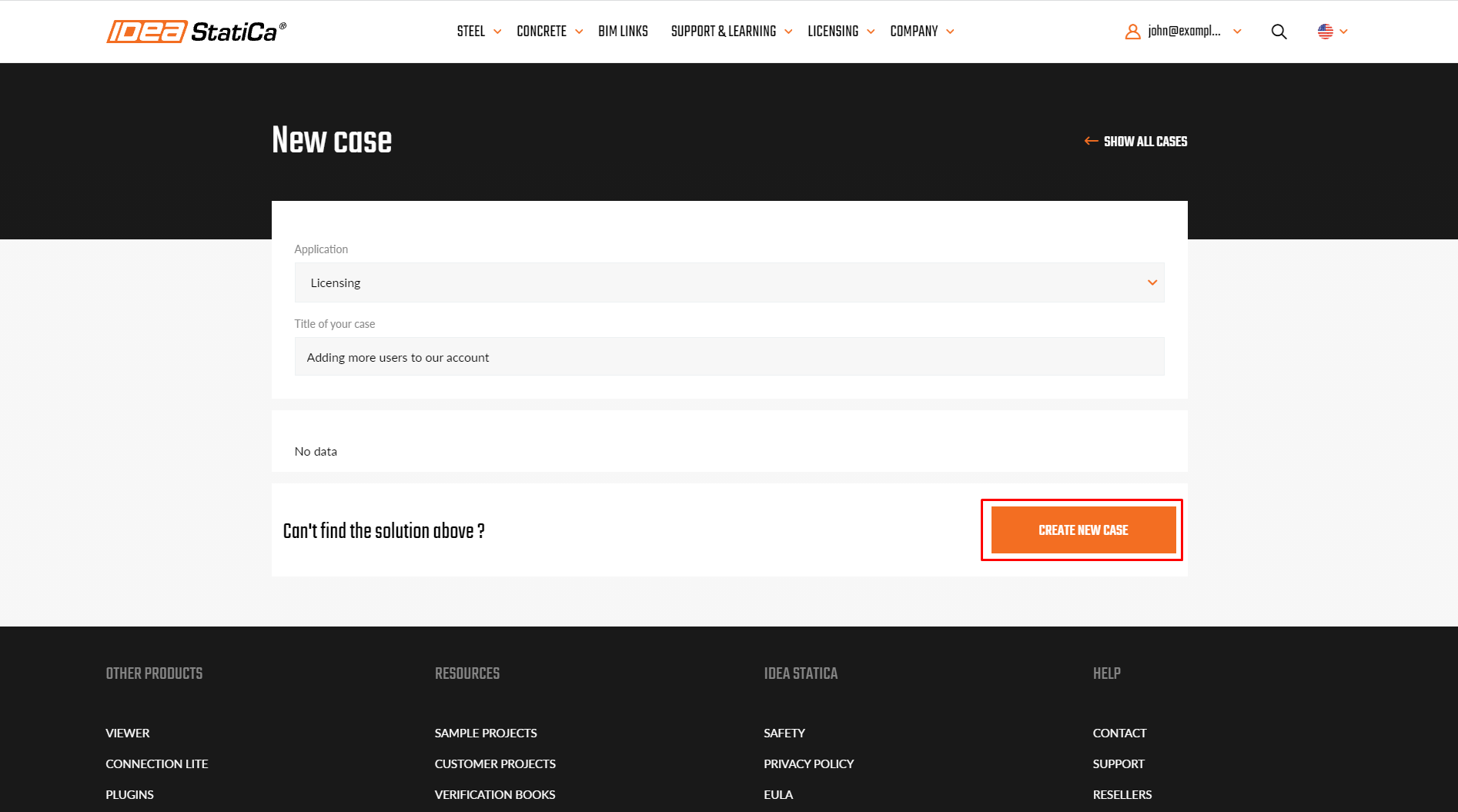
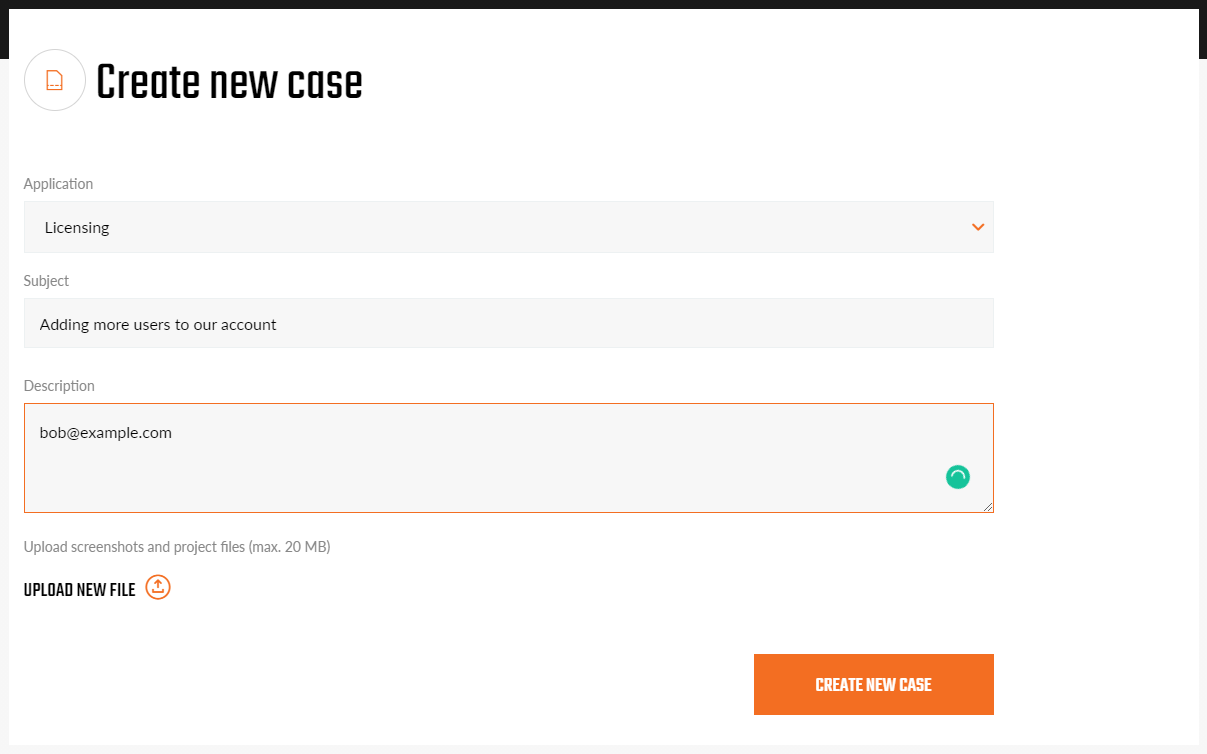
Some users from your organization might be assigned to a different license, usually a trial or an educational license. As each user can be assigned only to one license, you will not able to add this user to your company license. In this case, we need you to contact us with a list of usernames (emails) that you want to link to your license and we will do it for you (at best they share the same domain as your admin email).
This can be done using the button Create a new case.
Do you have more questions? Just go to the Support Center and search for the licensing FAQs and knowledgebase articles.
Enjoy using IDEA StatiCa!