


Some users encounter an error in the report showing a black rectangle or a black stripe when generating the report or in the exported PDF, usually over images. The following steps may help resolve the problem in the report connected to the graphic card.
The black rectangles may appear in the generated Report or later in the printed or exported PDF version.
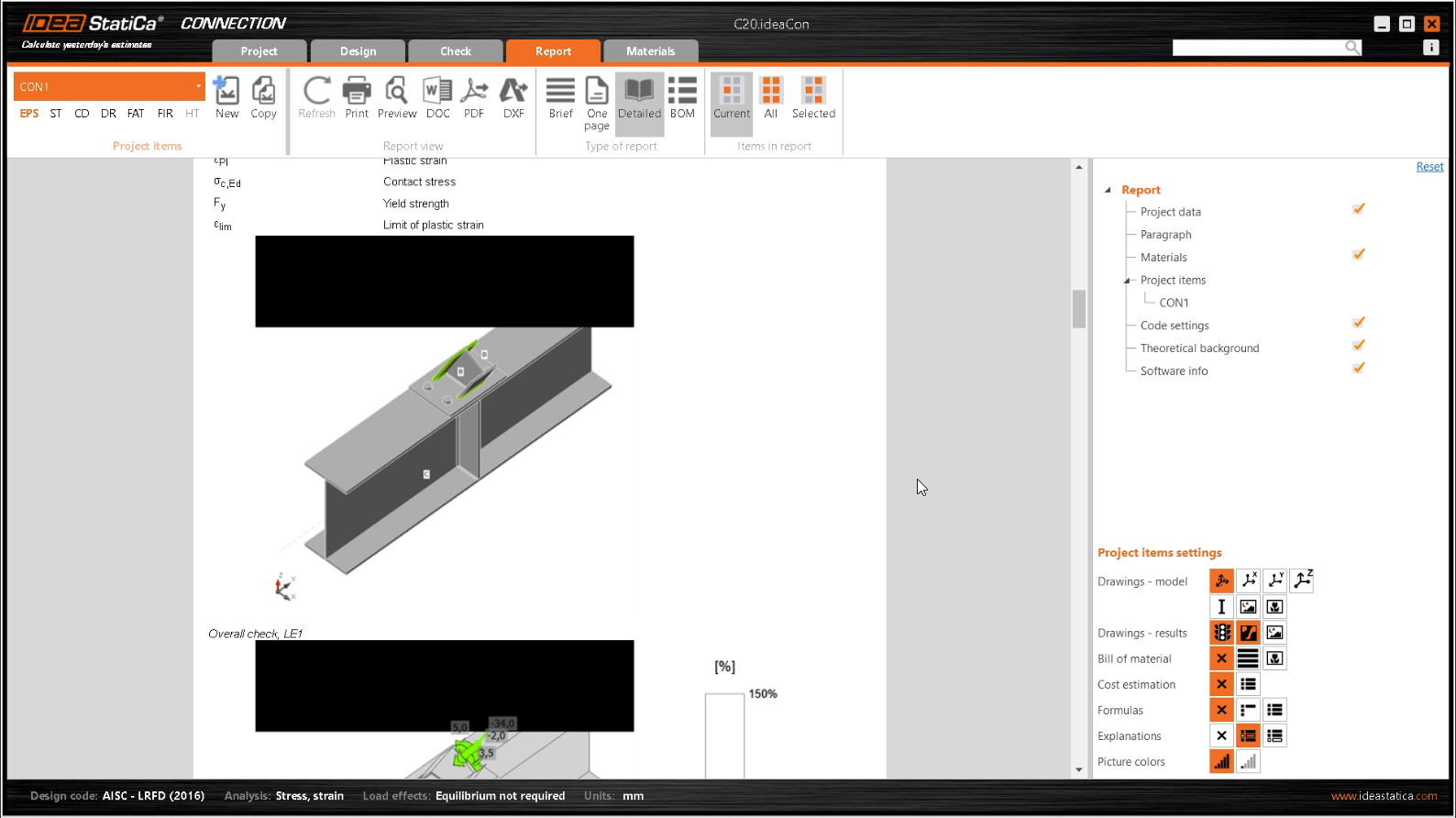
Changing the preferences
To resolve the problem, try these two options under Project - Preferences - 3D scene:
- Turn on/off the Use hardware acceleration setting
- Turn on the Mode for incompatible graphics adapters setting
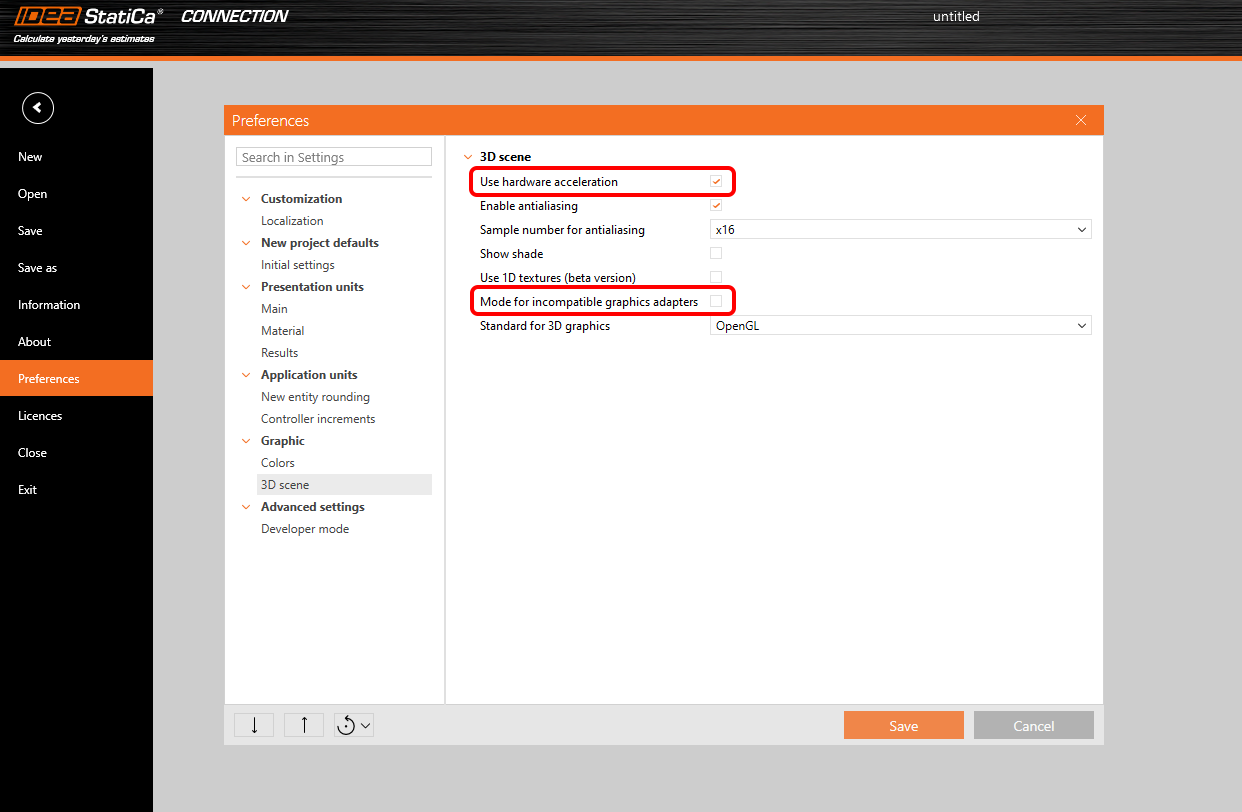
Apply the changes in preferences and try to regenerate the report.
Other solutions
Please check that you use the latest patch of IDEA StatiCa and that your hardware meets the System requirements for IDEA StatiCa.
Another solution is to check the drivers of your graphic card and update them to the latest version.
If this doesn't help, you can create a support case in the User Portal. Always attach the project file and a description of the reported issue. We will also need detailed info about the software and hardware you are using - you can, e.g., follow the steps described in the Use the System Information App for Hardware and Software Environment Details part of the How to Get Detailed Information About Your PC.