
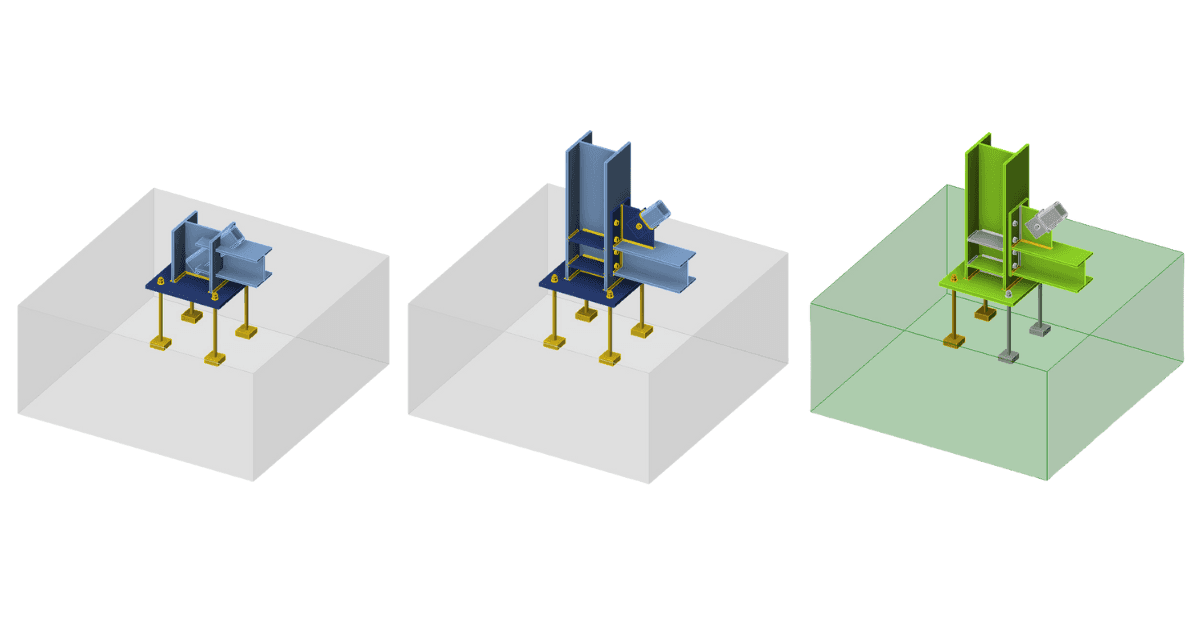


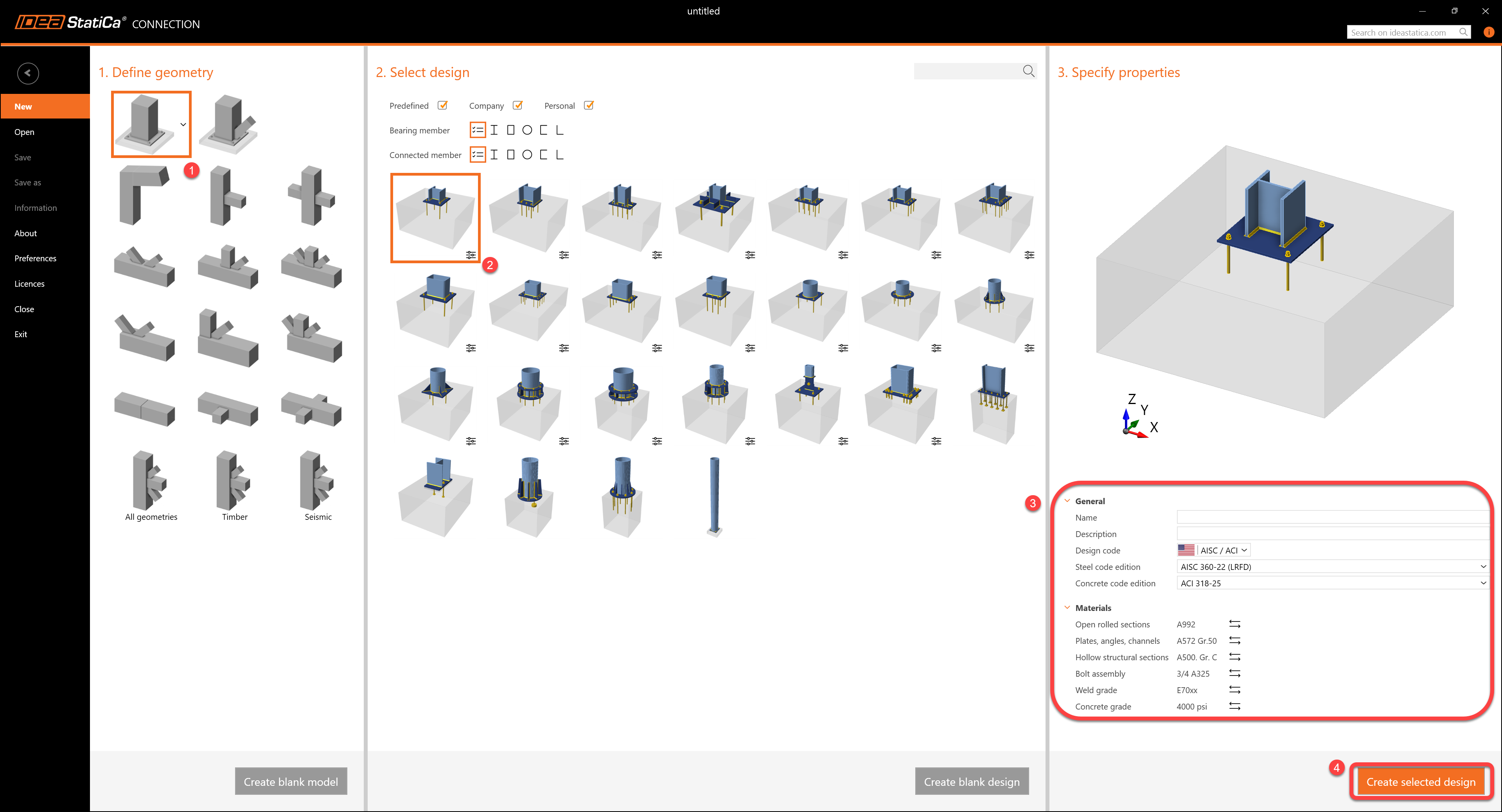
1 New project
Let’s launch IDEA StatiCa and select application Connection. Create a new project by selecting a starting template closest to the desired design, filling in the name, and choosing the design code and default material properties.
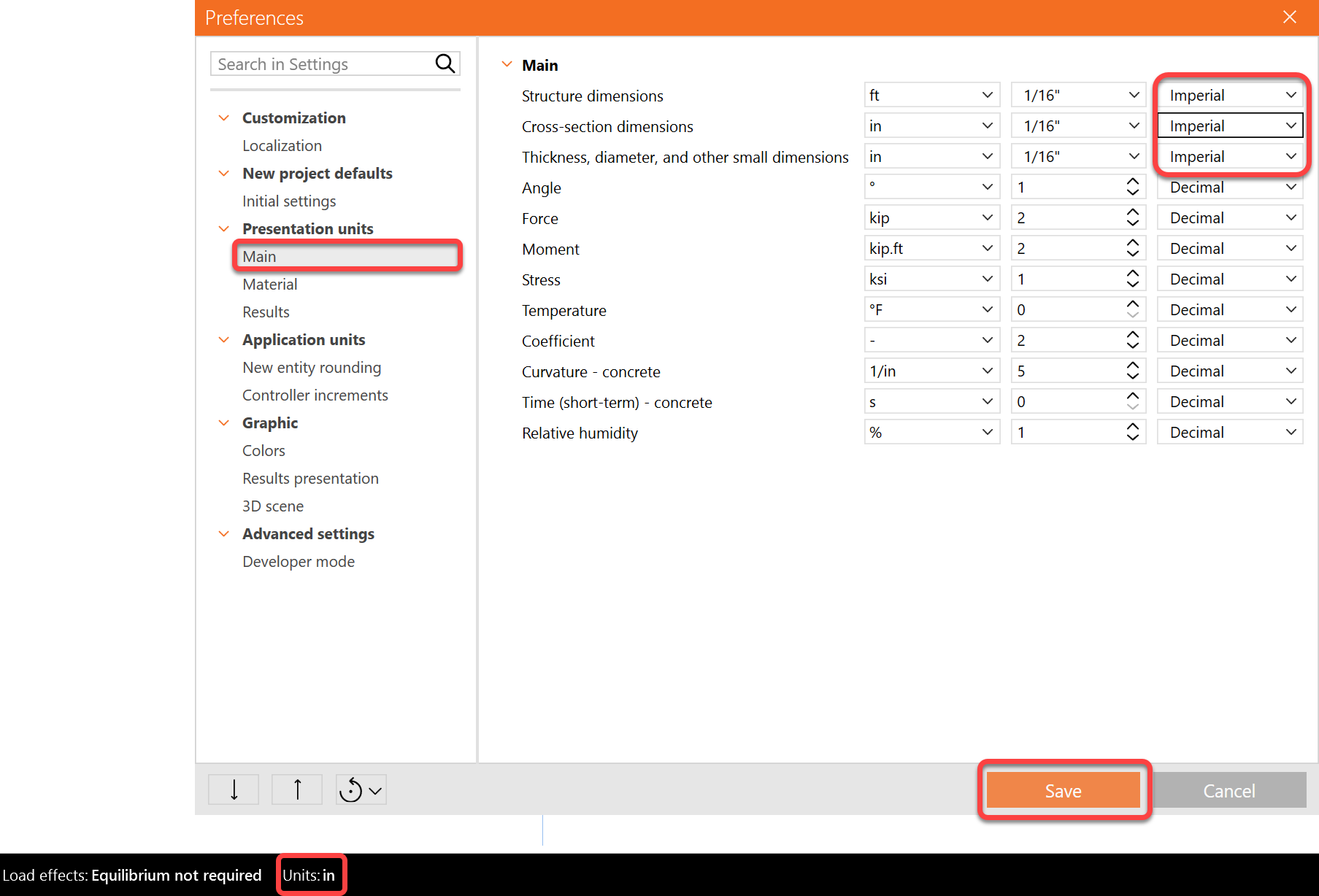
Since you work under the AISC code, set the imperial units (see How to change the system of units).
The example shown here is using the fraction system. You can change the unit type by clicking Units>Presentation units> Change the following three units to "Imperial"
2 Geometry
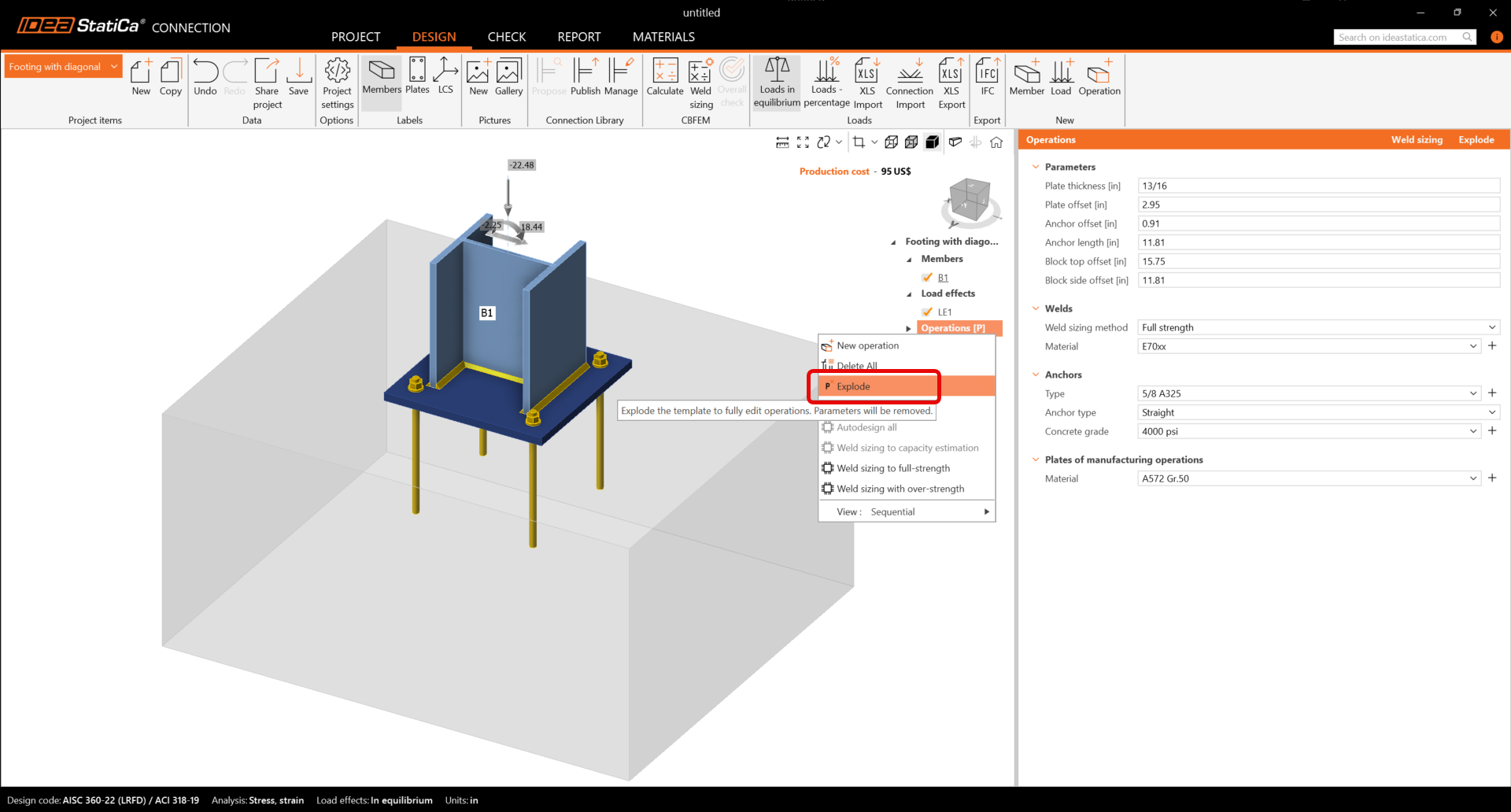
A column and a base plate with anchors were automatically added. Before continuing, make sure to explode the parametric template as shown below.
First, change the cross-section of the column.
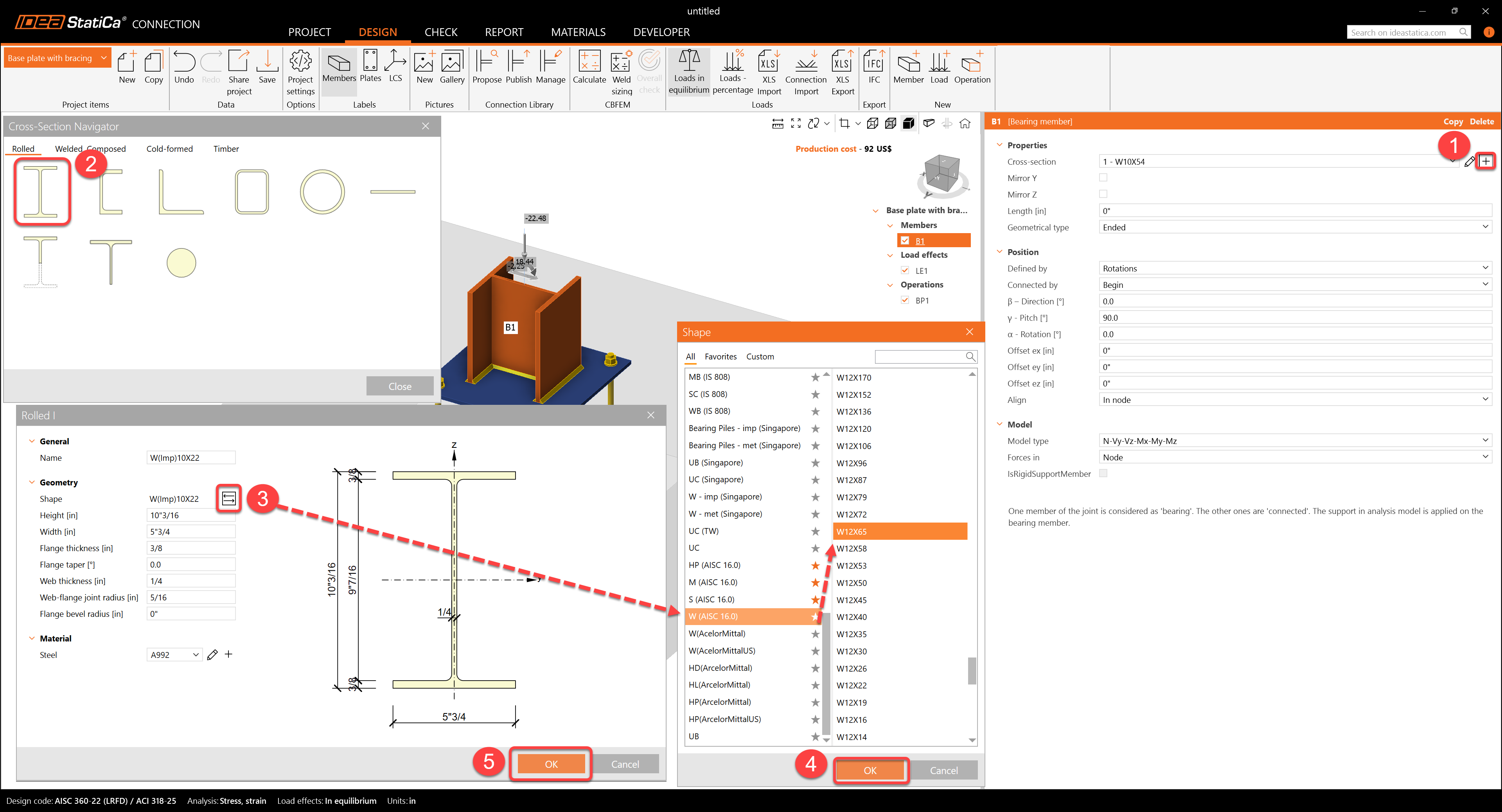
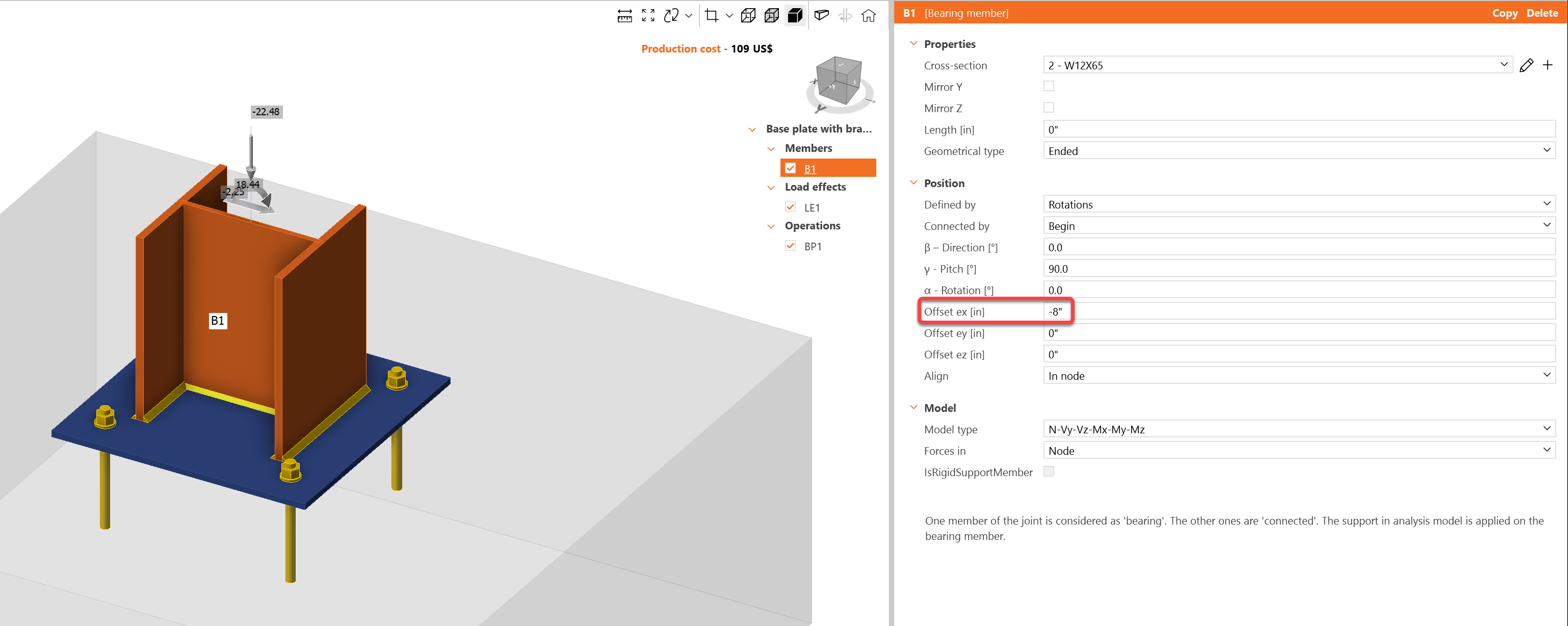
And modify its offset in the ex direction.
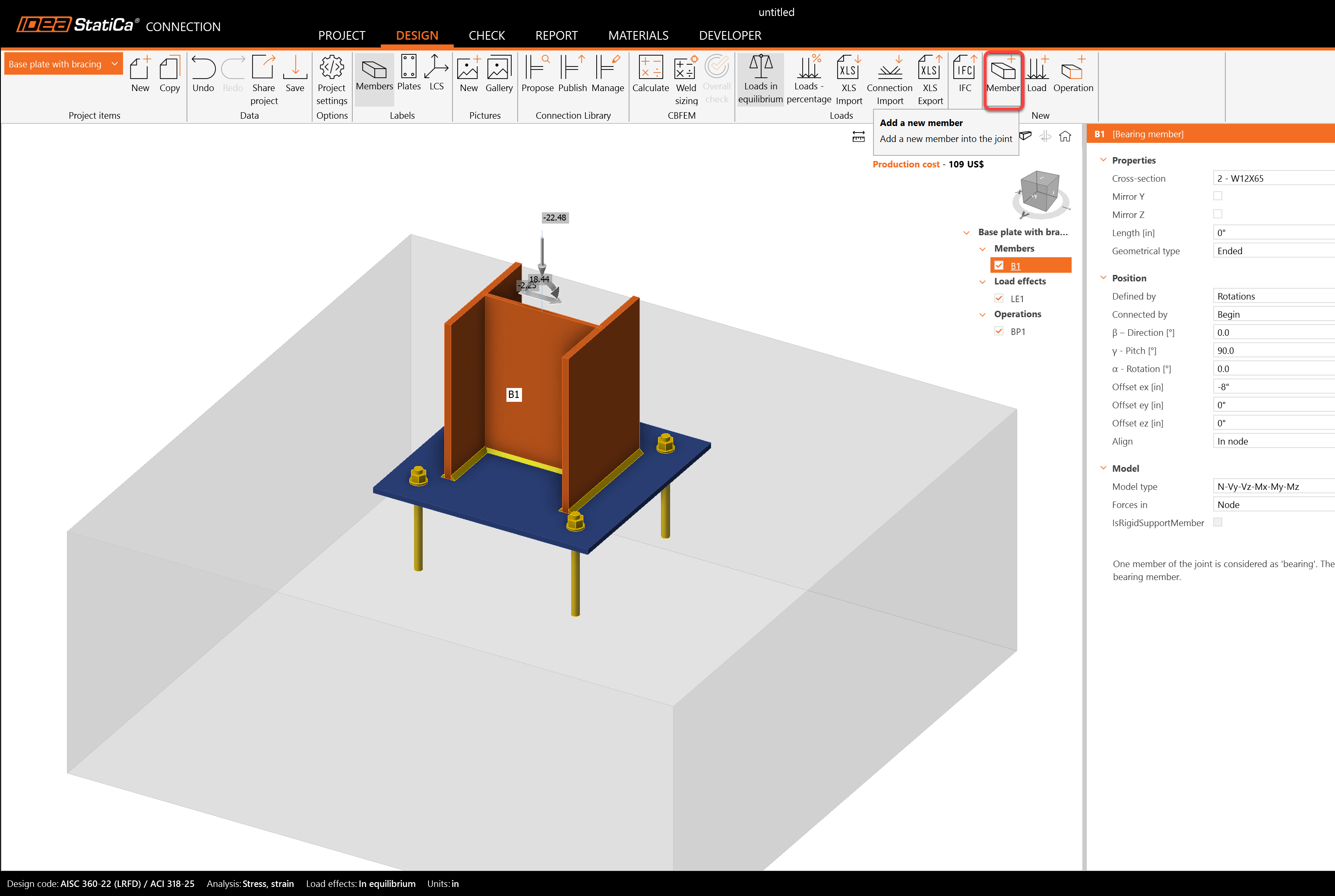
Then add a new member.
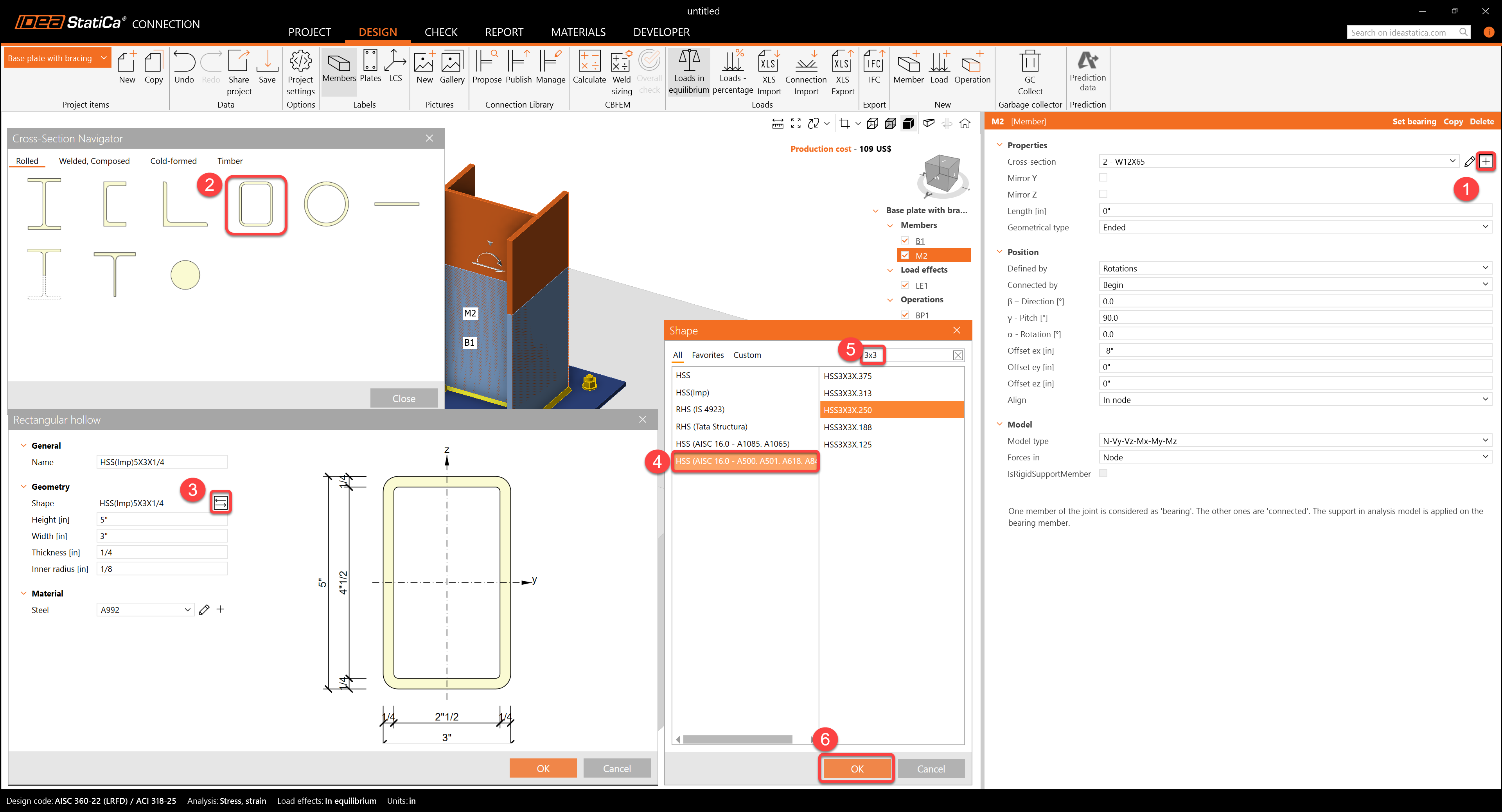
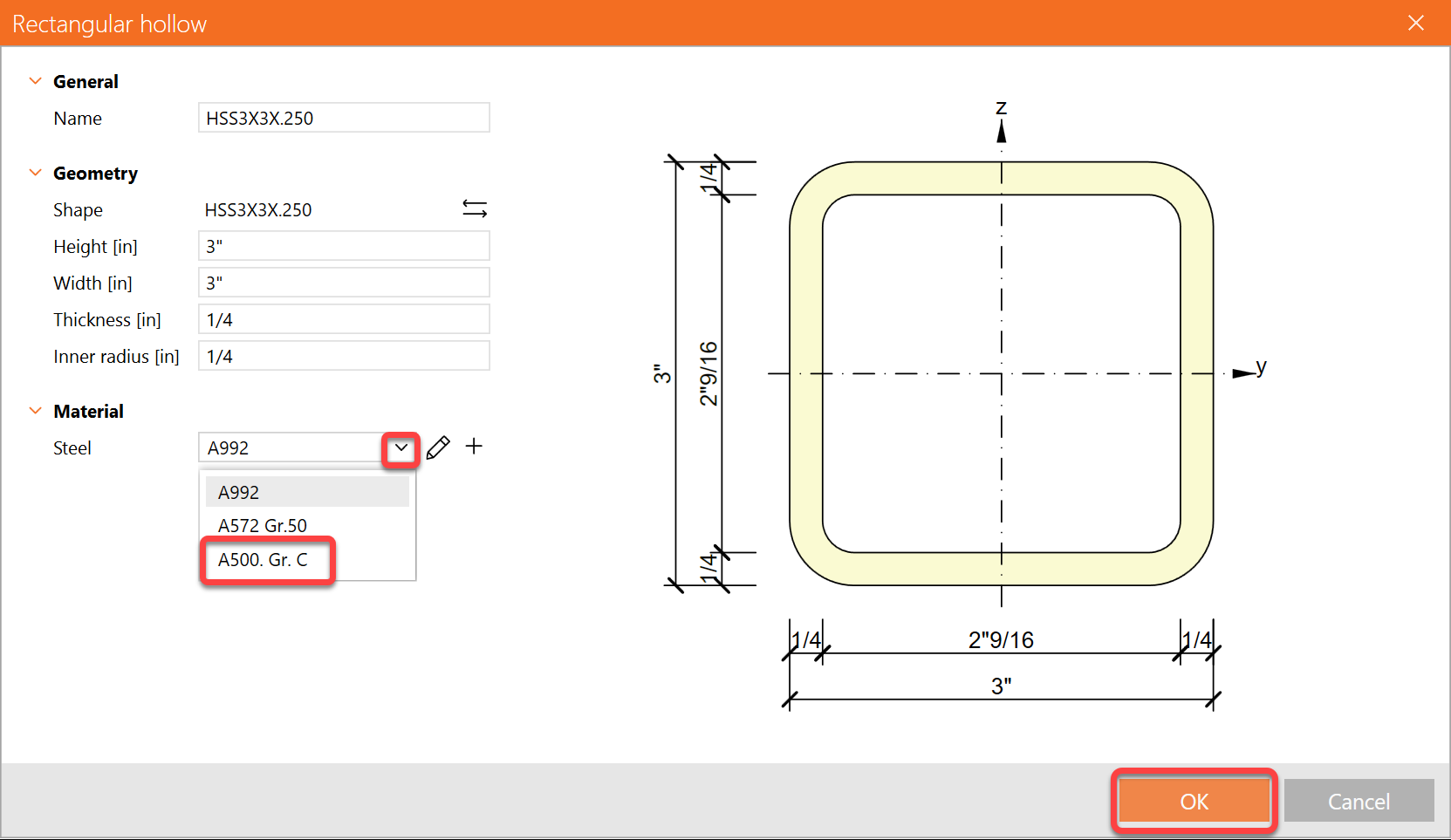
And change its cross-section to HSS3X3X1/4 and material to A500 Grade C shaped
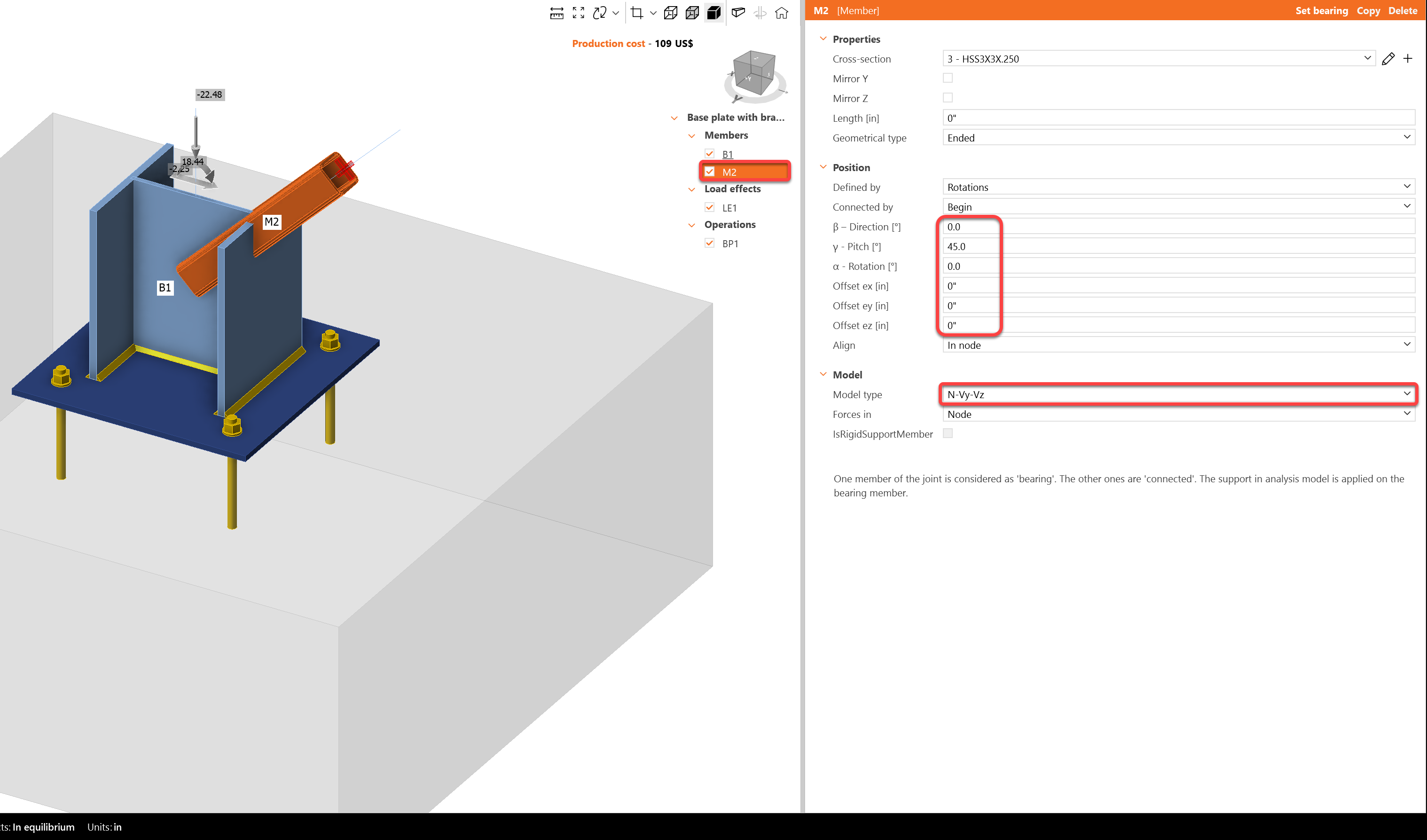
Change the member pitch angle and set the model type to N-Vy-Vz since this member will act in tension/compression only as a pinned bracing diagonal.
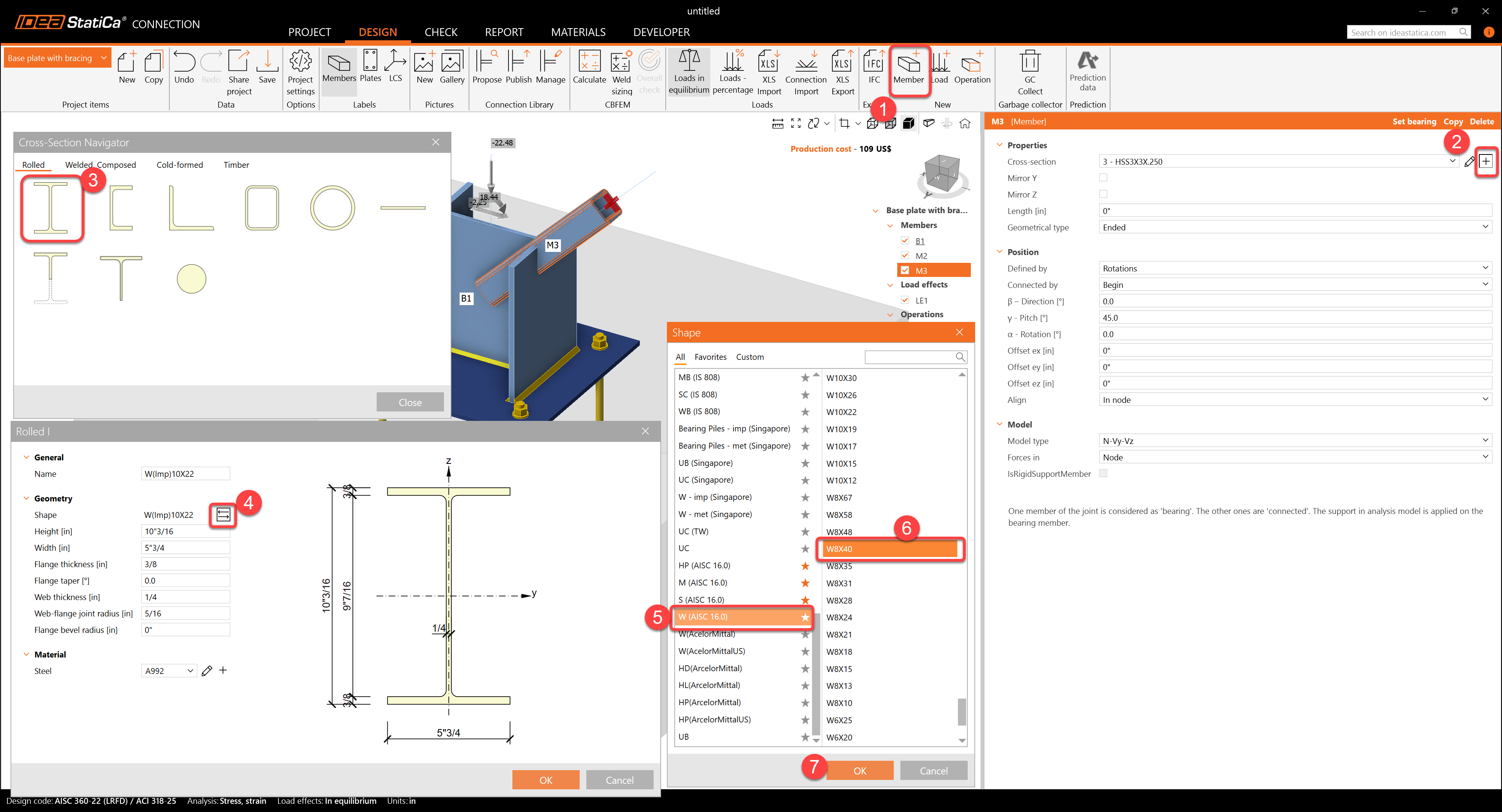
Add another member, change its cross-section to W8X40, and modify its properties.
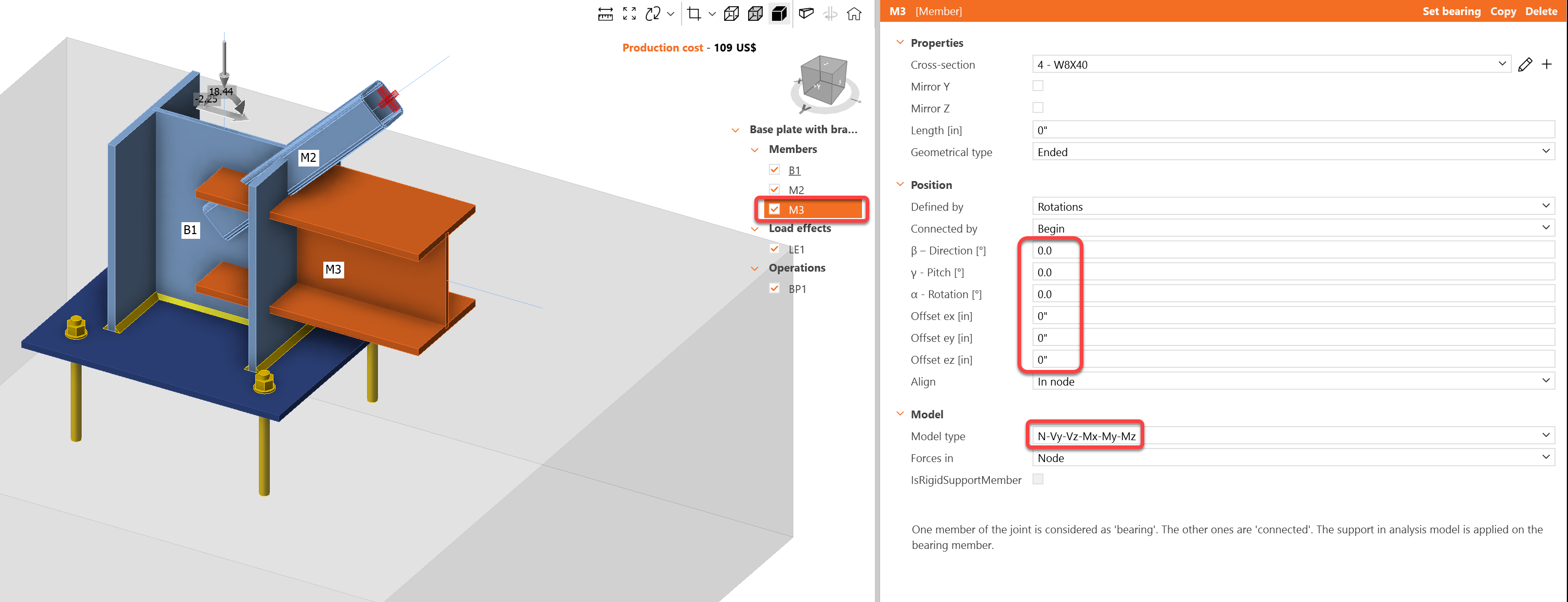
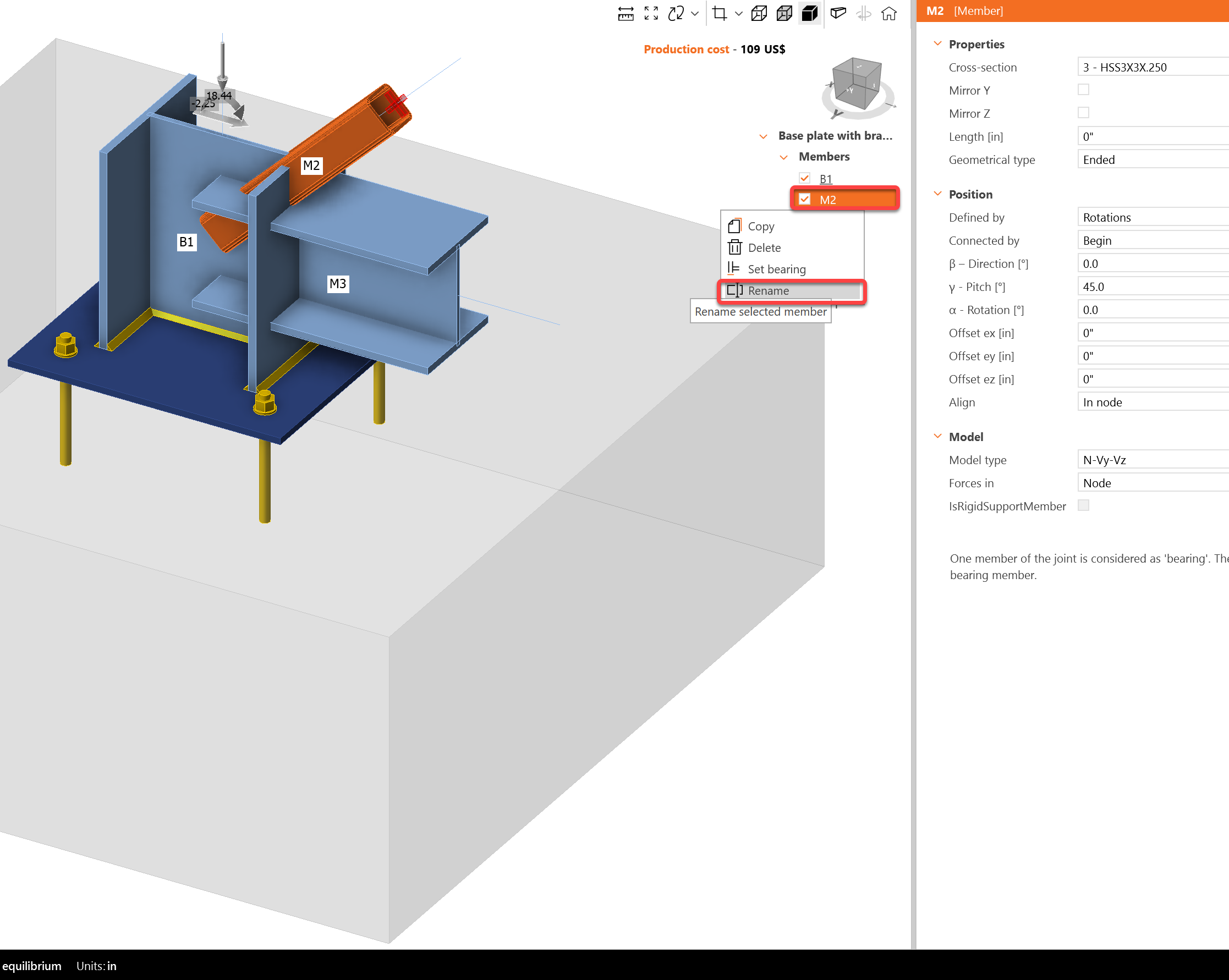
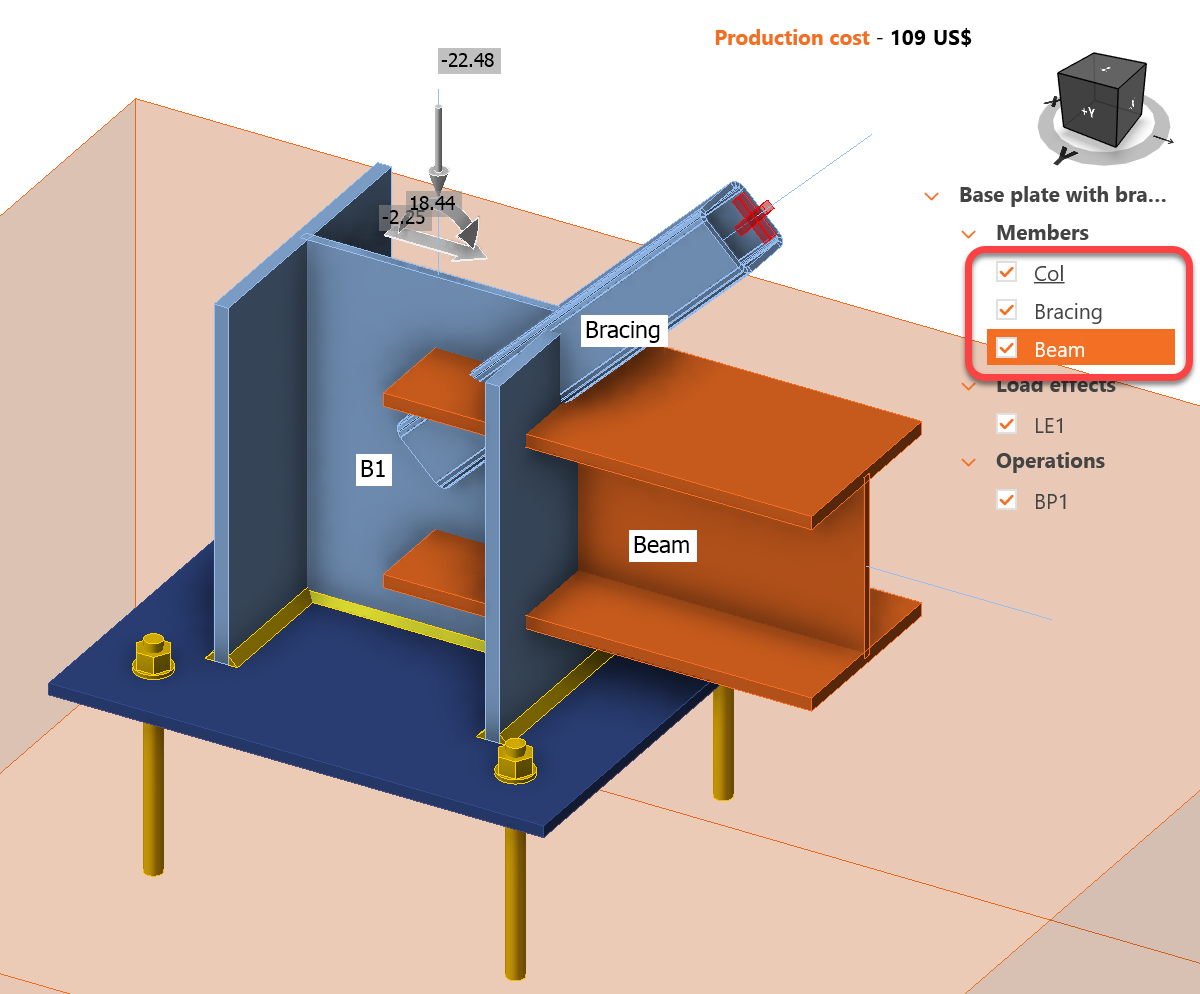
Check the geometry of all added members. Also, the members can be renamed. Right-click on the member name and select Rename.
3 Load effects
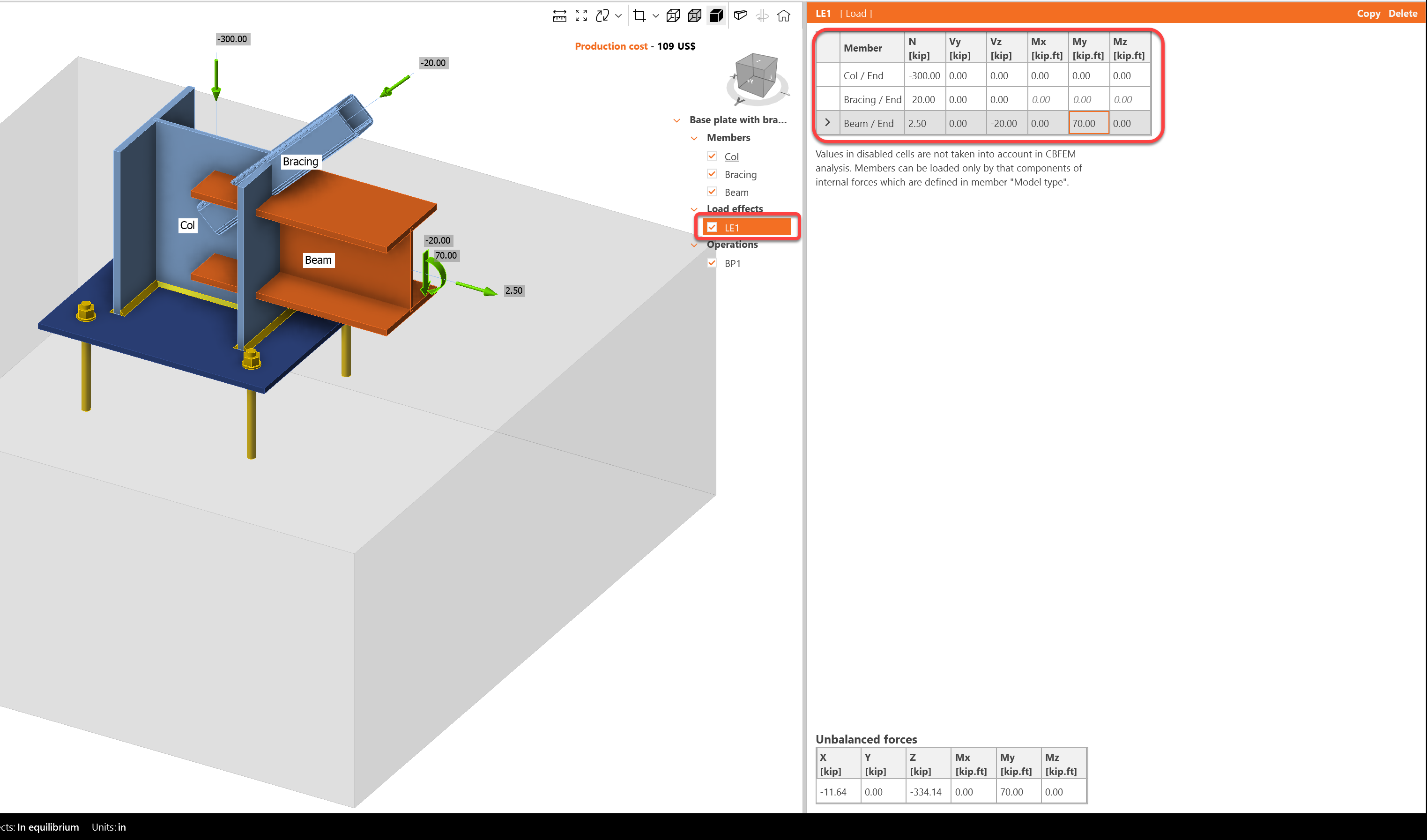
One load effect was automatically added. Input the values of internal forces into the chart. More load cases can be added.
4 Design
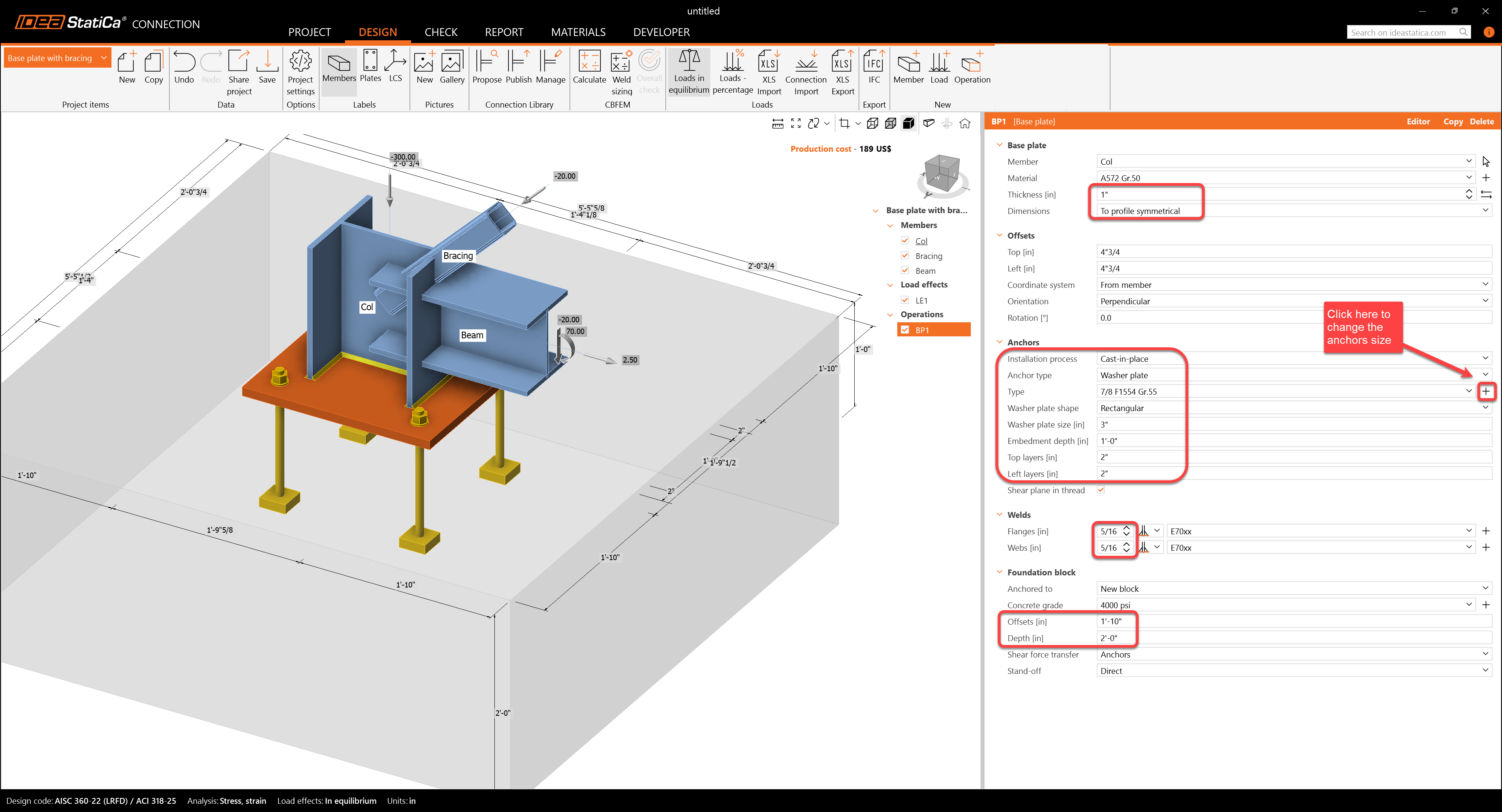
The manufacturing operation Base plate was already added. Just update some of its properties.
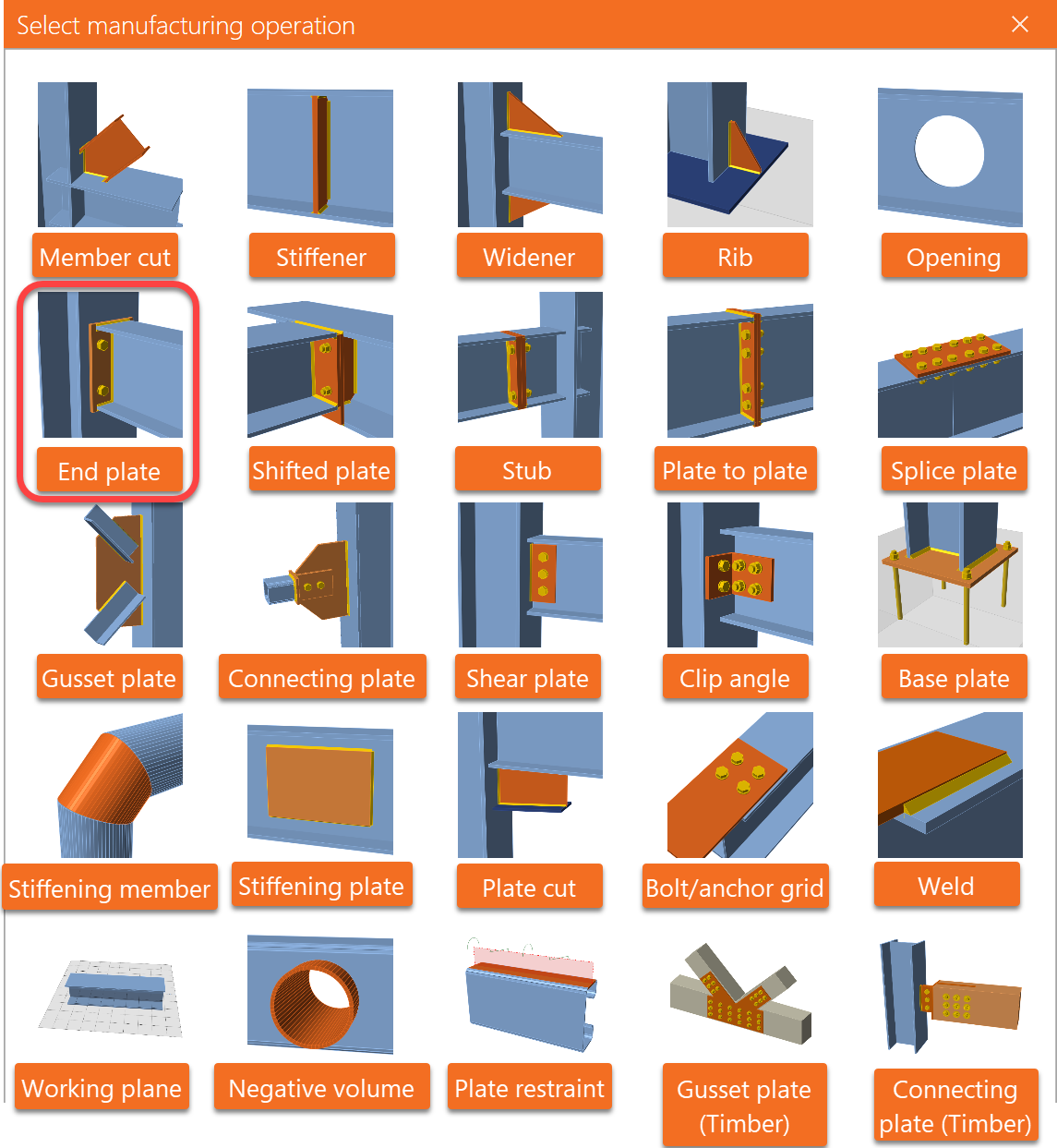
Go ahead and add another manufacturing operation, then select the End Plate.

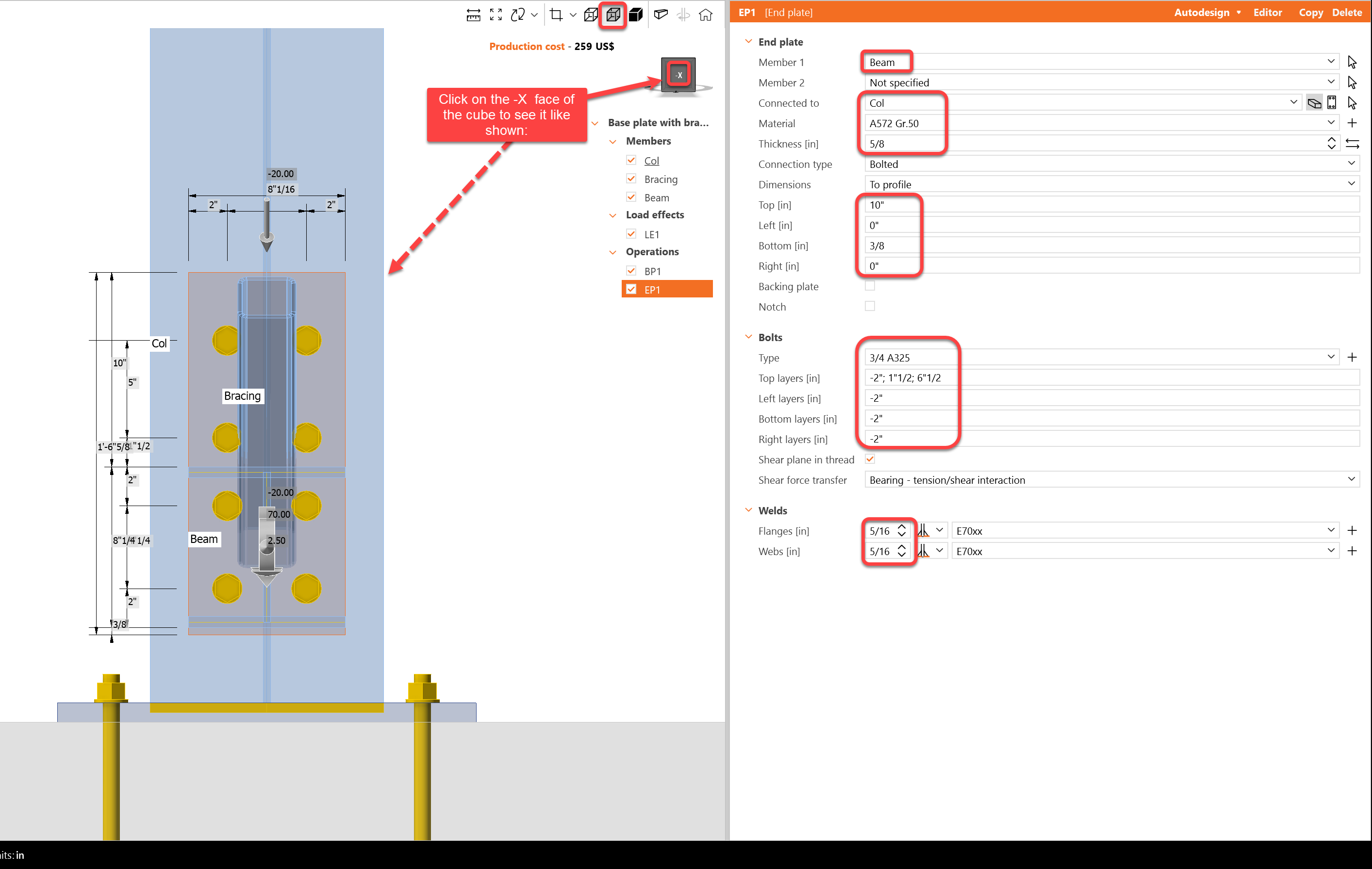
Modify the properties of the operation EP1.
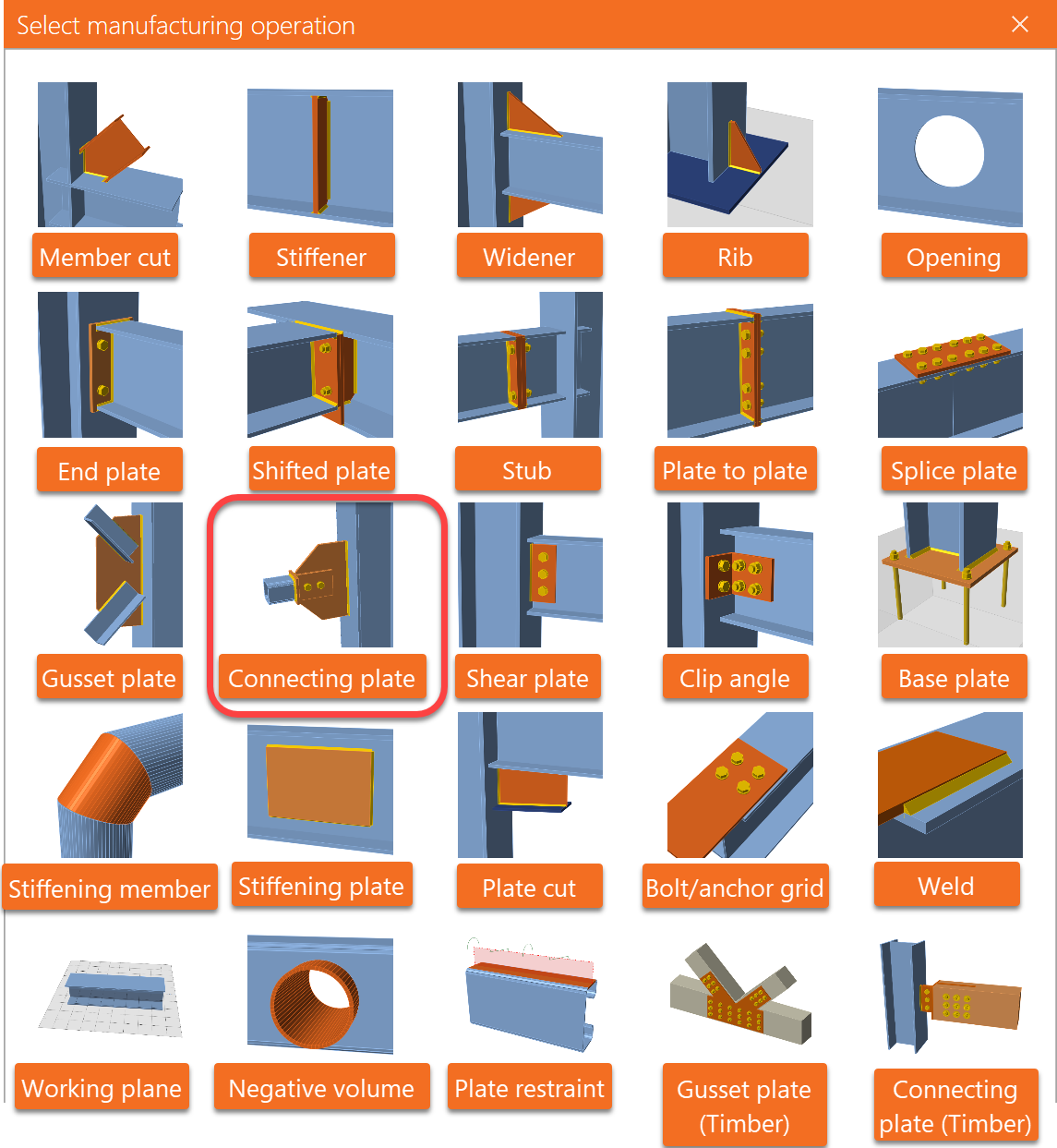
Now, add the Connecting Plate.

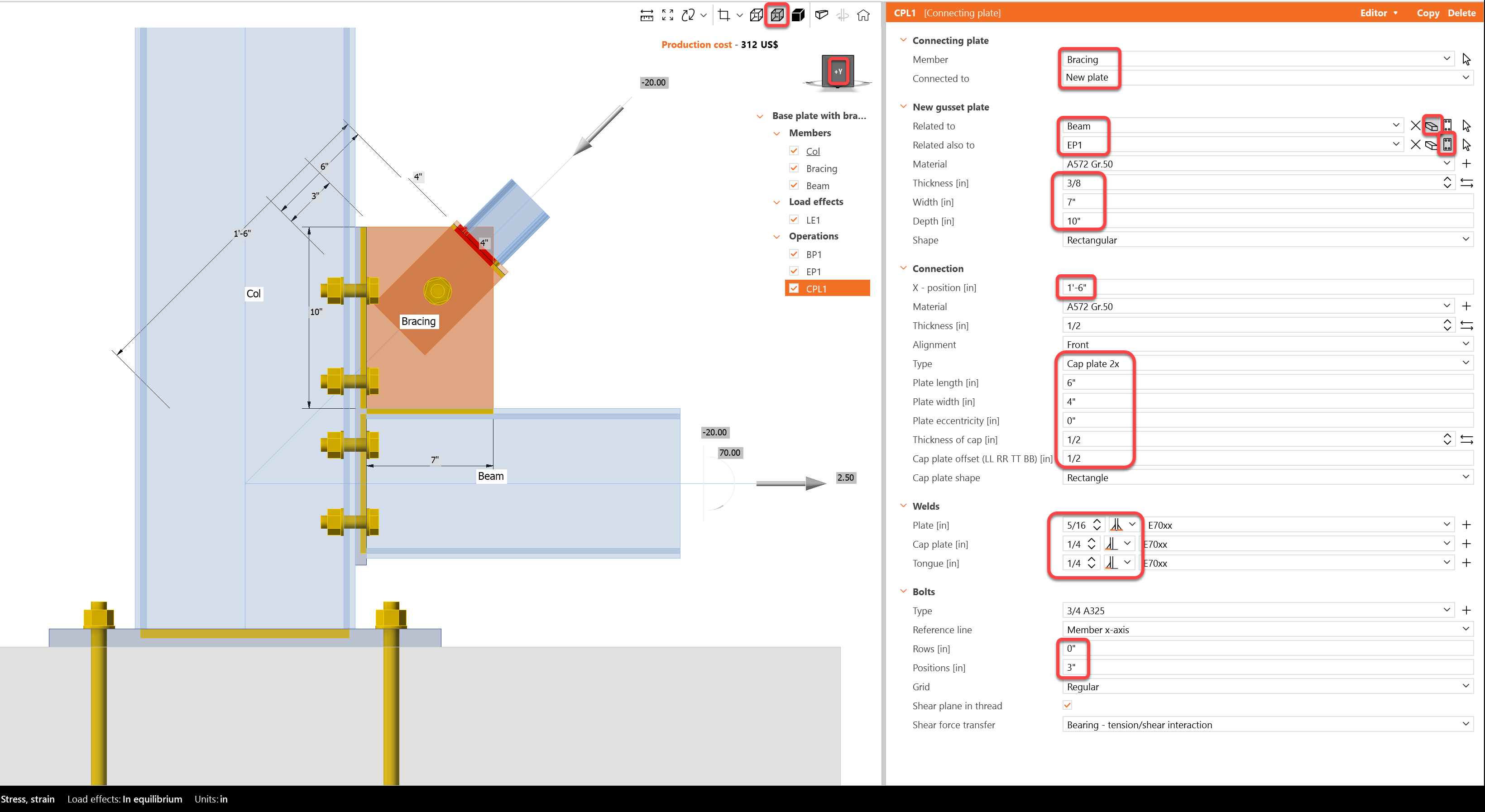
And redefine its properties.
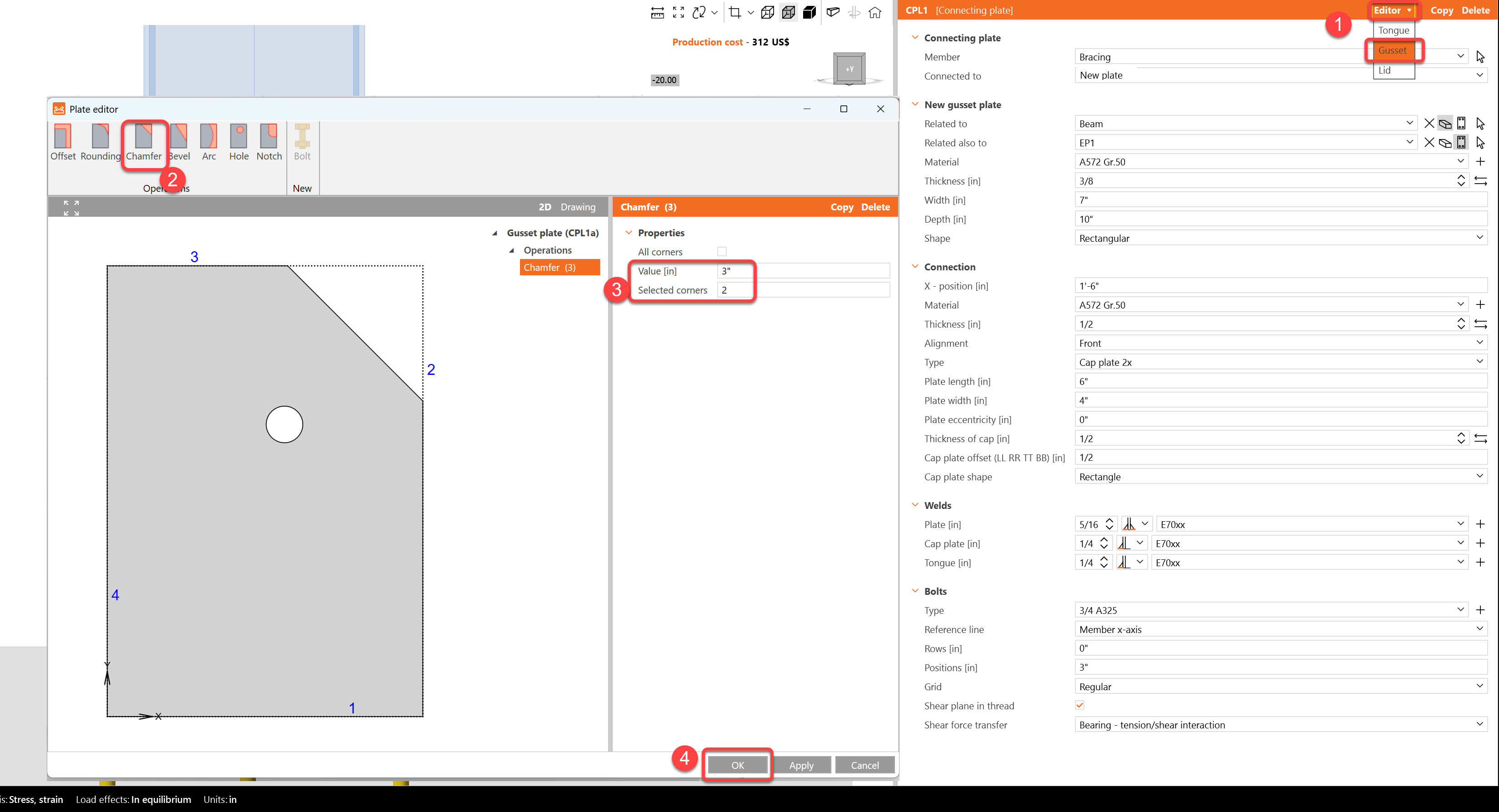
Next, cut one corner of the connecting plate CPL1. For this, go to the Editor - Gusset plate and create a Chamfer at corner number 2.
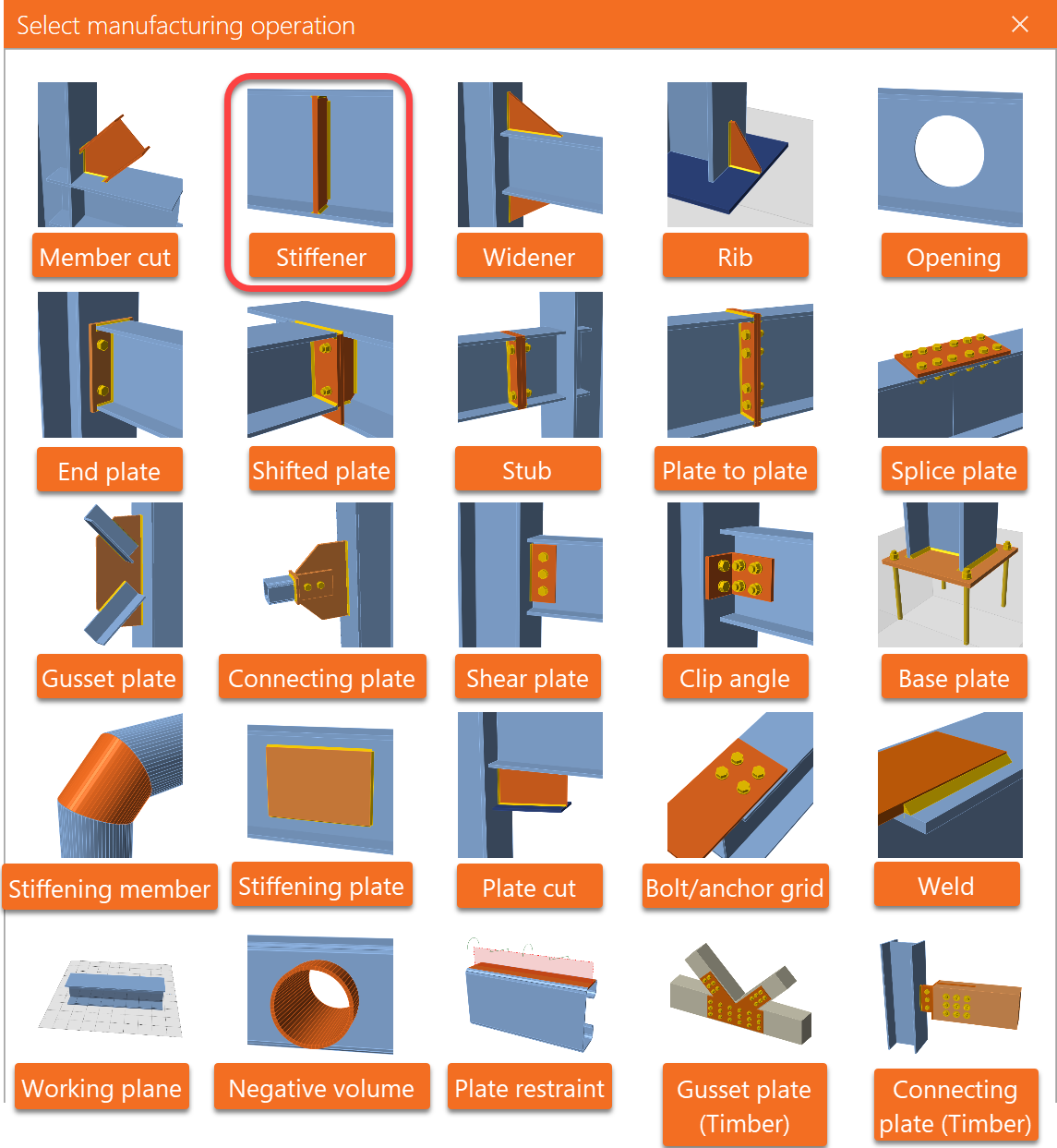
Finish the design with the operation Stiffener.
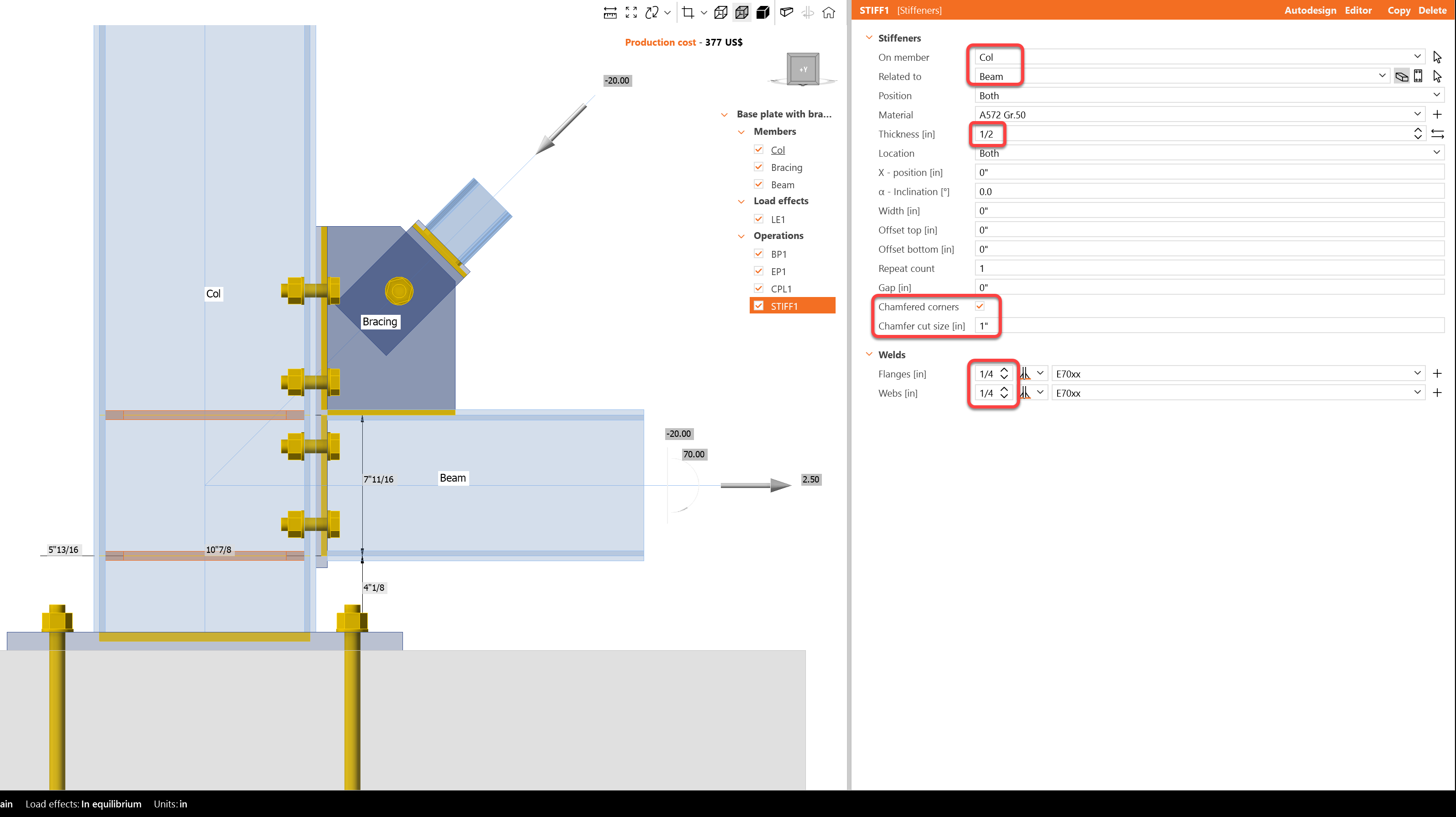
And set the correct properties of STIFF1.
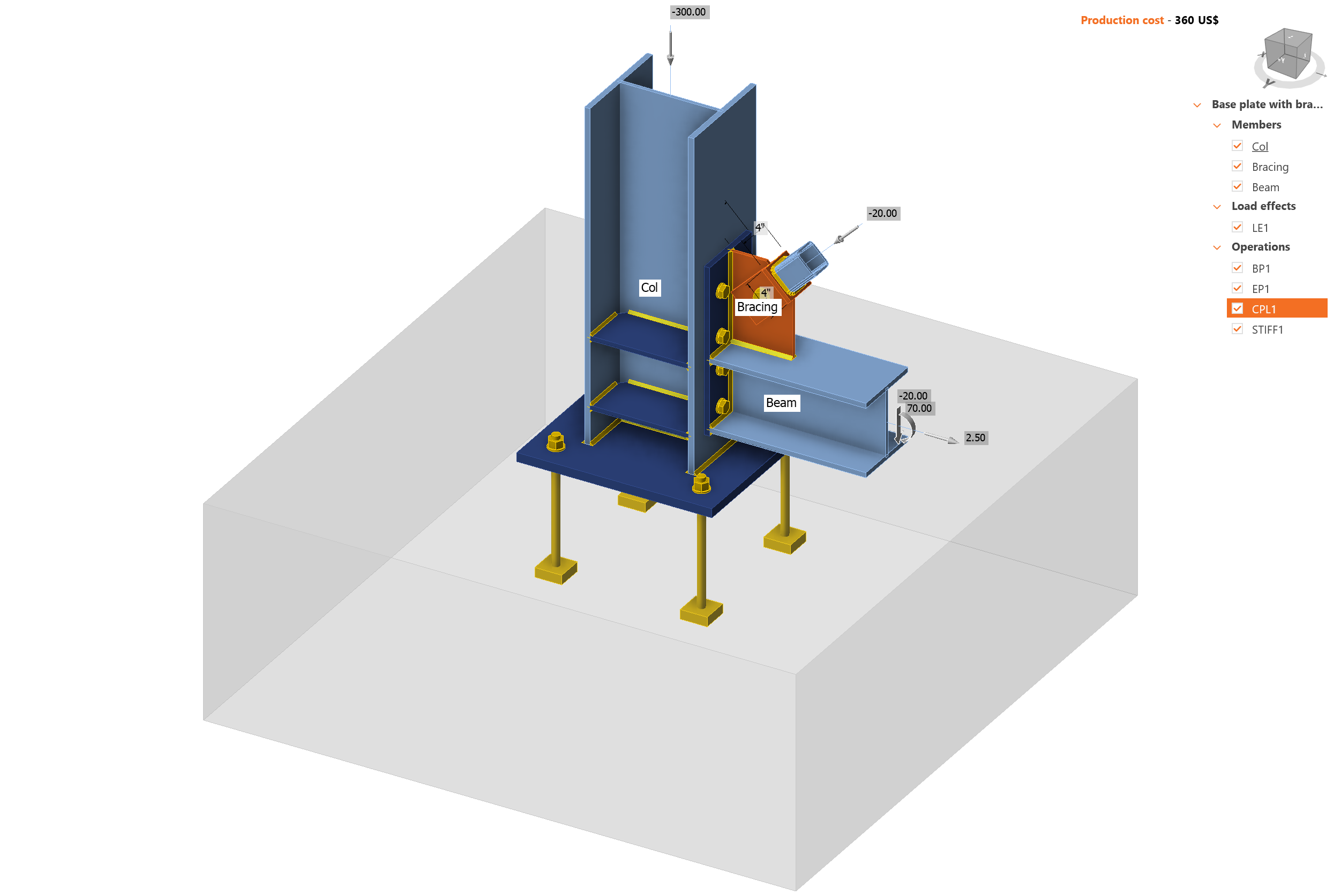
Let’s check the final design of the joint. Press Ctrl keyboard + mouse scroll wheel at the same time to rotate the 3D model and review the design
5 Calculation and Check
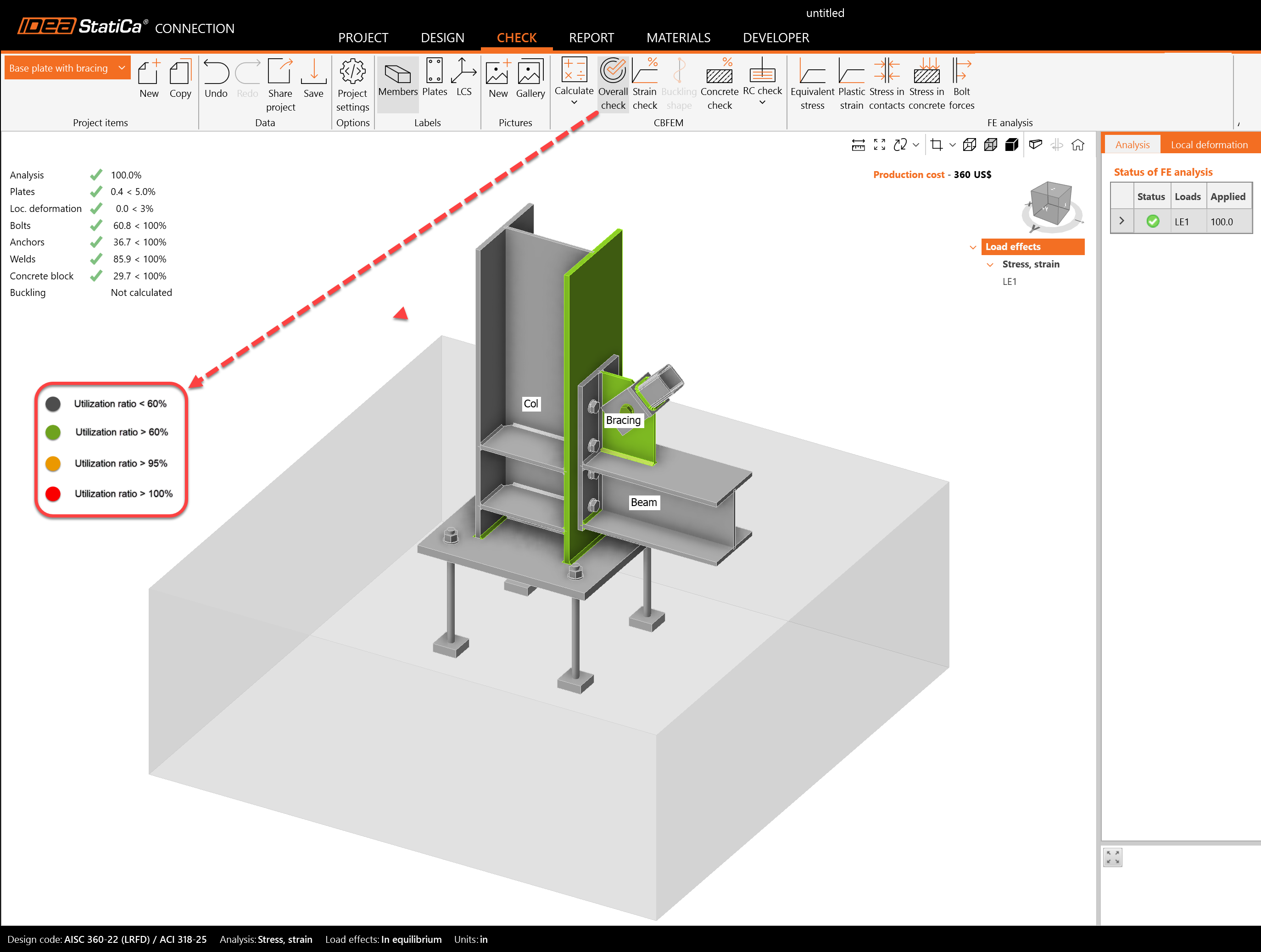
Start the analysis by clicking Calculate in the ribbon. The analysis model is automatically generated, the calculation based on CBFEM is performed, and we can see the Overall check displayed together with the fundamental values of check results.
The overall view summarizes the status of the components' design using a traffic color system. This view makes it easier to identify the failing elements.
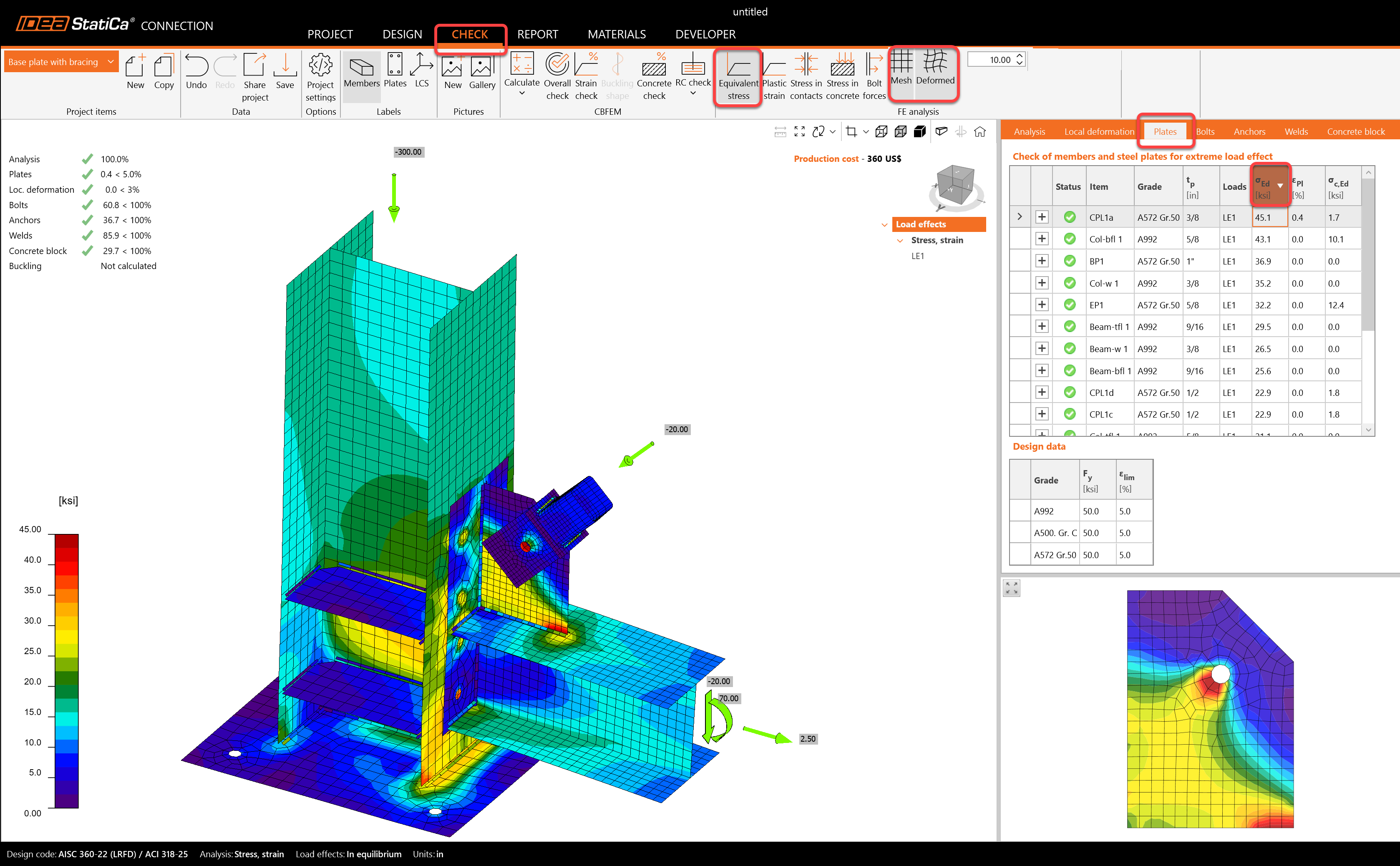
It is important to review the deformation of the model due to the applied loads, and equivalent stress values:
- Deformed icon
- Mesh icon
- Plates tab> Click on the equivalent stress cell to sort the values from highest to lowest:
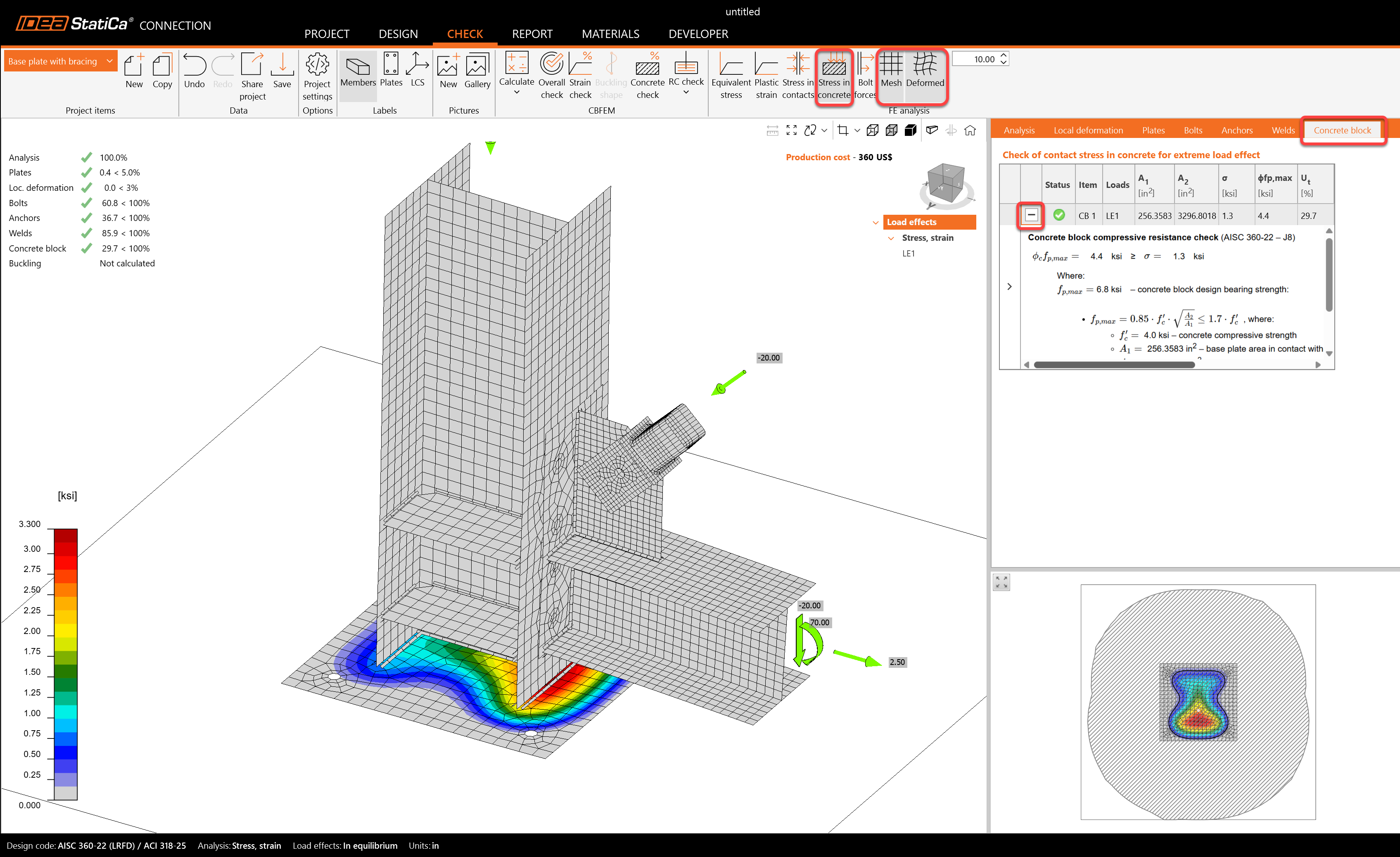
Go to the display tab Check, and activate Stress in concrete and Mesh from the ribbon to get a complete picture of what is happening in the joint. Open the tab Concrete block to see the detailed results for this item.
6 Report
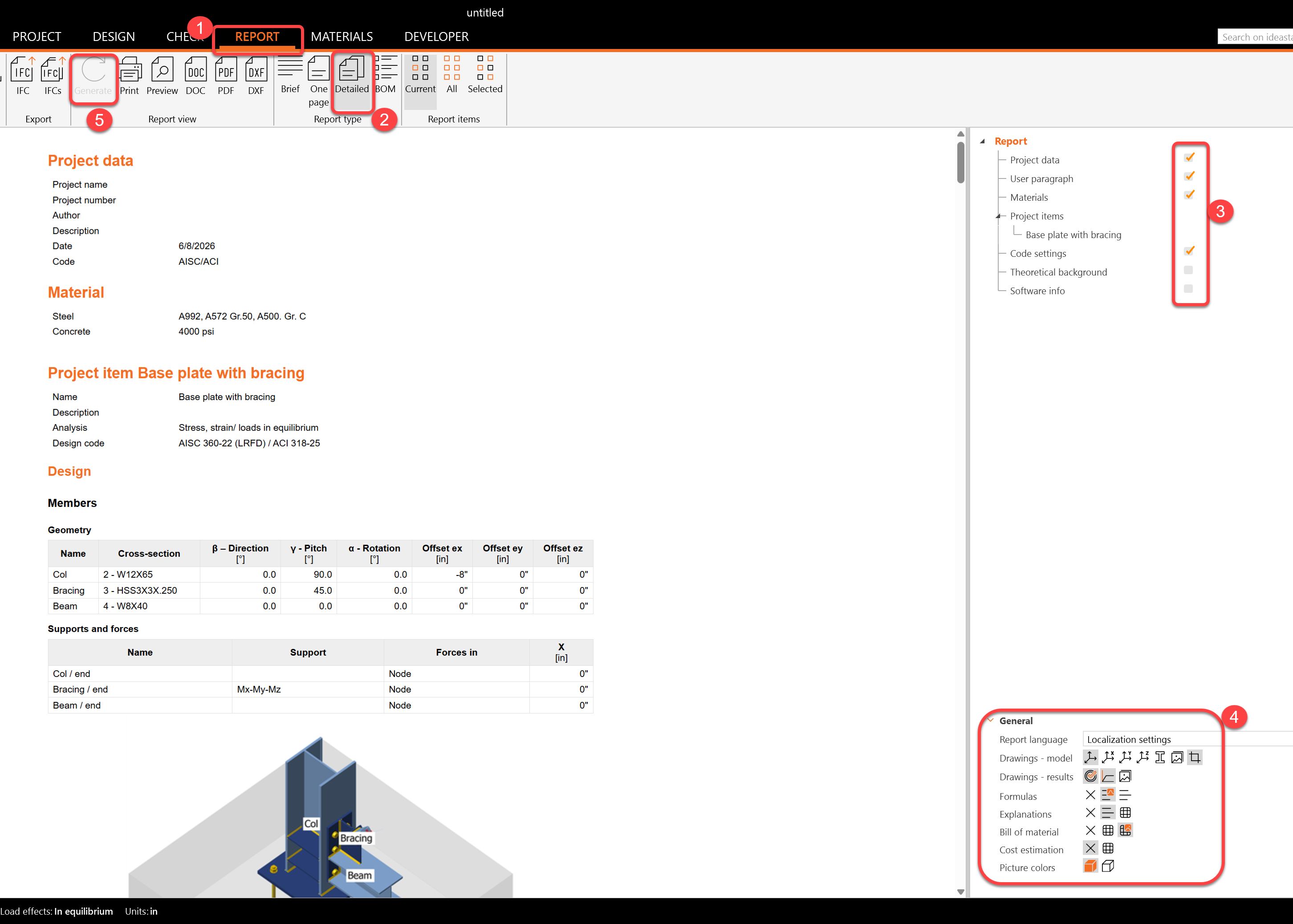
At last, go to the tab Report. IDEA StatiCa offers a fully customizable report to print out or save in an editable format.
You have designed, optimized, and code-checked a structural steel joint according to AISC.
Learn how to use IDEA StatiCa effectively with our self-paced e-learning courses
Start learning

