
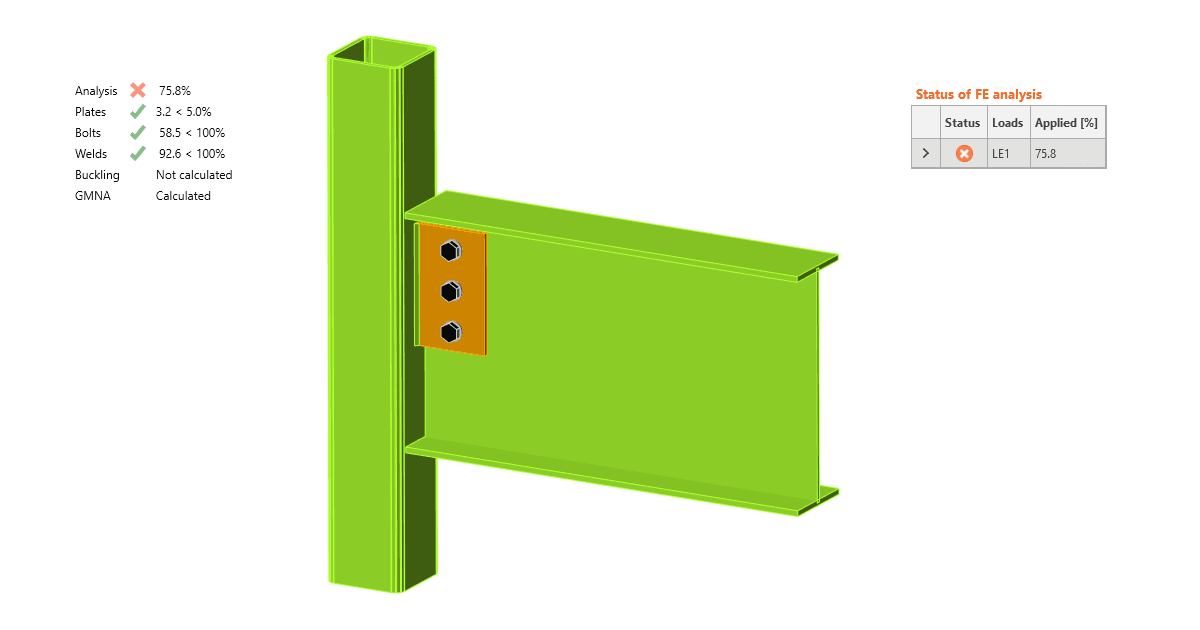


Analysis may also stop because of a singularity. Read more about singularities in What is the singularity warning.
Stop at limit strain
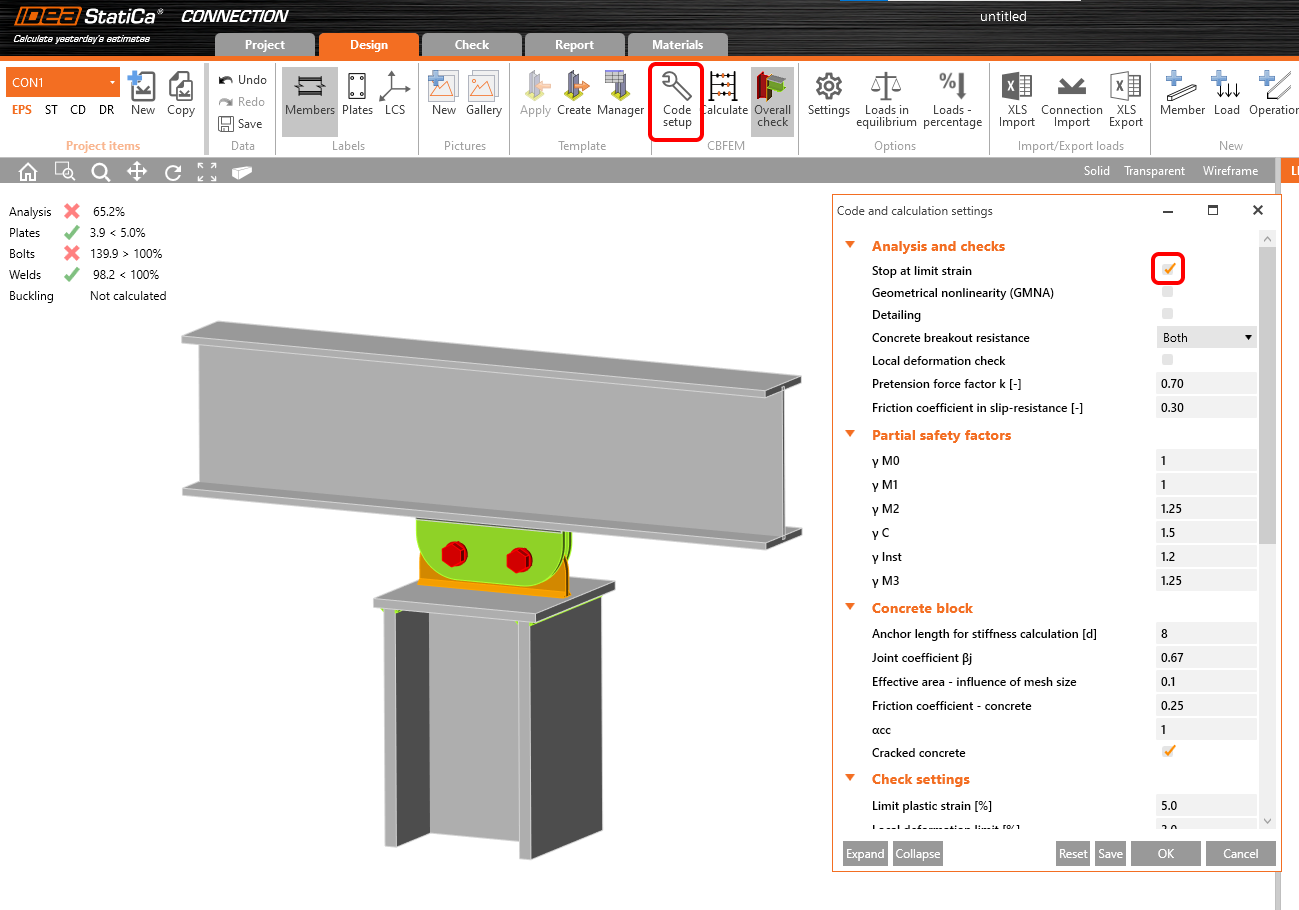
In the Code setup, there is an option to activate the Stop at limit strain feature. If this is turned on, the analysis halts when the capacity of any part of the connection (e.g., a plate, a weld, etc.) is reached. In case the connection is overloaded, the analysis stops before the inputted load effects are fully applied and the actual percentage of used loads is displayed.
Too complex joint
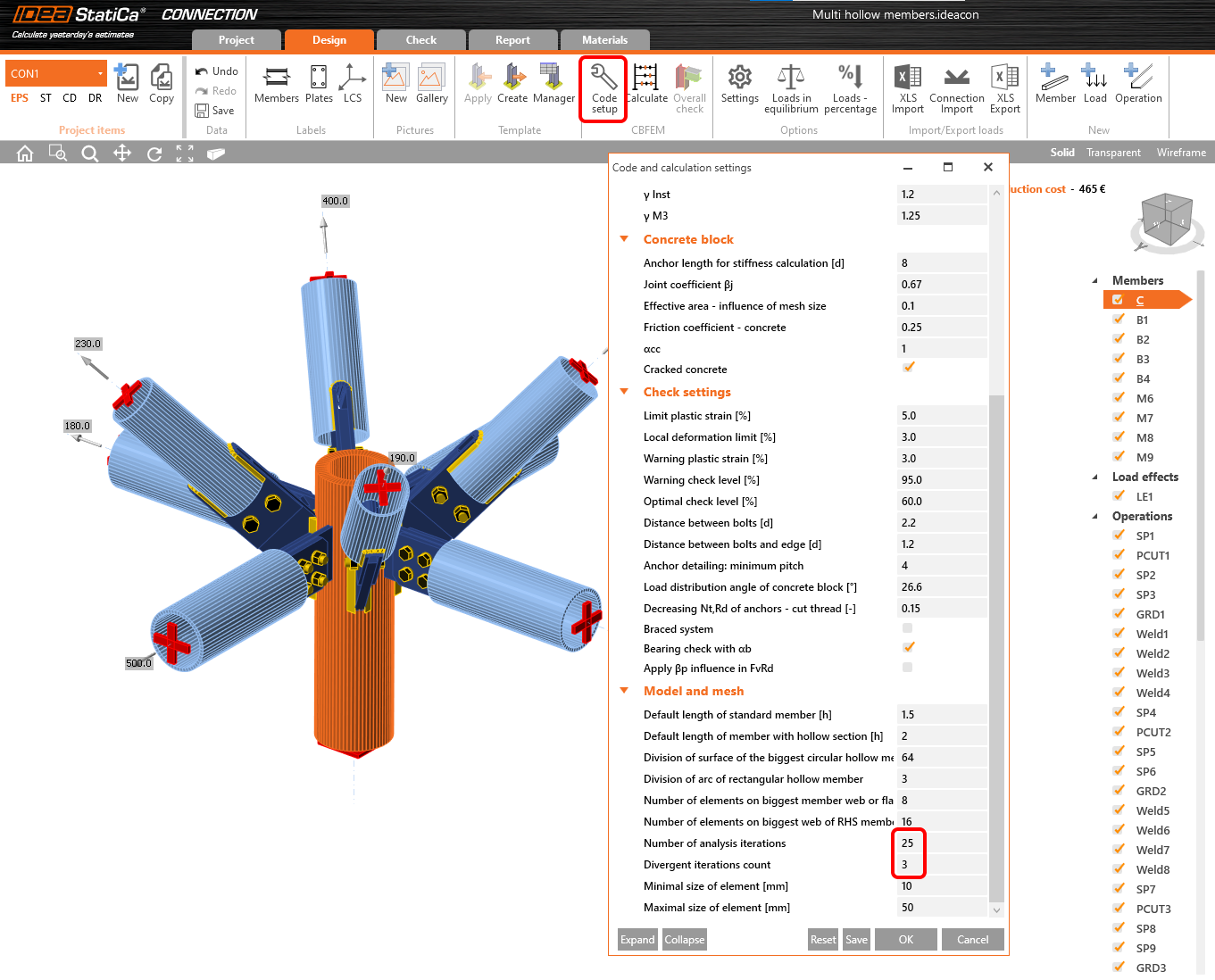
When the joint model is very complex, the default capacity of the finite element analysis might not be sufficient, resulting in the analysis 0%. In such a case, the calculation capacity can be adjusted to enable the analysis to be completed.
In the Code setup, raise the values of the Number of analysis iterations from default value 25 to higher (e.g., 50) and the Divergent iterations count from default value 3 to higher (e.g., 5). This adds to the calculation capacity but also results in the calculation taking longer.
Geometrical nonlinearity (GMNA)
GMNA means advanced geometrically nonlinear analysis, which provides more precise results for models mainly with hollow section members. The GMNA solver is used only when the bearing member has a hollow section. GMNA analysis can be turned on/off in the Code setup.
Note: If the bearing member is not a hollow section, the GMNA solver is disabled for the analysis of the whole connection model regardless of the settings in the code setup (GMNA on or off).
When the connection is overloaded, the hollow sections might lose stability, which results in a break of the analysis at the current percentage of applied loads.
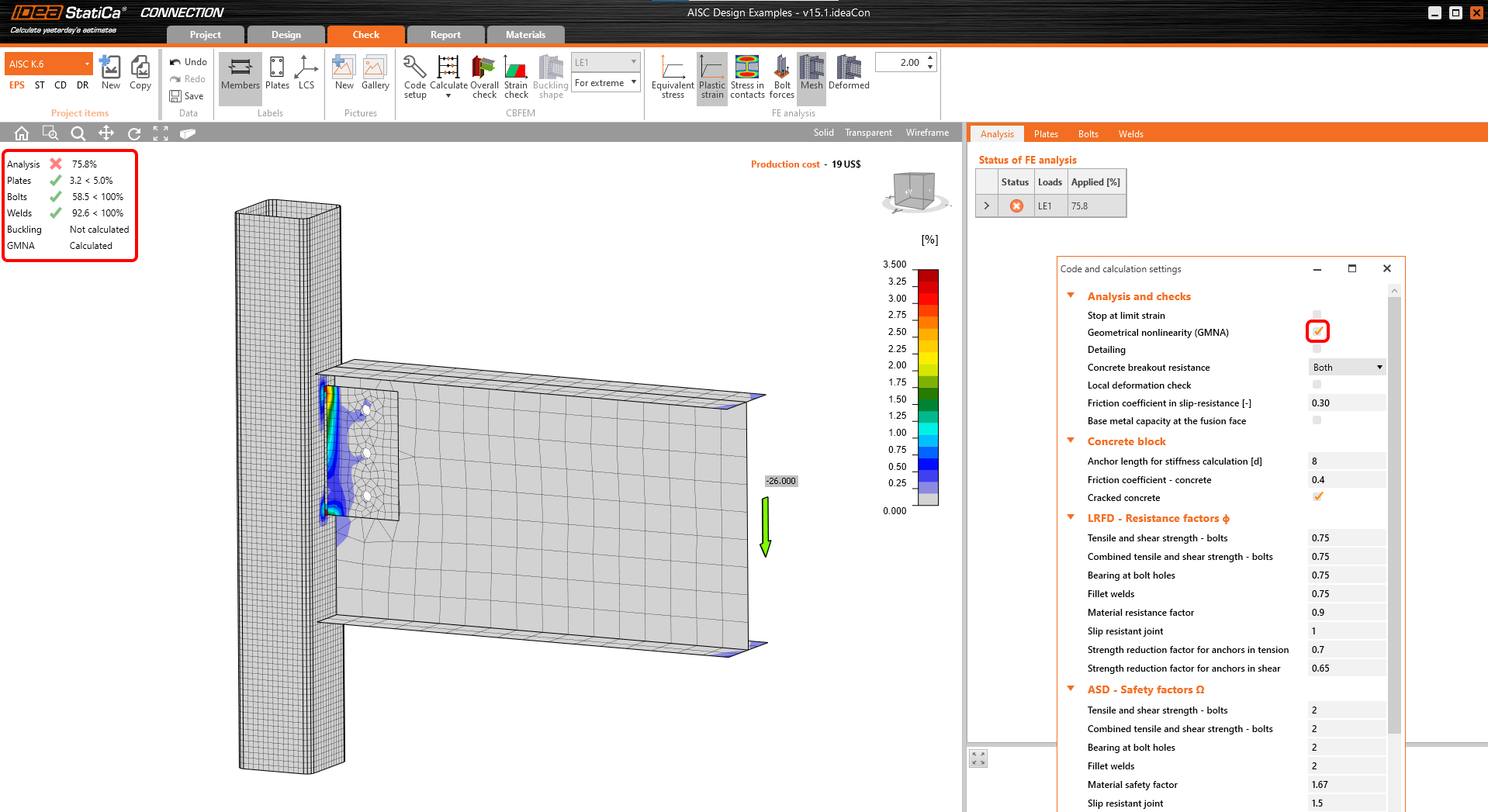
By disabling the GMNA in the Code setup, the analysis finishes with 100%, revealing the failure of the hollow section and other parts of the connections.
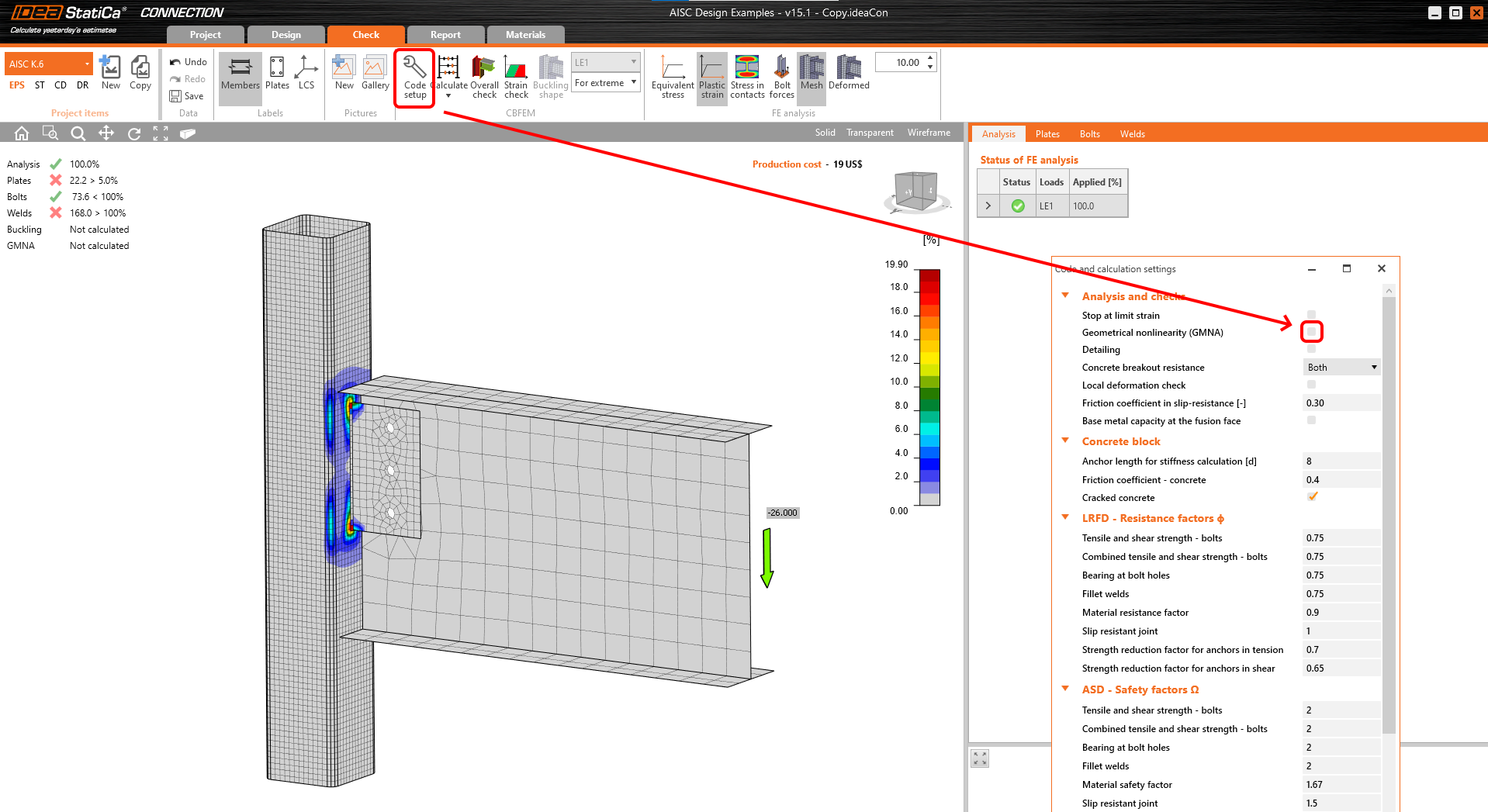
Unstable analysis model (friction)
The CBFEM model in IDEA StatiCa can not directly calculate and code-check friction between plates when modeling a connection based on friction and preloaded bolts, such as a clamp connection.
In such a connection, where only tension/compression force is applied and transferred via contact (compression-only), there is a small prying shear force generated. Since friction is not taken into account and, thus, the shear force is not transferred, the model is unstable.
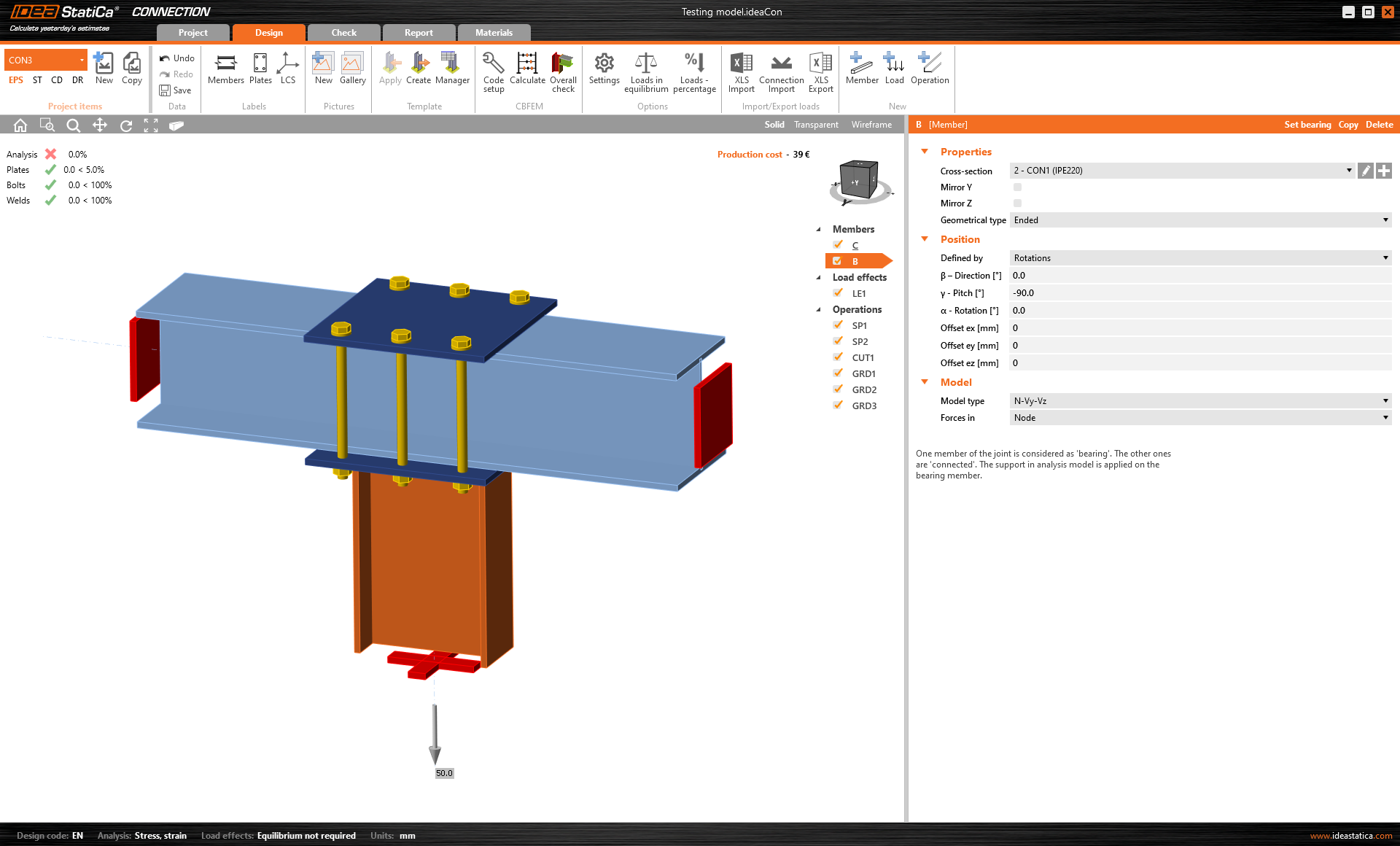
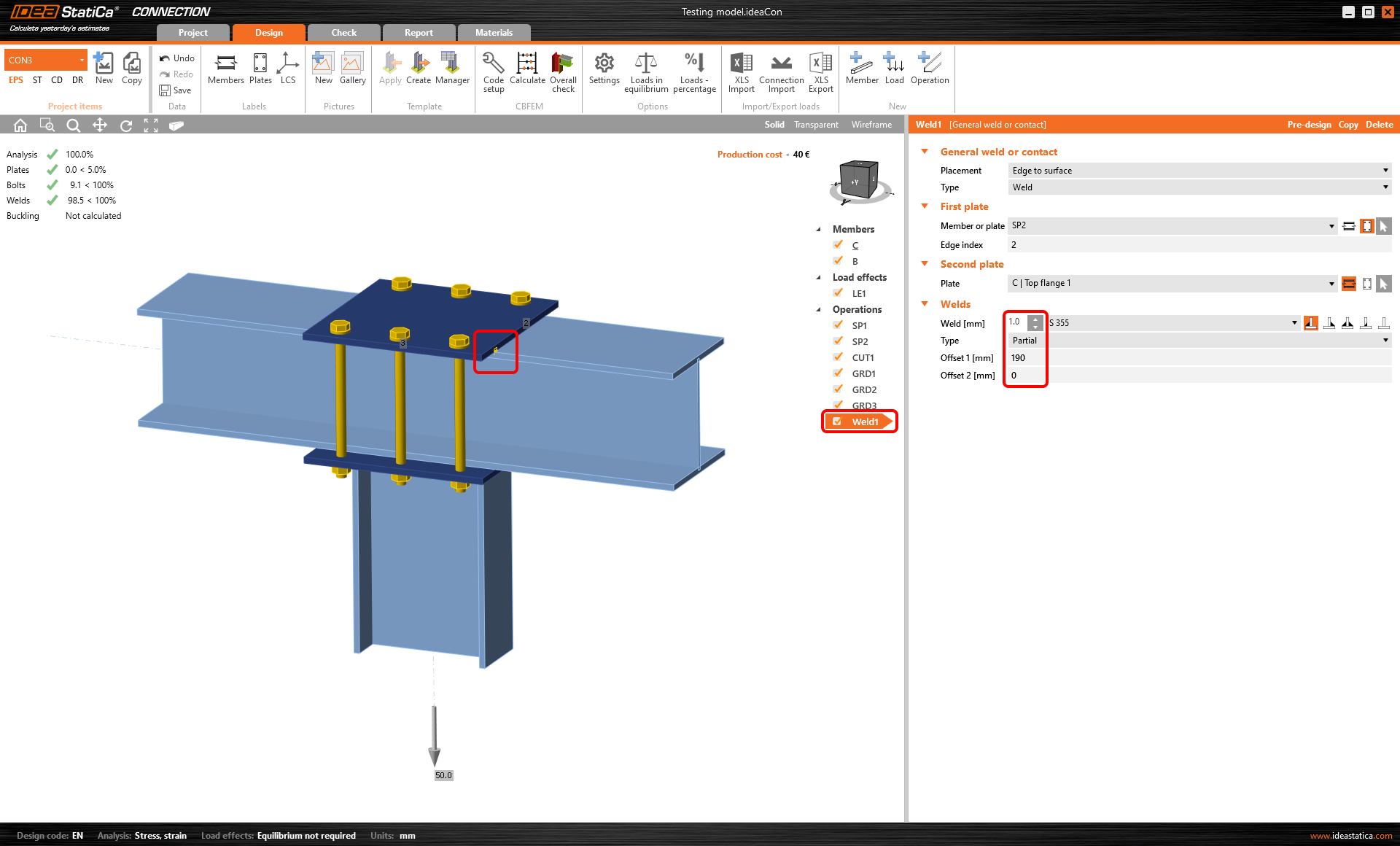
In this case, it is necessary to add a "utility" weld in order to deal with the small shear force. For this, a Partial weld with Offset can be used. The analysis can then be finished, while the impact of the utility weld on the model behavior is negligible.
Cut of hollow sections
When the operation Cut and its cutting method Mitre cut is used to cut and weld members with circular hollow sections, sometimes you the analysis is not done, resulting in analysis 0%.
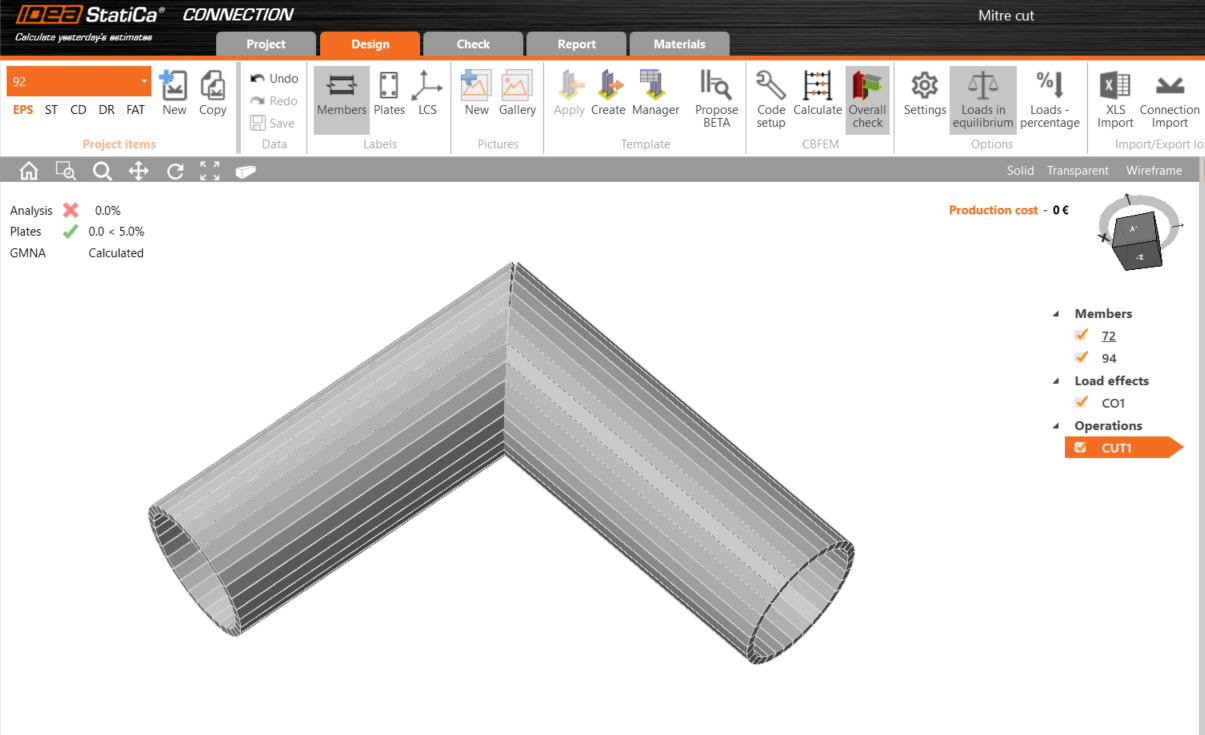
This is due to the alignment of 1D elements of the connected members. Having different angles or sizes, the operation may not be able to create the butt weld needed for the analysis.
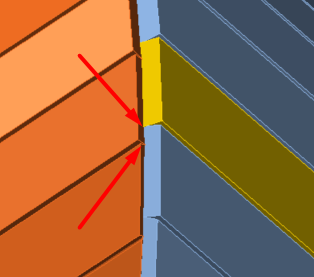
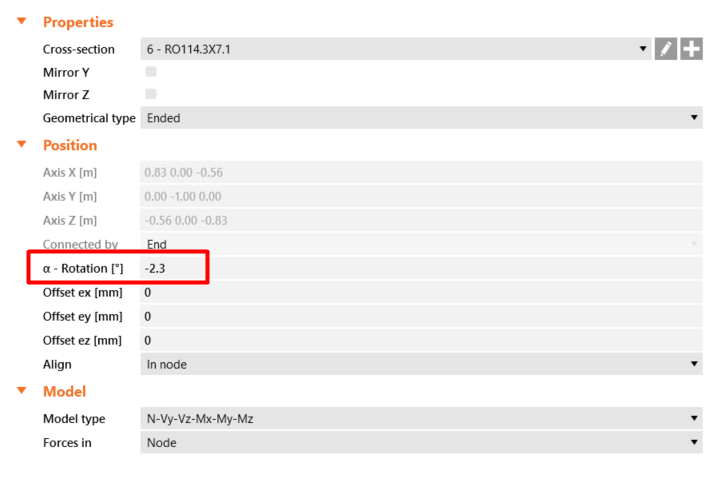
In such a case, change the value of α - Rotation for one of the connected members so that the elements are aligned and the butt weld is created. The butt weld is represented by a yellow line visible when the 3D screen is switched to transparent mode.
Material properties are 0 (zero)
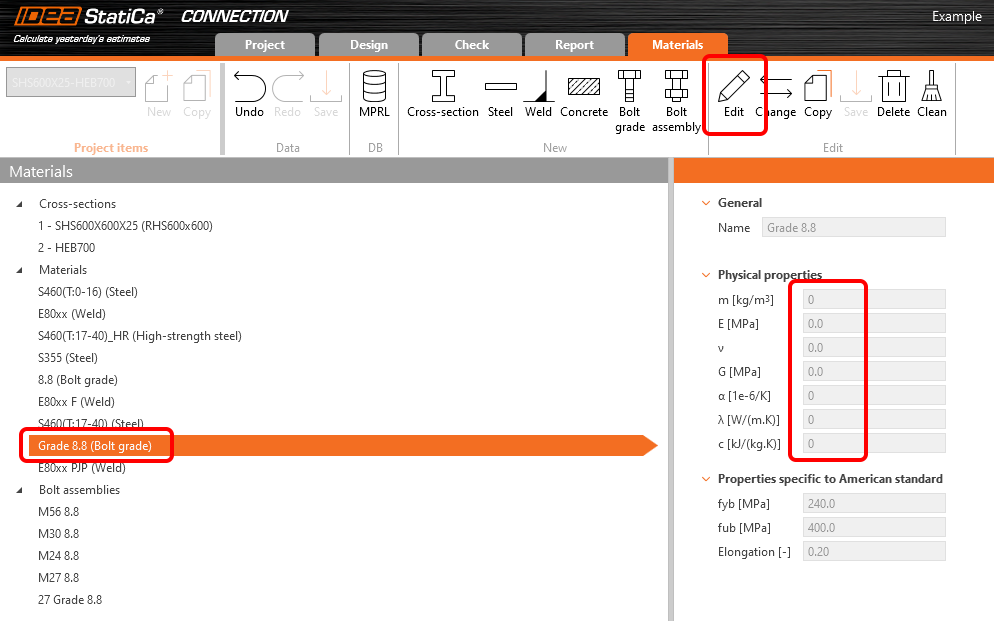
If a material property is filled with 0 (zero) or some non-acceptable value and this material is used in the project, the finite element model can not be calculated, and the analysis stops at 0%. This can be a property of a cross-section, steel material, bolt grade, etc.
Material parameters can be edited in the Materials tab, or possibly imported with a 0 value via a BIM link or CSV file (MPRL database).
Division of arc of circular hollow member
When modelling a members with circular hollow sections defined as polygons, in some cases the calculation may result in the analysis 0% due to the aspect ratio of the finite shell elements in the arc segments of the polygonal hollow member.
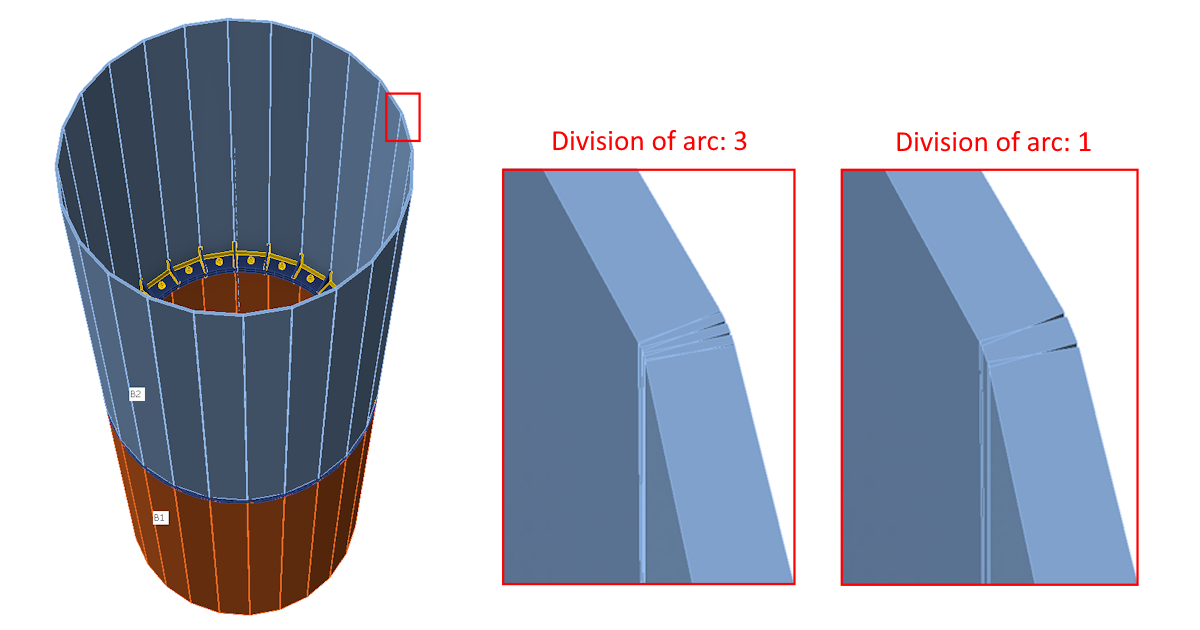
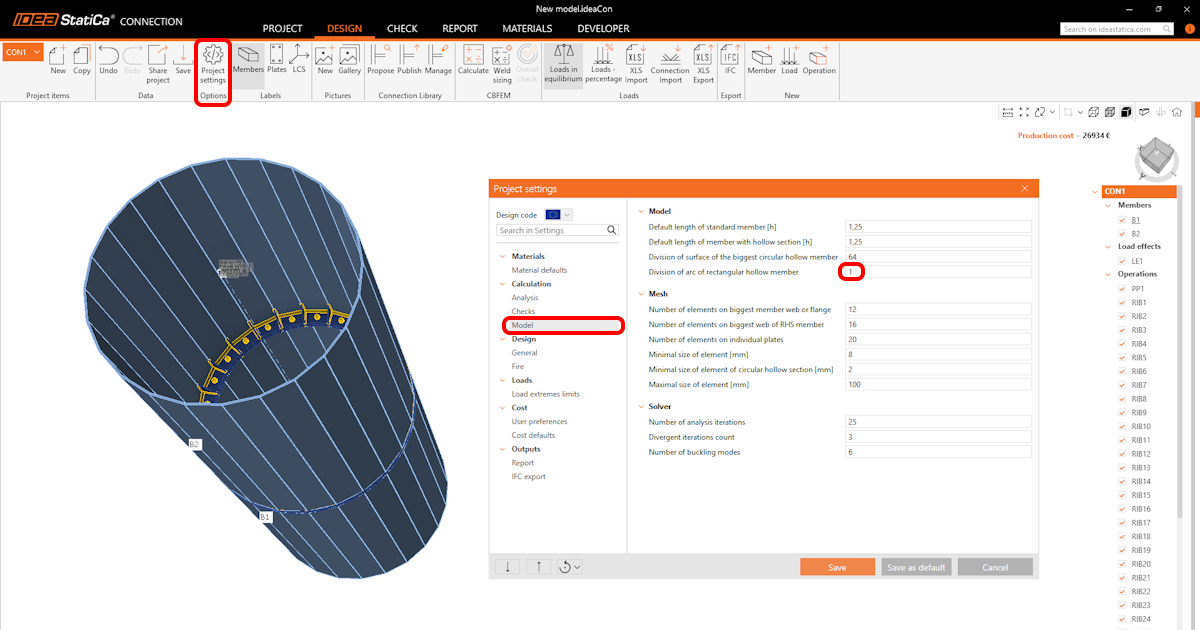
In such cases, in Project settings – Calculation – Model, decrease the value of Division of arc of rectangular hollow member from the default value of 3 to a lower value (e.g. 1). This modification changes the aspect ratio of the finite shell elements in the arc segments of polygonal hollow member.
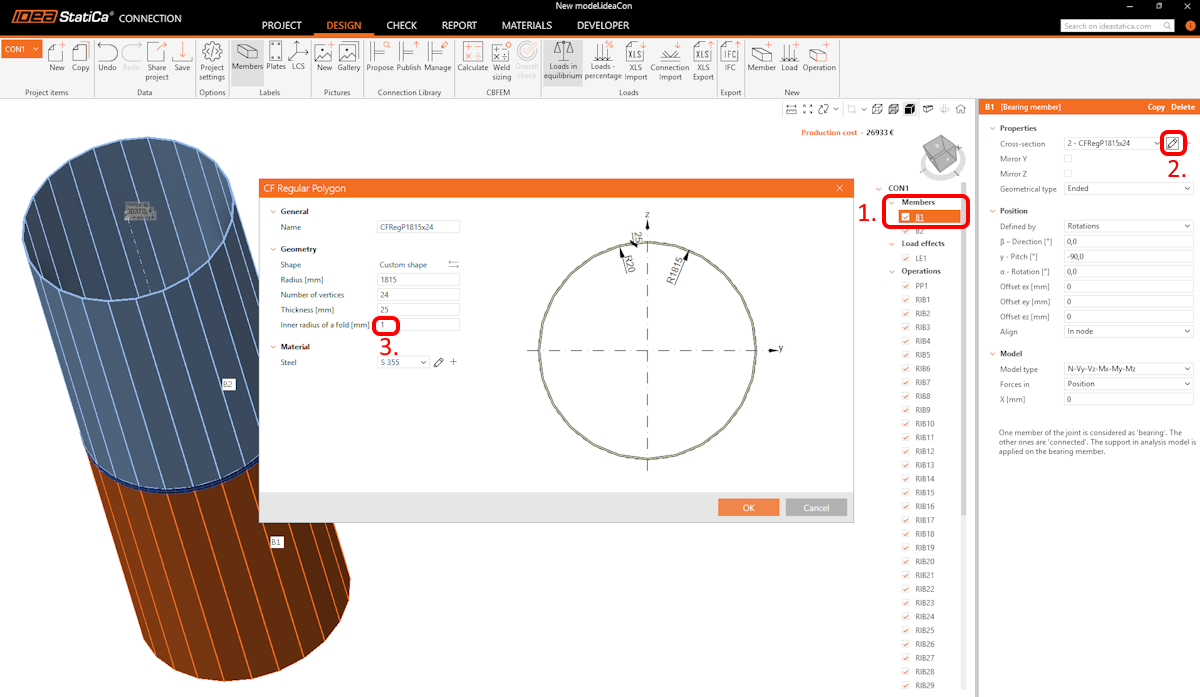
To prevent the generation of shell finite elements in the arc segments of a polygonal hollow member, the user can alternatively decrease the inner radius of a fold to a value of 1 mm when defining the circular hollow section as a polygon (select the relevant member in the Members tree, in the Properties window edit the Cross-section, and set the Inner radius of a fold to 1 mm).
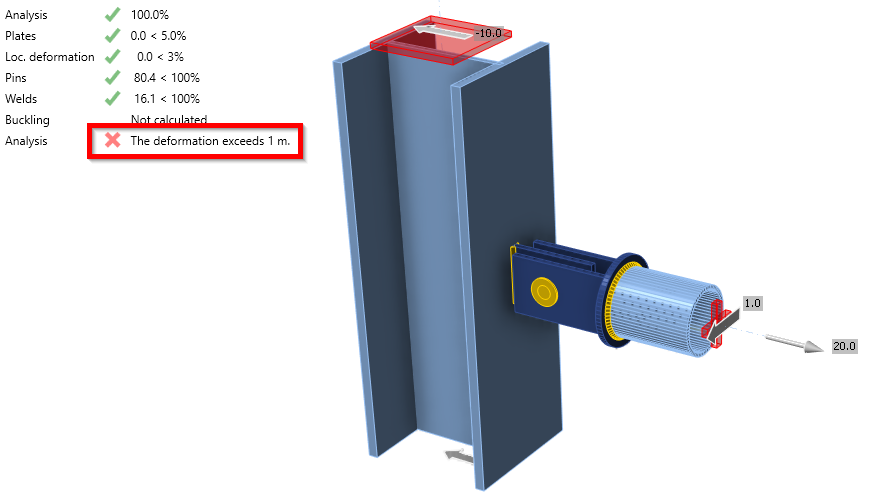
The deformation exceeds 1 m
A warning system for excessive deformations improves the model stability assessment. The overall results display a warning when large displacements over 1 m are detected, even if all code checks formally pass. This immediately alerts to a potential instability or unrealistic structural behavior without the need to manually review deformation results in the Check tab.
Read more also in blog Why did my validation fail?
Released in IDEA StatiCa version 25.1.