
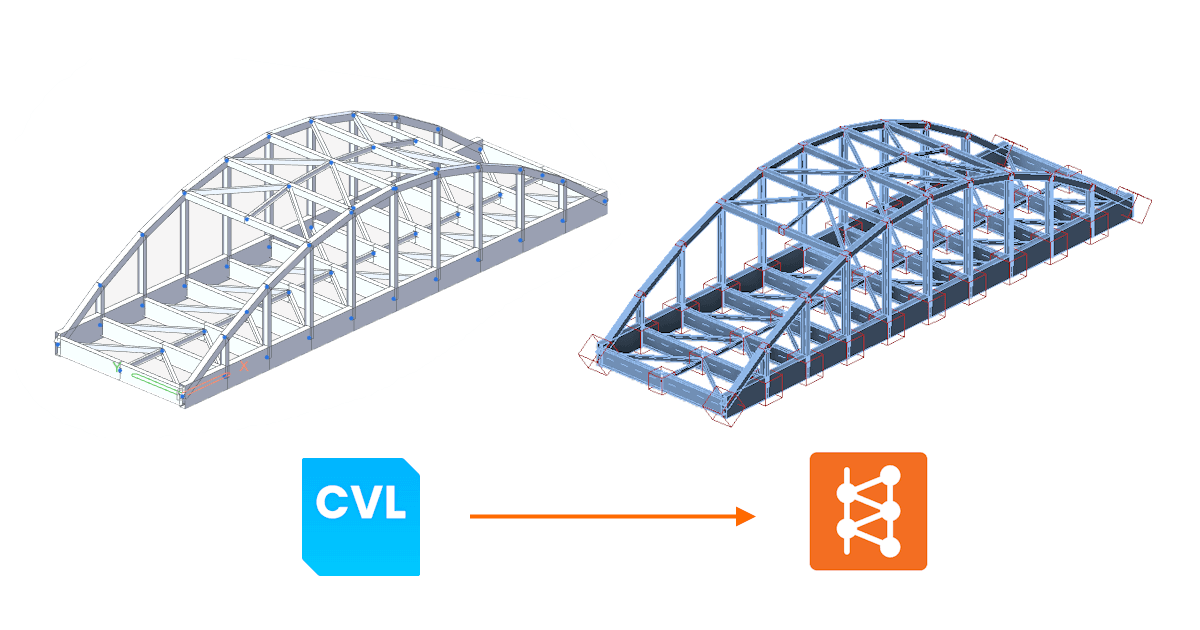


The direct live BIM link with MIDAS CIVIL NX enables users to transfer the materials, cross-sections, elements, and results of the global steel structural models to Checkbot. This data is used for the design and code-check of the steel connection in the IDEA StatiCa Connection app, eliminating laborious and error-prone manual input.
BIM link installation
MIDAS CIVIL NX is available in the BIM Link Installer. Once installed, a desktop short-cut "IDEA StatiCa 25.0 for MIDAS Civil NX" to run the BIM link is created on your desktop.
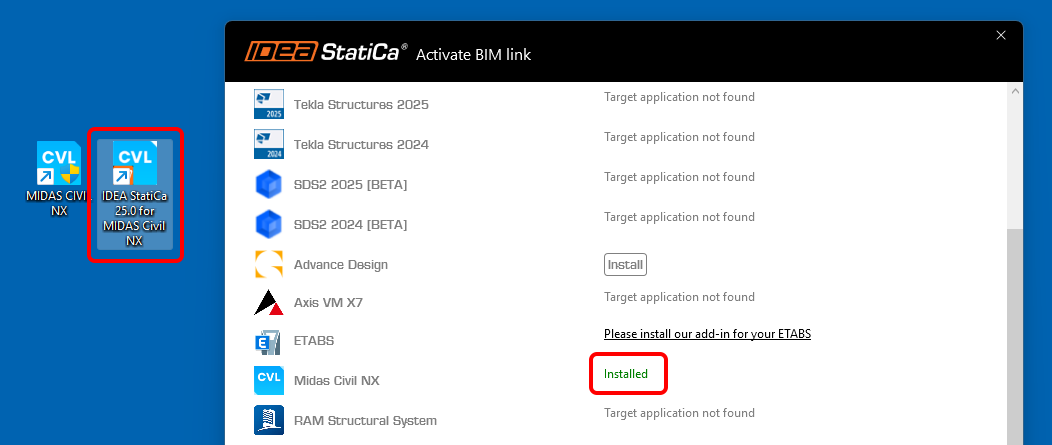
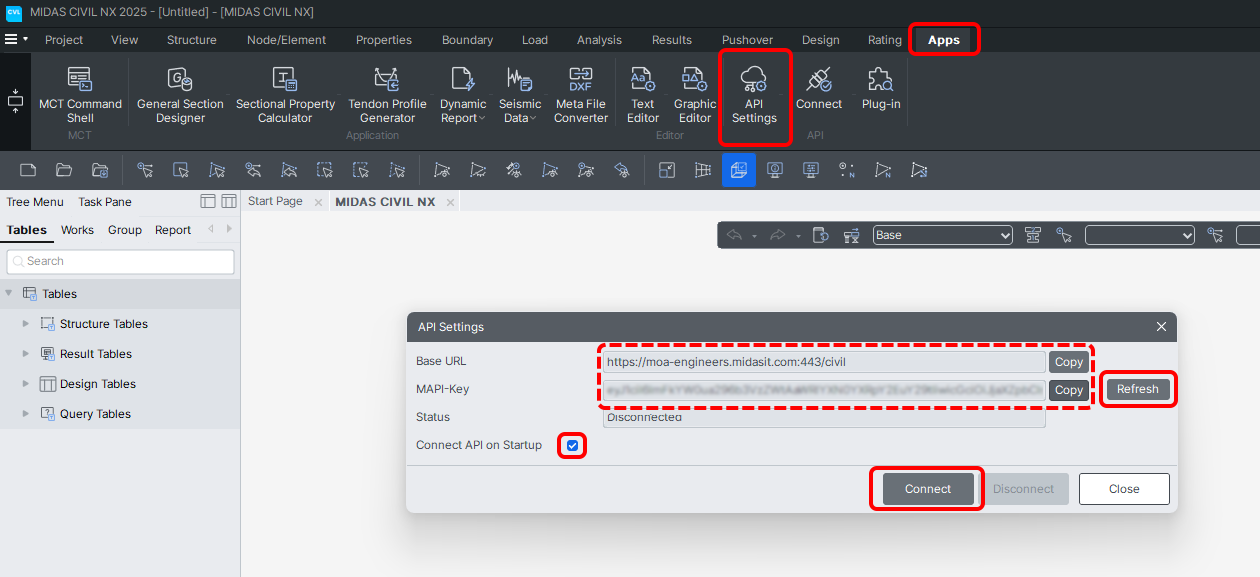
On the first launch of the "IDEA StatiCa 25.0 for MIDAS Civil NX" shortcut, you have to register the MIDAS MAPI-Key once and for all:
- Open your MIDAS CIVIL NX, go to the Apps tab, and open the API Settings. Here click Refresh to generate the MAPI-Key and enable Connect API on Startup.
- Copy the Base URL and MAPI-Key, paste them into the Idea to Midas Civil NX Integration Tool and click Validate.
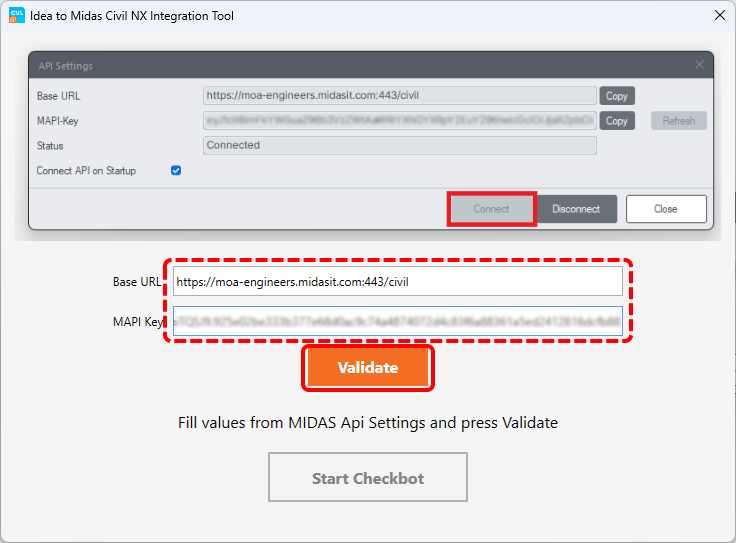
Once the MAPI-Key is validated, the data is stored in Windows Credentials unless the MAPI-Key is changed manually.
How to use the BIM link
Once installed and registered, use the same shortcut, "IDEA StatiCa 25.0 for MIDAS Civil NX", on your desktop. You will be asked to open the MIDAS project file and Checkbot will open simultaneously. You can then follow the standard workflows in Checkbot.
Importing data from MIDAS CIVIL NX to IDEA StatiCa Checkbot
Elements: Members of any orientation and a wide variety of cross-sections can be imported. Tapered, composite, curved, and other special types are not supported and will be filtered out from the selection.
Eccentricities of members: Eccentricity is defined on the level of CSS in MIDAS. Eccentricity on a member CSS is supported in all the directions, but only in their absolute values (distance from the center of the CSS). Extreme Fiber eccentricities are not supported.
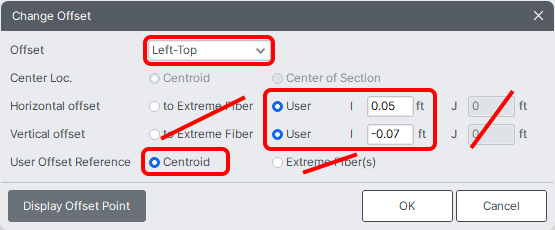
Note: Because of the coordinate system orientation used, the eccentricity value sign can be inversed when imported from MIDAS to Checkbot, but the real position, as shown in the 3D model, is correct.
Load effects: An unlimited number of static load cases (manual, API) and general load combinations (manual, API) is supported, other types are filtered out.