IDEA StatiCa Member has been around for a while. In the previous version, we focused on the implementation of the GMNIA nonlinear method. This time, we focused on user interface improvements that push the Member sky high. There are two ways how to use the Member app.
- Standalone use
- Launching the Member from Checkbot linked with your FEA application
If you use the Member as a standalone application you will appreciate these improvements very much. All these improvements speed up the process of modeling, facilitate the inputs and make your work even more efficient.
List of UI improvements in IDEA StatiCa Member
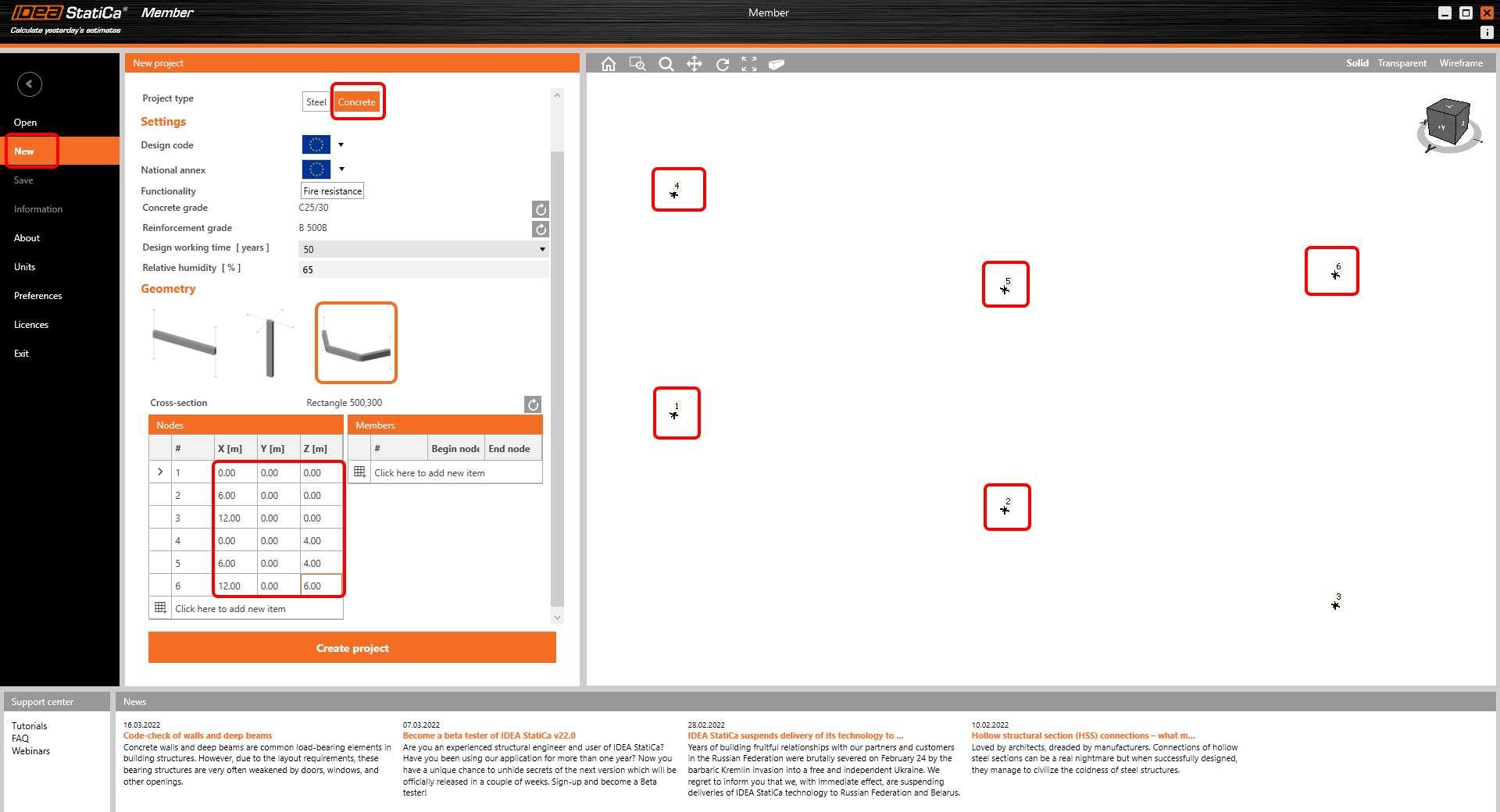
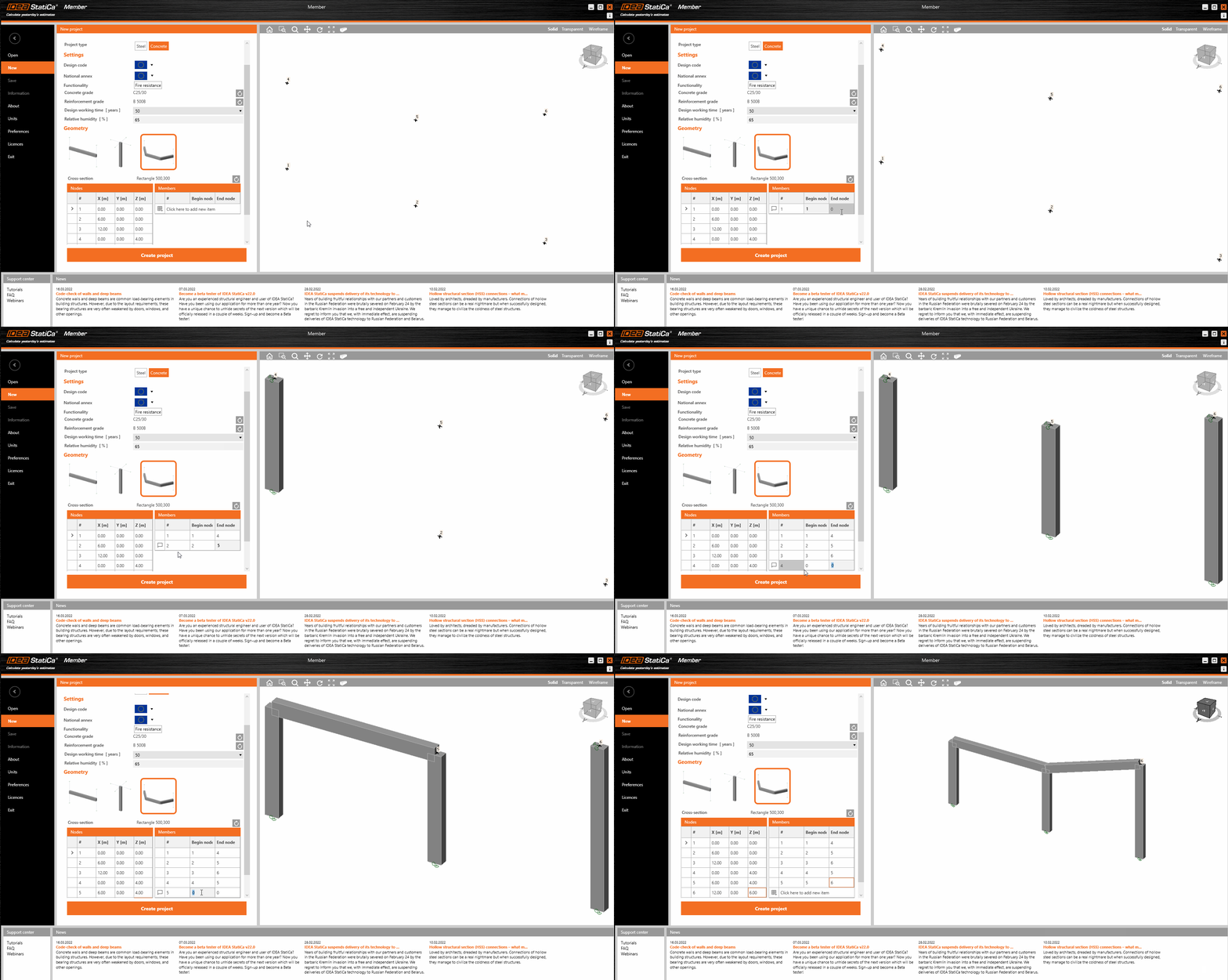
- Display of the defined nodes prior to the member being defined in case of using the general input. It speeds up the process of modeling and minimizes the incorrect inputs.
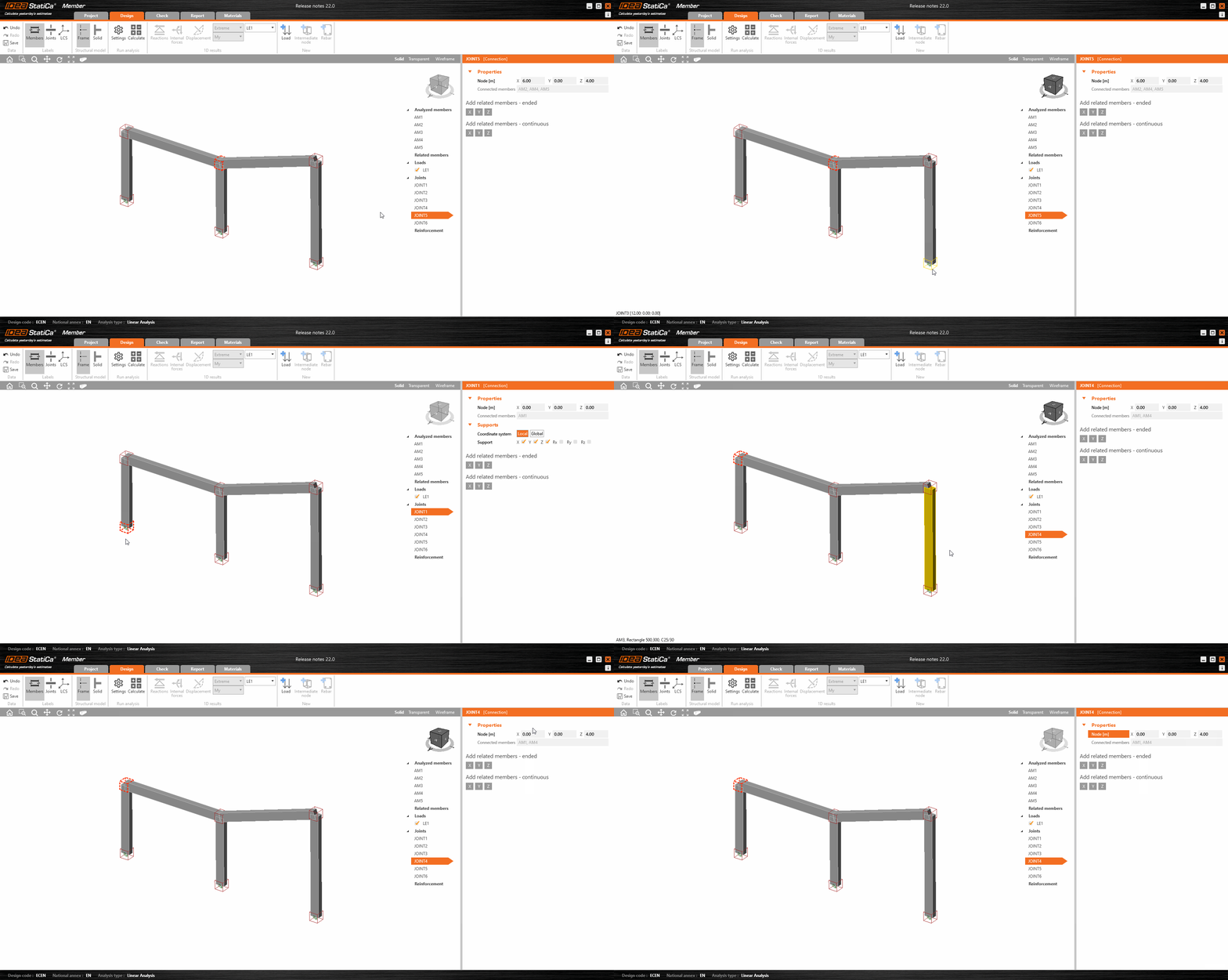
- Work with the well-organized model. In the previous versions, you had to click further to the properties of the member to get to know the name of the joint and its boundary conditions and it all took you precious time. With the new version, the joints are displayed with the cube around that is highlighted when the joint is selected, either in the navigation tree on in the 3D scene. By clicking on Joints in the ribbon the labels can be displayed, too.
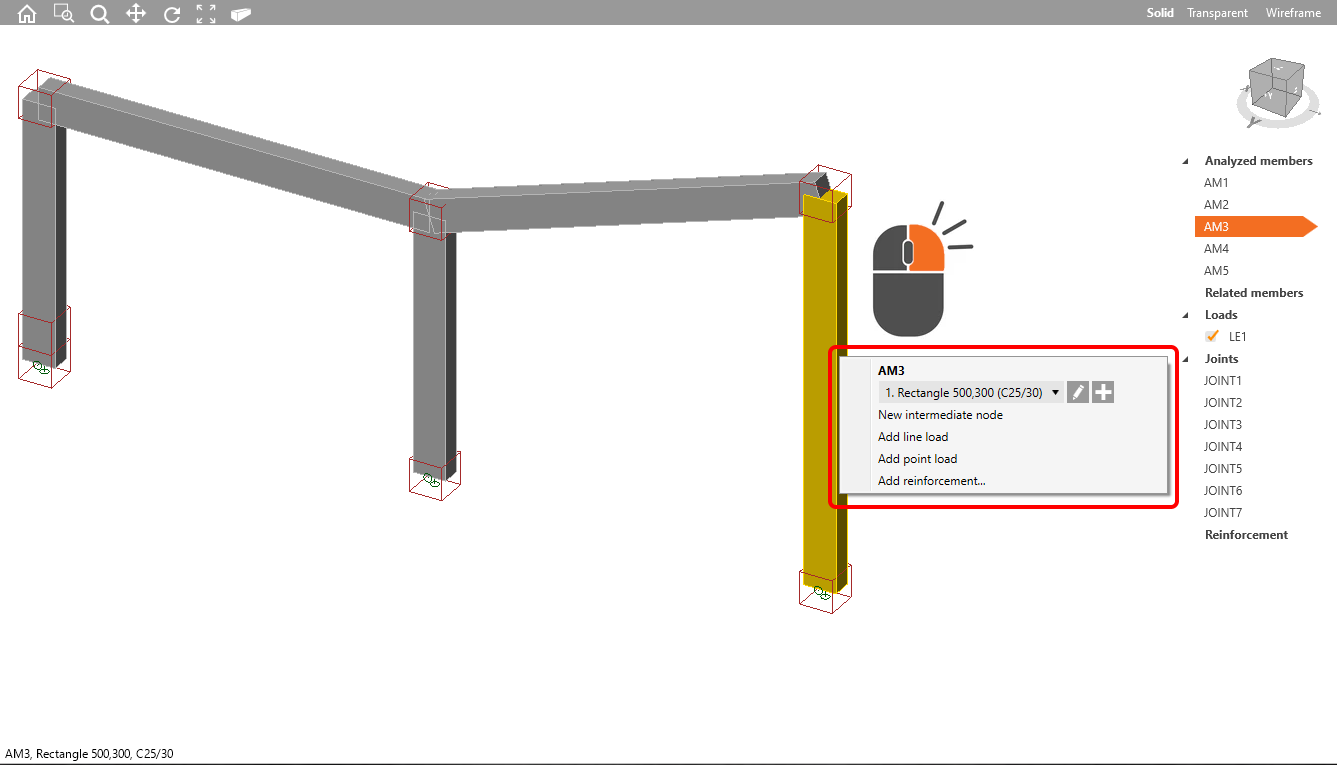
- Use the right-click button to run the context menu offering several speed functionalities, such as change of cross-section, adding of the intermediate joint, line load, point load, or running the reinforcement editor.
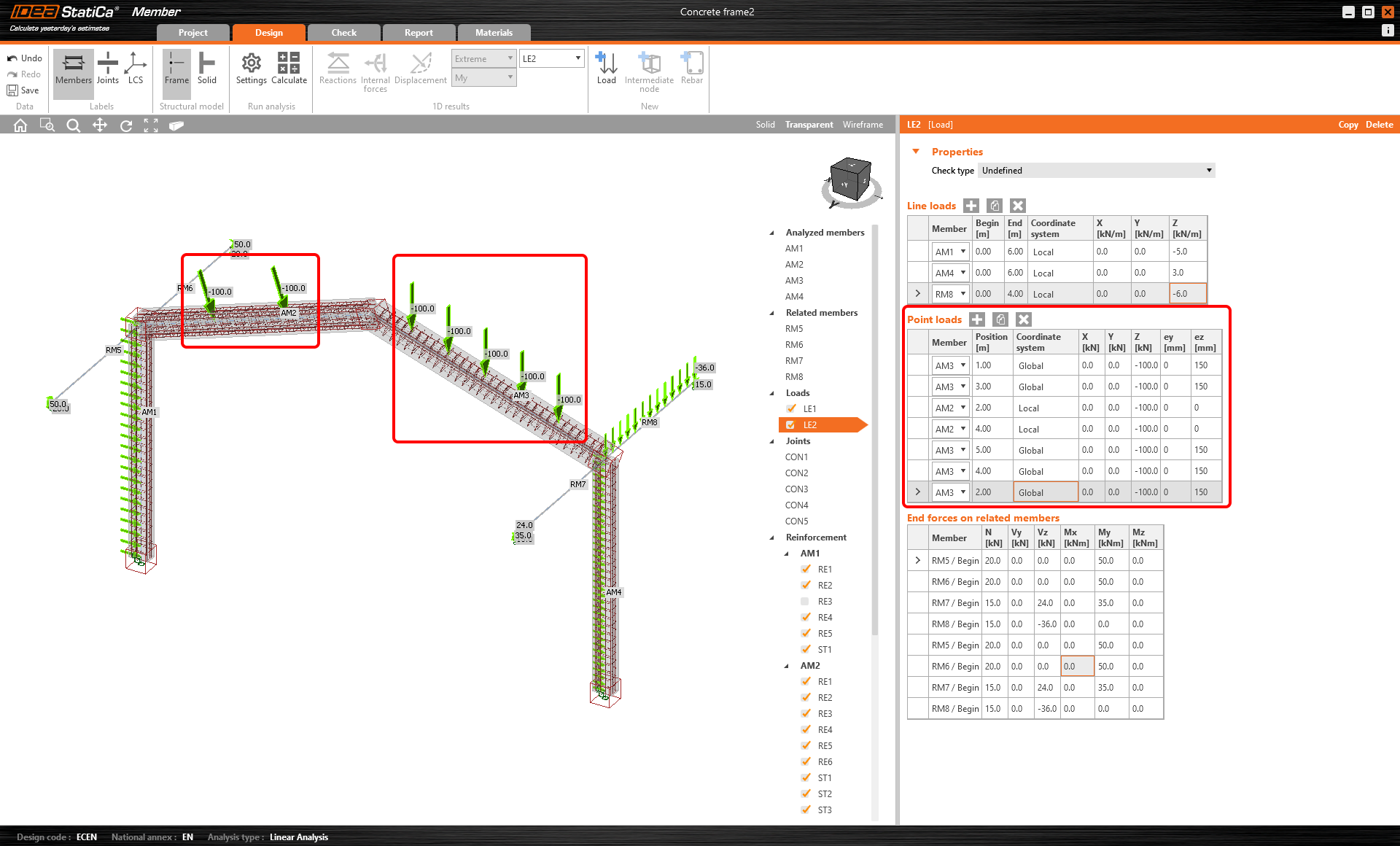
- The load effect definition is more user-friendly than before. Now you can input the point load on the analyzed or related member. The line loads and point loads have different scales to keep the model well-arranged. The eccentricity can be defined for the point load.

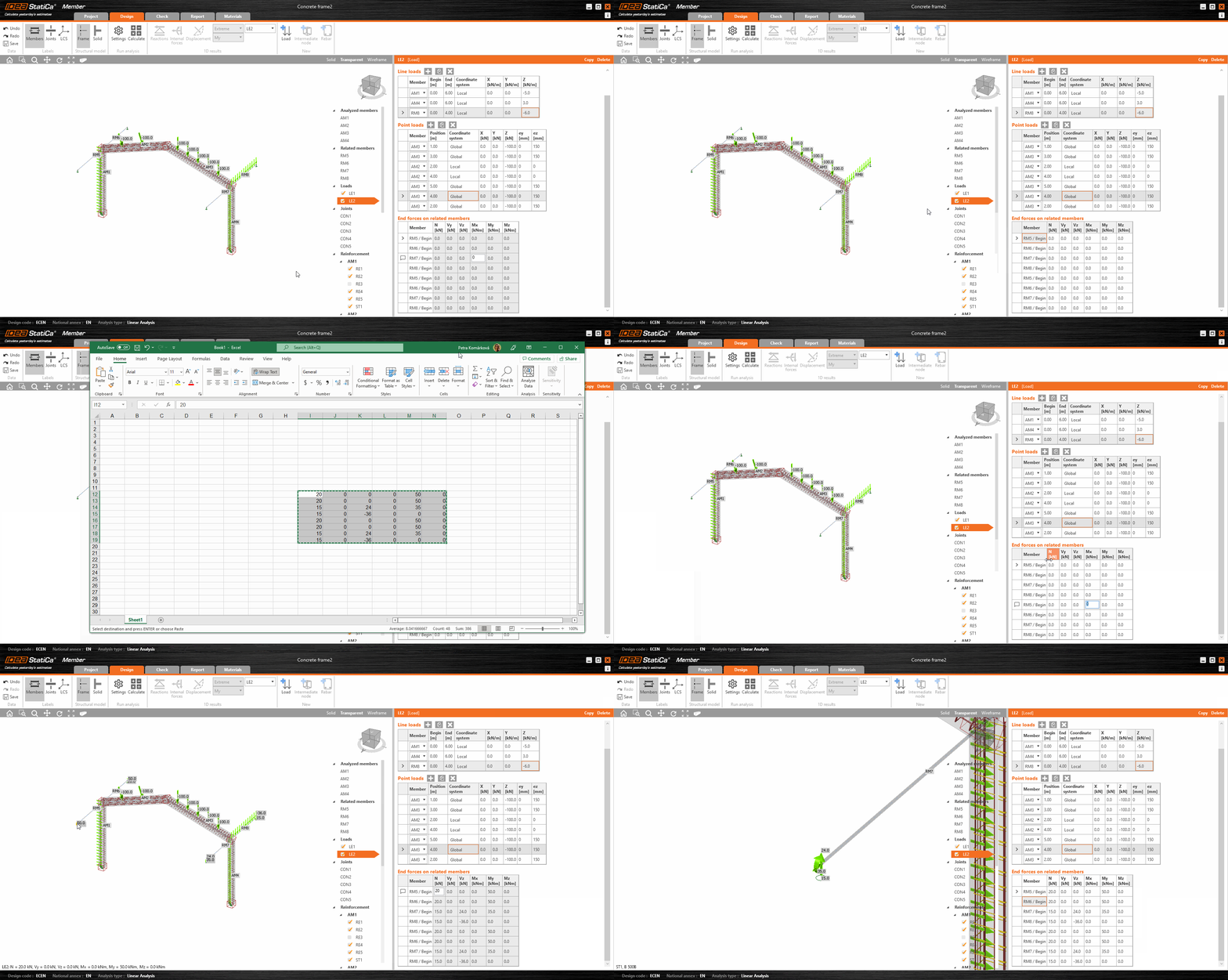
- Faster input via copy&paste values to the table of end forces on the related members
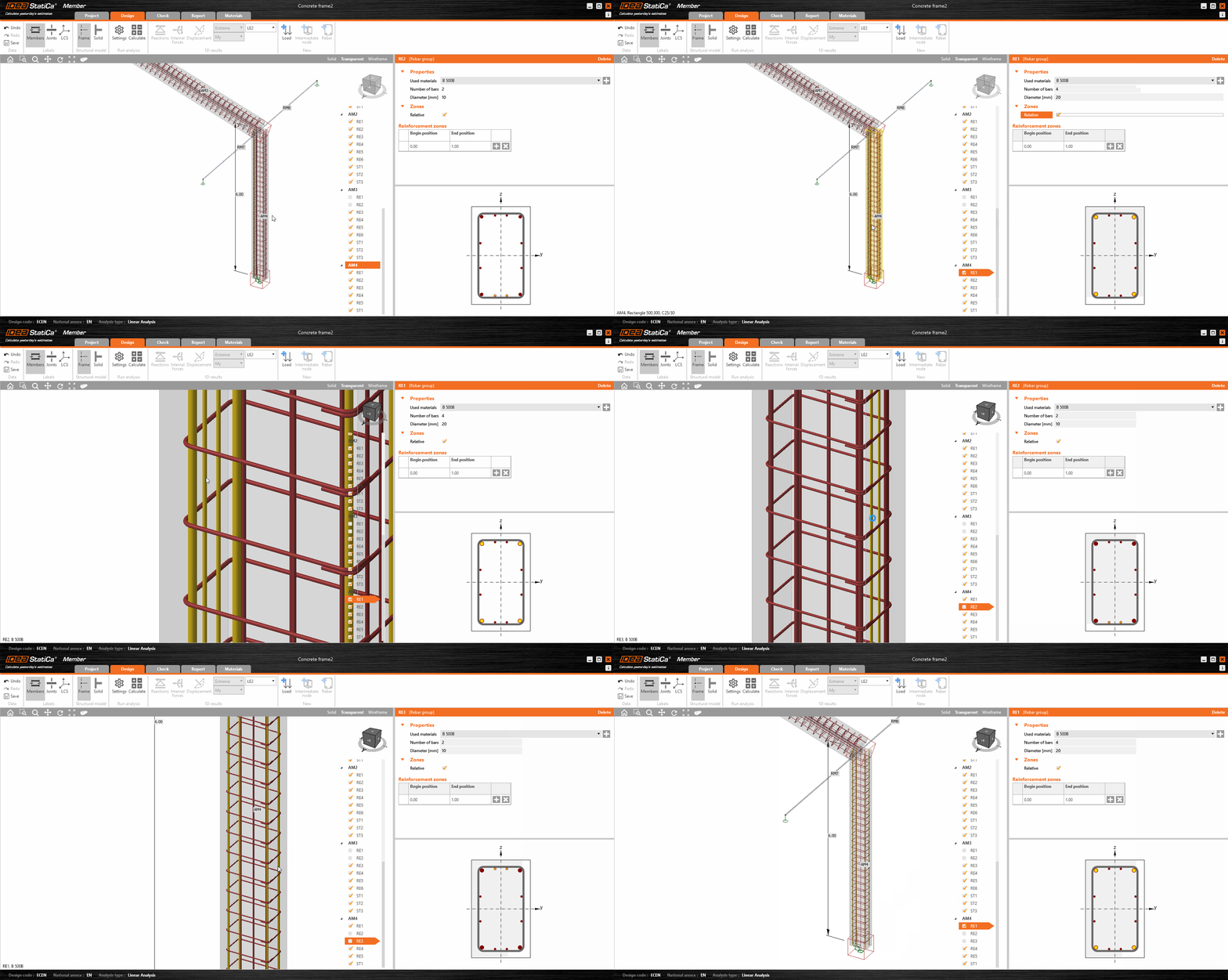
- Reinforcement editing is now available directly from the property window. In the previous version, you needed to launch the reinforcement editor and modify the reinforcement material, diameters, and numbers there. Now you can modify the reinforcement faster.
- You can notice that the checkboxes were added to Loads and Reinforcement. Thanks to them you can input the load effects or reinforcement and do not have to consider them for the analysis. In case of an unsatisfied check, you can simply switch on or off the particular reinforcement group and keep it in the model and thus avoid deleting and defining a new reinforcement group.