

Widget #NaN: support_center_article
Name: General BIM Link tutorial - How to activate the link
ID: dd351d35-2833-4fa2-a88f-9c0c8769c77d
Show Raw Data
{
"title": {
"name": "Main headline (H1)",
"type": "text",
"value": "How to activate the link"
},
"preview_image": {
"name": "Preview image",
"type": "asset",
"value": []
},
"post_date": {
"name": "Post date",
"type": "date_time",
"value": null,
"displayTimeZone": null
},
"perex_content": {
"name": "Lead paragraph",
"type": "text",
"value": ""
},
"content": {
"images": [
{
"description": "IDEA start up window 25.0",
"imageId": "4a678807-07f6-408f-ae20-26c6a018d269",
"url": "https://assets-us-01.kc-usercontent.com:443/28eac049-c8ed-00e2-220c-12142a968dff/649a6f99-4ce2-4fa9-9ccf-876c0578ab47/IDEA%20start%20up%20window.jpg",
"height": 857,
"width": 1680
},
{
"description": null,
"imageId": "7633f2b4-f9be-41c3-9208-3f7031d8b5ab",
"url": "https://assets-us-01.kc-usercontent.com:443/28eac049-c8ed-00e2-220c-12142a968dff/5d2e07d6-e3ba-4c8d-b7cc-3d2e765eb5c4/bim-link.png",
"height": 1200,
"width": 1143
}
],
"linkedItemCodenames": [],
"linkedItems": [],
"links": [
{
"codename": "landing_page___downloads",
"linkId": "0dff6482-3e17-4ca2-bb66-b4abc6a8dde4",
"urlSlug": "product-downloads",
"type": "landing_page"
},
{
"codename": "bim_links__supported_versions",
"linkId": "eeb85fd1-4708-4f88-ad36-cbe30ac41eb7",
"urlSlug": "bim-links-supported-versions-of-3rd-party-applications",
"type": "support_center_article"
}
],
"name": "Content",
"type": "rich_text",
"value": "<ul>\n <li>Download and install the <a data-item-id=\"0dff6482-3e17-4ca2-bb66-b4abc6a8dde4\" href=\"\">latest version of IDEA StatiCa</a></li>\n <li>Make sure that you are using a <a data-item-id=\"eeb85fd1-4708-4f88-ad36-cbe30ac41eb7\" href=\"\">supported version</a> of your FEA solution</li>\n</ul>\n<p>IDEA StatiCa integrates BIM links into your FEA software during its installation. You can check the status and eventually integrate more BIM links by running IDEA StatiCa and opening the <strong>BIM links</strong>. Please note that some FEA software require additional steps to fully activate their BIM link to IDEA StatiCa.</p>\n<figure data-asset-id=\"4a678807-07f6-408f-ae20-26c6a018d269\" data-image-id=\"4a678807-07f6-408f-ae20-26c6a018d269\"><img src=\"https://assets-us-01.kc-usercontent.com:443/28eac049-c8ed-00e2-220c-12142a968dff/649a6f99-4ce2-4fa9-9ccf-876c0578ab47/IDEA%20start%20up%20window.jpg\" data-asset-id=\"4a678807-07f6-408f-ae20-26c6a018d269\" data-image-id=\"4a678807-07f6-408f-ae20-26c6a018d269\" alt=\"IDEA start up window 25.0\"></figure>\n<p>A notification \"<em>Do you want to allow this app to make changes to your device?</em>\" may appear, if so, please confirm with the <strong>Yes</strong> button.</p>\n<p>By clicking <strong>Install</strong>, the BIM link for the selected software is integrated. The screen also tells you the status of other BIM links.</p>\n<figure data-asset-id=\"7633f2b4-f9be-41c3-9208-3f7031d8b5ab\" data-image-id=\"7633f2b4-f9be-41c3-9208-3f7031d8b5ab\"><img src=\"https://assets-us-01.kc-usercontent.com:443/28eac049-c8ed-00e2-220c-12142a968dff/5d2e07d6-e3ba-4c8d-b7cc-3d2e765eb5c4/bim-link.png\" data-asset-id=\"7633f2b4-f9be-41c3-9208-3f7031d8b5ab\" data-image-id=\"7633f2b4-f9be-41c3-9208-3f7031d8b5ab\" alt=\"\"></figure>"
},
"regions": {
"name": "Region",
"type": "taxonomy",
"value": [
{
"name": "EMEA",
"codename": "emea"
},
{
"name": "AMER",
"codename": "amer"
},
{
"name": "APAC",
"codename": "apac"
}
],
"taxonomyGroup": "region"
},
"product_groups": {
"name": "Product group",
"type": "taxonomy",
"value": [
{
"name": "Steel",
"codename": "steel"
}
],
"taxonomyGroup": "product_group"
},
"support_center_article_types": {
"name": "Support center article",
"type": "taxonomy",
"value": [
{
"name": "Knowledge base",
"codename": "knowledgebase_article"
}
],
"taxonomyGroup": "support_center_article"
},
"expertise_levels": {
"name": "Expertise level",
"type": "taxonomy",
"value": [
{
"name": "Beginner",
"codename": "beginner"
},
{
"name": "Intermediate",
"codename": "intermediate"
}
],
"taxonomyGroup": "expertise_level"
},
"labels": {
"name": "Labels",
"type": "taxonomy",
"value": [
{
"name": "BIM link",
"codename": "bim_links"
}
],
"taxonomyGroup": "labels"
},
"linked_items": {
"name": "Linked items",
"type": "modular_content",
"value": [],
"linkedItems": []
},
"attachments__files": {
"name": "Attachments",
"type": "asset",
"value": []
},
"content_priority__value": {
"name": "Content priority value",
"type": "number",
"value": null
},
"options": {
"name": "Options",
"type": "multiple_choice",
"value": []
},
"url_slug": {
"name": "Url slug",
"type": "url_slug",
"value": "how-to-activate-the-link"
},
"unique_url_slug": {
"name": "Unique URL slug",
"type": "custom",
"value": "[\"how-to-activate-the-link\",\"[autogenerated]\"]"
},
"content_settings__sitemap": {
"name": "Show in sitemap",
"type": "multiple_choice",
"value": [
{
"name": "default",
"codename": "default"
}
]
},
"content_settings__robots": {
"name": "Search engine indexing",
"type": "multiple_choice",
"value": [
{
"name": "default",
"codename": "default"
}
]
},
"content_settings__is_hidden": {
"name": "Hidden nested content",
"type": "multiple_choice",
"value": []
},
"metadata__page_title": {
"name": "Page title",
"type": "text",
"value": ""
},
"metadata__page_description": {
"name": "Page description",
"type": "text",
"value": ""
},
"metadata__page_keywords": {
"name": "Page keywords",
"type": "text",
"value": ""
},
"metadata__canonical_url": {
"name": "Canonical URL",
"type": "text",
"value": ""
},
"metadata__og_title": {
"name": "OG:title",
"type": "text",
"value": ""
},
"metadata__og_description": {
"name": "OG:description",
"type": "text",
"value": ""
},
"metadata__og_image": {
"name": "OG:image",
"type": "asset",
"value": []
},
"translation__translation_connector": {
"name": "Translation Connector",
"type": "taxonomy",
"value": [],
"taxonomyGroup": "languages"
},
"translation__force_translation": {
"name": "Force translation",
"type": "multiple_choice",
"value": []
},
"translation__last_translation": {
"images": [],
"linkedItemCodenames": [],
"linkedItems": [],
"links": [],
"name": "Last translation",
"type": "rich_text",
"value": "<p><br></p>"
},
"translation__ai_translated": {
"name": "AI translated",
"type": "multiple_choice",
"value": []
},
"page_tree_settings__page_label": {
"name": "Page label",
"type": "text",
"value": ""
},
"page_tree_settings__path_segment": {
"name": "Path segment",
"type": "text",
"value": ""
},
"page_tree_settings__breadcrumb_style": {
"name": "Breadcrumb style",
"type": "multiple_choice",
"value": []
},
"page_tree_settings__hide_in_breadcrumbs": {
"name": "Hide in breadcrumbs",
"type": "multiple_choice",
"value": []
}
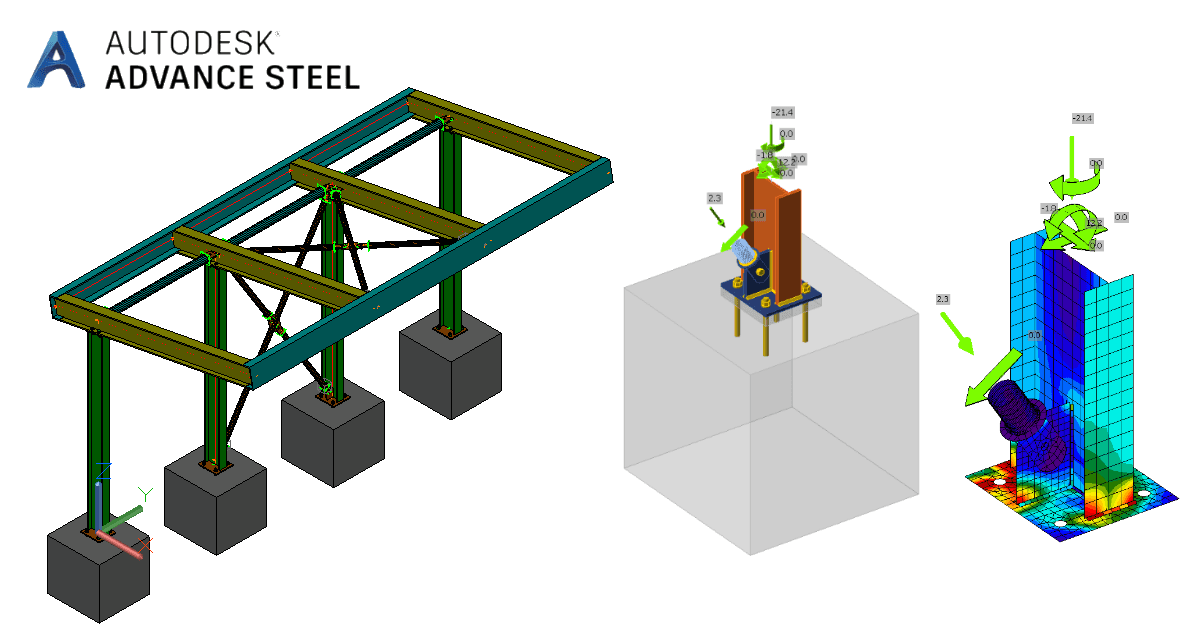
}Download the attached project and open it in Advance Steel.
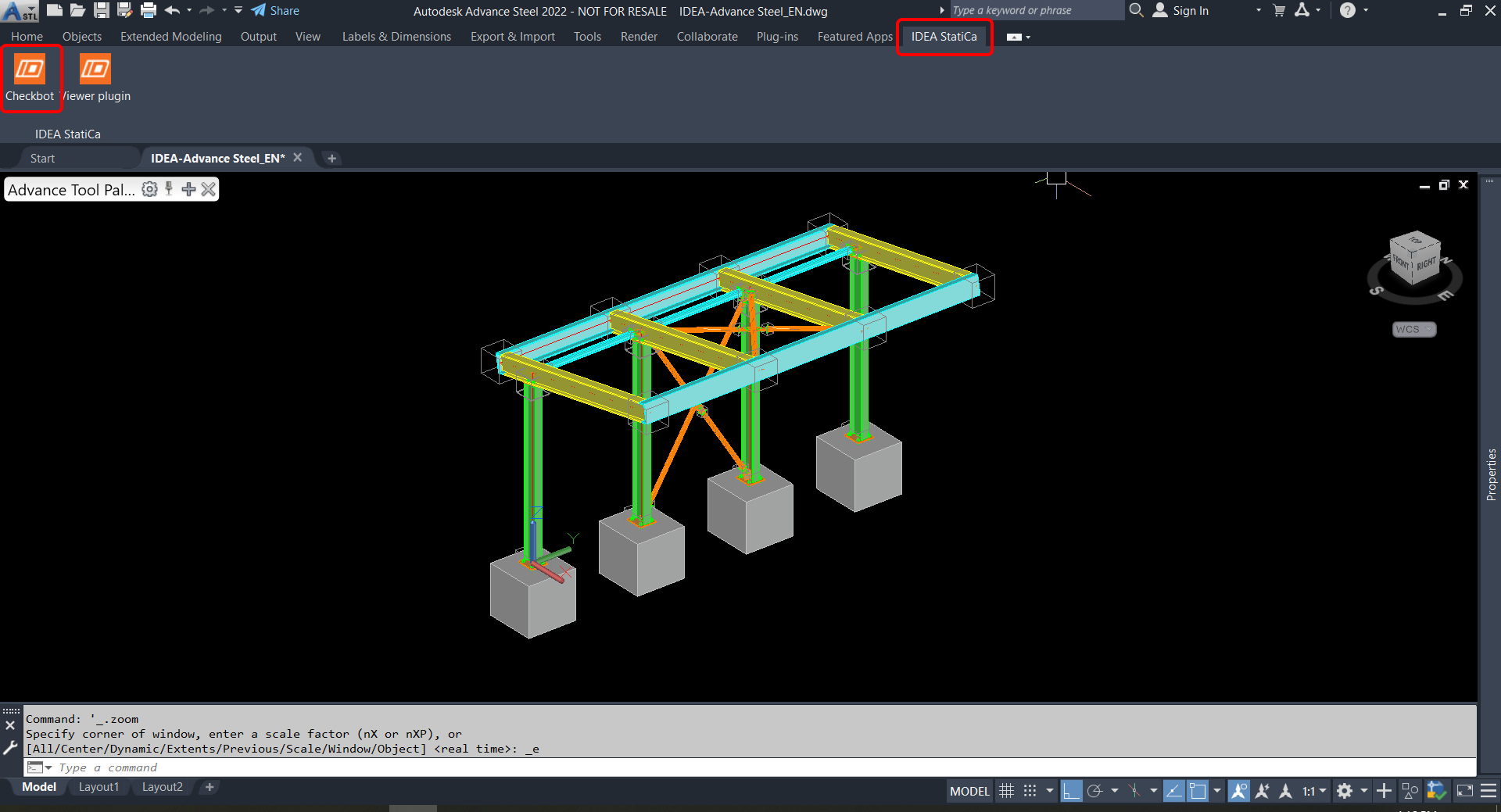
The BIM link is automatically integrated. You can find it in the top ribbon under IDEA StatiCa -> Checkbot. This will open the Checkbot application.
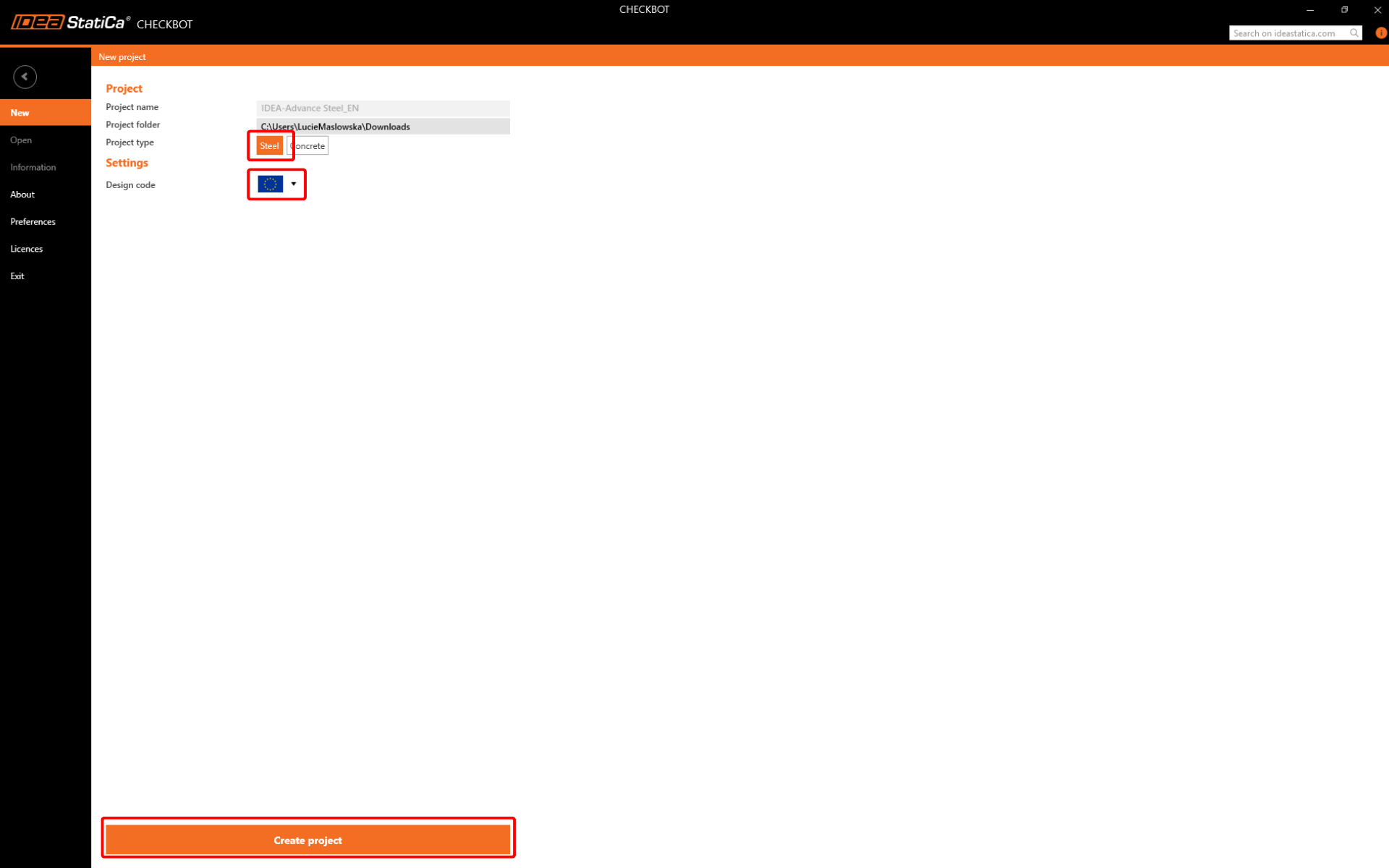
Select the New option with project type Steel and design code EN. Then select Create project.
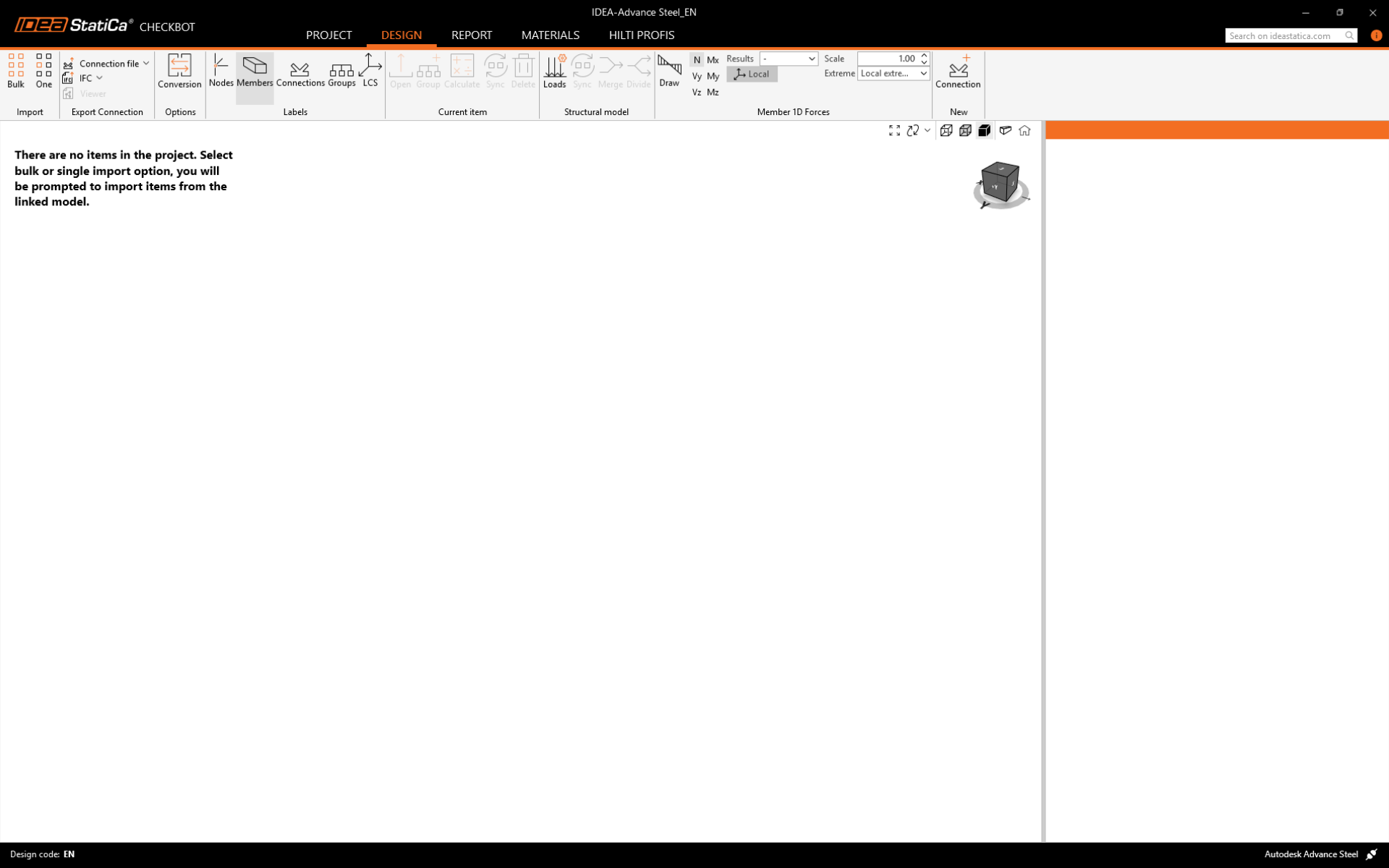
The new Checkbot project is ready to import connections from Advance Steel.
Widget #NaN: support_center_article
Name: Advance Steel BIM Link tutorial - Import
ID: ee09394a-ce6a-43fd-8ea6-c1a1e17ec87e
Show Raw Data
{
"title": {
"name": "Main headline (H1)",
"type": "text",
"value": "Import"
},
"preview_image": {
"name": "Preview image",
"type": "asset",
"value": []
},
"post_date": {
"name": "Post date",
"type": "date_time",
"value": null,
"displayTimeZone": null
},
"perex_content": {
"name": "Lead paragraph",
"type": "text",
"value": ""
},
"content": {
"images": [
{
"description": null,
"imageId": "91eb0122-1bda-459b-aacd-fe3687dd1614",
"url": "https://assets-us-01.kc-usercontent.com:443/28eac049-c8ed-00e2-220c-12142a968dff/4bf1cbf6-6f38-4030-a8c8-57cb3bad6543/18.png",
"height": 1200,
"width": 1920
},
{
"description": null,
"imageId": "14a033a4-aa14-4491-9869-b8ca44d728af",
"url": "https://assets-us-01.kc-usercontent.com:443/28eac049-c8ed-00e2-220c-12142a968dff/f1f5cc9c-862e-44dc-a7ec-4f9f3d3d7e2a/19.png",
"height": 1200,
"width": 1920
},
{
"description": null,
"imageId": "fba87dbd-2a11-46dd-a708-810c933f46c5",
"url": "https://assets-us-01.kc-usercontent.com:443/28eac049-c8ed-00e2-220c-12142a968dff/9225cd25-c609-4df2-8060-5f38aa10baae/05_Advance%20Steel.png",
"height": 1039,
"width": 1920
},
{
"description": null,
"imageId": "3bb7640e-f200-4fba-b678-59c8bb005f21",
"url": "https://assets-us-01.kc-usercontent.com:443/28eac049-c8ed-00e2-220c-12142a968dff/070c71d6-1931-460e-aeae-56321e31c378/20.png",
"height": 1200,
"width": 1920
},
{
"description": null,
"imageId": "3ca0465c-aae0-43ac-9449-f3a5dc44e453",
"url": "https://assets-us-01.kc-usercontent.com:443/28eac049-c8ed-00e2-220c-12142a968dff/393cb902-5fda-4178-8539-280d3feace07/21.png",
"height": 1200,
"width": 1920
}
],
"linkedItemCodenames": [],
"linkedItems": [],
"links": [
{
"codename": "checkbot",
"linkId": "caeb1a6c-2621-446f-8005-4d2799496a39",
"urlSlug": "checkbot",
"type": "landing_page"
}
],
"name": "Content",
"type": "rich_text",
"value": "<p>There are two options of the import of the model into the Checkbot:</p>\n<p>I. To take a larger part of the structure into Checkbot, select <strong>Bulk</strong>. (Used in this tutorial.)</p>\n<figure data-asset-id=\"91eb0122-1bda-459b-aacd-fe3687dd1614\" data-image-id=\"91eb0122-1bda-459b-aacd-fe3687dd1614\"><img src=\"https://assets-us-01.kc-usercontent.com:443/28eac049-c8ed-00e2-220c-12142a968dff/4bf1cbf6-6f38-4030-a8c8-57cb3bad6543/18.png\" data-asset-id=\"91eb0122-1bda-459b-aacd-fe3687dd1614\" data-image-id=\"91eb0122-1bda-459b-aacd-fe3687dd1614\" alt=\"\"></figure>\n<p>This will import all of the selected parts of the structure into <a data-item-id=\"caeb1a6c-2621-446f-8005-4d2799496a39\" href=\"\">Checkbot</a> - with the same coordinates, orientations, and section sizes as per the BIM model. The joint center is created automatically by the software according to the members' intersection. We recommend <em>not</em> importing all of the connections at the same time but building up the connections incrementally.</p>\n<p>II. Alternatively, you can export a single node using the <strong>One </strong>button in the top ribbon of Checkbot. </p>\n<figure data-asset-id=\"14a033a4-aa14-4491-9869-b8ca44d728af\" data-image-id=\"14a033a4-aa14-4491-9869-b8ca44d728af\"><img src=\"https://assets-us-01.kc-usercontent.com:443/28eac049-c8ed-00e2-220c-12142a968dff/f1f5cc9c-862e-44dc-a7ec-4f9f3d3d7e2a/19.png\" data-asset-id=\"14a033a4-aa14-4491-9869-b8ca44d728af\" data-image-id=\"14a033a4-aa14-4491-9869-b8ca44d728af\" alt=\"\"></figure>\n<p><strong>Unselect everything</strong> in the structure of your BIM model and press <strong>One</strong>. Then:</p>\n<ol>\n <li>In the BIM model, <strong>select the node</strong> representing the center of the connection and confirm it with the spacebar or right mouse button or enter key.</li>\n <li>Now, <strong>select the structural members</strong>, such as beams and columns. The order of selected members will define the order of members in the Connection model. Confirm as in the step 1.</li>\n <li>Select <strong>all other connection entities</strong> such as bolts, plates, etc. and again confirm. </li>\n</ol>\n<p>The connection will be taken to the Checkbot now.</p>\n<p>Choose between these two ways (Bulk or One) of import. Both of them successfully import the structure. </p>\n<p>In Advance Steel, select one of the inside columns with bracing making sure you also select all of the connection objects.</p>\n<figure data-asset-id=\"fba87dbd-2a11-46dd-a708-810c933f46c5\" data-image-id=\"fba87dbd-2a11-46dd-a708-810c933f46c5\"><img src=\"https://assets-us-01.kc-usercontent.com:443/28eac049-c8ed-00e2-220c-12142a968dff/9225cd25-c609-4df2-8060-5f38aa10baae/05_Advance%20Steel.png\" data-asset-id=\"fba87dbd-2a11-46dd-a708-810c933f46c5\" data-image-id=\"fba87dbd-2a11-46dd-a708-810c933f46c5\" alt=\"\"></figure>\n<p>Please note that your node and member numbering might be different.</p>\n<figure data-asset-id=\"3bb7640e-f200-4fba-b678-59c8bb005f21\" data-image-id=\"3bb7640e-f200-4fba-b678-59c8bb005f21\"><img src=\"https://assets-us-01.kc-usercontent.com:443/28eac049-c8ed-00e2-220c-12142a968dff/070c71d6-1931-460e-aeae-56321e31c378/20.png\" data-asset-id=\"3bb7640e-f200-4fba-b678-59c8bb005f21\" data-image-id=\"3bb7640e-f200-4fba-b678-59c8bb005f21\" alt=\"\"></figure>\n<p>Please note the 3D workspace is designed to show an overview of the imported structure and not a detailed view of the actual connections. For more information on Checkbot see <a href=\"https://www.ideastatica.com/support-center/checkbot-bulk-bim-workflows\" title=\"Checkbot\">here</a>.</p>\n<figure data-asset-id=\"3ca0465c-aae0-43ac-9449-f3a5dc44e453\" data-image-id=\"3ca0465c-aae0-43ac-9449-f3a5dc44e453\"><img src=\"https://assets-us-01.kc-usercontent.com:443/28eac049-c8ed-00e2-220c-12142a968dff/393cb902-5fda-4178-8539-280d3feace07/21.png\" data-asset-id=\"3ca0465c-aae0-43ac-9449-f3a5dc44e453\" data-image-id=\"3ca0465c-aae0-43ac-9449-f3a5dc44e453\" alt=\"\"></figure>"
},
"regions": {
"name": "Region",
"type": "taxonomy",
"value": [
{
"name": "EMEA",
"codename": "emea"
},
{
"name": "AMER",
"codename": "amer"
},
{
"name": "APAC",
"codename": "apac"
}
],
"taxonomyGroup": "region"
},
"product_groups": {
"name": "Product group",
"type": "taxonomy",
"value": [
{
"name": "Connection design",
"codename": "connection_design"
},
{
"name": "Steel",
"codename": "steel"
}
],
"taxonomyGroup": "product_group"
},
"support_center_article_types": {
"name": "Support center article",
"type": "taxonomy",
"value": [
{
"name": "Knowledge base",
"codename": "knowledgebase_article"
}
],
"taxonomyGroup": "support_center_article"
},
"expertise_levels": {
"name": "Expertise level",
"type": "taxonomy",
"value": [
{
"name": "Beginner",
"codename": "beginner"
},
{
"name": "Intermediate",
"codename": "intermediate"
}
],
"taxonomyGroup": "expertise_level"
},
"labels": {
"name": "Labels",
"type": "taxonomy",
"value": [
{
"name": "BIM link",
"codename": "bim_links"
}
],
"taxonomyGroup": "labels"
},
"linked_items": {
"name": "Linked items",
"type": "modular_content",
"value": [],
"linkedItems": []
},
"attachments__files": {
"name": "Attachments",
"type": "asset",
"value": []
},
"content_priority__value": {
"name": "Content priority value",
"type": "number",
"value": null
},
"options": {
"name": "Options",
"type": "multiple_choice",
"value": []
},
"url_slug": {
"name": "Url slug",
"type": "url_slug",
"value": "Advance-Steel-BIM-Link-tutorial---Import"
},
"unique_url_slug": {
"name": "Unique URL slug",
"type": "custom",
"value": "[\"Advance-Steel-BIM-Link-tutorial---Import\",\"[autogenerated]\"]"
},
"content_settings__sitemap": {
"name": "Show in sitemap",
"type": "multiple_choice",
"value": [
{
"name": "default",
"codename": "default"
}
]
},
"content_settings__robots": {
"name": "Search engine indexing",
"type": "multiple_choice",
"value": [
{
"name": "default",
"codename": "default"
}
]
},
"content_settings__is_hidden": {
"name": "Hidden nested content",
"type": "multiple_choice",
"value": [
{
"name": "yes",
"codename": "yes"
}
]
},
"metadata__page_title": {
"name": "Page title",
"type": "text",
"value": "General CAD BIM Link tutorial - Steel connection import"
},
"metadata__page_description": {
"name": "Page description",
"type": "text",
"value": "IDEA StatiCa step-by-step tutorial for importing steel connection from CAD into Checkbot. Structural design of welded and bolted steel connections."
},
"metadata__page_keywords": {
"name": "Page keywords",
"type": "text",
"value": ""
},
"metadata__canonical_url": {
"name": "Canonical URL",
"type": "text",
"value": ""
},
"metadata__og_title": {
"name": "OG:title",
"type": "text",
"value": ""
},
"metadata__og_description": {
"name": "OG:description",
"type": "text",
"value": ""
},
"metadata__og_image": {
"name": "OG:image",
"type": "asset",
"value": []
},
"translation__translation_connector": {
"name": "Translation Connector",
"type": "taxonomy",
"value": [],
"taxonomyGroup": "languages"
},
"translation__force_translation": {
"name": "Force translation",
"type": "multiple_choice",
"value": []
},
"translation__last_translation": {
"images": [],
"linkedItemCodenames": [],
"linkedItems": [],
"links": [],
"name": "Last translation",
"type": "rich_text",
"value": "<p><br></p>"
},
"translation__ai_translated": {
"name": "AI translated",
"type": "multiple_choice",
"value": []
},
"page_tree_settings__page_label": {
"name": "Page label",
"type": "text",
"value": ""
},
"page_tree_settings__path_segment": {
"name": "Path segment",
"type": "text",
"value": ""
},
"page_tree_settings__breadcrumb_style": {
"name": "Breadcrumb style",
"type": "multiple_choice",
"value": []
},
"page_tree_settings__hide_in_breadcrumbs": {
"name": "Hide in breadcrumbs",
"type": "multiple_choice",
"value": []
}
}Widget #NaN: support_center_article
Name: Advance Steel BIM Link tutorial - Geometry
ID: 1e7042b7-6781-4cfd-b82b-ab8bbc634143
Show Raw Data
{
"title": {
"name": "Main headline (H1)",
"type": "text",
"value": "Geometry"
},
"preview_image": {
"name": "Preview image",
"type": "asset",
"value": []
},
"post_date": {
"name": "Post date",
"type": "date_time",
"value": null,
"displayTimeZone": null
},
"perex_content": {
"name": "Lead paragraph",
"type": "text",
"value": ""
},
"content": {
"images": [
{
"description": null,
"imageId": "e83fb060-07e2-414c-bc6c-3d1897b7b32e",
"url": "https://assets-us-01.kc-usercontent.com:443/28eac049-c8ed-00e2-220c-12142a968dff/f2ff4ecb-247d-41b7-93e7-69ef6170dce8/22.png",
"height": 1200,
"width": 1920
},
{
"description": null,
"imageId": "762f6d12-d166-48ac-8eb9-98ae934c6915",
"url": "https://assets-us-01.kc-usercontent.com:443/28eac049-c8ed-00e2-220c-12142a968dff/7c286c08-a643-4572-9624-9095d8fcae98/23.png",
"height": 1200,
"width": 1920
}
],
"linkedItemCodenames": [],
"linkedItems": [],
"links": [
{
"codename": "checkbot",
"linkId": "caeb1a6c-2621-446f-8005-4d2799496a39",
"urlSlug": "checkbot",
"type": "landing_page"
}
],
"name": "Content",
"type": "rich_text",
"value": "<p>In the list of project items under Connections and with a connection highlighted in <a data-item-id=\"caeb1a6c-2621-446f-8005-4d2799496a39\" href=\"\">Checkbot</a> you can either right-mouse click and select <strong>Open </strong>or click the ribbon command <strong>Open</strong> to start designing, code-checking, and reporting.</p>\n<figure data-asset-id=\"e83fb060-07e2-414c-bc6c-3d1897b7b32e\" data-image-id=\"e83fb060-07e2-414c-bc6c-3d1897b7b32e\"><img src=\"https://assets-us-01.kc-usercontent.com:443/28eac049-c8ed-00e2-220c-12142a968dff/f2ff4ecb-247d-41b7-93e7-69ef6170dce8/22.png\" data-asset-id=\"e83fb060-07e2-414c-bc6c-3d1897b7b32e\" data-image-id=\"e83fb060-07e2-414c-bc6c-3d1897b7b32e\" alt=\"\"></figure>\n<p>The settings of members are taken from the original BIM application. You can, however, change the section size of any member on the main Checkbot screen but this will break the link with the BIM application in this session unless it's synchronized again.</p>\n<p>The imported connection is opened in the <strong>IDEA StatiCa Connection</strong> application.</p>\n<figure data-asset-id=\"762f6d12-d166-48ac-8eb9-98ae934c6915\" data-image-id=\"762f6d12-d166-48ac-8eb9-98ae934c6915\"><img src=\"https://assets-us-01.kc-usercontent.com:443/28eac049-c8ed-00e2-220c-12142a968dff/7c286c08-a643-4572-9624-9095d8fcae98/23.png\" data-asset-id=\"762f6d12-d166-48ac-8eb9-98ae934c6915\" data-image-id=\"762f6d12-d166-48ac-8eb9-98ae934c6915\" alt=\"\"></figure>"
},
"regions": {
"name": "Region",
"type": "taxonomy",
"value": [
{
"name": "EMEA",
"codename": "emea"
},
{
"name": "AMER",
"codename": "amer"
},
{
"name": "APAC",
"codename": "apac"
}
],
"taxonomyGroup": "region"
},
"product_groups": {
"name": "Product group",
"type": "taxonomy",
"value": [
{
"name": "Connection design",
"codename": "connection_design"
},
{
"name": "Steel",
"codename": "steel"
}
],
"taxonomyGroup": "product_group"
},
"support_center_article_types": {
"name": "Support center article",
"type": "taxonomy",
"value": [
{
"name": "Knowledge base",
"codename": "knowledgebase_article"
}
],
"taxonomyGroup": "support_center_article"
},
"expertise_levels": {
"name": "Expertise level",
"type": "taxonomy",
"value": [
{
"name": "Beginner",
"codename": "beginner"
},
{
"name": "Intermediate",
"codename": "intermediate"
}
],
"taxonomyGroup": "expertise_level"
},
"labels": {
"name": "Labels",
"type": "taxonomy",
"value": [
{
"name": "BIM link",
"codename": "bim_links"
}
],
"taxonomyGroup": "labels"
},
"linked_items": {
"name": "Linked items",
"type": "modular_content",
"value": [],
"linkedItems": []
},
"attachments__files": {
"name": "Attachments",
"type": "asset",
"value": []
},
"content_priority__value": {
"name": "Content priority value",
"type": "number",
"value": null
},
"options": {
"name": "Options",
"type": "multiple_choice",
"value": []
},
"url_slug": {
"name": "Url slug",
"type": "url_slug",
"value": "geometry"
},
"unique_url_slug": {
"name": "Unique URL slug",
"type": "custom",
"value": "[\"geometry\",\"[autogenerated]\"]"
},
"content_settings__sitemap": {
"name": "Show in sitemap",
"type": "multiple_choice",
"value": [
{
"name": "default",
"codename": "default"
}
]
},
"content_settings__robots": {
"name": "Search engine indexing",
"type": "multiple_choice",
"value": [
{
"name": "noindex, nofollow",
"codename": "noindex__nofollow"
}
]
},
"content_settings__is_hidden": {
"name": "Hidden nested content",
"type": "multiple_choice",
"value": []
},
"metadata__page_title": {
"name": "Page title",
"type": "text",
"value": "General CAD BIM Link tutorial - Steel connection geometry"
},
"metadata__page_description": {
"name": "Page description",
"type": "text",
"value": "IDEA StatiCa step-by-step tutorial for geometry adjustment of a steel connection in Checkbot. Structural design of welded and bolted steel connections."
},
"metadata__page_keywords": {
"name": "Page keywords",
"type": "text",
"value": ""
},
"metadata__canonical_url": {
"name": "Canonical URL",
"type": "text",
"value": ""
},
"metadata__og_title": {
"name": "OG:title",
"type": "text",
"value": ""
},
"metadata__og_description": {
"name": "OG:description",
"type": "text",
"value": ""
},
"metadata__og_image": {
"name": "OG:image",
"type": "asset",
"value": []
},
"translation__translation_connector": {
"name": "Translation Connector",
"type": "taxonomy",
"value": [],
"taxonomyGroup": "languages"
},
"translation__force_translation": {
"name": "Force translation",
"type": "multiple_choice",
"value": []
},
"translation__last_translation": {
"images": [],
"linkedItemCodenames": [],
"linkedItems": [],
"links": [],
"name": "Last translation",
"type": "rich_text",
"value": "<p><br></p>"
},
"translation__ai_translated": {
"name": "AI translated",
"type": "multiple_choice",
"value": []
},
"page_tree_settings__page_label": {
"name": "Page label",
"type": "text",
"value": ""
},
"page_tree_settings__path_segment": {
"name": "Path segment",
"type": "text",
"value": "geometry-cad"
},
"page_tree_settings__breadcrumb_style": {
"name": "Breadcrumb style",
"type": "multiple_choice",
"value": []
},
"page_tree_settings__hide_in_breadcrumbs": {
"name": "Hide in breadcrumbs",
"type": "multiple_choice",
"value": []
}
}Widget #NaN: support_center_article
Name: Advance Steel BIM Link tutorial - Load effects
ID: ca1e09f3-3264-4ff5-94fe-09967c10cb36
Show Raw Data
{
  "title": {
    "name": "Main headline (H1)",
    "type": "text",
    "value": "Load effects"
  },
  "preview_image": {
    "name": "Preview image",
    "type": "asset",
    "value": []
  },
  "post_date": {
    "name": "Post date",
    "type": "date_time",
    "value": null,
    "displayTimeZone": null
  },
  "perex_content": {
    "name": "Lead paragraph",
    "type": "text",
    "value": ""
  },
  "content": {
    "images": [
      {
        "description": null,
        "imageId": "a47f57d8-4b25-4367-85df-fc98bd82d69a",
        "url": "https://assets-us-01.kc-usercontent.com:443/28eac049-c8ed-00e2-220c-12142a968dff/7ad48b5c-8a05-4d62-a003-2fb8c29b6700/Load%20effects01.png",
        "height": 106,
        "width": 568
      },
      {
        "description": null,
        "imageId": "38d3a88e-35af-4b35-bbcf-b5ef0e03bd79",
        "url": "https://assets-us-01.kc-usercontent.com:443/28eac049-c8ed-00e2-220c-12142a968dff/253de166-874e-4dd7-83c3-0723b5a1a7cd/24.png",
        "height": 1200,
        "width": 1920
      },
      {
        "description": null,
        "imageId": "a6ad7b97-d76b-454e-8b18-4e25d1bc0b61",
        "url": "https://assets-us-01.kc-usercontent.com:443/28eac049-c8ed-00e2-220c-12142a968dff/a7caf8db-973c-4fca-99f9-0da06aeca93a/25.png",
        "height": 1200,
        "width": 1920
      },
      {
        "description": null,
        "imageId": "9243acf7-d8cc-467b-a18c-f6ee739d6d16",
        "url": "https://assets-us-01.kc-usercontent.com:443/28eac049-c8ed-00e2-220c-12142a968dff/ea1402fe-d9b8-457c-8184-ee64c06b2fe2/26.png",
        "height": 1200,
        "width": 1920
      }
    ],
    "linkedItemCodenames": [],
    "linkedItems": [],
    "links": [
      {
        "codename": "steel___v2",
        "linkId": "f6acf868-1f2d-48e6-8ccb-711f6883d5f7",
        "urlSlug": "steel",
        "type": "landing_page"
      }
    ],
    "name": "Content",
    "type": "rich_text",
    "value": "<p><a data-asset-id=\"98e62186-39f7-49fb-814d-efef8c08de97\" href=\"https://assets-us-01.kc-usercontent.com:443/28eac049-c8ed-00e2-220c-12142a968dff/d1a36c18-6b5e-4bf7-89e4-353c4513a0c0/Load%20effects.xlsx\">Download the attached Excel sheet</a> with load effects and open it.</p>\n<p>Select the values of the internal forces in the table and copy them (Ctrl + C).</p>\n<figure data-asset-id=\"a47f57d8-4b25-4367-85df-fc98bd82d69a\" data-image-id=\"a47f57d8-4b25-4367-85df-fc98bd82d69a\"><img src=\"https://assets-us-01.kc-usercontent.com:443/28eac049-c8ed-00e2-220c-12142a968dff/7ad48b5c-8a05-4d62-a003-2fb8c29b6700/Load%20effects01.png\" data-asset-id=\"a47f57d8-4b25-4367-85df-fc98bd82d69a\" data-image-id=\"a47f57d8-4b25-4367-85df-fc98bd82d69a\" alt=\"\"></figure>\n<p>Then in <a data-item-id=\"f6acf868-1f2d-48e6-8ccb-711f6883d5f7\" href=\"\">IDEA StatiCa Connection</a>, select the <strong>XLS Import</strong> button in the top ribbon.</p>\n<figure data-asset-id=\"38d3a88e-35af-4b35-bbcf-b5ef0e03bd79\" data-image-id=\"38d3a88e-35af-4b35-bbcf-b5ef0e03bd79\"><img src=\"https://assets-us-01.kc-usercontent.com:443/28eac049-c8ed-00e2-220c-12142a968dff/253de166-874e-4dd7-83c3-0723b5a1a7cd/24.png\" data-asset-id=\"38d3a88e-35af-4b35-bbcf-b5ef0e03bd79\" data-image-id=\"38d3a88e-35af-4b35-bbcf-b5ef0e03bd79\" alt=\"\"></figure>\n<p>With a left-click, select the first cell and paste (Ctrl + V) the values of internal forces.</p>\n<figure data-asset-id=\"a6ad7b97-d76b-454e-8b18-4e25d1bc0b61\" data-image-id=\"a6ad7b97-d76b-454e-8b18-4e25d1bc0b61\"><img src=\"https://assets-us-01.kc-usercontent.com:443/28eac049-c8ed-00e2-220c-12142a968dff/a7caf8db-973c-4fca-99f9-0da06aeca93a/25.png\" data-asset-id=\"a6ad7b97-d76b-454e-8b18-4e25d1bc0b61\" data-image-id=\"a6ad7b97-d76b-454e-8b18-4e25d1bc0b61\" alt=\"\"></figure>\n<p>Please be aware you need to have the same order of rows and columns in the Excel table as in the Load effects table in the IDEA StatiCa Connection application. If the rows or columns are switched, you will get the incorrect input of internal forces on members.</p>\n<figure data-asset-id=\"9243acf7-d8cc-467b-a18c-f6ee739d6d16\" data-image-id=\"9243acf7-d8cc-467b-a18c-f6ee739d6d16\"><img src=\"https://assets-us-01.kc-usercontent.com:443/28eac049-c8ed-00e2-220c-12142a968dff/ea1402fe-d9b8-457c-8184-ee64c06b2fe2/26.png\" data-asset-id=\"9243acf7-d8cc-467b-a18c-f6ee739d6d16\" data-image-id=\"9243acf7-d8cc-467b-a18c-f6ee739d6d16\" alt=\"\"></figure>"
  },
  "regions": {
    "name": "Region",
    "type": "taxonomy",
    "value": [
      {
        "name": "AMER",
        "codename": "amer"
      },
      {
        "name": "EMEA",
        "codename": "emea"
      },
      {
        "name": "APAC",
        "codename": "apac"
      }
    ],
    "taxonomyGroup": "region"
  },
  "product_groups": {
    "name": "Product group",
    "type": "taxonomy",
    "value": [
      {
        "name": "Steel",
        "codename": "steel"
      },
      {
        "name": "Connection design",
        "codename": "connection_design"
      }
    ],
    "taxonomyGroup": "product_group"
  },
  "support_center_article_types": {
    "name": "Support center article",
    "type": "taxonomy",
    "value": [
      {
        "name": "Knowledge base",
        "codename": "knowledgebase_article"
      }
    ],
    "taxonomyGroup": "support_center_article"
  },
  "expertise_levels": {
    "name": "Expertise level",
    "type": "taxonomy",
    "value": [
      {
        "name": "Beginner",
        "codename": "beginner"
      },
      {
        "name": "Intermediate",
        "codename": "intermediate"
      }
    ],
    "taxonomyGroup": "expertise_level"
  },
  "labels": {
    "name": "Labels",
    "type": "taxonomy",
    "value": [
      {
        "name": "BIM link",
        "codename": "bim_links"
      }
    ],
    "taxonomyGroup": "labels"
  },
  "linked_items": {
    "name": "Linked items",
    "type": "modular_content",
    "value": [],
    "linkedItems": []
  },
  "attachments__files": {
    "name": "Attachments",
    "type": "asset",
    "value": []
  },
  "content_priority__value": {
    "name": "Content priority value",
    "type": "number",
    "value": null
  },
  "options": {
    "name": "Options",
    "type": "multiple_choice",
    "value": []
  },
  "url_slug": {
    "name": "Url slug",
    "type": "url_slug",
    "value": "load-effects"
  },
  "unique_url_slug": {
    "name": "Unique URL slug",
    "type": "custom",
    "value": "[\"load-effects\",\"[autogenerated]\"]"
  },
  "content_settings__sitemap": {
    "name": "Show in sitemap",
    "type": "multiple_choice",
    "value": [
      {
        "name": "default",
        "codename": "default"
      }
    ]
  },
  "content_settings__robots": {
    "name": "Search engine indexing",
    "type": "multiple_choice",
    "value": [
      {
        "name": "default",
        "codename": "default"
      }
    ]
  },
  "content_settings__is_hidden": {
    "name": "Hidden nested content",
    "type": "multiple_choice",
    "value": [
      {
        "name": "yes",
        "codename": "yes"
      }
    ]
  },
  "metadata__page_title": {
    "name": "Page title",
    "type": "text",
    "value": "General CAD BIM Link tutorial - Steel connection internal forces import"
  },
  "metadata__page_description": {
    "name": "Page description",
    "type": "text",
    "value": ""
  },
  "metadata__page_keywords": {
    "name": "Page keywords",
    "type": "text",
    "value": "IDEA StatiCa step-by-step tutorial for importing internal forces of a steel connection. Structural design of welded and bolted steel connections."
  },
  "metadata__canonical_url": {
    "name": "Canonical URL",
    "type": "text",
    "value": ""
  },
  "metadata__og_title": {
    "name": "OG:title",
    "type": "text",
    "value": ""
  },
  "metadata__og_description": {
    "name": "OG:description",
    "type": "text",
    "value": ""
  },
  "metadata__og_image": {
    "name": "OG:image",
    "type": "asset",
    "value": []
  },
  "translation__translation_connector": {
    "name": "Translation Connector",
    "type": "taxonomy",
    "value": [],
    "taxonomyGroup": "languages"
  },
  "translation__force_translation": {
    "name": "Force translation",
    "type": "multiple_choice",
    "value": []
  },
  "translation__last_translation": {
    "images": [],
    "linkedItemCodenames": [],
    "linkedItems": [],
    "links": [],
    "name": "Last translation",
    "type": "rich_text",
    "value": "<p><br></p>"
  },
  "translation__ai_translated": {
    "name": "AI translated",
    "type": "multiple_choice",
    "value": []
  },
  "page_tree_settings__page_label": {
    "name": "Page label",
    "type": "text",
    "value": ""
  },
  "page_tree_settings__path_segment": {
    "name": "Path segment",
    "type": "text",
    "value": ""
  },
  "page_tree_settings__breadcrumb_style": {
    "name": "Breadcrumb style",
    "type": "multiple_choice",
    "value": []
  },
  "page_tree_settings__hide_in_breadcrumbs": {
    "name": "Hide in breadcrumbs",
    "type": "multiple_choice",
    "value": []
  }
}
Widget #NaN: support_center_article
Name: Advance Steel BIM Link tutorial - Design Example (EN)
ID: 9ab29491-ff29-4f83-8070-30bd706dba12
Show Raw Data
{
  "title": {
    "name": "Main headline (H1)",
    "type": "text",
    "value": "Design"
  },
  "preview_image": {
    "name": "Preview image",
    "type": "asset",
    "value": []
  },
  "post_date": {
    "name": "Post date",
    "type": "date_time",
    "value": null,
    "displayTimeZone": null
  },
  "perex_content": {
    "name": "Lead paragraph",
    "type": "text",
    "value": ""
  },
  "content": {
    "images": [
      {
        "description": null,
        "imageId": "1fdf8c62-7d01-4de4-89dc-93f536fdce8c",
        "url": "https://assets-us-01.kc-usercontent.com:443/28eac049-c8ed-00e2-220c-12142a968dff/b8ca0236-3408-4641-b944-79a9bd479365/27.png",
        "height": 1200,
        "width": 1920
      },
      {
        "description": null,
        "imageId": "8c41dba5-7817-4b9e-be22-a93b47a608dd",
        "url": "https://assets-us-01.kc-usercontent.com:443/28eac049-c8ed-00e2-220c-12142a968dff/fe7e4071-60c9-465c-ad74-9c495e97af62/28.png",
        "height": 1200,
        "width": 1920
      },
      {
        "description": null,
        "imageId": "1fe1d601-0705-4ae8-933c-8a241ad2e109",
        "url": "https://assets-us-01.kc-usercontent.com:443/28eac049-c8ed-00e2-220c-12142a968dff/decbd67f-c959-4114-a389-ff087ed87c70/29.png",
        "height": 1200,
        "width": 1920
      },
      {
        "description": null,
        "imageId": "ce921bf6-c9a0-4f6d-887b-1fc6058aa69c",
        "url": "https://assets-us-01.kc-usercontent.com:443/28eac049-c8ed-00e2-220c-12142a968dff/9590a63d-d2ec-4407-a597-0fa0a69b24b7/30.png",
        "height": 1200,
        "width": 1920
      },
      {
        "description": null,
        "imageId": "b30a8baa-aa21-4b6c-882d-f36225bc25ad",
        "url": "https://assets-us-01.kc-usercontent.com:443/28eac049-c8ed-00e2-220c-12142a968dff/52669bc9-9e09-4e76-a46e-b9b2aad2fe42/31.png",
        "height": 1200,
        "width": 1920
      },
      {
        "description": null,
        "imageId": "8c8b1921-9d7f-4549-b4ce-68ca44c66cd9",
        "url": "https://assets-us-01.kc-usercontent.com:443/28eac049-c8ed-00e2-220c-12142a968dff/c50e9d6e-9fdf-45f9-a24e-83168e4424b9/32.png",
        "height": 1200,
        "width": 1920
      },
      {
        "description": null,
        "imageId": "3650306a-1e99-40d8-9ea7-1a249e971fa1",
        "url": "https://assets-us-01.kc-usercontent.com:443/28eac049-c8ed-00e2-220c-12142a968dff/836a43e9-55e7-4804-a5ee-41713d2e74af/CAD%20Design06.png",
        "height": 828,
        "width": 2100
      },
      {
        "description": null,
        "imageId": "270f8cf6-c281-43ae-a426-177ea190fa7b",
        "url": "https://assets-us-01.kc-usercontent.com:443/28eac049-c8ed-00e2-220c-12142a968dff/42f8747c-06cd-46e9-9d51-6ff94930088b/33.png",
        "height": 1200,
        "width": 1920
      },
      {
        "description": null,
        "imageId": "c62e72ce-7da3-4547-8aa5-37a8a672a6fa",
        "url": "https://assets-us-01.kc-usercontent.com:443/28eac049-c8ed-00e2-220c-12142a968dff/a30a5110-dc53-4197-9cfd-ba82b626ab93/34.png",
        "height": 1200,
        "width": 1920
      }
    ],
    "linkedItemCodenames": [],
    "linkedItems": [],
    "links": [
      {
        "codename": "shear_force_transfer_possibilities",
        "linkId": "95aac2ff-1e49-586a-af70-31c1d9c56d12",
        "urlSlug": "shear-force-transfer-in-anchoring",
        "type": "support_center_article"
      },
      {
        "codename": "landing_page___steel_verification",
        "linkId": "06158daa-1491-4e83-ac34-4964bd5a3c63",
        "urlSlug": "steel-verification",
        "type": "landing_page"
      },
      {
        "codename": "how_to_change_analysis_type",
        "linkId": "e3f48b21-6104-5305-b77a-f96b04bec9de",
        "urlSlug": "how-to-change-analysis-type",
        "type": "support_center_article"
      },
      {
        "codename": "checkbot",
        "linkId": "caeb1a6c-2621-446f-8005-4d2799496a39",
        "urlSlug": "checkbot",
        "type": "landing_page"
      }
    ],
    "name": "Content",
    "type": "rich_text",
    "value": "<p>We are going to be using a <a href=\"https://www.ideastatica.com/support-center/how-to-model-one-bolt-connection\" title=\"Single bolt connections\">single bolt connection</a> for the diagonal brace. For this type of connection, we must also change the <strong>Model type</strong> of the brace member to <strong>N-Vy-Vz</strong>. Select the brace in the list of Members and modify the Model type in the drop-down list.</p>\n<figure data-asset-id=\"1fdf8c62-7d01-4de4-89dc-93f536fdce8c\" data-image-id=\"1fdf8c62-7d01-4de4-89dc-93f536fdce8c\"><img src=\"https://assets-us-01.kc-usercontent.com:443/28eac049-c8ed-00e2-220c-12142a968dff/b8ca0236-3408-4641-b944-79a9bd479365/27.png\" data-asset-id=\"1fdf8c62-7d01-4de4-89dc-93f536fdce8c\" data-image-id=\"1fdf8c62-7d01-4de4-89dc-93f536fdce8c\" alt=\"\"></figure>\n<p>Go to <strong>Code setup </strong>in the top ribbon and unselect the <strong>Cracked concrete</strong> option.</p>\n<figure data-asset-id=\"8c41dba5-7817-4b9e-be22-a93b47a608dd\" data-image-id=\"8c41dba5-7817-4b9e-be22-a93b47a608dd\"><img src=\"https://assets-us-01.kc-usercontent.com:443/28eac049-c8ed-00e2-220c-12142a968dff/fe7e4071-60c9-465c-ad74-9c495e97af62/28.png\" data-asset-id=\"8c41dba5-7817-4b9e-be22-a93b47a608dd\" data-image-id=\"8c41dba5-7817-4b9e-be22-a93b47a608dd\" alt=\"\"></figure>\n<p>Adjust the properties of anchors and concrete block. Select the <strong>Shear plane in thread </strong>option. Set the value of the <strong>Offset</strong> to <strong>200</strong> <strong>mm</strong>. Change the <strong>Concrete grade</strong> to <strong>C25/30</strong>.</p>\n<figure data-asset-id=\"1fe1d601-0705-4ae8-933c-8a241ad2e109\" data-image-id=\"1fe1d601-0705-4ae8-933c-8a241ad2e109\"><img src=\"https://assets-us-01.kc-usercontent.com:443/28eac049-c8ed-00e2-220c-12142a968dff/decbd67f-c959-4114-a389-ff087ed87c70/29.png\" data-asset-id=\"1fe1d601-0705-4ae8-933c-8a241ad2e109\" data-image-id=\"1fe1d601-0705-4ae8-933c-8a241ad2e109\" alt=\"\"></figure>\n<p>And select the <a data-item-id=\"95aac2ff-1e49-586a-af70-31c1d9c56d12\" href=\"\"><strong>Shear forces transfer</strong></a> to <strong>Anchors</strong> at last.</p>\n<figure data-asset-id=\"ce921bf6-c9a0-4f6d-887b-1fc6058aa69c\" data-image-id=\"ce921bf6-c9a0-4f6d-887b-1fc6058aa69c\"><img src=\"https://assets-us-01.kc-usercontent.com:443/28eac049-c8ed-00e2-220c-12142a968dff/9590a63d-d2ec-4407-a597-0fa0a69b24b7/30.png\" data-asset-id=\"ce921bf6-c9a0-4f6d-887b-1fc6058aa69c\" data-image-id=\"ce921bf6-c9a0-4f6d-887b-1fc6058aa69c\" alt=\"\"></figure>\n<h2>Code-check and Report</h2>\n<p>Now run a code-check using the <strong>Calculate </strong>icon in the <a data-item-id=\"06158daa-1491-4e83-ac34-4964bd5a3c63\" href=\"\">CBFEM</a> panel from the top ribbon.<br>\nWithin IDEA StatiCa Connection you can carry out many different types of analysis and code-checks. For more information, please see <a data-item-id=\"e3f48b21-6104-5305-b77a-f96b04bec9de\" href=\"\">here</a>.</p>\n<figure data-asset-id=\"b30a8baa-aa21-4b6c-882d-f36225bc25ad\" data-image-id=\"b30a8baa-aa21-4b6c-882d-f36225bc25ad\"><img src=\"https://assets-us-01.kc-usercontent.com:443/28eac049-c8ed-00e2-220c-12142a968dff/52669bc9-9e09-4e76-a46e-b9b2aad2fe42/31.png\" data-asset-id=\"b30a8baa-aa21-4b6c-882d-f36225bc25ad\" data-image-id=\"b30a8baa-aa21-4b6c-882d-f36225bc25ad\" alt=\"\"></figure>\n<p>Once the code-check is finished in the <strong>Report </strong>tab you can create the report containing results and diagrams for your connection model.</p>\n<figure data-asset-id=\"8c8b1921-9d7f-4549-b4ce-68ca44c66cd9\" data-image-id=\"8c8b1921-9d7f-4549-b4ce-68ca44c66cd9\"><img src=\"https://assets-us-01.kc-usercontent.com:443/28eac049-c8ed-00e2-220c-12142a968dff/c50e9d6e-9fdf-45f9-a24e-83168e4424b9/32.png\" data-asset-id=\"8c8b1921-9d7f-4549-b4ce-68ca44c66cd9\" data-image-id=\"8c8b1921-9d7f-4549-b4ce-68ca44c66cd9\" alt=\"\"></figure>\n<p>The report can be printed or saved in several formats. For more information, please see <a href=\"https://www.ideastatica.com/support-center/how-to-export-report-to-ms-word-dxf-or-pdf-files\" title=\"Report formats\">here</a>.</p>\n<figure data-asset-id=\"3650306a-1e99-40d8-9ea7-1a249e971fa1\" data-image-id=\"3650306a-1e99-40d8-9ea7-1a249e971fa1\"><img src=\"https://assets-us-01.kc-usercontent.com:443/28eac049-c8ed-00e2-220c-12142a968dff/836a43e9-55e7-4804-a5ee-41713d2e74af/CAD%20Design06.png\" data-asset-id=\"3650306a-1e99-40d8-9ea7-1a249e971fa1\" data-image-id=\"3650306a-1e99-40d8-9ea7-1a249e971fa1\" alt=\"\"></figure>\n<p><strong>Save </strong>and Exit this connection back to Checkbot.</p>\n<p>In <a data-item-id=\"caeb1a6c-2621-446f-8005-4d2799496a39\" href=\"\">Checkbot</a>, you will see that there is a green tick next to the connection. This means that the connection is valid and has passed all code-checks. In the Connection panel, you can also see a representation of the connection and a summary of the code-check results.</p>\n<figure data-asset-id=\"270f8cf6-c281-43ae-a426-177ea190fa7b\" data-image-id=\"270f8cf6-c281-43ae-a426-177ea190fa7b\"><img src=\"https://assets-us-01.kc-usercontent.com:443/28eac049-c8ed-00e2-220c-12142a968dff/42f8747c-06cd-46e9-9d51-6ff94930088b/33.png\" data-asset-id=\"270f8cf6-c281-43ae-a426-177ea190fa7b\" data-image-id=\"270f8cf6-c281-43ae-a426-177ea190fa7b\" alt=\"\"></figure>\n<p>If multiple connections are present in Checkbot then each must be opened, designed, and code-checked.</p>\n<p>In the example below, you can see that our baseplate connection has passed the respective code check while the remaining connections are yet to be validated.</p>\n<figure data-asset-id=\"c62e72ce-7da3-4547-8aa5-37a8a672a6fa\" data-image-id=\"c62e72ce-7da3-4547-8aa5-37a8a672a6fa\"><img src=\"https://assets-us-01.kc-usercontent.com:443/28eac049-c8ed-00e2-220c-12142a968dff/a30a5110-dc53-4197-9cfd-ba82b626ab93/34.png\" data-asset-id=\"c62e72ce-7da3-4547-8aa5-37a8a672a6fa\" data-image-id=\"c62e72ce-7da3-4547-8aa5-37a8a672a6fa\" alt=\"\"></figure>\n<p>You can continue with the design of additional connections using the same approach presented above.</p>"
  },
  "regions": {
    "name": "Region",
    "type": "taxonomy",
    "value": [
      {
        "name": "EMEA",
        "codename": "emea"
      },
      {
        "name": "APAC",
        "codename": "apac"
      }
    ],
    "taxonomyGroup": "region"
  },
  "product_groups": {
    "name": "Product group",
    "type": "taxonomy",
    "value": [
      {
        "name": "Connection design",
        "codename": "connection_design"
      },
      {
        "name": "Steel",
        "codename": "steel"
      }
    ],
    "taxonomyGroup": "product_group"
  },
  "support_center_article_types": {
    "name": "Support center article",
    "type": "taxonomy",
    "value": [
      {
        "name": "Knowledge base",
        "codename": "knowledgebase_article"
      }
    ],
    "taxonomyGroup": "support_center_article"
  },
  "expertise_levels": {
    "name": "Expertise level",
    "type": "taxonomy",
    "value": [
      {
        "name": "Beginner",
        "codename": "beginner"
      },
      {
        "name": "Intermediate",
        "codename": "intermediate"
      }
    ],
    "taxonomyGroup": "expertise_level"
  },
  "labels": {
    "name": "Labels",
    "type": "taxonomy",
    "value": [
      {
        "name": "BIM link",
        "codename": "bim_links"
      }
    ],
    "taxonomyGroup": "labels"
  },
  "linked_items": {
    "name": "Linked items",
    "type": "modular_content",
    "value": [],
    "linkedItems": []
  },
  "attachments__files": {
    "name": "Attachments",
    "type": "asset",
    "value": []
  },
  "content_priority__value": {
    "name": "Content priority value",
    "type": "number",
    "value": null
  },
  "options": {
    "name": "Options",
    "type": "multiple_choice",
    "value": []
  },
  "url_slug": {
    "name": "Url slug",
    "type": "url_slug",
    "value": "design"
  },
  "unique_url_slug": {
    "name": "Unique URL slug",
    "type": "custom",
    "value": "[\"design\",\"[autogenerated]\"]"
  },
  "content_settings__sitemap": {
    "name": "Show in sitemap",
    "type": "multiple_choice",
    "value": [
      {
        "name": "default",
        "codename": "default"
      }
    ]
  },
  "content_settings__robots": {
    "name": "Search engine indexing",
    "type": "multiple_choice",
    "value": [
      {
        "name": "default",
        "codename": "default"
      }
    ]
  },
  "content_settings__is_hidden": {
    "name": "Hidden nested content",
    "type": "multiple_choice",
    "value": [
      {
        "name": "yes",
        "codename": "yes"
      }
    ]
  },
  "metadata__page_title": {
    "name": "Page title",
    "type": "text",
    "value": "General CAD BIM Link tutorial - A steel connection design example"
  },
  "metadata__page_description": {
    "name": "Page description",
    "type": "text",
    "value": "IDEA StatiCa step-by-step tutorial for a steel connection example design and check. Structural design of welded and bolted steel connections for anchoring."
  },
  "metadata__page_keywords": {
    "name": "Page keywords",
    "type": "text",
    "value": ""
  },
  "metadata__canonical_url": {
    "name": "Canonical URL",
    "type": "text",
    "value": ""
  },
  "metadata__og_title": {
    "name": "OG:title",
    "type": "text",
    "value": ""
  },
  "metadata__og_description": {
    "name": "OG:description",
    "type": "text",
    "value": ""
  },
  "metadata__og_image": {
    "name": "OG:image",
    "type": "asset",
    "value": []
  },
  "translation__translation_connector": {
    "name": "Translation Connector",
    "type": "taxonomy",
    "value": [],
    "taxonomyGroup": "languages"
  },
  "translation__force_translation": {
    "name": "Force translation",
    "type": "multiple_choice",
    "value": []
  },
  "translation__last_translation": {
    "images": [],
    "linkedItemCodenames": [],
    "linkedItems": [],
    "links": [],
    "name": "Last translation",
    "type": "rich_text",
    "value": "<p><br></p>"
  },
  "translation__ai_translated": {
    "name": "AI translated",
    "type": "multiple_choice",
    "value": []
  },
  "page_tree_settings__page_label": {
    "name": "Page label",
    "type": "text",
    "value": ""
  },
  "page_tree_settings__path_segment": {
    "name": "Path segment",
    "type": "text",
    "value": "design-cad"
  },
  "page_tree_settings__breadcrumb_style": {
    "name": "Breadcrumb style",
    "type": "multiple_choice",
    "value": []
  },
  "page_tree_settings__hide_in_breadcrumbs": {
    "name": "Hide in breadcrumbs",
    "type": "multiple_choice",
    "value": []
  }
}
Widget #NaN: support_center_article
Name: Advance Steel BIM Link tutorial - Synchronize model
ID: aca0b91c-5609-4893-a930-c95fa3a27c6e
Show Raw Data
{
"title": {
"name": "Main headline (H1)",
"type": "text",
"value": "Synchronize model"
},
"preview_image": {
"name": "Preview image",
"type": "asset",
"value": []
},
"post_date": {
"name": "Post date",
"type": "date_time",
"value": null,
"displayTimeZone": null
},
"perex_content": {
"name": "Lead paragraph",
"type": "text",
"value": ""
},
"content": {
"images": [
{
"description": null,
"imageId": "4344be68-957d-4588-a2e3-aaca5fb68891",
"url": "https://assets-us-01.kc-usercontent.com:443/28eac049-c8ed-00e2-220c-12142a968dff/5244afa6-7e11-439b-ba18-497e5fe6daf3/synch1.png",
"height": 169,
"width": 1920
},
{
"description": null,
"imageId": "92bb3350-ee7b-448e-8b74-a0e0e6725f9e",
"url": "https://assets-us-01.kc-usercontent.com:443/28eac049-c8ed-00e2-220c-12142a968dff/666f7361-b793-4528-9d2f-64ee8dfbbadf/CAD%20Synchronize01.png",
"height": 528,
"width": 672
},
{
"description": null,
"imageId": "b0755601-fc3c-4112-84ac-7fddb7b58229",
"url": "https://assets-us-01.kc-usercontent.com:443/28eac049-c8ed-00e2-220c-12142a968dff/ba955fb5-64c8-4492-8ad4-5cb5089f629e/synch2.png",
"height": 1200,
"width": 1920
},
{
"description": null,
"imageId": "dff2a457-eb0f-4571-ae70-9a094f04185f",
"url": "https://assets-us-01.kc-usercontent.com:443/28eac049-c8ed-00e2-220c-12142a968dff/7cefb65e-f0d0-4361-8b72-d1d0afd73cb3/synch3.png",
"height": 169,
"width": 1920
}
],
"linkedItemCodenames": [],
"linkedItems": [],
"links": [
{
"codename": "checkbot",
"linkId": "caeb1a6c-2621-446f-8005-4d2799496a39",
"urlSlug": "checkbot",
"type": "landing_page"
},
{
"codename": "bim_links__supported_versions",
"linkId": "eeb85fd1-4708-4f88-ad36-cbe30ac41eb7",
"urlSlug": "bim-links-supported-versions-of-3rd-party-applications",
"type": "support_center_article"
}
],
"name": "Content",
"type": "rich_text",
"value": "<p>Sometimes, there are changes to your FEA/BIM model such as different member section sizes or loads. These can be synchronized between <a data-item-id=\"caeb1a6c-2621-446f-8005-4d2799496a39\" href=\"\">Checkbot</a> and the FEA/BIM model.</p>\n<p>There are two possible alternatives:</p>\n<ul>\n <li>Synchronize the Current item (if one or more joints are selected)</li>\n <li>Synchronize the whole imported Structural model</li>\n</ul>\n<figure data-asset-id=\"4344be68-957d-4588-a2e3-aaca5fb68891\" data-image-id=\"4344be68-957d-4588-a2e3-aaca5fb68891\"><img src=\"https://assets-us-01.kc-usercontent.com:443/28eac049-c8ed-00e2-220c-12142a968dff/5244afa6-7e11-439b-ba18-497e5fe6daf3/synch1.png\" data-asset-id=\"4344be68-957d-4588-a2e3-aaca5fb68891\" data-image-id=\"4344be68-957d-4588-a2e3-aaca5fb68891\" alt=\"\"></figure>\n<p>To test this feature, you can change a member section size or shape in your <a data-item-id=\"eeb85fd1-4708-4f88-ad36-cbe30ac41eb7\" href=\"\">BIM application</a>, or amend a load case or combination etc: <strong>change the selected column to a smaller section</strong>.</p>\n<figure data-asset-id=\"92bb3350-ee7b-448e-8b74-a0e0e6725f9e\" data-image-id=\"92bb3350-ee7b-448e-8b74-a0e0e6725f9e\"><img src=\"https://assets-us-01.kc-usercontent.com:443/28eac049-c8ed-00e2-220c-12142a968dff/666f7361-b793-4528-9d2f-64ee8dfbbadf/CAD%20Synchronize01.png\" data-asset-id=\"92bb3350-ee7b-448e-8b74-a0e0e6725f9e\" data-image-id=\"92bb3350-ee7b-448e-8b74-a0e0e6725f9e\" alt=\"\"></figure>\n<p>In Checkbot select the designed connections (there may be more than one) and from the Current item panel select <strong>Sync</strong>.</p>\n<p>The Checkbot project will be updated, connection design is preserved but the results will be invalidated. You can see that the column is now updated - matching the change in the BIM model.</p>\n<figure data-asset-id=\"b0755601-fc3c-4112-84ac-7fddb7b58229\" data-image-id=\"b0755601-fc3c-4112-84ac-7fddb7b58229\"><img src=\"https://assets-us-01.kc-usercontent.com:443/28eac049-c8ed-00e2-220c-12142a968dff/ba955fb5-64c8-4492-8ad4-5cb5089f629e/synch2.png\" data-asset-id=\"b0755601-fc3c-4112-84ac-7fddb7b58229\" data-image-id=\"b0755601-fc3c-4112-84ac-7fddb7b58229\" alt=\"\"></figure>\n<p>Simply code-check the highlighted connections again by selecting <strong>Calculate </strong>from the Current item panel. Please remember that bigger changes in the model might require additional validation steps with the affected connections (as above).</p>\n<figure data-asset-id=\"dff2a457-eb0f-4571-ae70-9a094f04185f\" data-image-id=\"dff2a457-eb0f-4571-ae70-9a094f04185f\"><img src=\"https://assets-us-01.kc-usercontent.com:443/28eac049-c8ed-00e2-220c-12142a968dff/7cefb65e-f0d0-4361-8b72-d1d0afd73cb3/synch3.png\" data-asset-id=\"dff2a457-eb0f-4571-ae70-9a094f04185f\" data-image-id=\"dff2a457-eb0f-4571-ae70-9a094f04185f\" alt=\"\"></figure>\n<p>If the connections do not give the desired results, then you can open them again to optimize the design (i.e. strengthen if they fail the code-check or lighten if the utilization is too low).</p>"
},
"regions": {
"name": "Region",
"type": "taxonomy",
"value": [
{
"name": "EMEA",
"codename": "emea"
},
{
"name": "AMER",
"codename": "amer"
},
{
"name": "APAC",
"codename": "apac"
}
],
"taxonomyGroup": "region"
},
"product_groups": {
"name": "Product group",
"type": "taxonomy",
"value": [
{
"name": "Connection design",
"codename": "connection_design"
},
{
"name": "Steel",
"codename": "steel"
}
],
"taxonomyGroup": "product_group"
},
"support_center_article_types": {
"name": "Support center article",
"type": "taxonomy",
"value": [
{
"name": "Knowledge base",
"codename": "knowledgebase_article"
}
],
"taxonomyGroup": "support_center_article"
},
"expertise_levels": {
"name": "Expertise level",
"type": "taxonomy",
"value": [
{
"name": "Beginner",
"codename": "beginner"
},
{
"name": "Intermediate",
"codename": "intermediate"
}
],
"taxonomyGroup": "expertise_level"
},
"labels": {
"name": "Labels",
"type": "taxonomy",
"value": [
{
"name": "BIM link",
"codename": "bim_links"
}
],
"taxonomyGroup": "labels"
},
"linked_items": {
"name": "Linked items",
"type": "modular_content",
"value": [],
"linkedItems": []
},
"attachments__files": {
"name": "Attachments",
"type": "asset",
"value": []
},
"content_priority__value": {
"name": "Content priority value",
"type": "number",
"value": null
},
"options": {
"name": "Options",
"type": "multiple_choice",
"value": []
},
"url_slug": {
"name": "Url slug",
"type": "url_slug",
"value": "synchronize-model"
},
"unique_url_slug": {
"name": "Unique URL slug",
"type": "custom",
"value": "[\"synchronize-model\",\"[autogenerated]\"]"
},
"content_settings__sitemap": {
"name": "Show in sitemap",
"type": "multiple_choice",
"value": [
{
"name": "default",
"codename": "default"
}
]
},
"content_settings__robots": {
"name": "Search engine indexing",
"type": "multiple_choice",
"value": [
{
"name": "default",
"codename": "default"
}
]
},
"content_settings__is_hidden": {
"name": "Hidden nested content",
"type": "multiple_choice",
"value": [
{
"name": "yes",
"codename": "yes"
}
]
},
"metadata__page_title": {
"name": "Page title",
"type": "text",
"value": "General CAD BIM Link tutorial - A steel connection synchronization\n"
},
"metadata__page_description": {
"name": "Page description",
"type": "text",
"value": "IDEA StatiCa step-by-step tutorial for synchronization of steel connection between Checkbot and the FEA/BIM model. Structural design of welded and bolted steel connections."
},
"metadata__page_keywords": {
"name": "Page keywords",
"type": "text",
"value": ""
},
"metadata__canonical_url": {
"name": "Canonical URL",
"type": "text",
"value": ""
},
"metadata__og_title": {
"name": "OG:title",
"type": "text",
"value": ""
},
"metadata__og_description": {
"name": "OG:description",
"type": "text",
"value": ""
},
"metadata__og_image": {
"name": "OG:image",
"type": "asset",
"value": []
},
"translation__translation_connector": {
"name": "Translation Connector",
"type": "taxonomy",
"value": [],
"taxonomyGroup": "languages"
},
"translation__force_translation": {
"name": "Force translation",
"type": "multiple_choice",
"value": []
},
"translation__last_translation": {
"images": [],
"linkedItemCodenames": [],
"linkedItems": [],
"links": [],
"name": "Last translation",
"type": "rich_text",
"value": "<p><br></p>"
},
"translation__ai_translated": {
"name": "AI translated",
"type": "multiple_choice",
"value": []
},
"page_tree_settings__page_label": {
"name": "Page label",
"type": "text",
"value": ""
},
"page_tree_settings__path_segment": {
"name": "Path segment",
"type": "text",
"value": ""
},
"page_tree_settings__breadcrumb_style": {
"name": "Breadcrumb style",
"type": "multiple_choice",
"value": []
},
"page_tree_settings__hide_in_breadcrumbs": {
"name": "Hide in breadcrumbs",
"type": "multiple_choice",
"value": []
}
}You have successfully linked Advance Steel with IDEA StatiCa Connection via Checkbot.
Read more about the known limitations of the Advance Steel BIM link.
Learn how to use IDEA StatiCa effectively with our self-paced e-learning courses
Start learning