


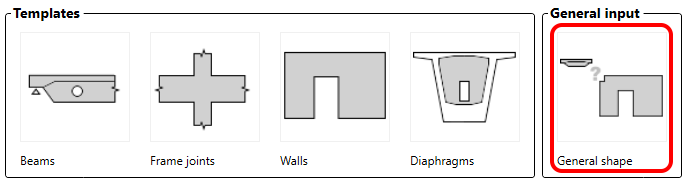
There are two ways how to create a new model.
- From templates
- General input
Let's have a look at them.
TEMPLATES
There are four categories of templates:
- Beams
- Frame joints
- Walls
- Diaphragms
Moreover, there are prepared topologies for all of the categories. These predefined projects will speed up your workflow. You can go through the overview below.
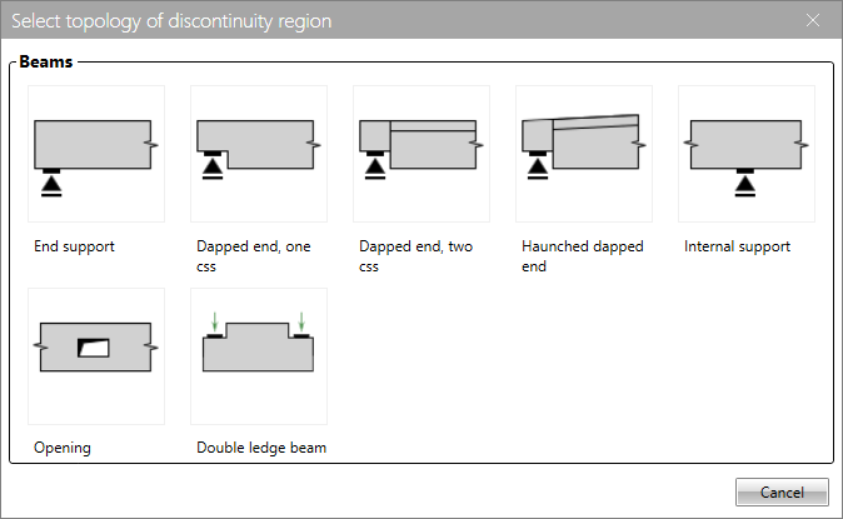
\[ \textsf{\textit{\footnotesize{Beams}}}\]
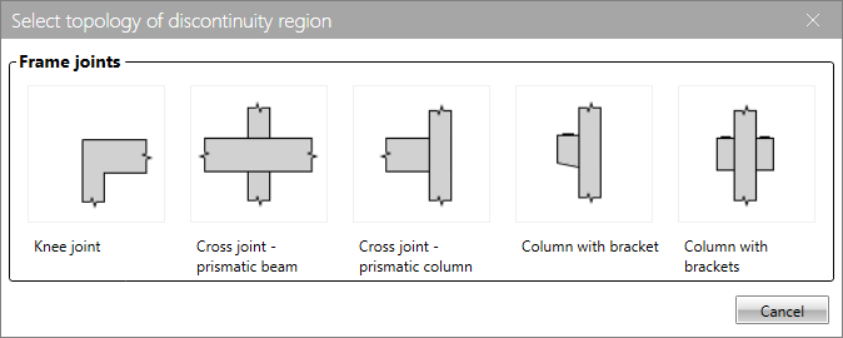
\[ \textsf{\textit{\footnotesize{Frame joints}}}\]
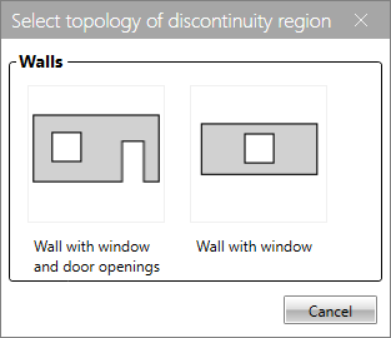
\[ \textsf{\textit{\footnotesize{Walls}}}\]
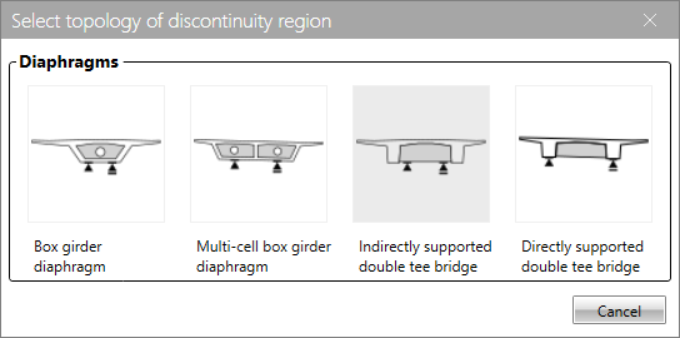
\[ \textsf{\textit{\footnotesize{Diaphragms}}}\]
Once you select the proper topology, the new model, including reinforcement, loads, and basic combinations, will be created automatically. You can also modify, add or delete anything later.
General input
If one of the templates does not suit you, create a blank project and start from scratch.
Start your trial today and enjoy 14-days of full access and services free of charge.
Start free trial