


Widget #NaN: support_center_article
Name: Grasshopper - Plugin Installation
ID: 6d5f0dc8-ee5a-4c50-aced-df94e3586763
Show Raw Data
{
"title": {
"name": "Main headline (H1)",
"type": "text",
"value": "Grasshopper - Plugin Installation"
},
"preview_image": {
"name": "Preview image",
"type": "asset",
"value": [
{
"name": "E1-1.png",
"description": null,
"type": "image/png",
"size": 68369,
"url": "https://assets-us-01.kc-usercontent.com:443/28eac049-c8ed-00e2-220c-12142a968dff/fe255e56-8a4e-4dd5-8264-4c71f1dcb040/E1-1.png",
"width": 782,
"height": 692,
"renditions": {}
}
]
},
"post_date": {
"name": "Post date",
"type": "date_time",
"value": null,
"displayTimeZone": "Europe/Prague"
},
"perex_content": {
"name": "Lead paragraph",
"type": "text",
"value": ""
},
"content": {
"images": [
{
"description": null,
"imageId": "210c0a21-6b2e-4cf8-96ca-37e82d4862fa",
"url": "https://assets-us-01.kc-usercontent.com:443/28eac049-c8ed-00e2-220c-12142a968dff/79496c31-039f-4837-b79c-cb4138788fee/g-1.png",
"height": 602,
"width": 822
},
{
"description": null,
"imageId": "17b9256a-6aa1-42b7-8631-d3e7d4e045fa",
"url": "https://assets-us-01.kc-usercontent.com:443/28eac049-c8ed-00e2-220c-12142a968dff/af466a09-7c9d-43da-aa86-ae8cf2e05680/g-2.png",
"height": 265,
"width": 492
},
{
"description": null,
"imageId": "2a7f156a-11b3-4615-bfa5-c5e91e966443",
"url": "https://assets-us-01.kc-usercontent.com:443/28eac049-c8ed-00e2-220c-12142a968dff/992a6362-f26a-4ba4-9082-0da7868c65c5/E1-1.png",
"height": 692,
"width": 782
},
{
"description": null,
"imageId": "b957b01f-e69c-482c-841e-87a2cab6aca6",
"url": "https://assets-us-01.kc-usercontent.com:443/28eac049-c8ed-00e2-220c-12142a968dff/71249ebe-9e05-4c66-bf72-1b3714c9decf/g-4.png",
"height": 599,
"width": 1077
},
{
"description": null,
"imageId": "8e7e6c80-c3e3-4d20-8aab-7481515ddf8d",
"url": "https://assets-us-01.kc-usercontent.com:443/28eac049-c8ed-00e2-220c-12142a968dff/f0c189a8-203f-40ea-9248-7aaf4be667ec/grasshopper-idea.png",
"height": 161,
"width": 814
}
],
"linkedItemCodenames": [],
"linkedItems": [],
"links": [
{
"codename": "grasshopper___introduction_to_the_plugin_component",
"linkId": "f2f373ad-9a22-499b-aced-f9520c80a37a",
"urlSlug": "description-of-grasshopper-plugin-components",
"type": "support_center_article"
}
],
"name": "Content",
"type": "rich_text",
"value": "<p>You can get a trial version of Rhino3d and Grasshopper from the <a href=\"https://www.rhino3d.com/download/\" data-new-window=\"true\" target=\"_blank\" rel=\"noopener noreferrer\">Rhino3d</a> website. Run Rhinoceros and select the template with <strong>Meters</strong>:</p>\n<figure data-asset-id=\"210c0a21-6b2e-4cf8-96ca-37e82d4862fa\" data-image-id=\"210c0a21-6b2e-4cf8-96ca-37e82d4862fa\"><img src=\"https://assets-us-01.kc-usercontent.com:443/28eac049-c8ed-00e2-220c-12142a968dff/79496c31-039f-4837-b79c-cb4138788fee/g-1.png\" data-asset-id=\"210c0a21-6b2e-4cf8-96ca-37e82d4862fa\" data-image-id=\"210c0a21-6b2e-4cf8-96ca-37e82d4862fa\" alt=\"\"></figure>\n<p>In the Command line, please enter \"<strong>Package Manager</strong>\":</p>\n<figure data-asset-id=\"17b9256a-6aa1-42b7-8631-d3e7d4e045fa\" data-image-id=\"17b9256a-6aa1-42b7-8631-d3e7d4e045fa\"><img src=\"https://assets-us-01.kc-usercontent.com:443/28eac049-c8ed-00e2-220c-12142a968dff/af466a09-7c9d-43da-aa86-ae8cf2e05680/g-2.png\" data-asset-id=\"17b9256a-6aa1-42b7-8631-d3e7d4e045fa\" data-image-id=\"17b9256a-6aa1-42b7-8631-d3e7d4e045fa\" alt=\"\"></figure>\n<p>A new window appears; select IDEAStatiCa and click <strong>Install</strong>. The plugin will be downloaded and installed. To become active, a restart of Rhinoceros is necessary.</p>\n<figure data-asset-id=\"2a7f156a-11b3-4615-bfa5-c5e91e966443\" data-image-id=\"2a7f156a-11b3-4615-bfa5-c5e91e966443\"><img src=\"https://assets-us-01.kc-usercontent.com:443/28eac049-c8ed-00e2-220c-12142a968dff/992a6362-f26a-4ba4-9082-0da7868c65c5/E1-1.png\" data-asset-id=\"2a7f156a-11b3-4615-bfa5-c5e91e966443\" data-image-id=\"2a7f156a-11b3-4615-bfa5-c5e91e966443\" alt=\"\"></figure>\n<p> To start Grasshopper with the IDEA StatiCa plugin, select <strong>Tools / Grasshopper </strong>in the Rhihoceros tab.</p>\n<figure data-asset-id=\"b957b01f-e69c-482c-841e-87a2cab6aca6\" data-image-id=\"b957b01f-e69c-482c-841e-87a2cab6aca6\"><img src=\"https://assets-us-01.kc-usercontent.com:443/28eac049-c8ed-00e2-220c-12142a968dff/71249ebe-9e05-4c66-bf72-1b3714c9decf/g-4.png\" data-asset-id=\"b957b01f-e69c-482c-841e-87a2cab6aca6\" data-image-id=\"b957b01f-e69c-482c-841e-87a2cab6aca6\" alt=\"\"></figure>\n<p>As you can see, the plugin is already incorporated.</p>\n<figure data-asset-id=\"8e7e6c80-c3e3-4d20-8aab-7481515ddf8d\" data-image-id=\"8e7e6c80-c3e3-4d20-8aab-7481515ddf8d\"><img src=\"https://assets-us-01.kc-usercontent.com:443/28eac049-c8ed-00e2-220c-12142a968dff/f0c189a8-203f-40ea-9248-7aaf4be667ec/grasshopper-idea.png\" data-asset-id=\"8e7e6c80-c3e3-4d20-8aab-7481515ddf8d\" data-image-id=\"8e7e6c80-c3e3-4d20-8aab-7481515ddf8d\" alt=\"\"></figure>\n<p>Learn about the components and commands in the IDEA StatiCa plugin for Grasshopper in the article <a data-item-id=\"f2f373ad-9a22-499b-aced-f9520c80a37a\" href=\"\">Description of Grasshopper plugin components</a>.</p>"
},
"regions": {
"name": "Region",
"type": "taxonomy",
"value": [
{
"name": "AMER",
"codename": "amer"
},
{
"name": "EMEA",
"codename": "emea"
},
{
"name": "APAC",
"codename": "apac"
}
],
"taxonomyGroup": "region"
},
"product_groups": {
"name": "Product group",
"type": "taxonomy",
"value": [
{
"name": "Steel",
"codename": "steel"
},
{
"name": "Connection design",
"codename": "connection_design"
}
],
"taxonomyGroup": "product_group"
},
"support_center_article_types": {
"name": "Support center article",
"type": "taxonomy",
"value": [
{
"name": "Tutorials",
"codename": "tutorial"
}
],
"taxonomyGroup": "support_center_article"
},
"expertise_levels": {
"name": "Expertise level",
"type": "taxonomy",
"value": [
{
"name": "Intermediate",
"codename": "intermediate"
},
{
"name": "Expert",
"codename": "expert"
}
],
"taxonomyGroup": "expertise_level"
},
"labels": {
"name": "Labels",
"type": "taxonomy",
"value": [
{
"name": "IDEA Open Model (API)",
"codename": "idea_open_model__api_"
},
{
"name": "Connection",
"codename": "connection"
}
],
"taxonomyGroup": "labels"
},
"linked_items": {
"name": "Linked items",
"type": "modular_content",
"value": [],
"linkedItems": []
},
"attachments__files": {
"name": "Attachments",
"type": "asset",
"value": []
},
"content_priority__value": {
"name": "Content priority value",
"type": "number",
"value": null
},
"options": {
"name": "Options",
"type": "multiple_choice",
"value": []
},
"url_slug": {
"name": "Url slug",
"type": "url_slug",
"value": "grasshopper-plugin-installation"
},
"unique_url_slug": {
"name": "Unique URL slug",
"type": "custom",
"value": "[\"grasshopper-plugin-installation\",\"[autogenerated]\"]"
},
"content_settings__sitemap": {
"name": "Show in sitemap",
"type": "multiple_choice",
"value": []
},
"content_settings__robots": {
"name": "Search engine indexing",
"type": "multiple_choice",
"value": []
},
"content_settings__is_hidden": {
"name": "Hidden nested content",
"type": "multiple_choice",
"value": []
},
"metadata__page_title": {
"name": "Page title",
"type": "text",
"value": ""
},
"metadata__page_description": {
"name": "Page description",
"type": "text",
"value": ""
},
"metadata__page_keywords": {
"name": "Page keywords",
"type": "text",
"value": ""
},
"metadata__canonical_url": {
"name": "Canonical URL",
"type": "text",
"value": ""
},
"metadata__og_title": {
"name": "OG:title",
"type": "text",
"value": ""
},
"metadata__og_description": {
"name": "OG:description",
"type": "text",
"value": ""
},
"metadata__og_image": {
"name": "OG:image",
"type": "asset",
"value": []
},
"translation__translation_connector": {
"name": "Translation Connector",
"type": "taxonomy",
"value": [],
"taxonomyGroup": "languages"
},
"translation__force_translation": {
"name": "Force translation",
"type": "multiple_choice",
"value": []
},
"translation__last_translation": {
"images": [],
"linkedItemCodenames": [],
"linkedItems": [],
"links": [],
"name": "Last translation",
"type": "rich_text",
"value": "<p><br></p>"
},
"translation__ai_translated": {
"name": "AI translated",
"type": "multiple_choice",
"value": []
},
"page_tree_settings__page_label": {
"name": "Page label",
"type": "text",
"value": ""
},
"page_tree_settings__path_segment": {
"name": "Path segment",
"type": "text",
"value": ""
},
"page_tree_settings__breadcrumb_style": {
"name": "Breadcrumb style",
"type": "multiple_choice",
"value": []
},
"page_tree_settings__hide_in_breadcrumbs": {
"name": "Hide in breadcrumbs",
"type": "multiple_choice",
"value": []
}
}HUMAN plugin
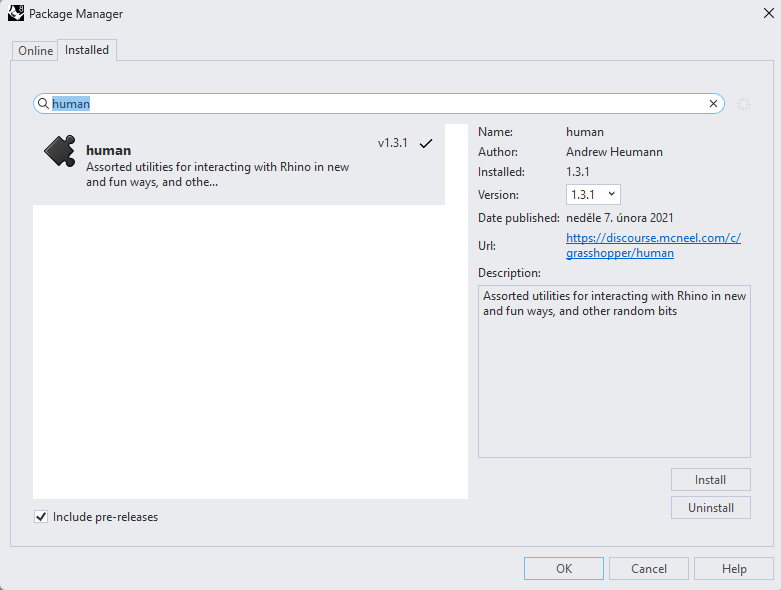
In this example, we need to select part of the structure, and for this purpose, you have to install another plugin - HUMAN, which you will use in this tutorial.
IDEA StatiCa Checkbot – import of a structure, design of a joint
Open the attached folder with a structure imported from 3rd party software. Internal forces are included.
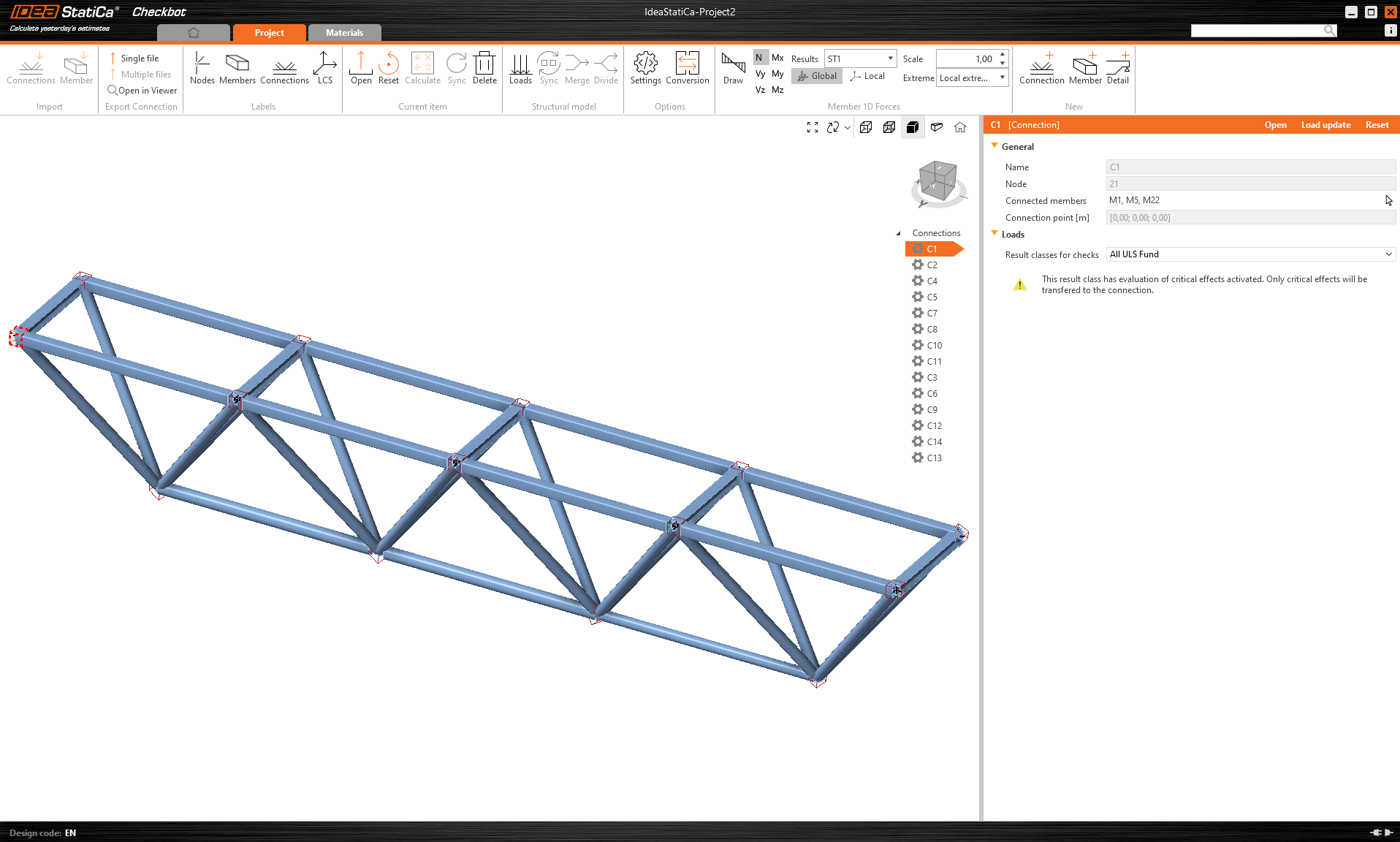
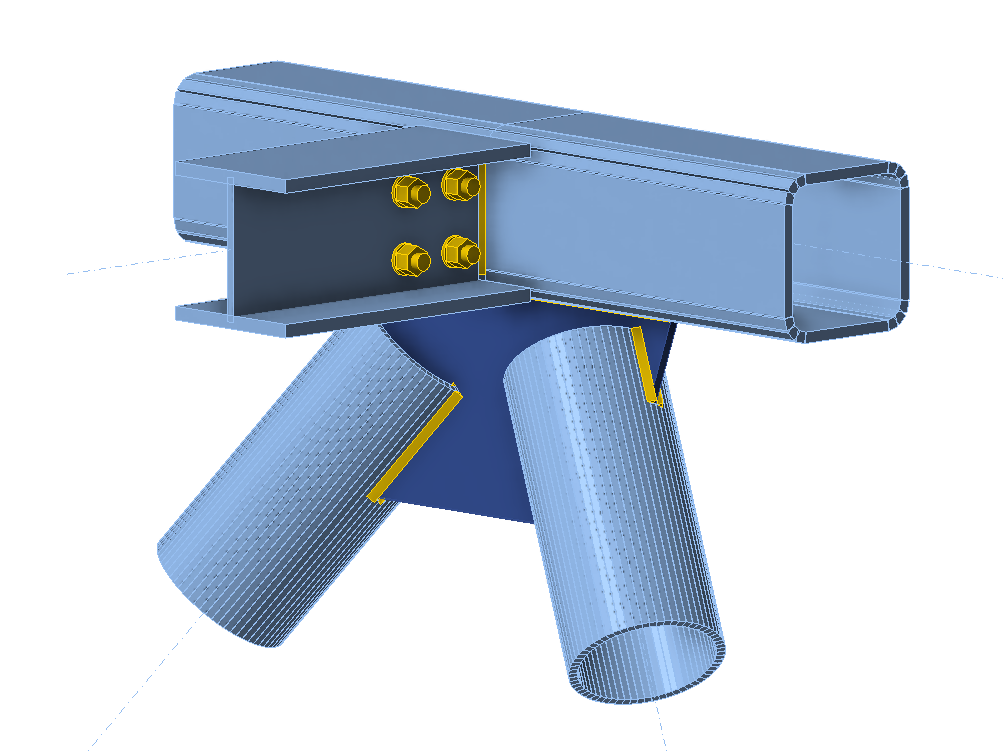
Please select one of the middle joints in the upper belt (e.g., C11) and open it in the IDEA StatiCa Connection.
You can design it correctly according to your needs or use our fully prepared joint here.
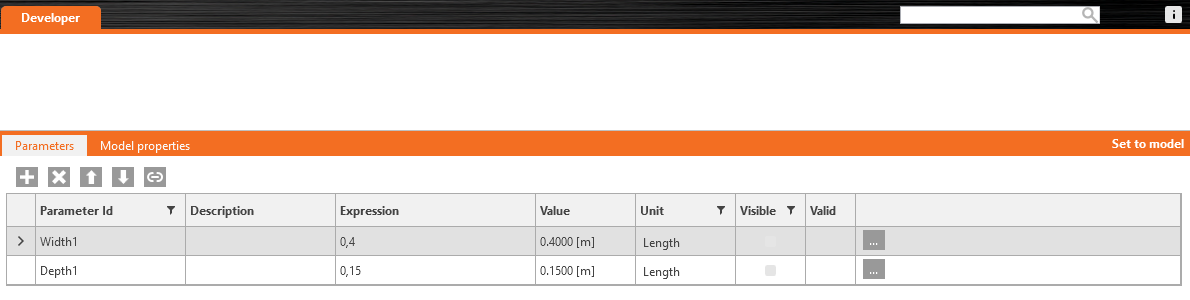
Go to the Developer tab, set the parameters, and link them to the appropriate operation according to the following pictures:

Finaly, store the whole joint as a template *.contemp, used later in Grasshopper.
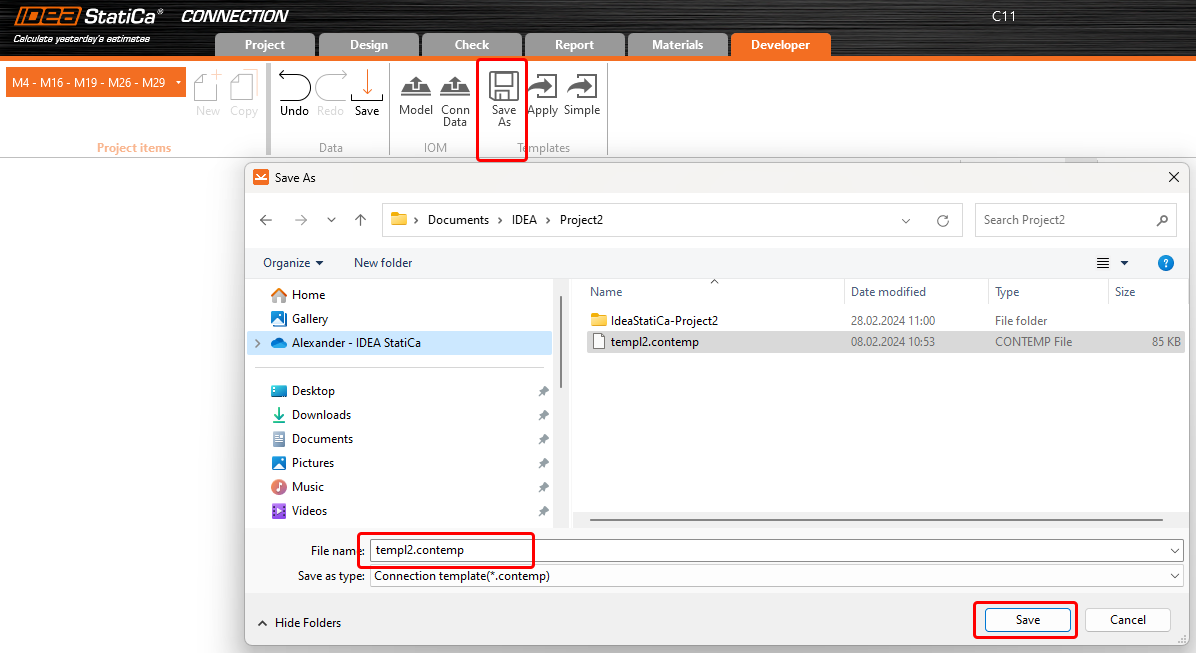
Grasshopper - import XML file, apply the template
Create a new document, select the tab Params in the upper ribbon, and place the component File Path on the Canvas.
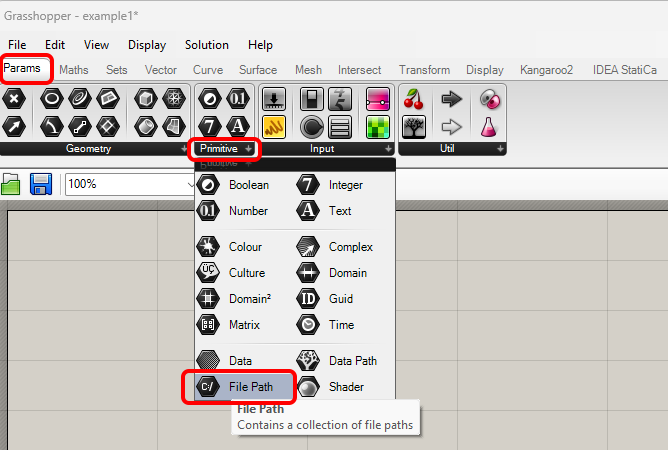
Right-click on the component and select the file import.xml, found in the Checkbot folder. This file contains all the data from the imported structure.
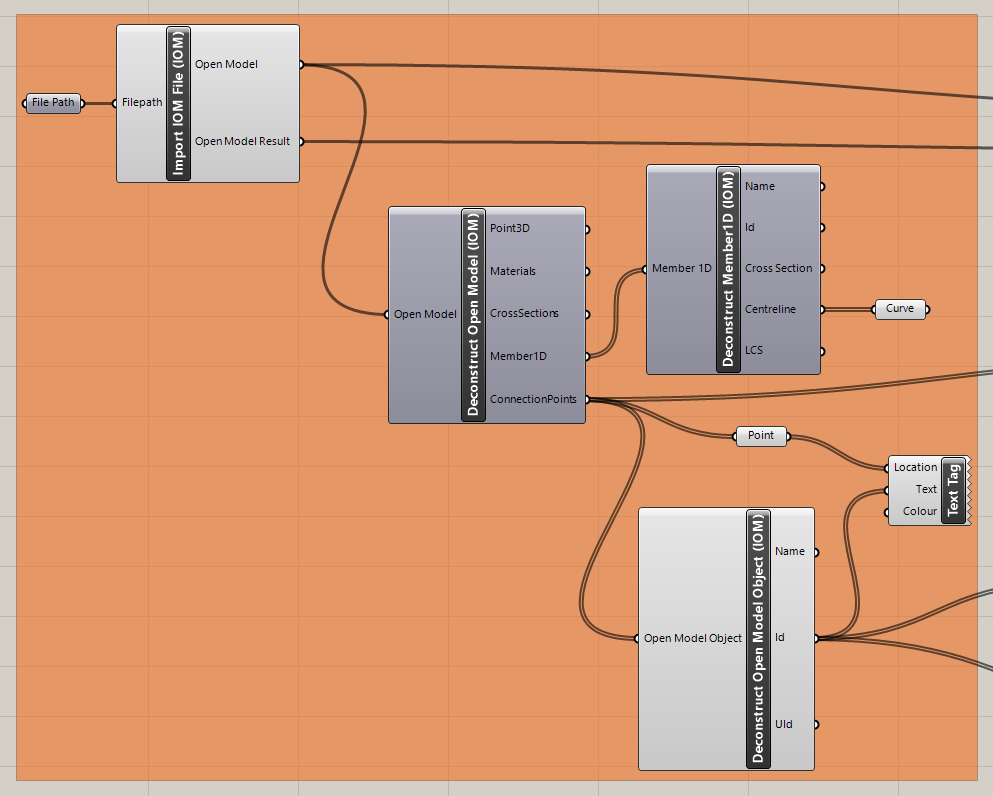
Now, you add the following components to the canvas and connect them as shown in the picture.
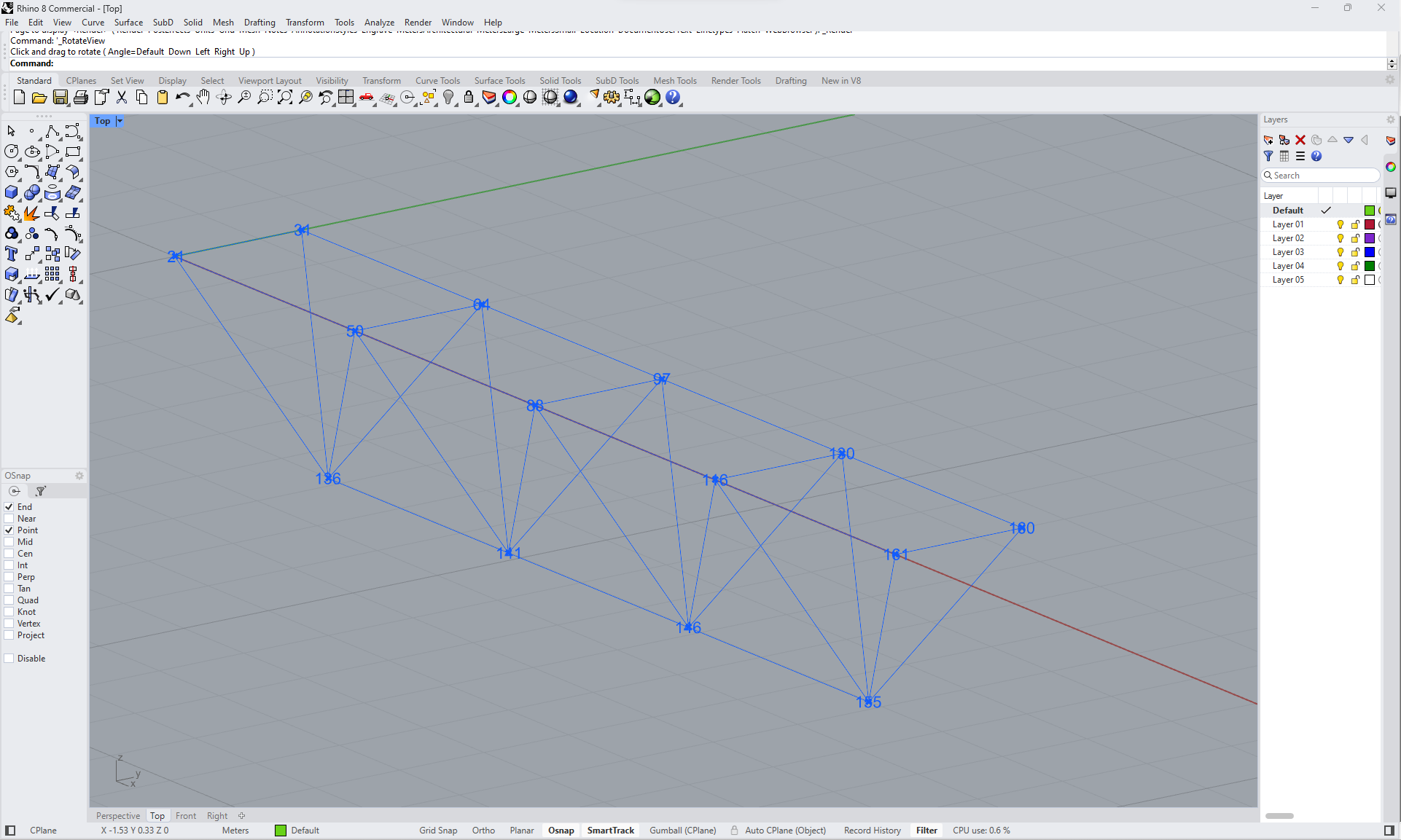
Import File and Display structure, including a description of joints in Rhino:
IDEA StatiCa / Open Model / Import IOM File
IDEA StatiCa / Open Model / Deconstruct Open Model
IDEA StatiCa / Open Model / Deconstruct Open Model Object
Params / Geometry / Curve
Params / Geometry / Point
Display / Dimensions / Text Tag
Now you can see the structure in Rhino:
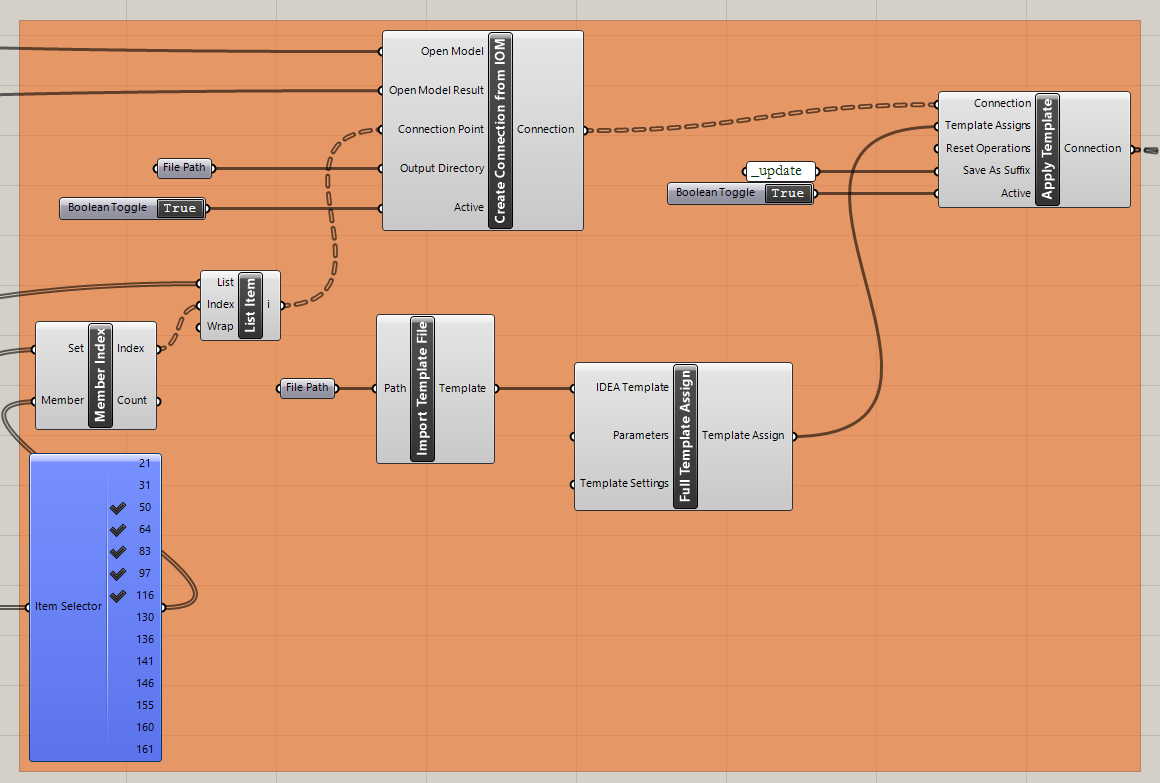
Import the template and apply it to the selected joints:
IDEA StatiCa / Connection / Create Connection from IOM
IDEA StatiCa / Connection / Import Template file
IDEA StatiCa / Connection / Full template Assign
IDEA StatiCa / Connection / Apply Template
Human / Misc / Item Selector
Sets / Sets / Member Index
Sets / Lists / List item
Params / Primitive / File path (import the template)
Params / Primitive / File path (folder, where to store the joints)
Params / Input / Boolean Toggle (2x)
Params / Input / Panel (for creating updated versions of the joint)
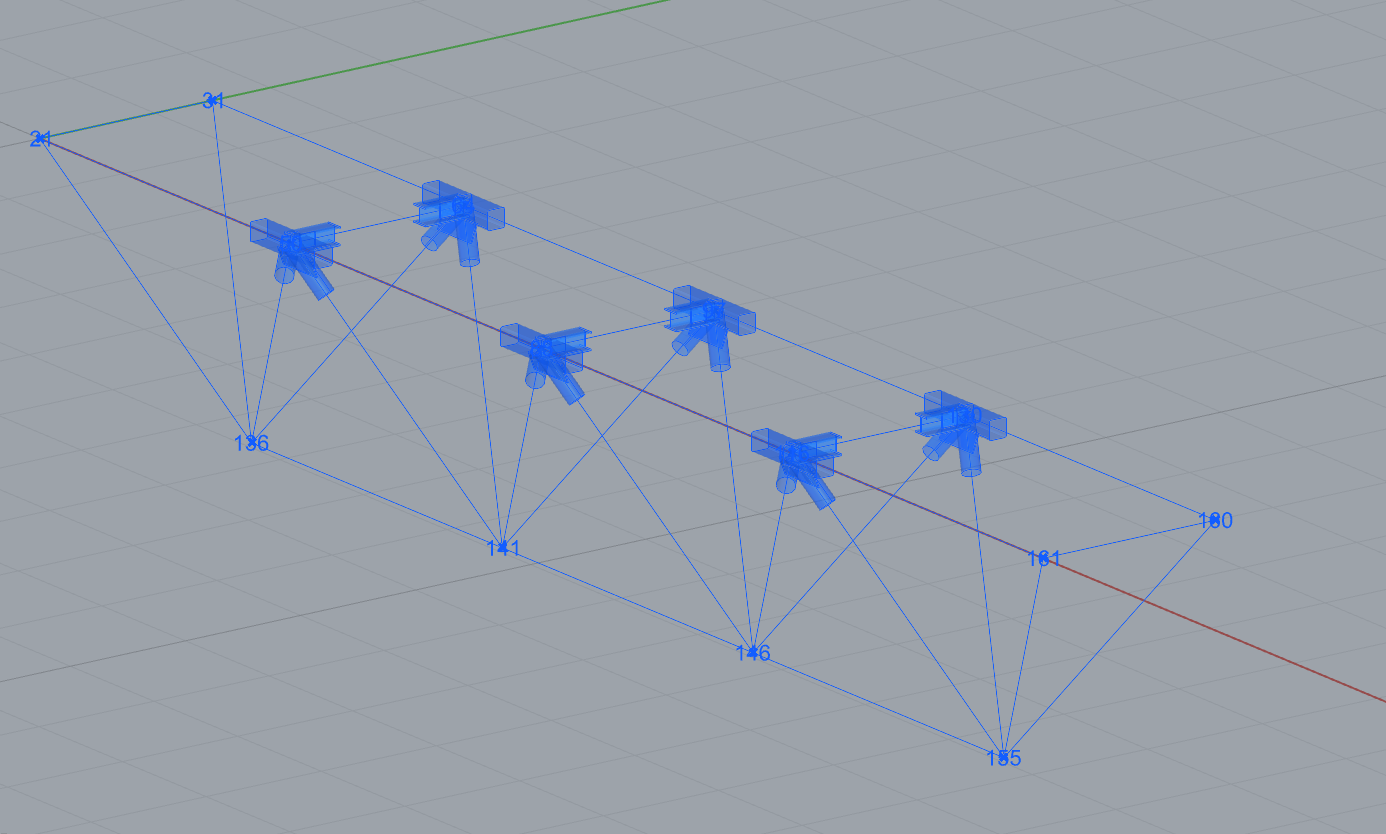
Now you can see the structure with selected joints where the template was applied:
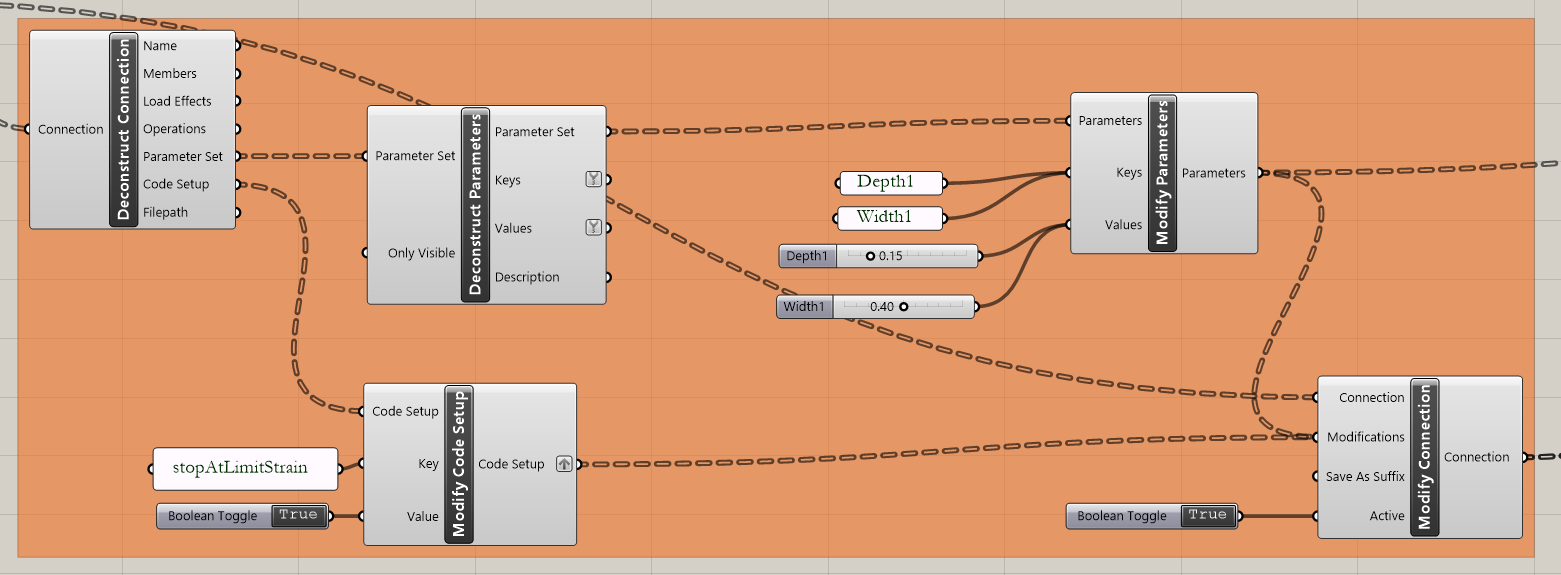
Grasshopper - modify parameters and run the calculation
Modify parameters:
IDEA StatiCa / Connection / Deconstruct Connection
IDEA StatiCa / Connection / Deconstruct Parameters
IDEA StatiCa / Connection / Modify Code Setup (to simplify output table)
IDEA StatiCa / Connection / Modify Parameters
Params / Input / Panel (2x Name of the Parameters)
Params / Input / Panel
Params / Input / Boolean Toggle (2x)
Params / Input / Number Slider
Calculate joints:
IDEA StatiCa / Connection / Calculate Connection
IDEA StatiCa / Connection / Connection Results
IDEA StatiCa / Connection / Connection Geometry (passing data to components for the visualization)
IDEA StatiCa / Connection / Deconstruct Results (passing data to components for the visualization)
Params / Input / Panel (Analysis - to simplify output table)
Params / Input / Panel (Results)
Params / Input / Boolean Toggle
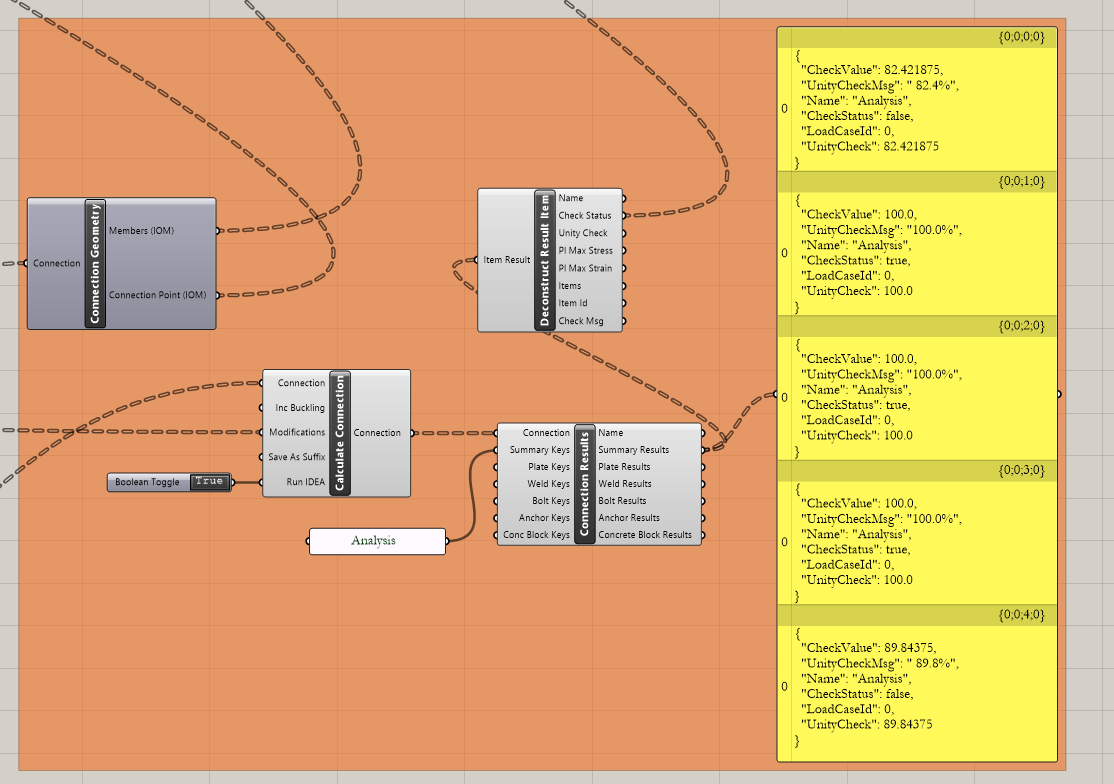
Visualization of results:
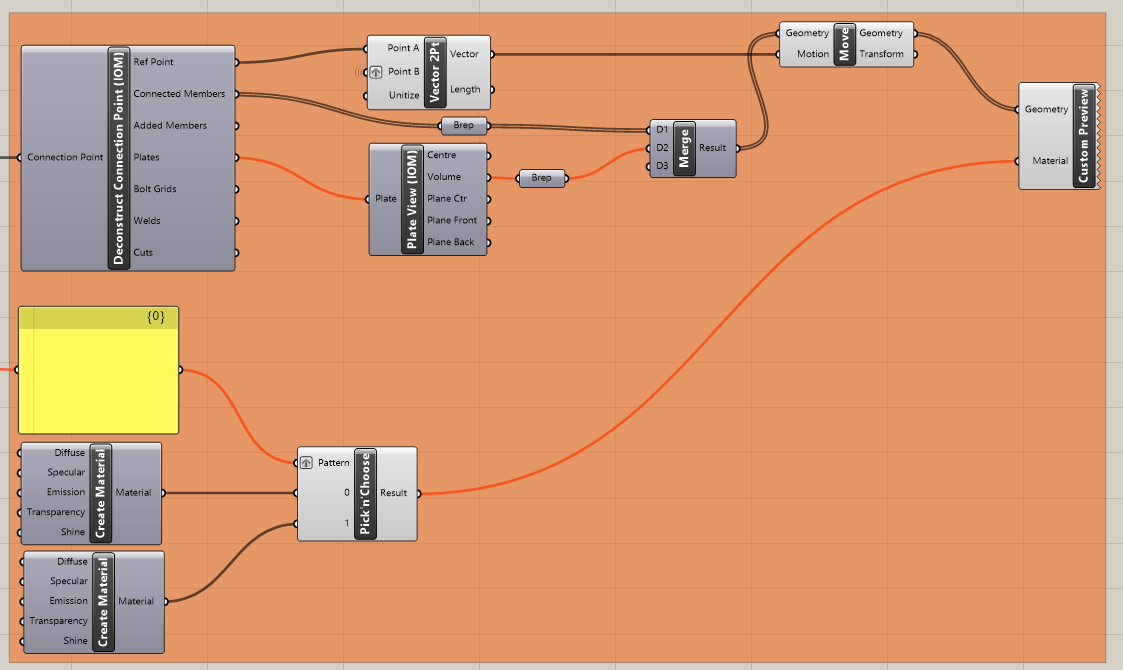
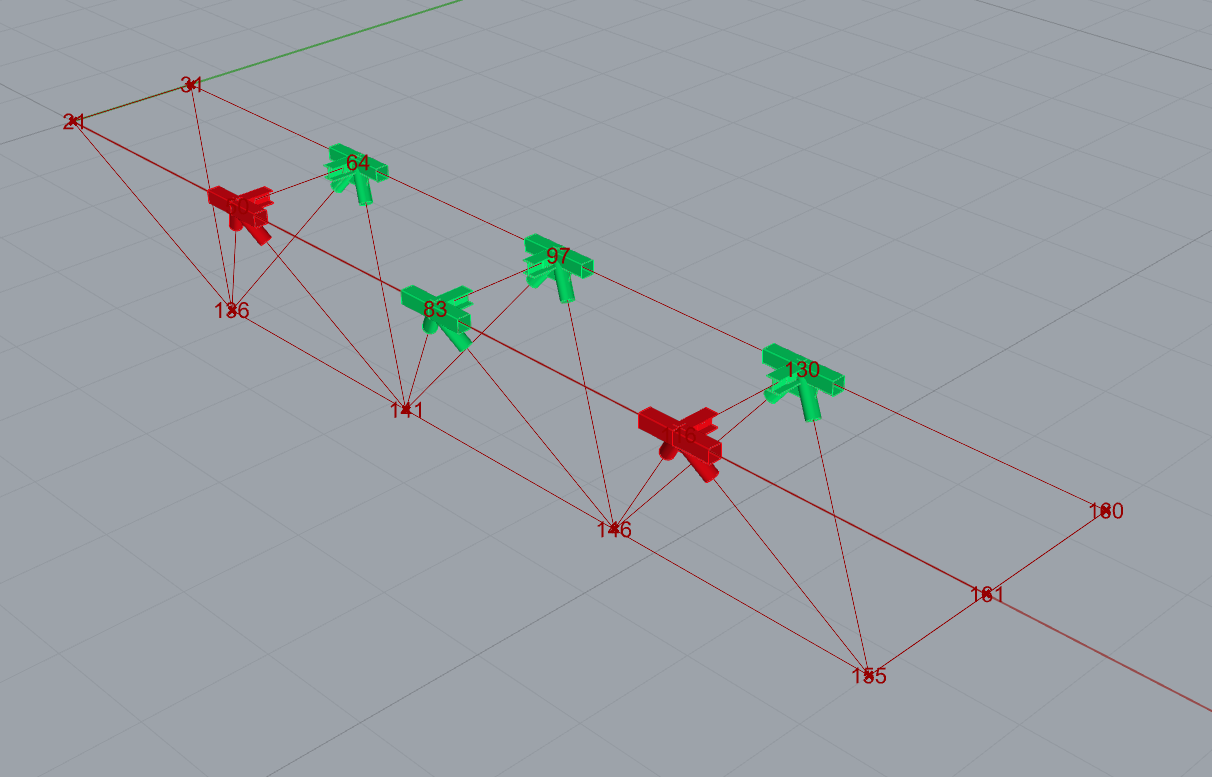
Grasshopper allows you to enhance your results with graphic visualization. The components shown in the next picture allow you to see computed joints in green; the ones that do not pass the checks are then in red.
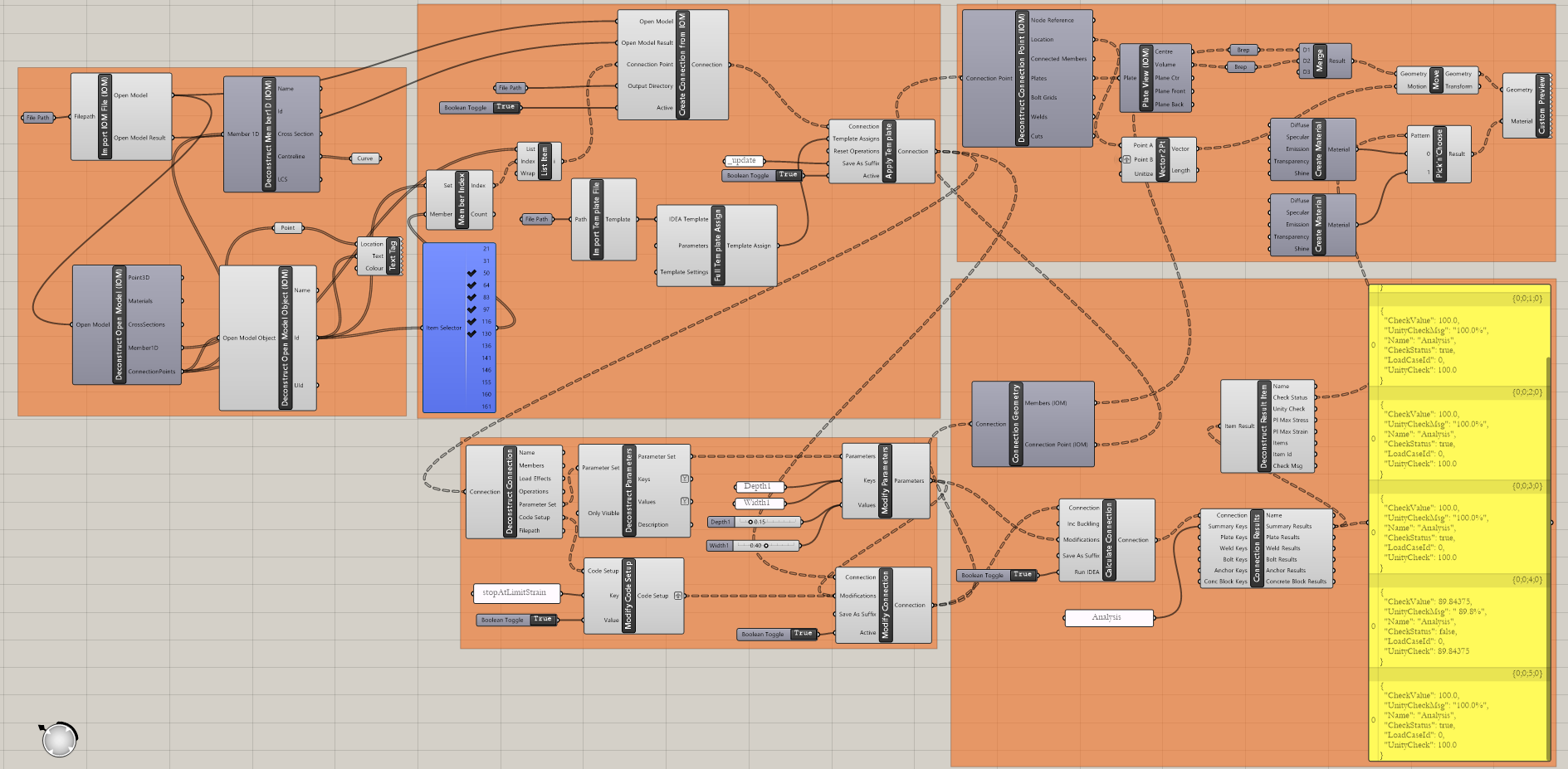
Here is the whole picture of the Grasshopper file to see the links between the components:
More complex examples can be found in the folder
“%appdata%\McNeel\Rhinoceros\packages\7.0\IDEAStatiCa\0.1.1\Examples.zip”