


Questo tutorial utilizza Rhino 8. Se lavori con IDEA StatiCa versione fino alla 24.1.3, consulta questo tutorial.
Widget #NaN: support_center_article
Name: Tutorial: Grasshopper - Plugin Installation
ID: 6d5f0dc8-ee5a-4c50-aced-df94e3586763
Show Raw Data
{
"title": {
"name": "Main headline (H1)",
"type": "text",
"value": "Grasshopper - Installazione del Plugin"
},
"preview_image": {
"name": "Preview image",
"type": "asset",
"value": [
{
"name": "E1-1.png",
"description": null,
"type": "image/png",
"size": 68369,
"url": "https://assets-us-01.kc-usercontent.com:443/66e7a155-be94-0096-73e6-c55dfc7e5788/fe255e56-8a4e-4dd5-8264-4c71f1dcb040/E1-1.png",
"width": 782,
"height": 692,
"renditions": {}
}
]
},
"post_date": {
"name": "Post date",
"type": "date_time",
"value": null,
"displayTimeZone": "Europe/Prague"
},
"perex_content": {
"name": "Lead paragraph",
"type": "text",
"value": ""
},
"content": {
"images": [
{
"description": null,
"imageId": "210c0a21-6b2e-4cf8-96ca-37e82d4862fa",
"url": "https://assets-us-01.kc-usercontent.com:443/66e7a155-be94-0096-73e6-c55dfc7e5788/79496c31-039f-4837-b79c-cb4138788fee/g-1.png",
"height": 602,
"width": 822
},
{
"description": null,
"imageId": "17b9256a-6aa1-42b7-8631-d3e7d4e045fa",
"url": "https://assets-us-01.kc-usercontent.com:443/66e7a155-be94-0096-73e6-c55dfc7e5788/af466a09-7c9d-43da-aa86-ae8cf2e05680/g-2.png",
"height": 265,
"width": 492
},
{
"description": null,
"imageId": "2a7f156a-11b3-4615-bfa5-c5e91e966443",
"url": "https://assets-us-01.kc-usercontent.com:443/66e7a155-be94-0096-73e6-c55dfc7e5788/992a6362-f26a-4ba4-9082-0da7868c65c5/E1-1.png",
"height": 692,
"width": 782
},
{
"description": null,
"imageId": "b957b01f-e69c-482c-841e-87a2cab6aca6",
"url": "https://assets-us-01.kc-usercontent.com:443/66e7a155-be94-0096-73e6-c55dfc7e5788/71249ebe-9e05-4c66-bf72-1b3714c9decf/g-4.png",
"height": 599,
"width": 1077
},
{
"description": null,
"imageId": "8e7e6c80-c3e3-4d20-8aab-7481515ddf8d",
"url": "https://assets-us-01.kc-usercontent.com:443/66e7a155-be94-0096-73e6-c55dfc7e5788/f0c189a8-203f-40ea-9248-7aaf4be667ec/grasshopper-idea.png",
"height": 161,
"width": 814
}
],
"linkedItemCodenames": [],
"linkedItems": [],
"links": [
{
"codename": "grasshopper___introduction_to_the_plugin_component",
"linkId": "f2f373ad-9a22-499b-aced-f9520c80a37a",
"urlSlug": "descrizione-dei-componenti-del-plugin-grasshopper",
"type": "support_center_article"
}
],
"name": "Content",
"type": "rich_text",
"value": "<p>È possibile ottenere una versione di prova di Rhino3d e Grasshopper dal sito web di <a href=\"https://www.rhino3d.com/download/\" data-new-window=\"true\" target=\"_blank\" rel=\"noopener noreferrer\">Rhino3d</a>. Avviare Rhinoceros e selezionare il modello con <strong>Meters</strong>:</p>\n<figure data-asset-id=\"210c0a21-6b2e-4cf8-96ca-37e82d4862fa\" data-image-id=\"210c0a21-6b2e-4cf8-96ca-37e82d4862fa\"><img src=\"https://assets-us-01.kc-usercontent.com:443/66e7a155-be94-0096-73e6-c55dfc7e5788/79496c31-039f-4837-b79c-cb4138788fee/g-1.png\" data-asset-id=\"210c0a21-6b2e-4cf8-96ca-37e82d4862fa\" data-image-id=\"210c0a21-6b2e-4cf8-96ca-37e82d4862fa\" alt=\"\"></figure>\n<p>Nella riga di comando, inserire \"<strong>Package Manager</strong>\":</p>\n<figure data-asset-id=\"17b9256a-6aa1-42b7-8631-d3e7d4e045fa\" data-image-id=\"17b9256a-6aa1-42b7-8631-d3e7d4e045fa\"><img src=\"https://assets-us-01.kc-usercontent.com:443/66e7a155-be94-0096-73e6-c55dfc7e5788/af466a09-7c9d-43da-aa86-ae8cf2e05680/g-2.png\" data-asset-id=\"17b9256a-6aa1-42b7-8631-d3e7d4e045fa\" data-image-id=\"17b9256a-6aa1-42b7-8631-d3e7d4e045fa\" alt=\"\"></figure>\n<p>Apparirà una nuova finestra; selezionare IDEAStatiCa e fare clic su <strong>Install</strong>. Il plugin verrà scaricato e installato. Per diventare attivo, è necessario riavviare Rhinoceros.</p>\n<figure data-asset-id=\"2a7f156a-11b3-4615-bfa5-c5e91e966443\" data-image-id=\"2a7f156a-11b3-4615-bfa5-c5e91e966443\"><img src=\"https://assets-us-01.kc-usercontent.com:443/66e7a155-be94-0096-73e6-c55dfc7e5788/992a6362-f26a-4ba4-9082-0da7868c65c5/E1-1.png\" data-asset-id=\"2a7f156a-11b3-4615-bfa5-c5e91e966443\" data-image-id=\"2a7f156a-11b3-4615-bfa5-c5e91e966443\" alt=\"\"></figure>\n<p> Per avviare Grasshopper con il plugin IDEA StatiCa, selezionare <strong>Tools / Grasshopper </strong>nella scheda Rhinoceros.</p>\n<figure data-asset-id=\"b957b01f-e69c-482c-841e-87a2cab6aca6\" data-image-id=\"b957b01f-e69c-482c-841e-87a2cab6aca6\"><img src=\"https://assets-us-01.kc-usercontent.com:443/66e7a155-be94-0096-73e6-c55dfc7e5788/71249ebe-9e05-4c66-bf72-1b3714c9decf/g-4.png\" data-asset-id=\"b957b01f-e69c-482c-841e-87a2cab6aca6\" data-image-id=\"b957b01f-e69c-482c-841e-87a2cab6aca6\" alt=\"\"></figure>\n<p>Come si può vedere, il plugin è già incorporato.</p>\n<figure data-asset-id=\"8e7e6c80-c3e3-4d20-8aab-7481515ddf8d\" data-image-id=\"8e7e6c80-c3e3-4d20-8aab-7481515ddf8d\"><img src=\"https://assets-us-01.kc-usercontent.com:443/66e7a155-be94-0096-73e6-c55dfc7e5788/f0c189a8-203f-40ea-9248-7aaf4be667ec/grasshopper-idea.png\" data-asset-id=\"8e7e6c80-c3e3-4d20-8aab-7481515ddf8d\" data-image-id=\"8e7e6c80-c3e3-4d20-8aab-7481515ddf8d\" alt=\"\"></figure>\n<p>Per informazioni sui componenti e i comandi del plugin IDEA StatiCa per Grasshopper, consultare l'articolo <a data-item-id=\"f2f373ad-9a22-499b-aced-f9520c80a37a\" href=\"\">Descrizione dei componenti del plugin Grasshopper</a>.</p>"
},
"linked_items": {
"name": "Linked items",
"type": "modular_content",
"value": [],
"linkedItems": []
},
"regions": {
"name": "Region",
"type": "taxonomy",
"value": [
{
"name": "AMER",
"codename": "amer"
},
{
"name": "EMEA",
"codename": "emea"
},
{
"name": "APAC",
"codename": "apac"
}
],
"taxonomyGroup": "region"
},
"product_groups": {
"name": "Product group",
"type": "taxonomy",
"value": [
{
"name": "Steel",
"codename": "steel"
},
{
"name": "Connection design",
"codename": "connection_design"
}
],
"taxonomyGroup": "product_group"
},
"support_center_article_types": {
"name": "Support center article",
"type": "taxonomy",
"value": [
{
"name": "Tutorials",
"codename": "tutorial"
}
],
"taxonomyGroup": "support_center_article"
},
"expertise_levels": {
"name": "Expertise level",
"type": "taxonomy",
"value": [
{
"name": "Intermediate",
"codename": "intermediate"
},
{
"name": "Expert",
"codename": "expert"
}
],
"taxonomyGroup": "expertise_level"
},
"labels": {
"name": "Labels",
"type": "taxonomy",
"value": [
{
"name": "IDEA Open Model (API)",
"codename": "idea_open_model__api_"
},
{
"name": "Connection",
"codename": "connection"
}
],
"taxonomyGroup": "labels"
},
"attachments__files": {
"name": "Attachments",
"type": "asset",
"value": []
},
"content_priority__value": {
"name": "Content priority value",
"type": "number",
"value": null
},
"options": {
"name": "Options",
"type": "multiple_choice",
"value": []
},
"url_slug": {
"name": "Url slug",
"type": "url_slug",
"value": "grasshopper-plugin-installation"
},
"unique_url_slug": {
"name": "Unique URL slug",
"type": "custom",
"value": "[\"grasshopper-plugin-installation\",\"[autogenerated]\"]"
},
"content_settings__sitemap": {
"name": "Show in sitemap",
"type": "multiple_choice",
"value": []
},
"content_settings__robots": {
"name": "Search engine indexing",
"type": "multiple_choice",
"value": []
},
"content_settings__is_hidden": {
"name": "Hidden nested content",
"type": "multiple_choice",
"value": []
},
"content_settings__is_topped": {
"name": "Topped",
"type": "multiple_choice",
"value": []
},
"metadata__page_title": {
"name": "Page title",
"type": "text",
"value": ""
},
"metadata__page_description": {
"name": "Page description",
"type": "text",
"value": ""
},
"metadata__page_keywords": {
"name": "Page keywords",
"type": "text",
"value": ""
},
"metadata__canonical_url": {
"name": "Canonical URL",
"type": "text",
"value": ""
},
"metadata__og_title": {
"name": "OG:title",
"type": "text",
"value": ""
},
"metadata__og_description": {
"name": "OG:description",
"type": "text",
"value": ""
},
"metadata__og_image": {
"name": "OG:image",
"type": "asset",
"value": []
},
"translation__translation_connector": {
"name": "Translation Connector",
"type": "taxonomy",
"value": [],
"taxonomyGroup": "languages"
},
"translation__force_translation": {
"name": "Force translation",
"type": "multiple_choice",
"value": []
},
"translation__translate_standalone_nested_content_items": {
"name": "Translate standalone nested content items",
"type": "multiple_choice",
"value": []
},
"translation__last_translation": {
"images": [],
"linkedItemCodenames": [],
"linkedItems": [],
"links": [],
"name": "Last translation",
"type": "rich_text",
"value": "<p>Translation info:</p>\n<ul>\n <li>cs-CZ: Never translated</li>\n <li>de-DE: Never translated</li>\n <li>en-US: Never translated</li>\n <li>es-ES: Never translated</li>\n <li>fr-FR: Never translated</li>\n <li>hu-HU: Never translated</li>\n <li>it-IT: Translated on 16.4.2026 08:42</li>\n <li>nl-NL: Never translated</li>\n <li>pt-PT: Never translated</li>\n <li>ro-RO: Never translated</li>\n <li>ru-RU: Never translated</li>\n</ul>\n<p>Publish info:</p>\n<ul>\n <li>Publish info is available only in the main language</li>\n</ul>"
},
"translation__ai_translated": {
"name": "AI translated",
"type": "multiple_choice",
"value": [
{
"name": "Translated",
"codename": "translated"
}
]
},
"page_tree_settings__page_label": {
"name": "Page label",
"type": "text",
"value": ""
},
"page_tree_settings__path_segment": {
"name": "Path segment",
"type": "text",
"value": ""
},
"page_tree_settings__breadcrumb_style": {
"name": "Breadcrumb style",
"type": "multiple_choice",
"value": []
},
"page_tree_settings__hide_in_breadcrumbs": {
"name": "Hide in breadcrumbs",
"type": "multiple_choice",
"value": []
}
}Plugin Colibri
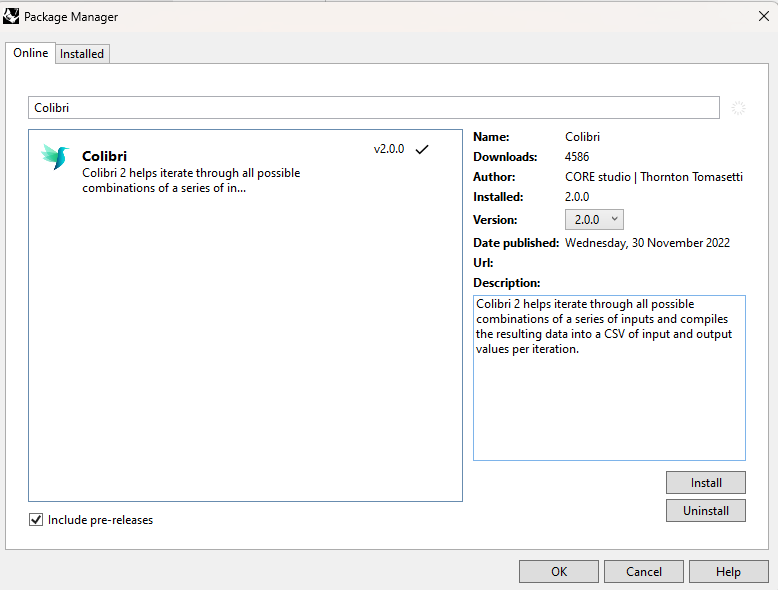
Poiché Grasshopper non può lavorare con i cicli, è necessario installare un altro plugin - COLIBRI, che utilizzerai in questo tutorial.
IDEA StatiCa Connection – Giunto con piastra d'estremità e parametri
Per questo tutorial, avremo bisogno di un collegamento con alcuni parametri. Apri il file allegato.
Per poter lavorare con i parametri, è necessario abilitare la scheda Sviluppatore in Preferenze / Impostazioni avanzate:
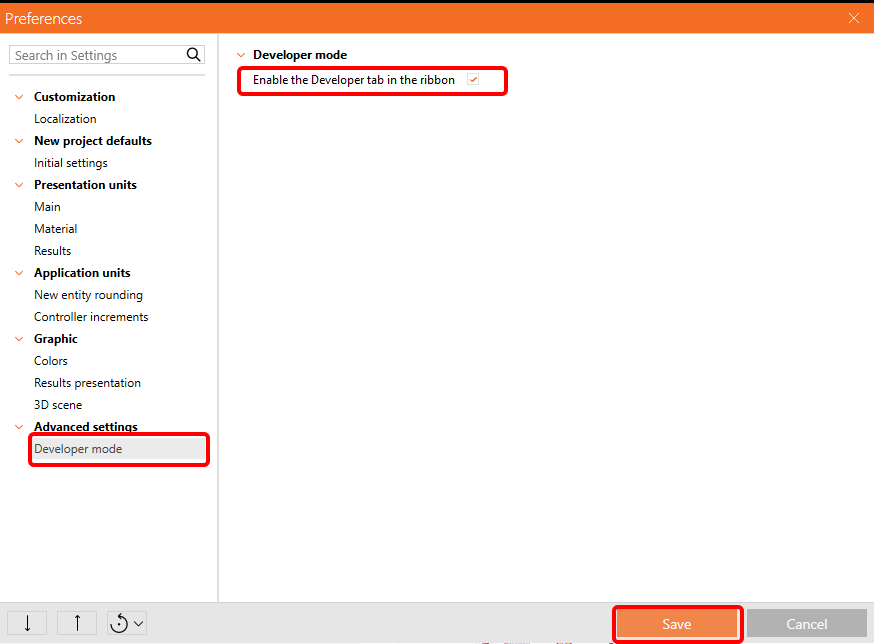
Questo collegamento include due parametri - Bulloni e Piastra d'estremità.

Se non hai familiarità con i parametri, consulta i seguenti tutorial:
Progettazione parametrica in IDEA StatiCa Connection - Nozioni di base (01)
Progettazione parametrica in IDEA StatiCa Connection - Avanzato (02)
Grasshopper - Importare il file *ideaCon e modificare i parametri
Crea un nuovo documento, seleziona la scheda Params nella barra multifunzione superiore e posiziona il componente File Path sul Canvas.
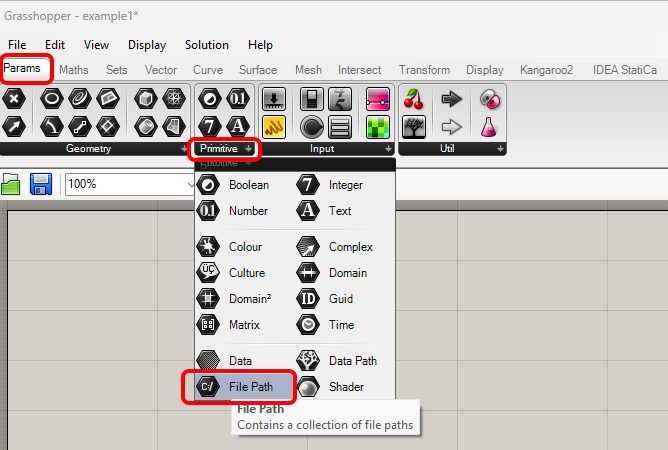
Fai clic con il tasto destro sul componente e seleziona il file Example2.ideaCon salvato in precedenza.
Nota: Se apri il file allegato, devi modificare questo percorso di conseguenza.
Dalla versione 24.1.4, IDEA StatiCa dispone di una nuova API, descritta qui.
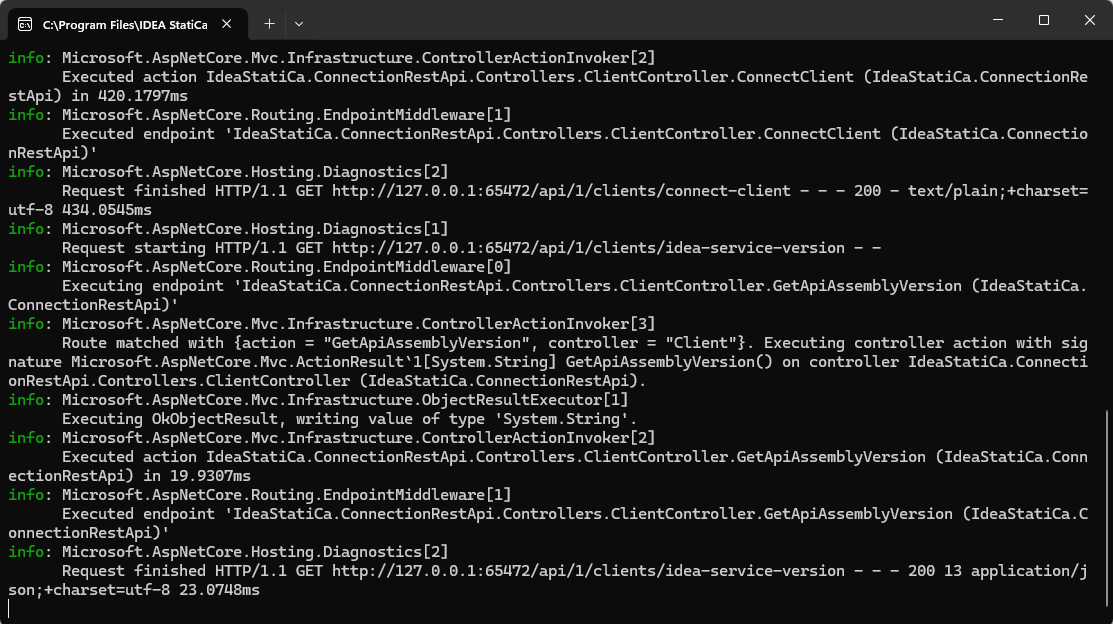
Per eseguire gli script Grasshopper, è necessario aggiungere un componente chiamato Connection Service Runner a ogni file. Questo componente si trova in IDEA StatiCa / App Common.
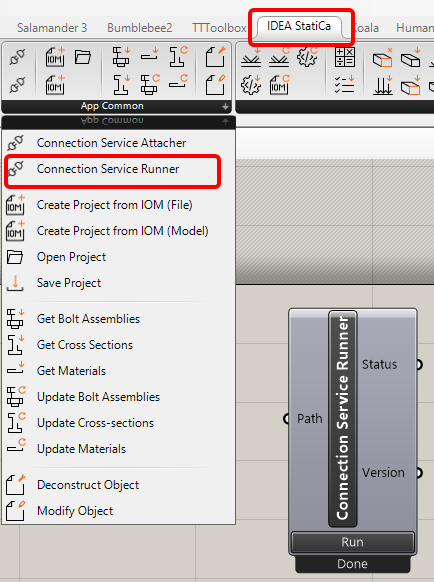
Quando si esegue questo componente, dovrebbe apparire la seguente finestra.
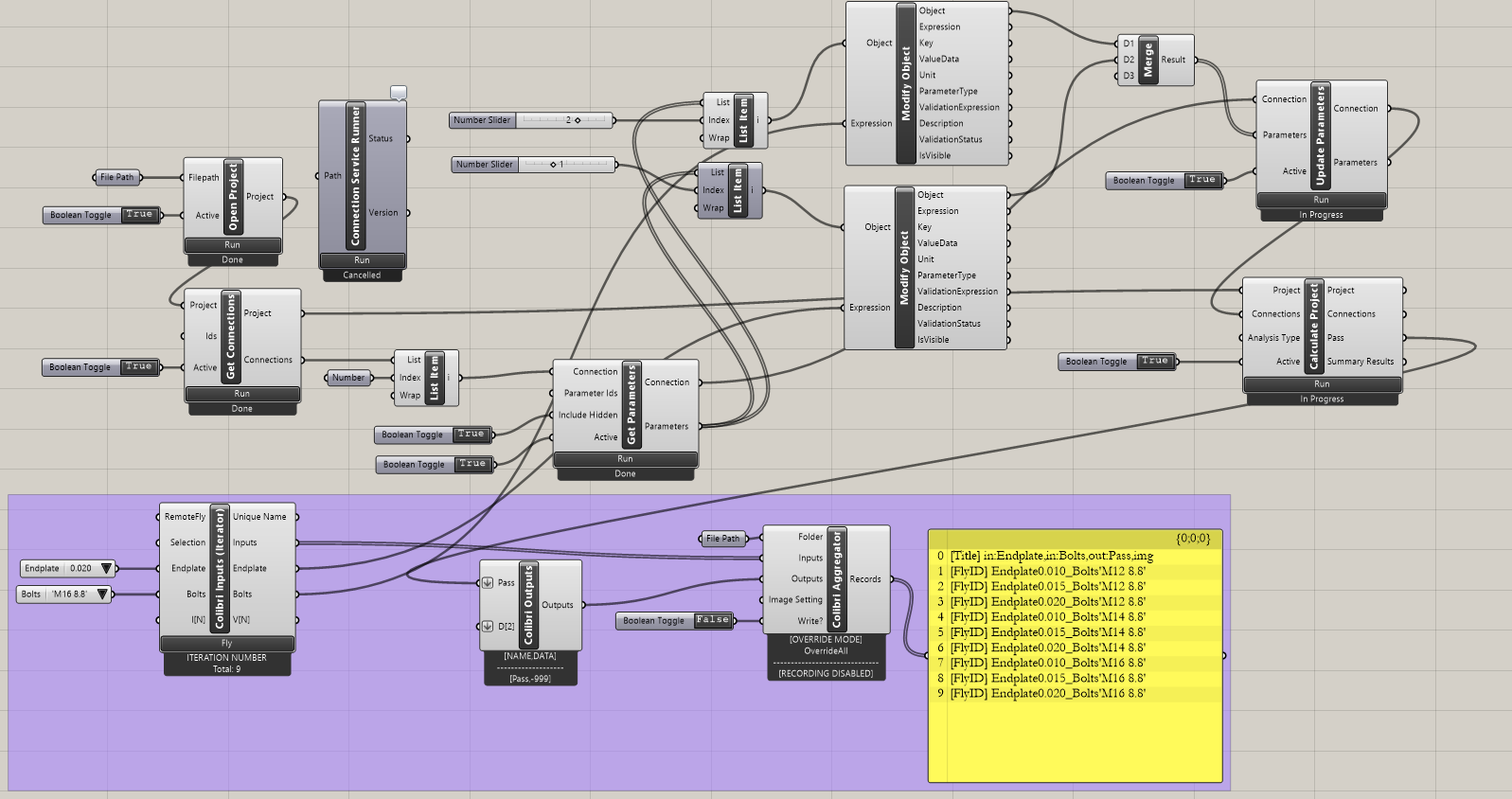
Ora aggiungi i seguenti componenti al canvas e collegali come mostrato nell'immagine.
Importa file:
IDEA StatiCa / App common / Open Project
IDEA StatiCa / Connection / Get Connection
Visualizza parametri:
IDEA StatiCa / Connection / Get Parameters
Qui puoi aggiungere i componenti Params / Input / Panel per visualizzare i valori dei parametri.
Modifica parametri:
IDEA StatiCa / App common / Modify Object (1)
IDEA StatiCa / App common / Modify Object (2)
IDEA StatiCa / Connection / Update parameters
Calcolo e risultati:
IDEA StatiCa / Connection / Calculate Project
Anche qui puoi aggiungere i componenti Params / Input / Panel per visualizzare i valori dei risultati.
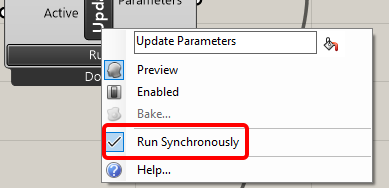
Per i componenti
IDEA StatiCa / Connection / Calculate Project e IDEA StatiCa / Connection / Update parameters
È essenziale verificare il parametro 'Run Synchronously'.
Componenti Colibri per iterare le combinazioni di parametri:
TTTollbox / Colibri Inputs
TTTollbox / Colibri Outputs
TTTollbox / Colibri Aggregator
Per l'input, il primo Value list contiene 3 valori (0.010, 0.015, 0.020) per lo spessore della piastra d'estremità.
Il secondo contiene tre valori (M12 8.8, M14 8.8, M16 8.8) per il diametro dei bulloni.
I risultati sono memorizzati nel file data.csv. Per impostazione predefinita, viene salvato in c:\Colibri; qui è necessario impostare il percorso su C:/IDEA. Assicurarsi di disporre dei permessi di accesso necessari.
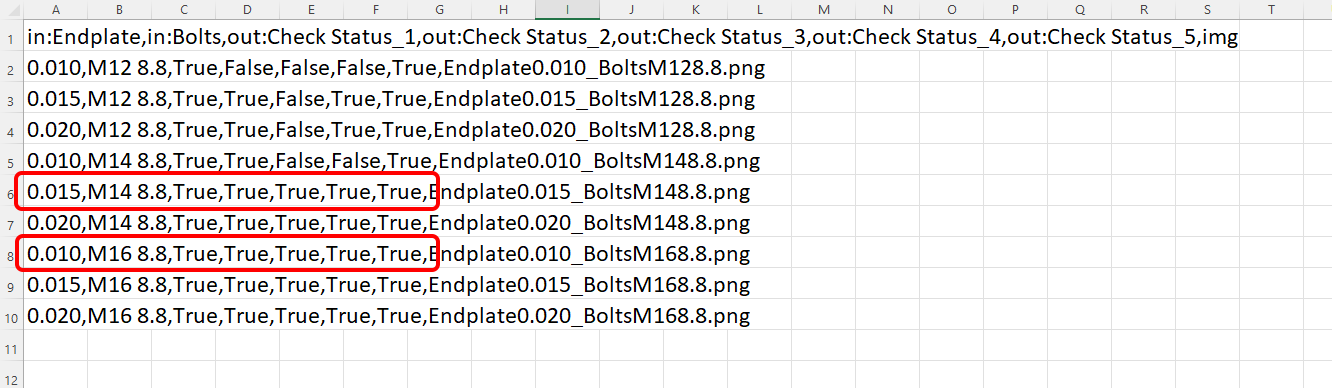
Fai clic sul pulsante Colibri Inputs / Fly per eseguire l'intera iterazione. Dopo qualche istante, il file CSV viene creato.
I risultati immediati con True / False sono visibili aprendolo.
Interpretazione dei risultati
Per questo specifico collegamento, si otterranno risultati soddisfacenti utilizzando
- Bulloni M16 8.8 con spessore della piastra d'estremità di 10 mm
oppure
- Bulloni M14 8.8 con spessore della piastra d'estremità di 15 mm
Esempi più complessi sono disponibili sul PC nella directory
"%appdata%\McNeel\Rhinoceros\packages\8.0\IDEAStatiCa\0.2.5\Examples0.2.5.zip"