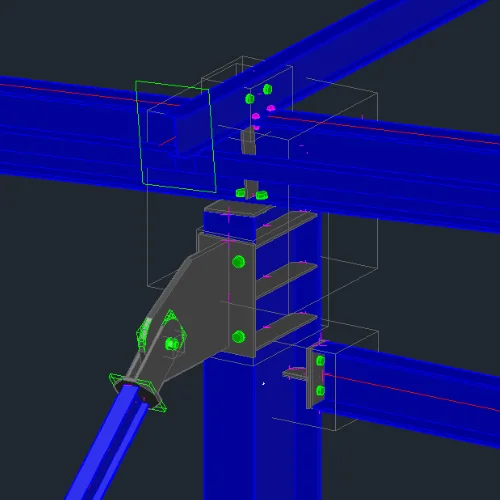
Autodesk Revit to IDEA StatiCa workflow
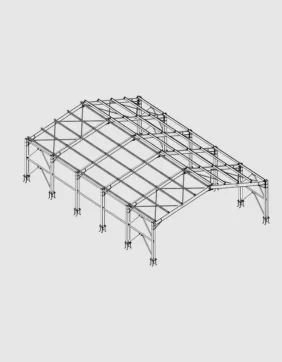
Model connection in CAD
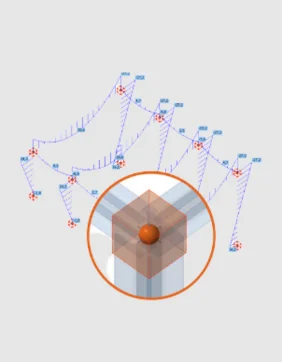
Import structure and apply loads
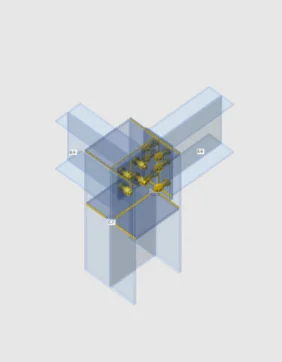
Design selected connections
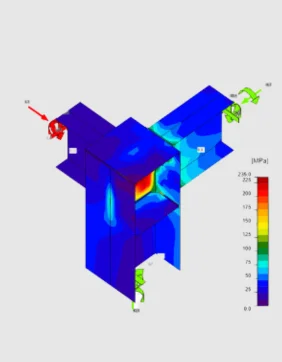
Code-check and optimize connections
Model connection in CAD
Import structure and apply loads
Design selected connections
Code-check and optimize connections
You can select any number of steel connections and members in Autodesk Revit and export them to IDEA StatiCa for structural design and code checking. All beams, cross-sections, and operations (bolts, holes, welds, and cuts) are also completely synchronized if the Autodesk Revit model changes. IDEA StatiCa and Autodesk Revit give you an efficient workflow for your structural steel design that saves time, minimizes errors, helps with optimization, and makes the data available to your colleagues or subcontractors doing detailing and fabrication.
This BIM link is managed by IDEA StatiCa Checkbot - an application for the management of BIM workflows. This means for you:
- Export and synchronize connections and members easily
- Complete control over all of your imported connections and members
- A clear list of all imported items, including status checked/not-checked
- 3D visualization of imported members and loads
- Conversion table for materials and cross-sections
- Load combinations management
Read more about How Checkbot works.
Autodesk Revit BIM link video
How to get started
Getting started is easy!
- Download and install both applications on the same PC.
- Open the IDEA Bim Links App - IDEA StatiCa will automatically detect the Installation of the Software.
- Click Install or follow the instructions in the tutorial for more details.
- Start exporting and designing steel connections right away!
Please note that like with most software, there is always a short delay when new versions are released and the BIM links are updated. Please check out the list of compatible versions before installing the plugin.
Projects shared in last 12 months
People using IDEA StatiCa desktop tools over last 12 months
Companies using IDEA StatiCa