


Widget #NaN: support_center_article
Name: General BIM Link tutorial - How to activate the link
ID: dd351d35-2833-4fa2-a88f-9c0c8769c77d
Show Raw Data
{
"title": {
"name": "Main headline (H1)",
"type": "text",
"value": "Hoe activeer je de link. "
},
"preview_image": {
"name": "Preview image",
"type": "asset",
"value": []
},
"post_date": {
"name": "Post date",
"type": "date_time",
"value": null,
"displayTimeZone": null
},
"perex_content": {
"name": "Lead paragraph",
"type": "text",
"value": ""
},
"content": {
"images": [
{
"description": null,
"imageId": "9cad54c2-e42c-4598-bd6b-531f919390b4",
"url": "https://assets-us-01.kc-usercontent.com:443/28eac049-c8ed-00e2-220c-12142a968dff/a344ea92-4286-44f1-88e1-669c6eb24d67/1-1.png",
"height": 1200,
"width": 1920
},
{
"description": null,
"imageId": "c8cad102-713d-4c84-b7f3-2ccfa81489e5",
"url": "https://assets-us-01.kc-usercontent.com:443/28eac049-c8ed-00e2-220c-12142a968dff/556e9ea6-a817-41cf-9fc4-237a93e2a350/bim-link.png",
"height": 1200,
"width": 1143
}
],
"linkedItemCodenames": [],
"linkedItems": [],
"links": [
{
"codename": "landing_page___downloads",
"linkId": "0dff6482-3e17-4ca2-bb66-b4abc6a8dde4",
"urlSlug": "product-downloads",
"type": "landing_page"
},
{
"codename": "bim_links__supported_versions",
"linkId": "eeb85fd1-4708-4f88-ad36-cbe30ac41eb7",
"urlSlug": "bim-links-ondersteunde-versies-van-andere-applicaties",
"type": "support_center_article"
}
],
"name": "Content",
"type": "rich_text",
"value": "<ul>\n <li>Download en installeer <a data-item-id=\"0dff6482-3e17-4ca2-bb66-b4abc6a8dde4\" href=\"\">de laatste versie van IDEA StatiCa</a></li>\n <li>Zorg ervoor dat u een <a data-item-id=\"eeb85fd1-4708-4f88-ad36-cbe30ac41eb7\" href=\"\">ondersteunde versie</a> van uw FEA/BIM-oplossing gebruikt.</li>\n</ul>\n<p>IDEA StatiCa integreert BIM-links in uw FEA/BIM-oplossingen tijdens de installatie ervan. U kunt de status controleren en meer BIM links activeren voor software die na de installering in de BIM link installer is opgenomen.</p>\n<p>Houd er rekening mee dat sommige FEA-oplossingen extra stappen vereisen om de BIM-link met IDEA StatiCa volledig te activeren.</p>\n<p>Open IDEA StatiCa en navigeer naar de <strong>BIM</strong> tab en open de <strong>BIM link installer</strong> (Activate your BIM link...).</p>\n<figure data-asset-id=\"9cad54c2-e42c-4598-bd6b-531f919390b4\" data-image-id=\"9cad54c2-e42c-4598-bd6b-531f919390b4\"><img src=\"https://assets-us-01.kc-usercontent.com:443/28eac049-c8ed-00e2-220c-12142a968dff/a344ea92-4286-44f1-88e1-669c6eb24d67/1-1.png\" data-asset-id=\"9cad54c2-e42c-4598-bd6b-531f919390b4\" data-image-id=\"9cad54c2-e42c-4598-bd6b-531f919390b4\" alt=\"\"></figure>\n<p>Er kan een melding verschijnen \"<em>Wilt u toestaan dat deze app wijzigingen aanbrengt aan uw apparaat?</em>\", zo ja, bevestig dan met de <strong>Ja</strong>-knop.</p>\n<p>De BIM-link voor de geselecteerde software (indien gevonden) wordt geïnstalleerd. Het scherm toont ook de status van andere BIM-links die mogelijk al zijn geïnstalleerd.</p>\n<figure data-asset-id=\"c8cad102-713d-4c84-b7f3-2ccfa81489e5\" data-image-id=\"c8cad102-713d-4c84-b7f3-2ccfa81489e5\"><img src=\"https://assets-us-01.kc-usercontent.com:443/28eac049-c8ed-00e2-220c-12142a968dff/556e9ea6-a817-41cf-9fc4-237a93e2a350/bim-link.png\" data-asset-id=\"c8cad102-713d-4c84-b7f3-2ccfa81489e5\" data-image-id=\"c8cad102-713d-4c84-b7f3-2ccfa81489e5\" alt=\"\"></figure>"
},
"regions": {
"name": "Region",
"type": "taxonomy",
"value": [
{
"name": "EMEA",
"codename": "emea"
},
{
"name": "AMER",
"codename": "amer"
},
{
"name": "APAC",
"codename": "apac"
}
],
"taxonomyGroup": "region"
},
"product_groups": {
"name": "Product group",
"type": "taxonomy",
"value": [
{
"name": "Steel",
"codename": "steel"
}
],
"taxonomyGroup": "product_group"
},
"support_center_article_types": {
"name": "Support center article",
"type": "taxonomy",
"value": [
{
"name": "Knowledge base",
"codename": "knowledgebase_article"
}
],
"taxonomyGroup": "support_center_article"
},
"expertise_levels": {
"name": "Expertise level",
"type": "taxonomy",
"value": [
{
"name": "Beginner",
"codename": "beginner"
},
{
"name": "Intermediate",
"codename": "intermediate"
}
],
"taxonomyGroup": "expertise_level"
},
"labels": {
"name": "Labels",
"type": "taxonomy",
"value": [
{
"name": "BIM link",
"codename": "bim_links"
}
],
"taxonomyGroup": "labels"
},
"linked_items": {
"name": "Linked items",
"type": "modular_content",
"value": [],
"linkedItems": []
},
"attachments__files": {
"name": "Attachments",
"type": "asset",
"value": []
},
"content_priority__value": {
"name": "Content priority value",
"type": "number",
"value": null
},
"options": {
"name": "Options",
"type": "multiple_choice",
"value": []
},
"url_slug": {
"name": "Url slug",
"type": "url_slug",
"value": "hoe-activeer-je-de-link"
},
"unique_url_slug": {
"name": "Unique URL slug",
"type": "custom",
"value": "[\"hoe-activeer-je-de-link\",\"[autogenerated]\"]"
},
"content_settings__sitemap": {
"name": "Show in sitemap",
"type": "multiple_choice",
"value": [
{
"name": "default",
"codename": "default"
}
]
},
"content_settings__robots": {
"name": "Search engine indexing",
"type": "multiple_choice",
"value": [
{
"name": "default",
"codename": "default"
}
]
},
"content_settings__is_hidden": {
"name": "Hidden nested content",
"type": "multiple_choice",
"value": []
},
"metadata__page_title": {
"name": "Page title",
"type": "text",
"value": ""
},
"metadata__page_description": {
"name": "Page description",
"type": "text",
"value": ""
},
"metadata__page_keywords": {
"name": "Page keywords",
"type": "text",
"value": ""
},
"metadata__canonical_url": {
"name": "Canonical URL",
"type": "text",
"value": ""
},
"metadata__og_title": {
"name": "OG:title",
"type": "text",
"value": ""
},
"metadata__og_description": {
"name": "OG:description",
"type": "text",
"value": ""
},
"metadata__og_image": {
"name": "OG:image",
"type": "asset",
"value": []
},
"translation__translation_connector": {
"name": "Translation Connector",
"type": "taxonomy",
"value": [],
"taxonomyGroup": "languages"
},
"translation__force_translation": {
"name": "Force translation",
"type": "multiple_choice",
"value": []
},
"translation__last_translation": {
"images": [],
"linkedItemCodenames": [],
"linkedItems": [],
"links": [],
"name": "Last translation",
"type": "rich_text",
"value": "<p><br></p>"
},
"translation__ai_translated": {
"name": "AI translated",
"type": "multiple_choice",
"value": []
},
"page_tree_settings__page_label": {
"name": "Page label",
"type": "text",
"value": ""
},
"page_tree_settings__path_segment": {
"name": "Path segment",
"type": "text",
"value": "how-to-activate-the-link"
},
"page_tree_settings__breadcrumb_style": {
"name": "Breadcrumb style",
"type": "multiple_choice",
"value": []
},
"page_tree_settings__hide_in_breadcrumbs": {
"name": "Hide in breadcrumbs",
"type": "multiple_choice",
"value": []
}
}How to use the link
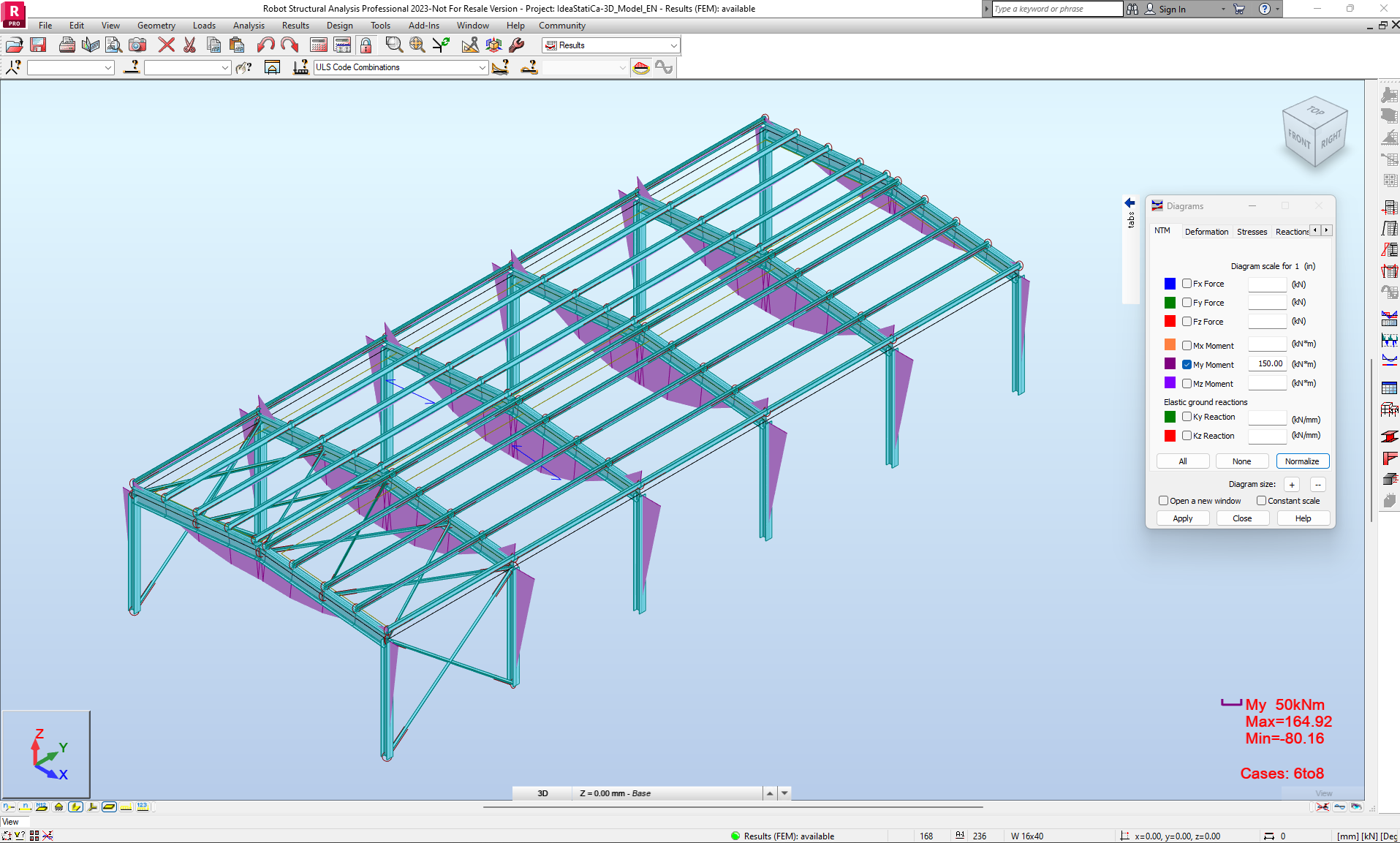
Download the attached project, open it in Robot Structural Analysis, and run the calculation to get the internal forces over the structure.
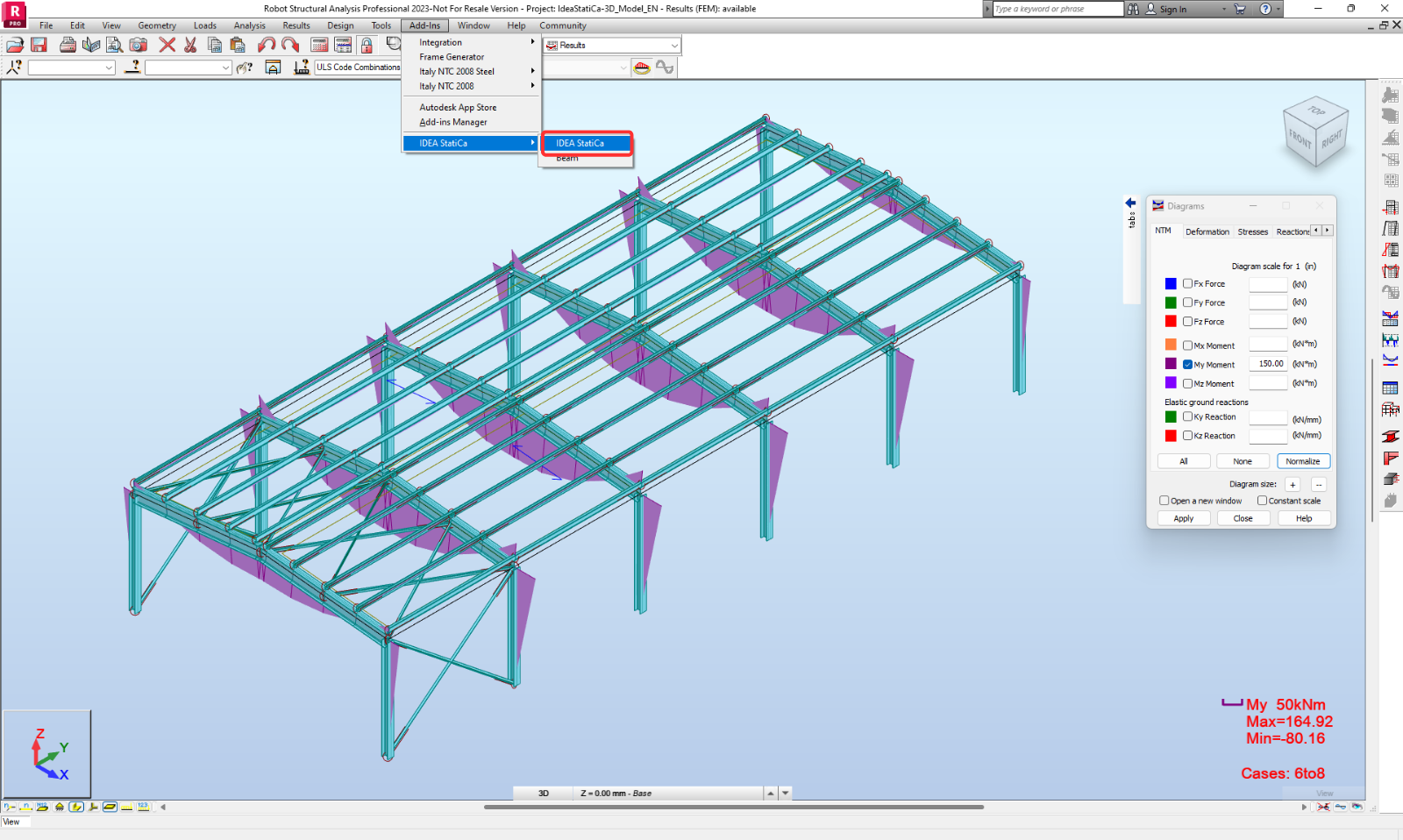
To run the Checkbot, use the Add-Ins button. And find the IDEA StatiCa icon.
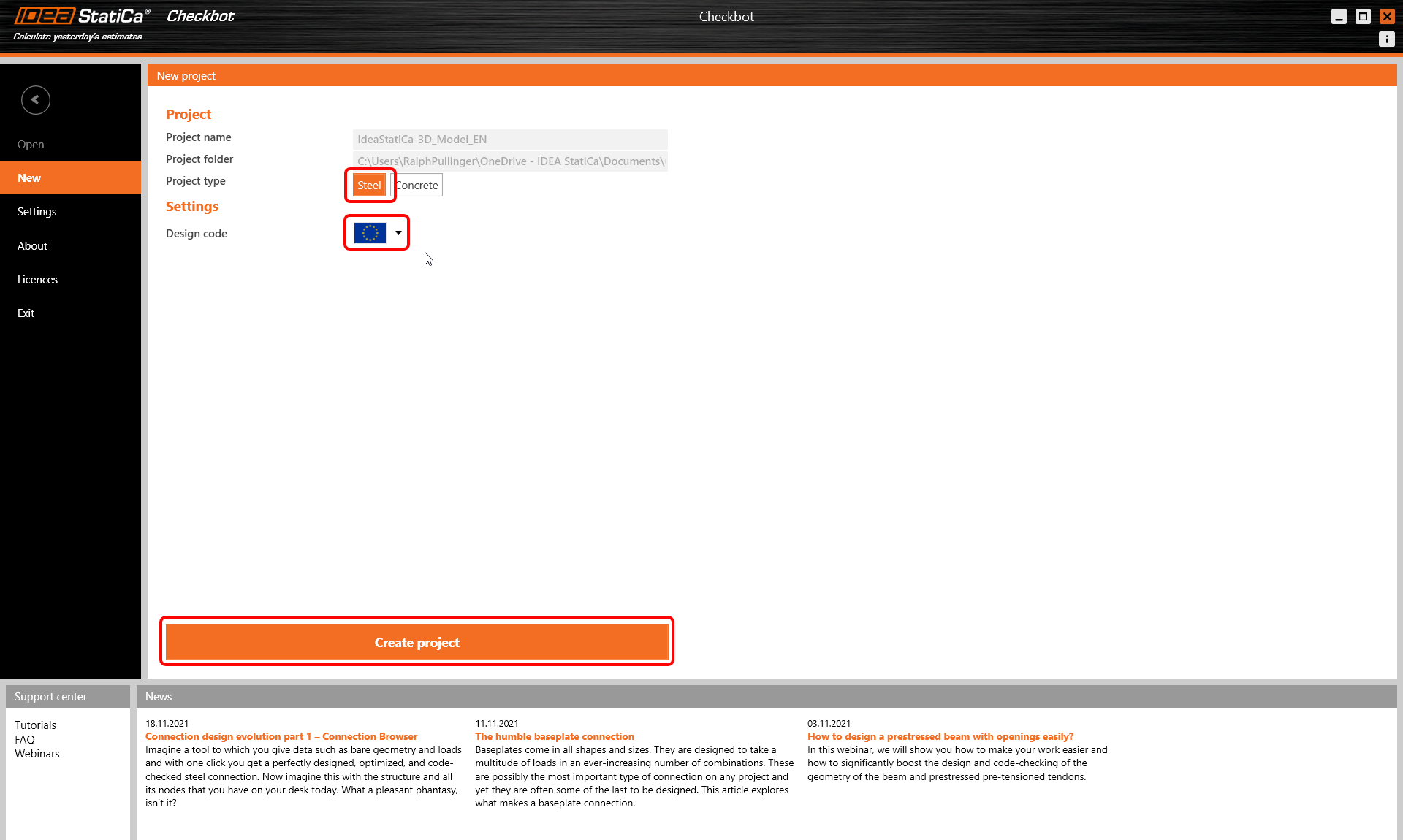
After launching the Checkbot app select New with project type Steel and design code EN. Then select Create Project.
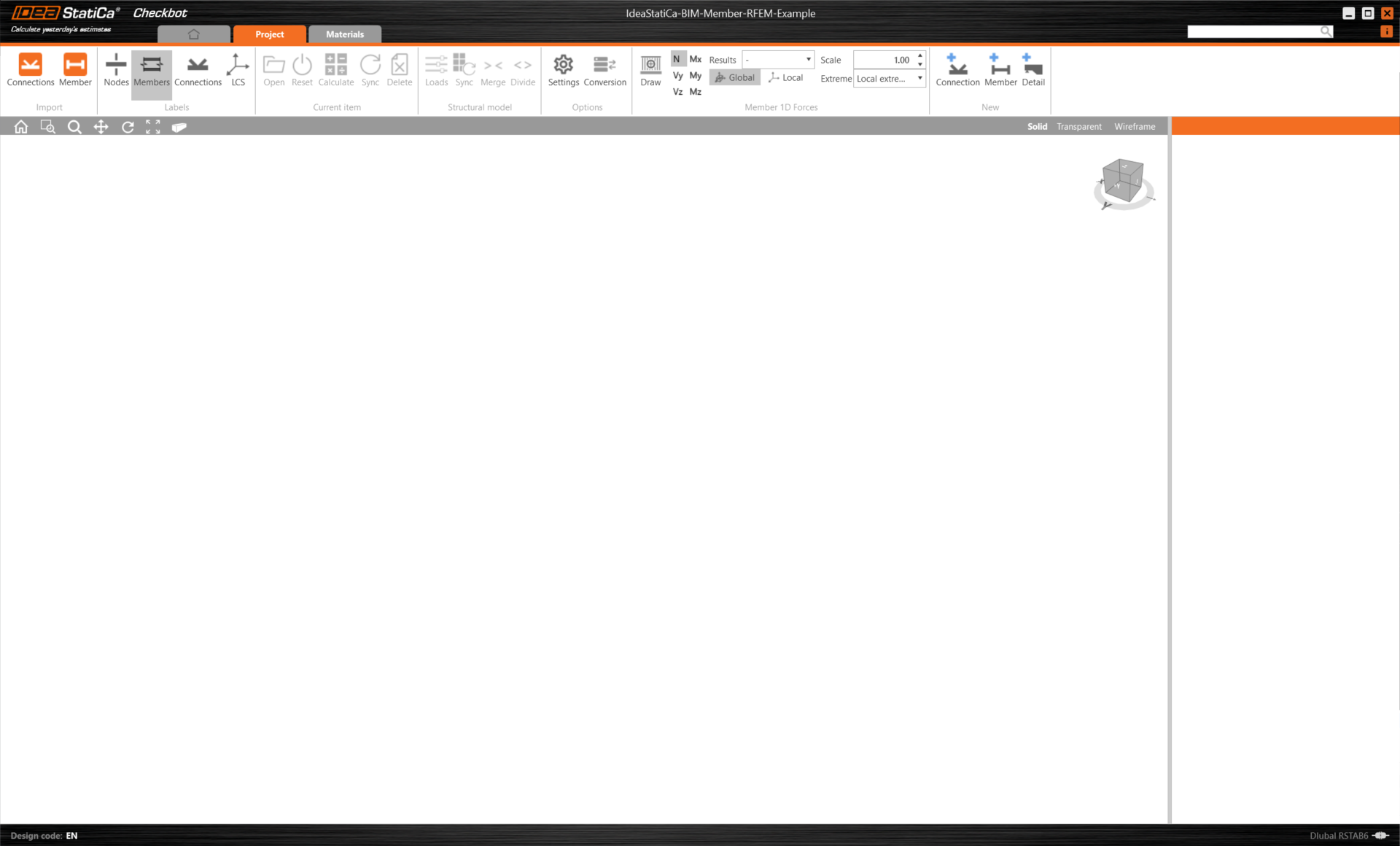
Import
The new Checkbot project is ready to import connections and members from Robot Structural Analysis.
In Robot Structural Analysis, select one of the inside members, as shown in the following picture.
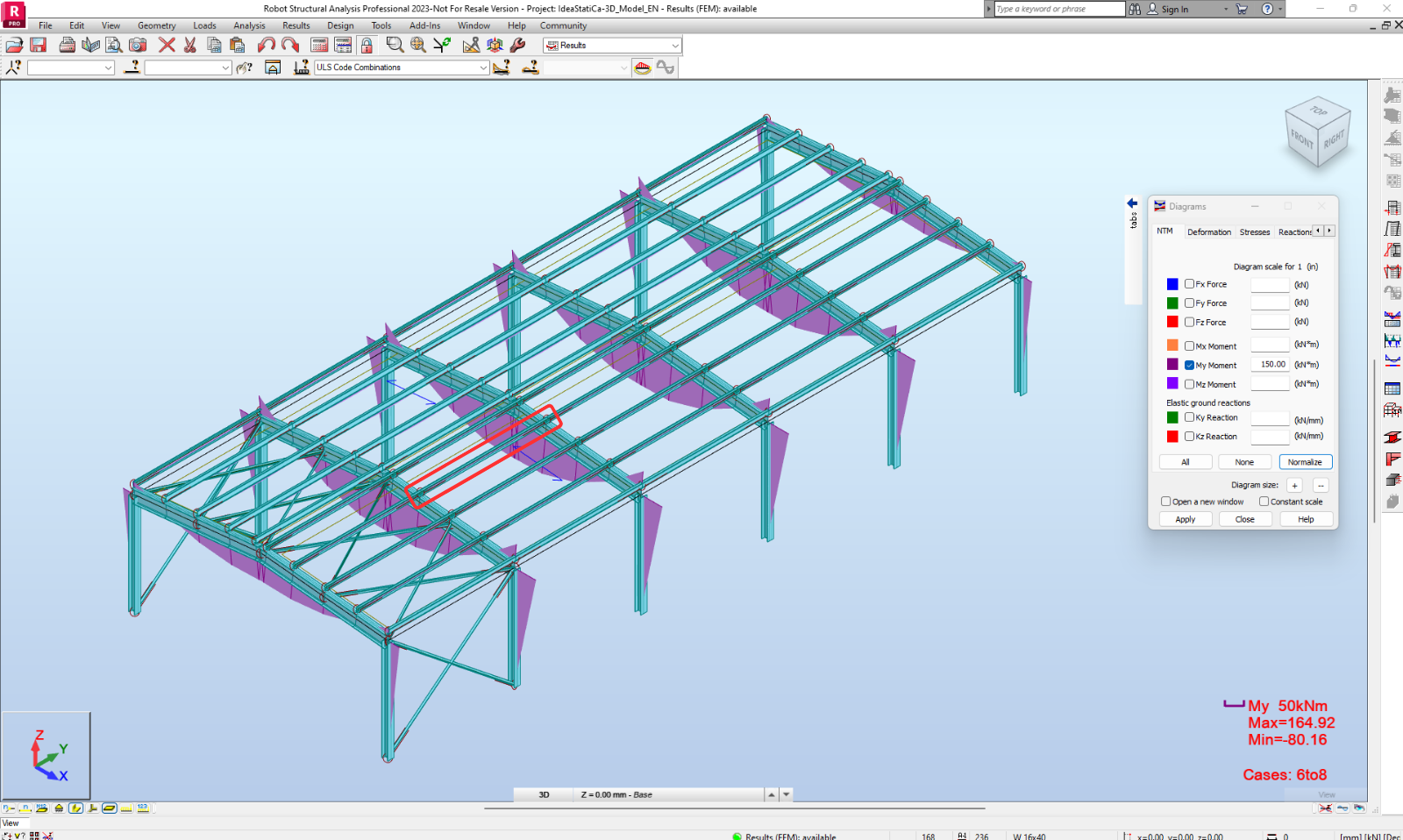
Geometry
In Checkbot you can merge separated members into a continuous one. Merge both supporting beams. Select the related member 150, click the Merge command.
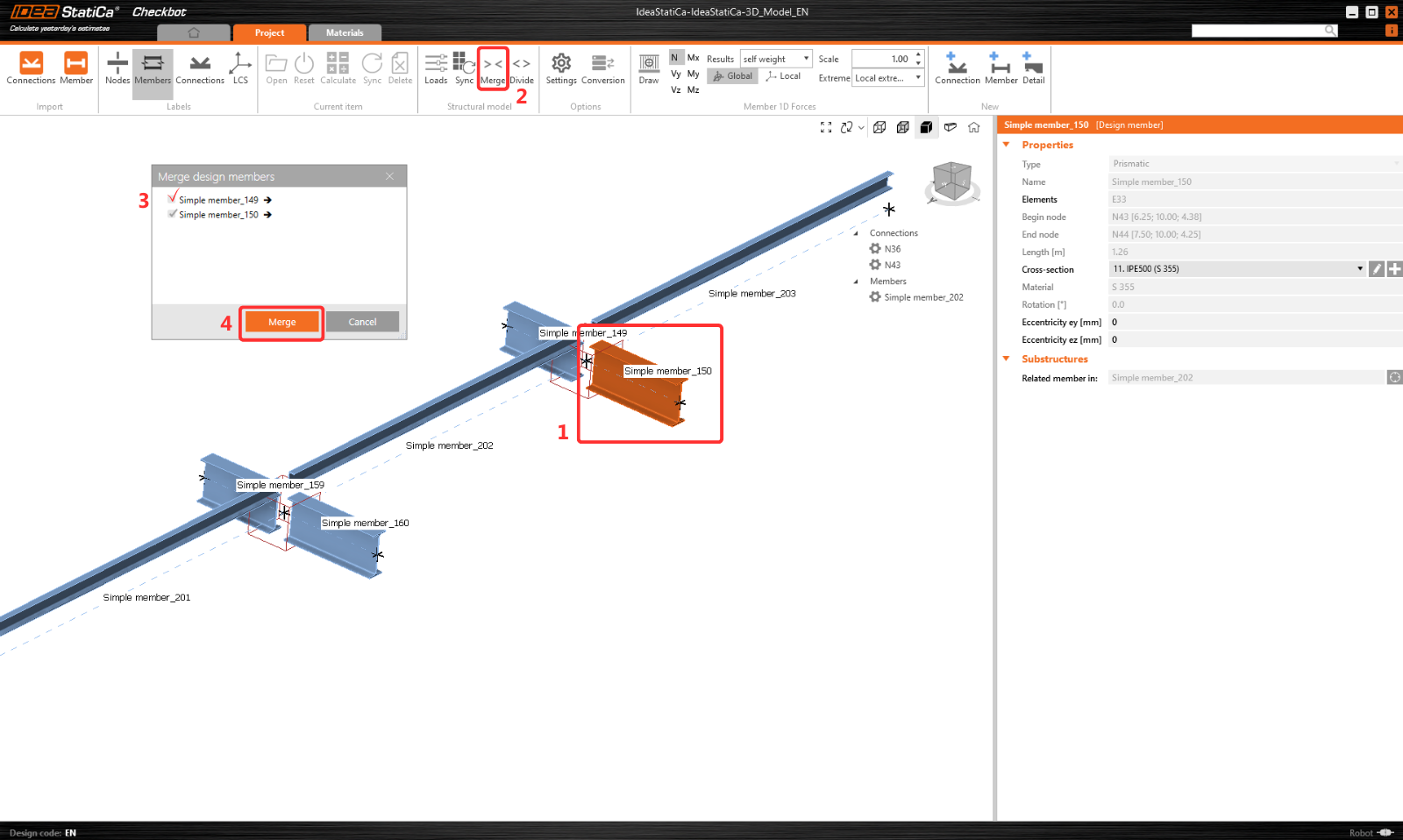
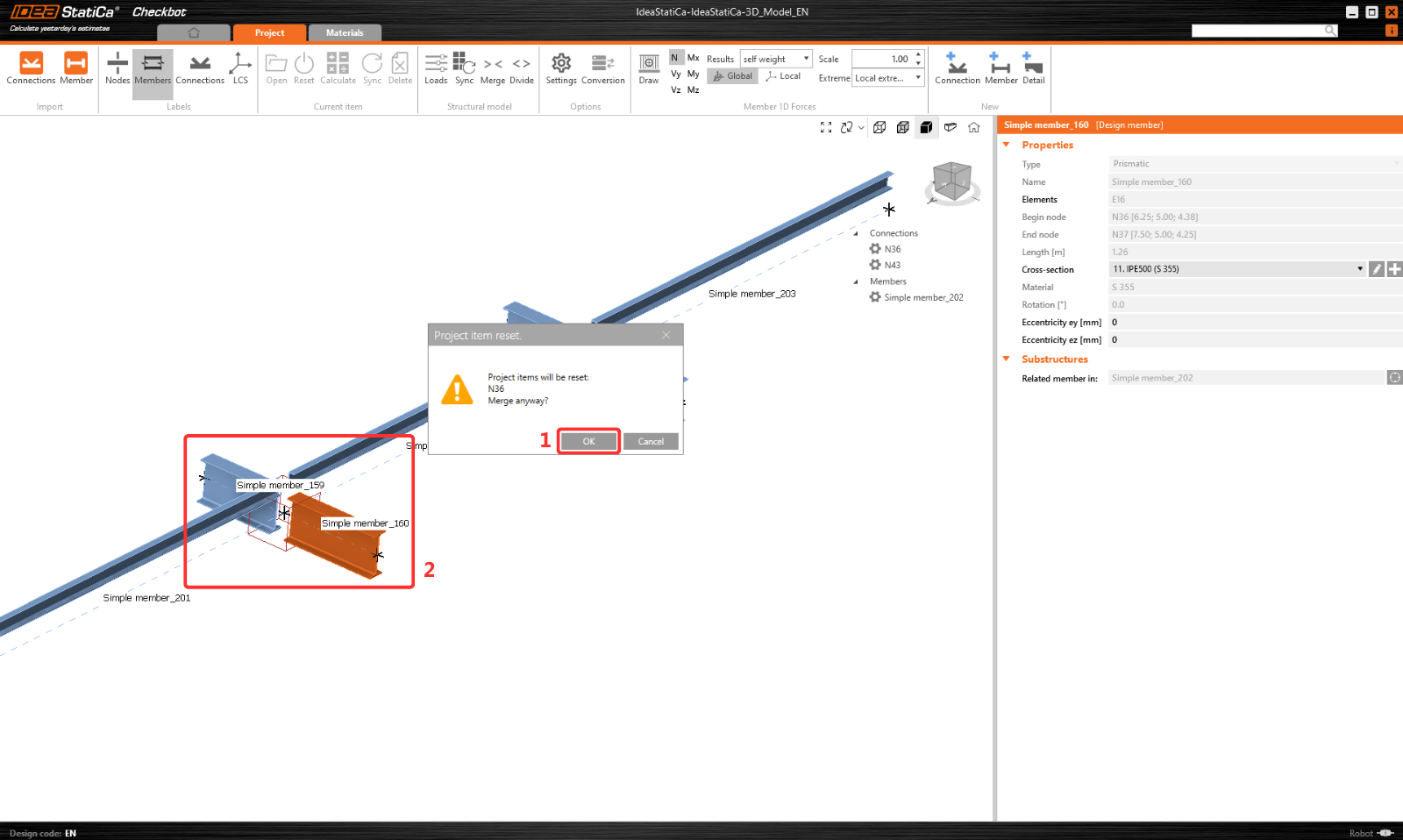
Same merging operation as previous for related member 160.
You can control which load cases and combinations will be used for the analysis in the Checkbot application by clicking on Loads and managing the Result classes for checks column.

Note: By default, the Evaluate critical results function is enabled, which filters out the non-dangerous load cases and combinations to speed up the calculation. You can turn it off, and all combinations will be included in the calculation. You can delete or add items via right-click or drag and drop between the columns.
Read more about this feature and algorithm behind it.
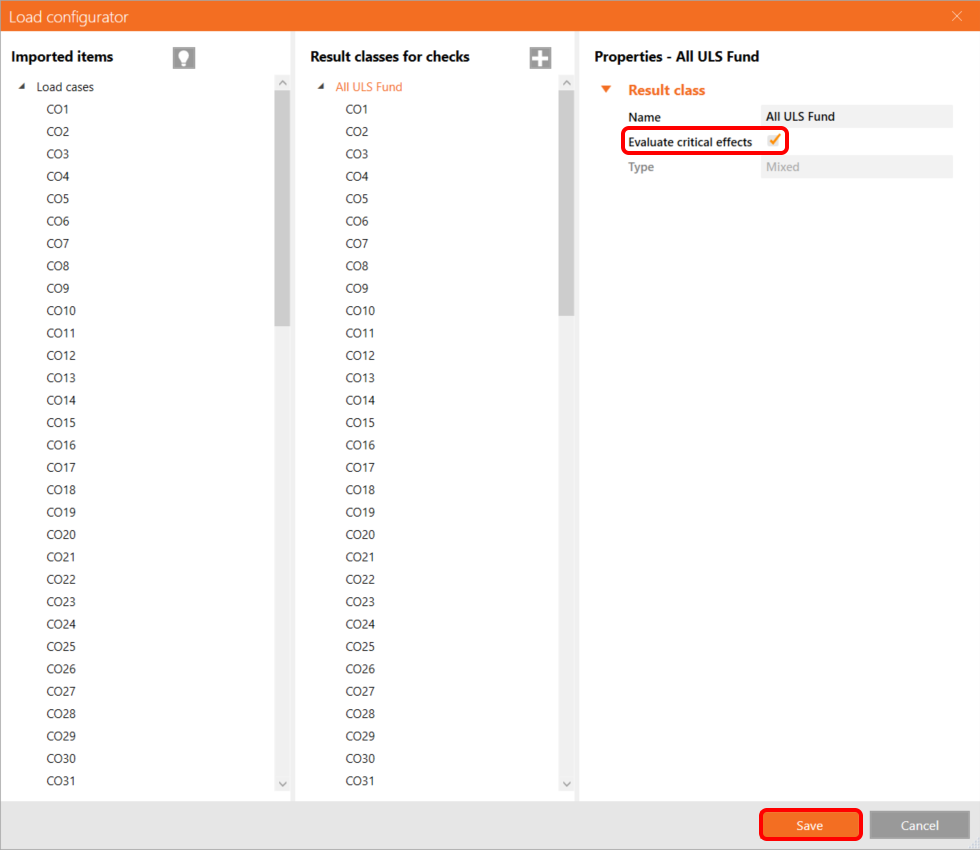
For applying changes you also need to click on Load Update button.
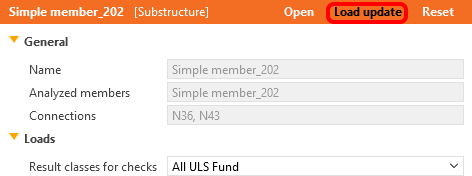
Design
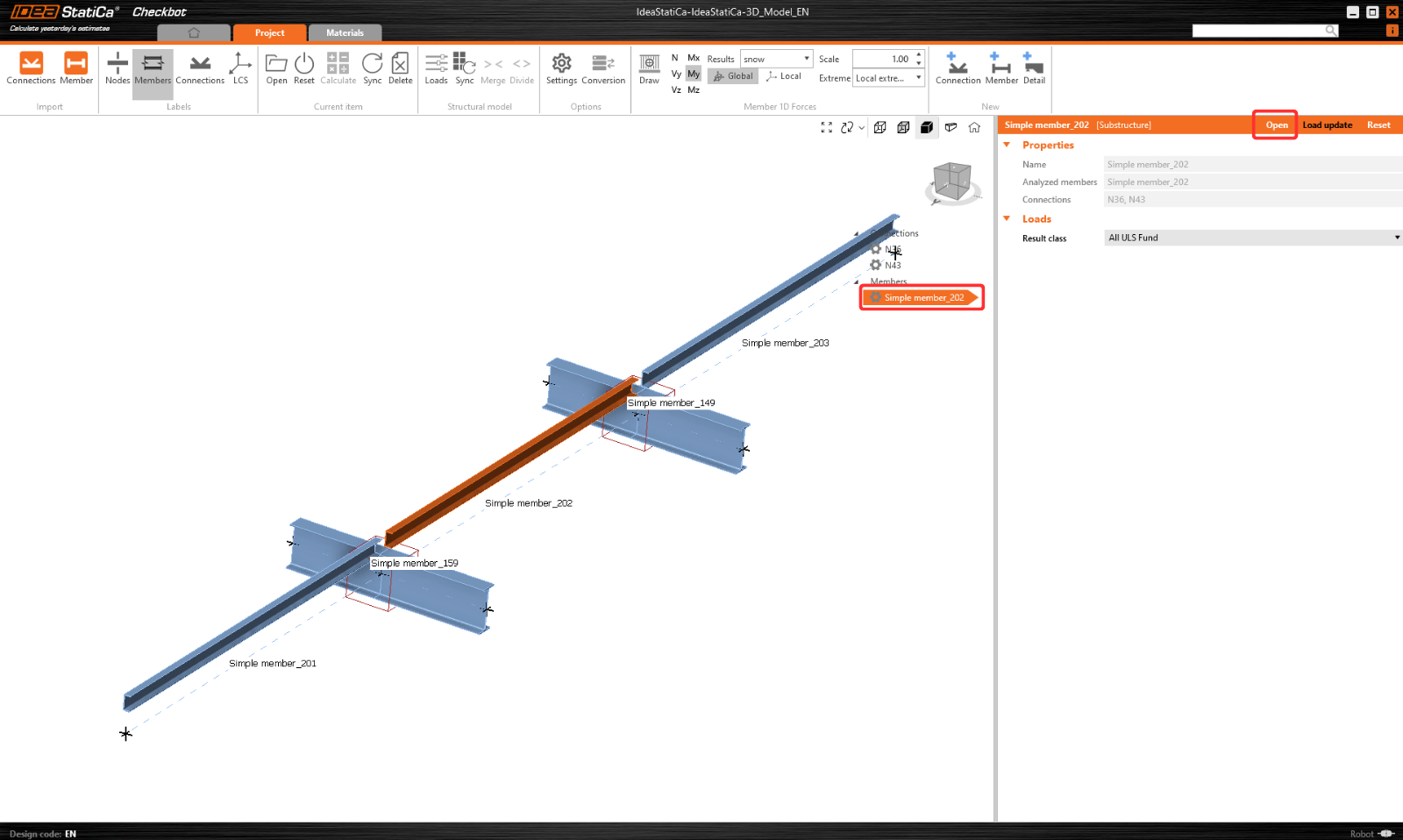
Now, select member 202 and click Open to start the design.
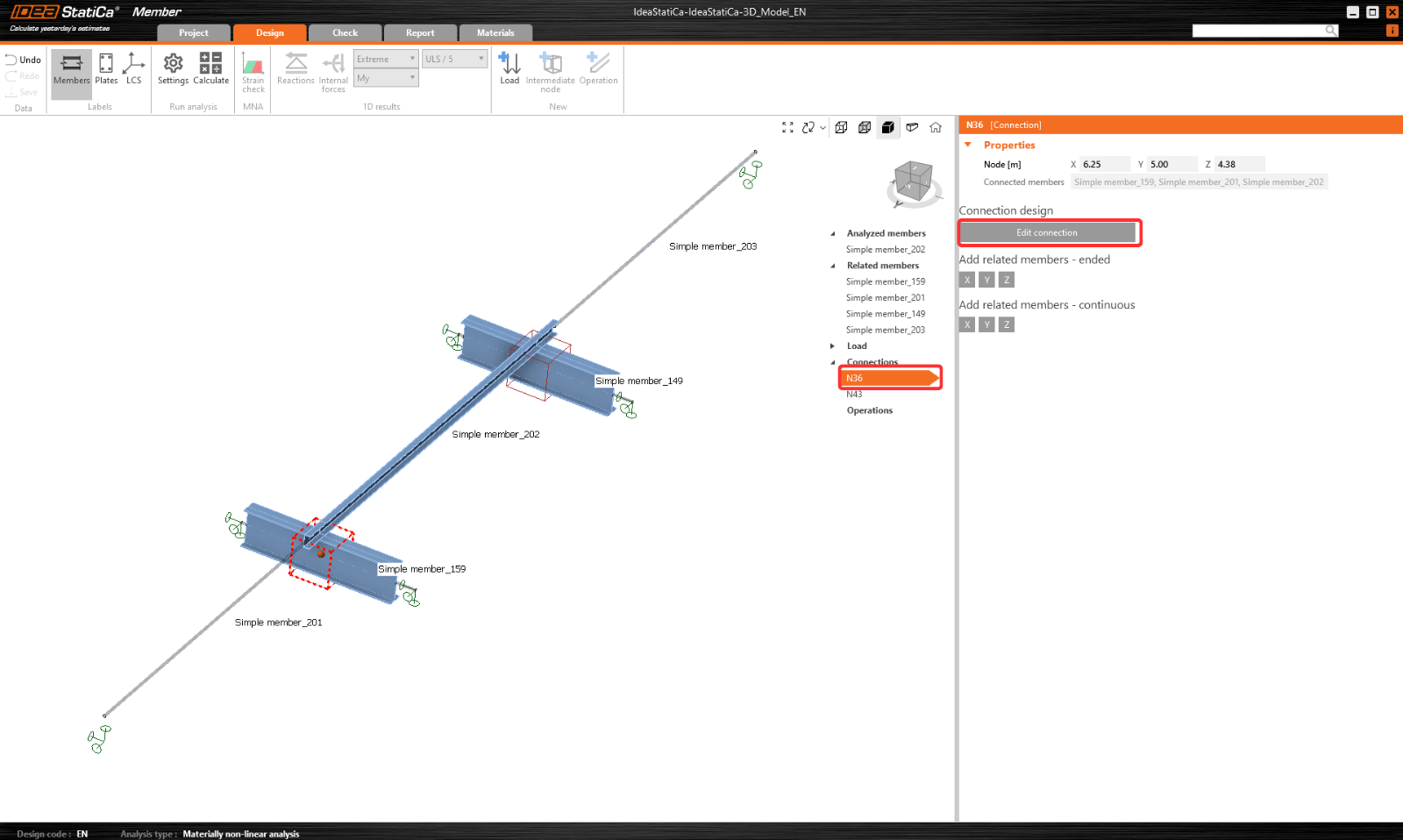
First, design connection N36. Select it, and click Edit connection to open the application Connection.
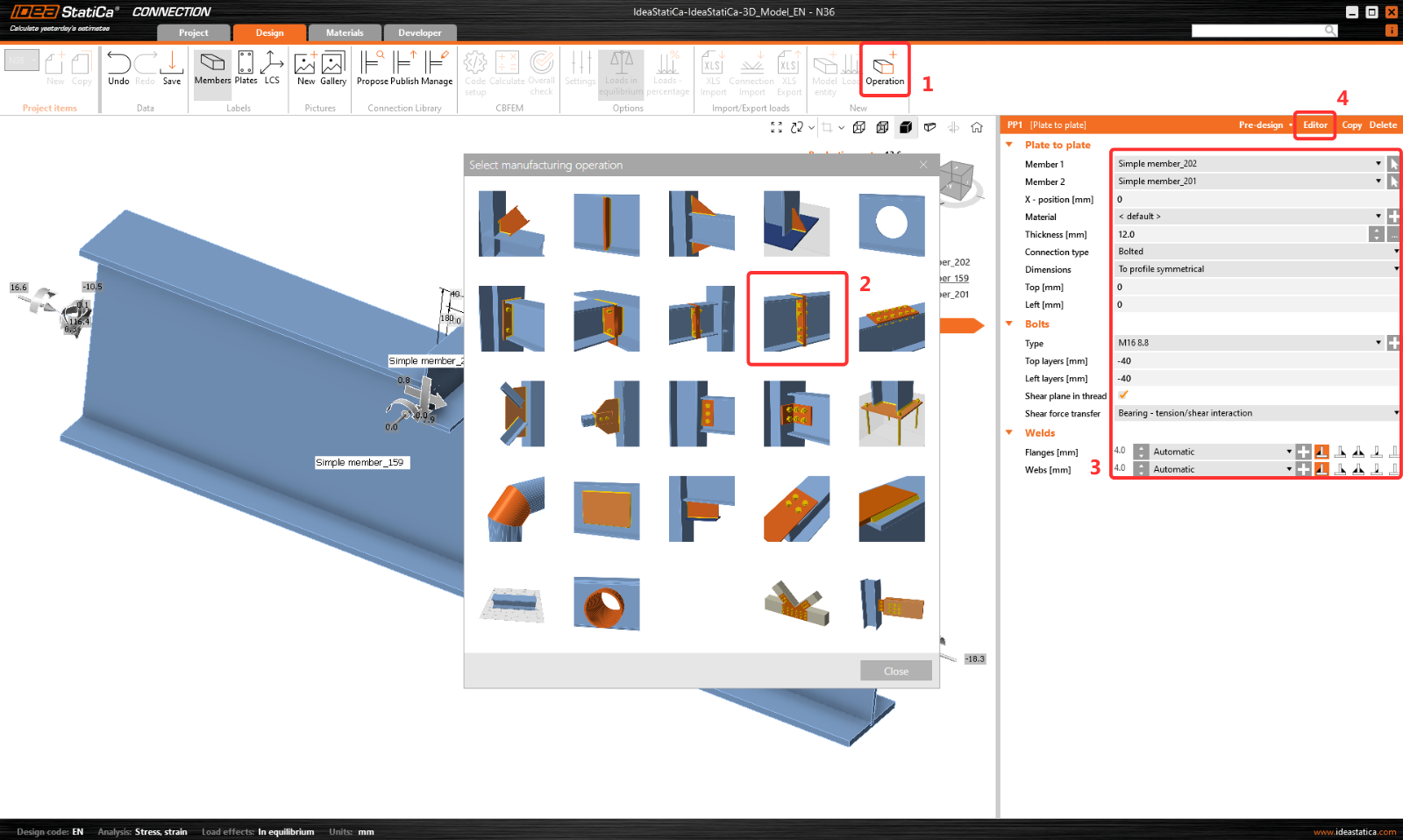
Click on Operation and select Plate to plate. Set the values according to the picture. Then click on Editor.
Click on Explode and delete bolts 1 and 3.
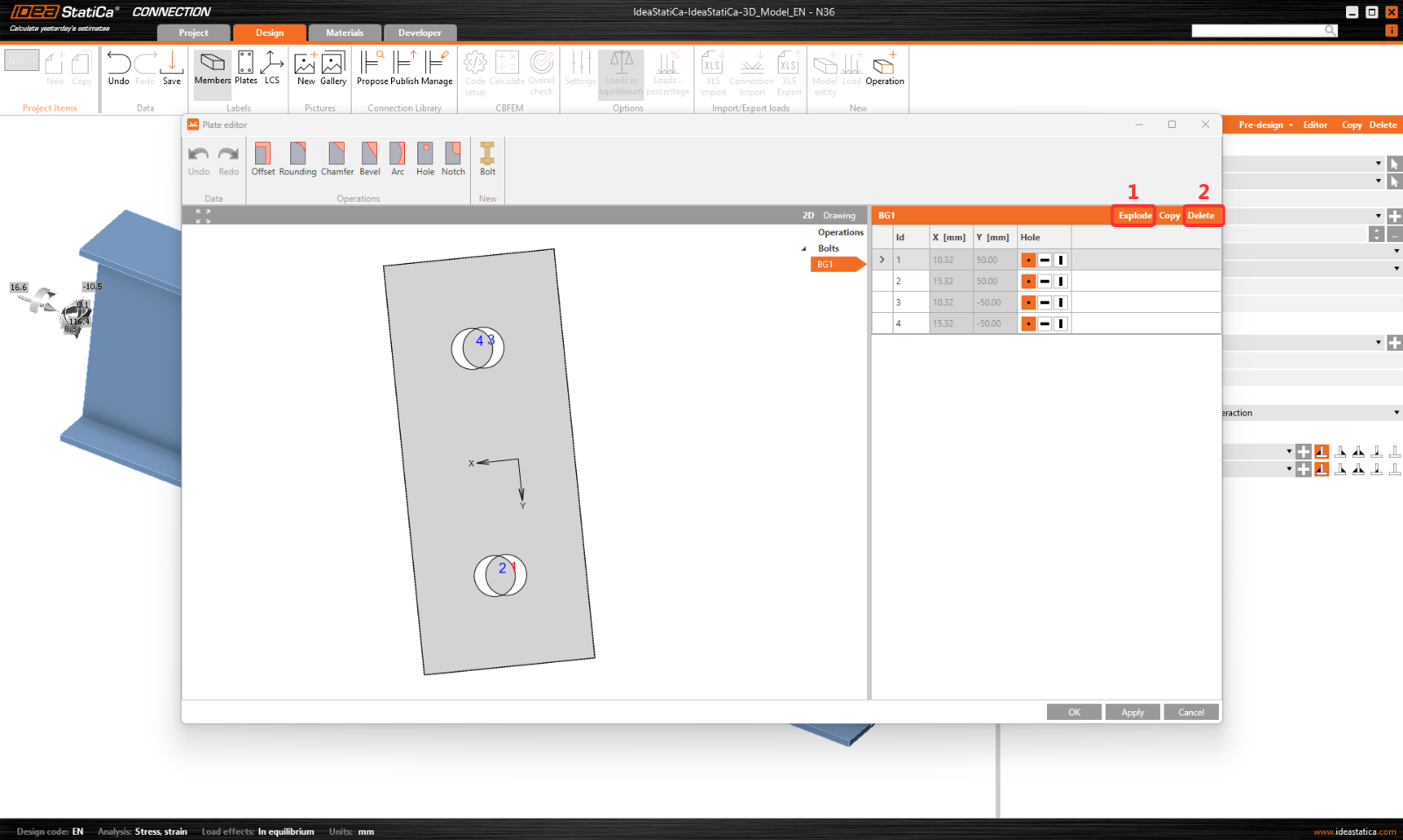
And set coordinates for bolts 2 and 4 according to the picture. Confirm changes by clicking OK.
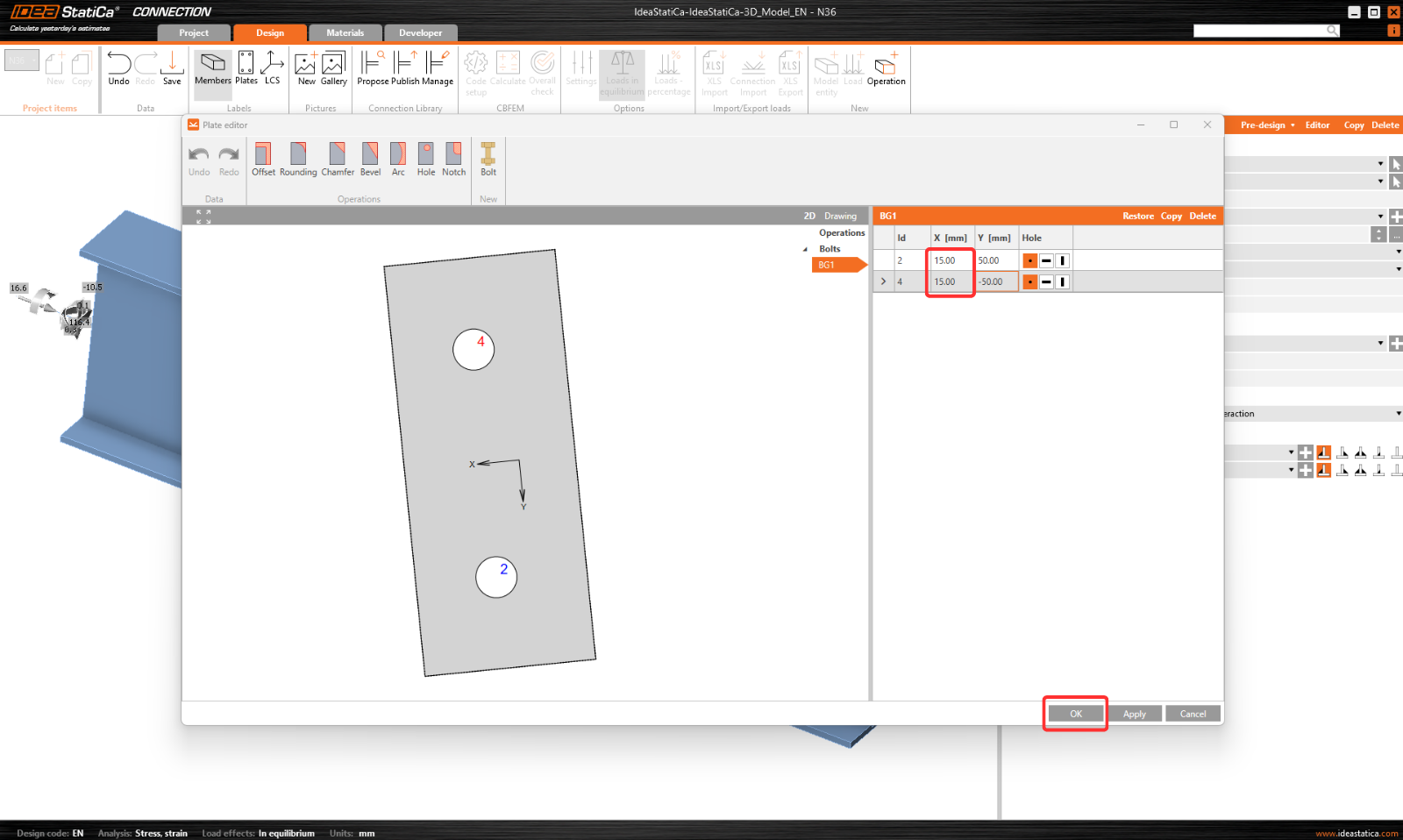
The next operation is the Stiffening member, set L-profile L80x6 with the following values.
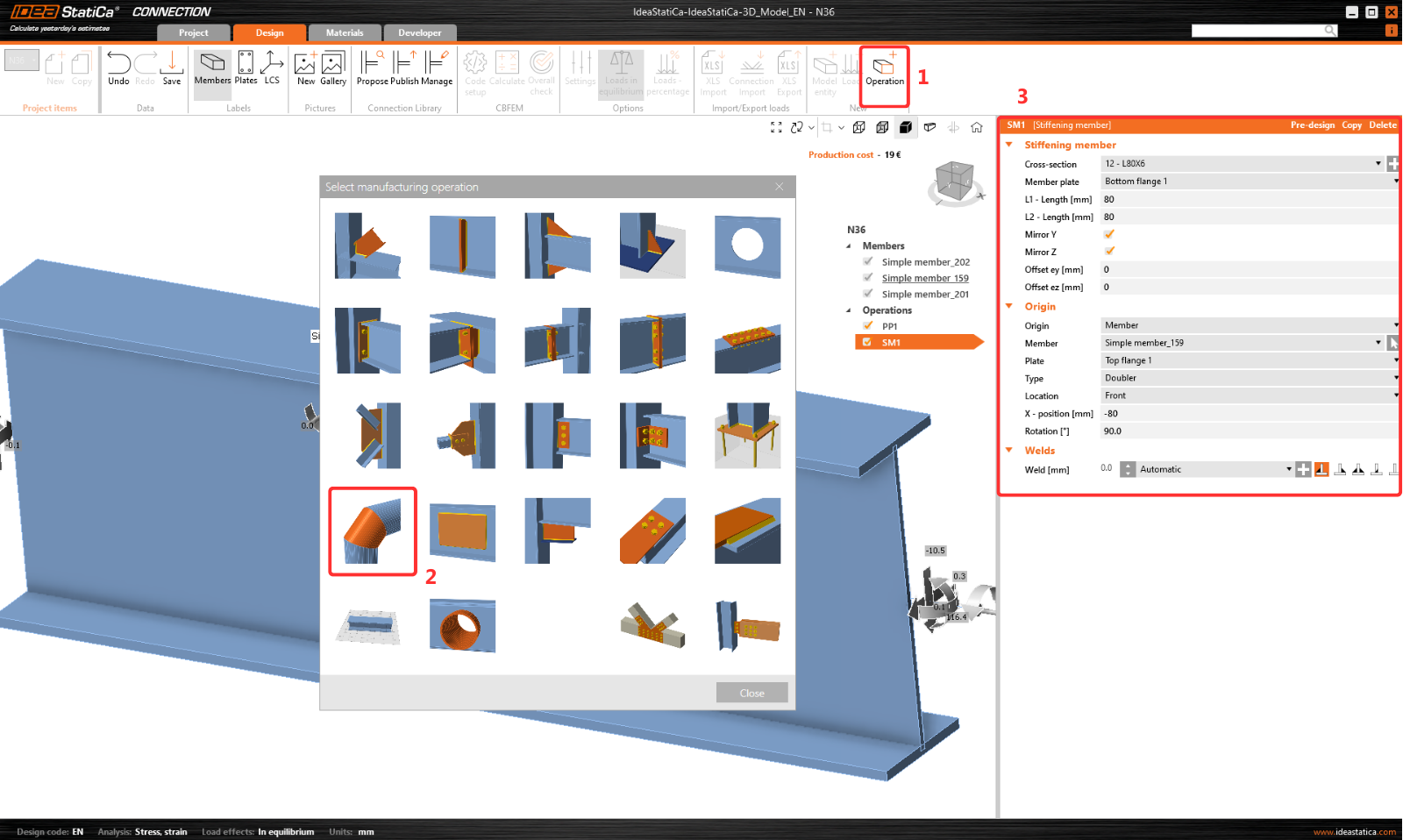
Add the operation Bolt/Anchor grid and modify the parameters.
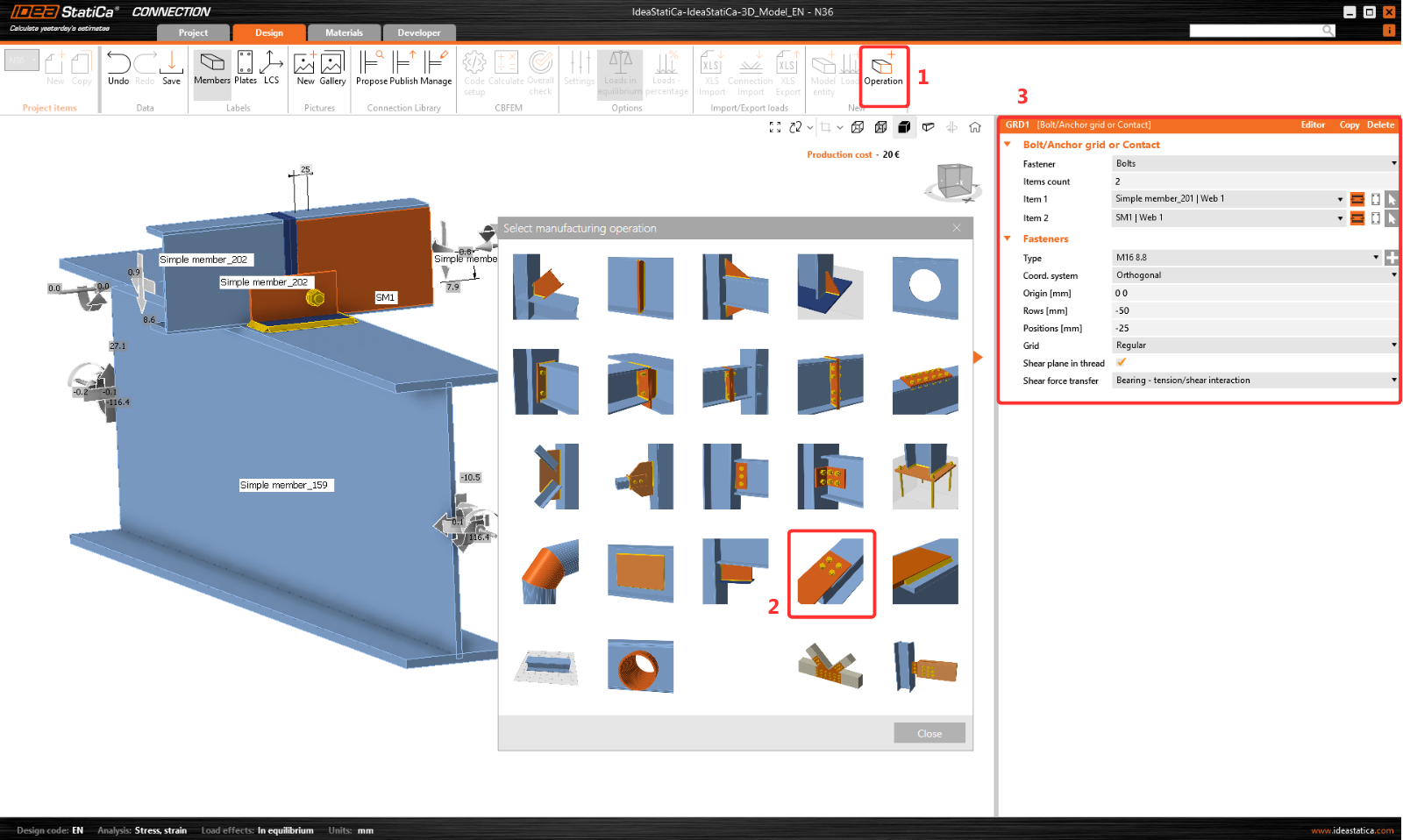
Copy this operation and change the selected values.
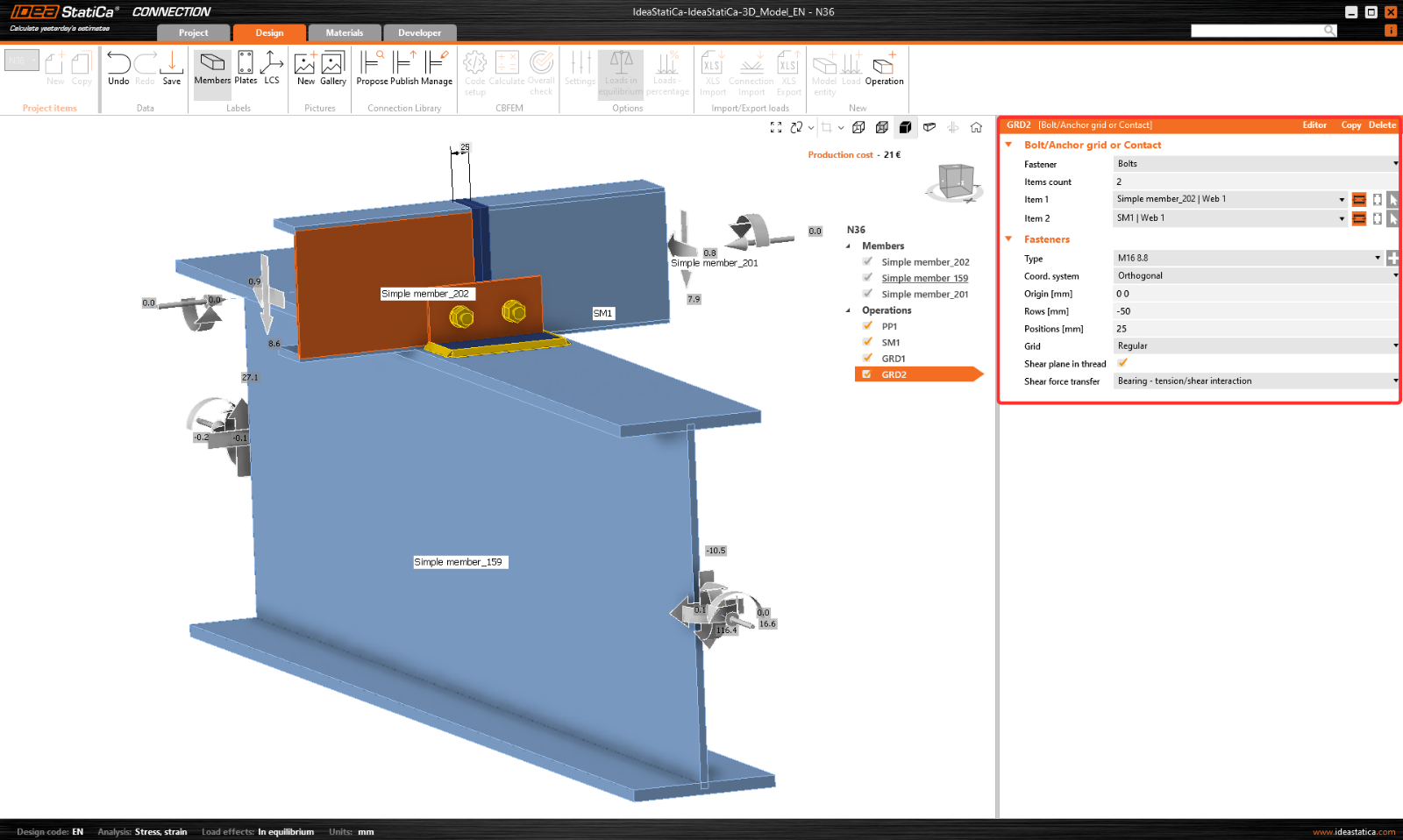
Now add a Stiffening plate to the joint.
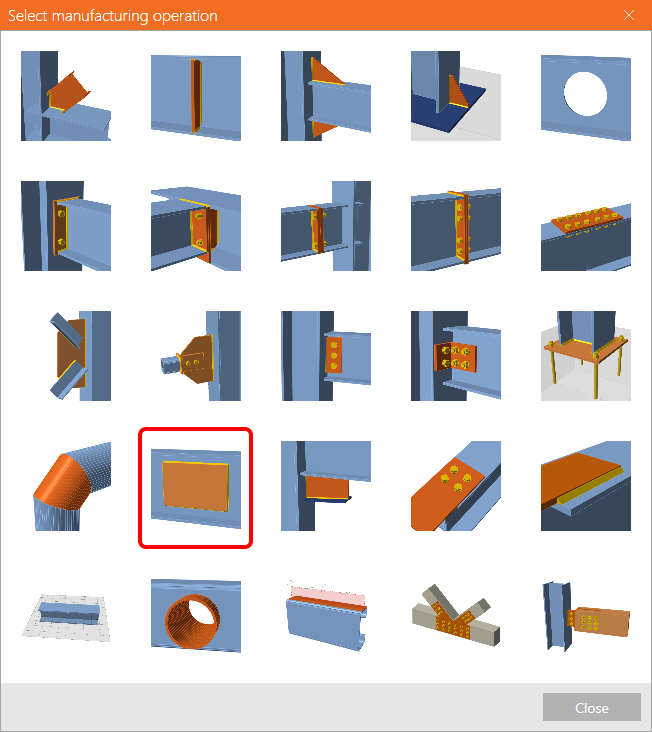
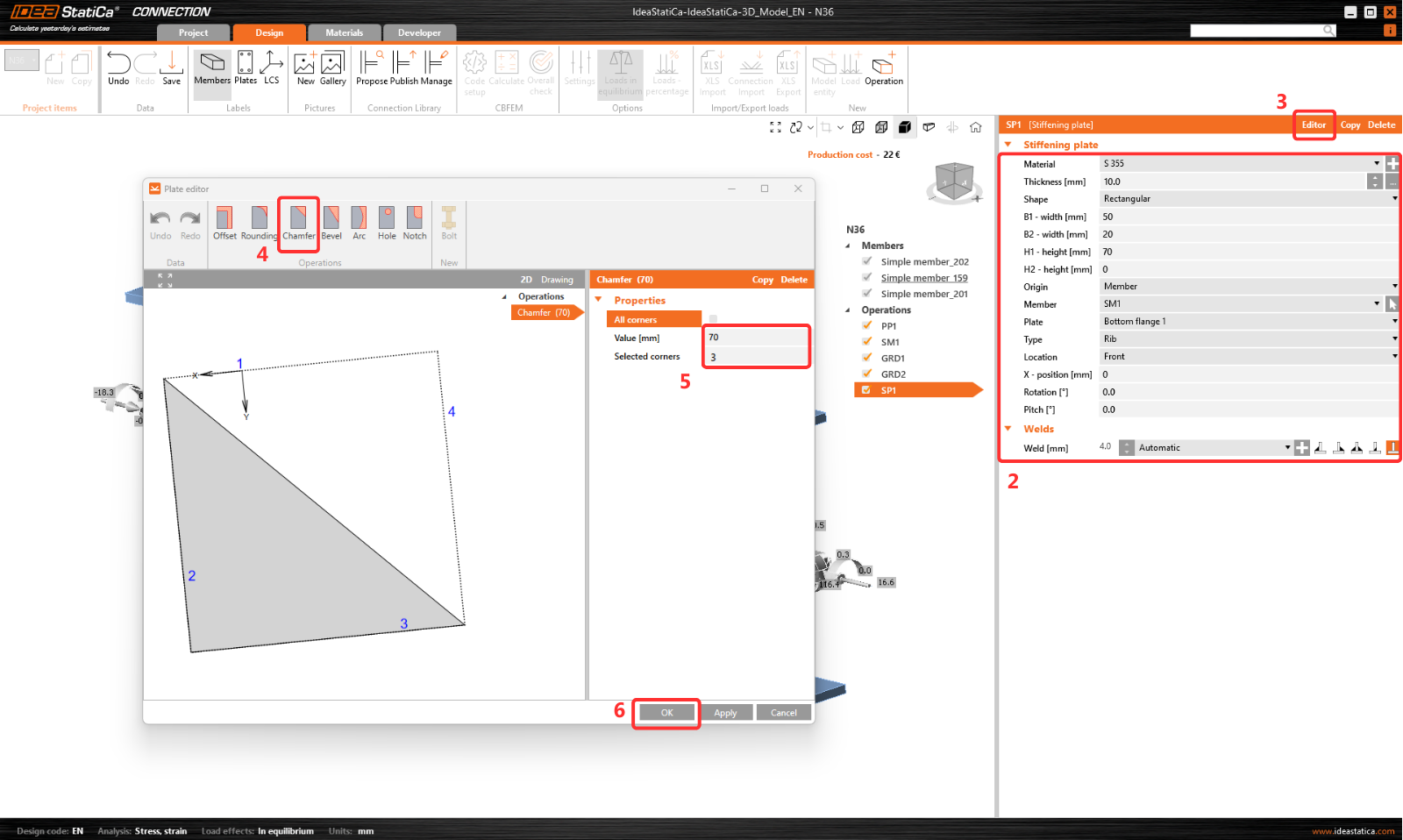
And modify its shape in the plate Editor. Here, add the Chamfer operation to cut the plate.
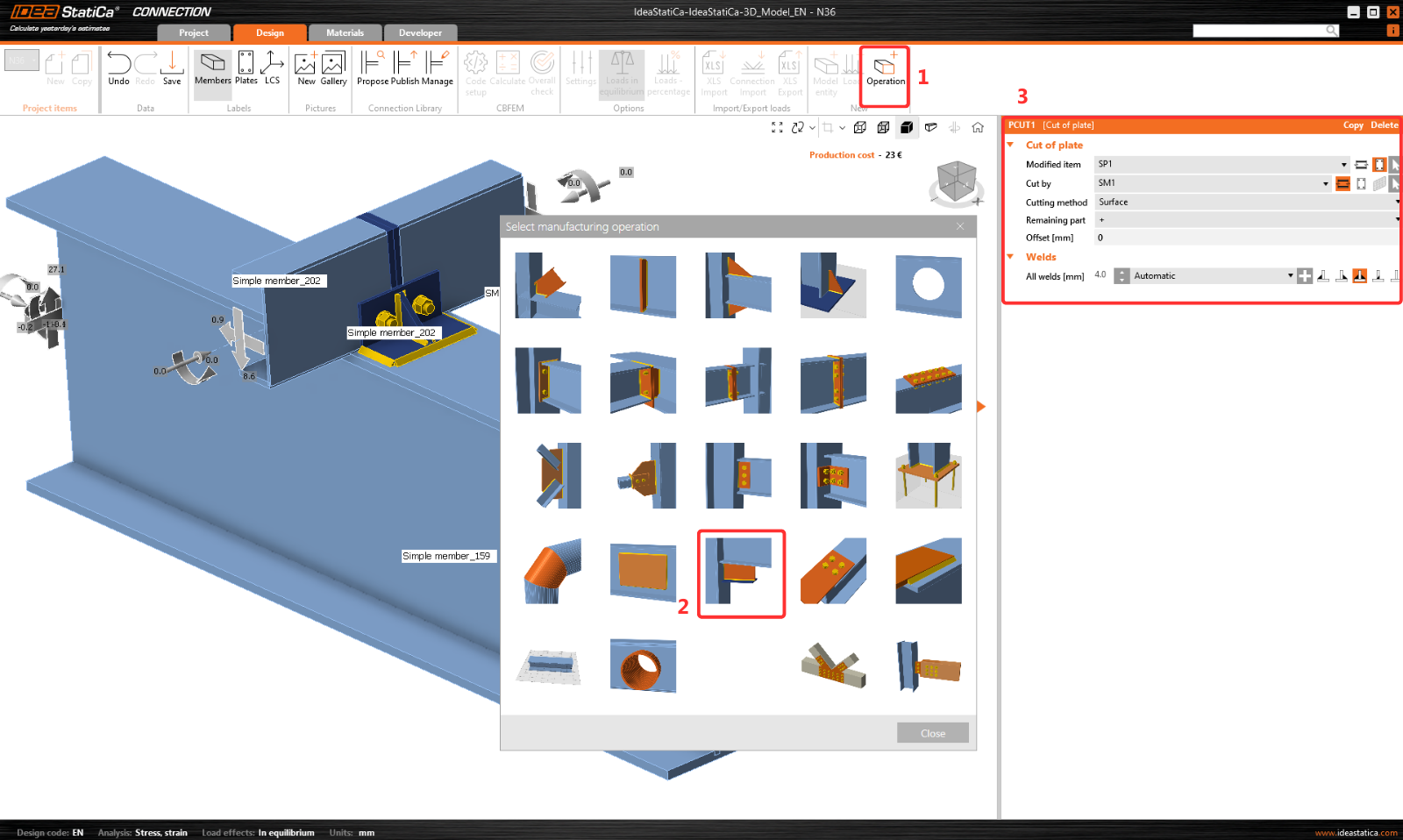
The last operation is the Cut of plate.
Now click on Save and close the module Connection.
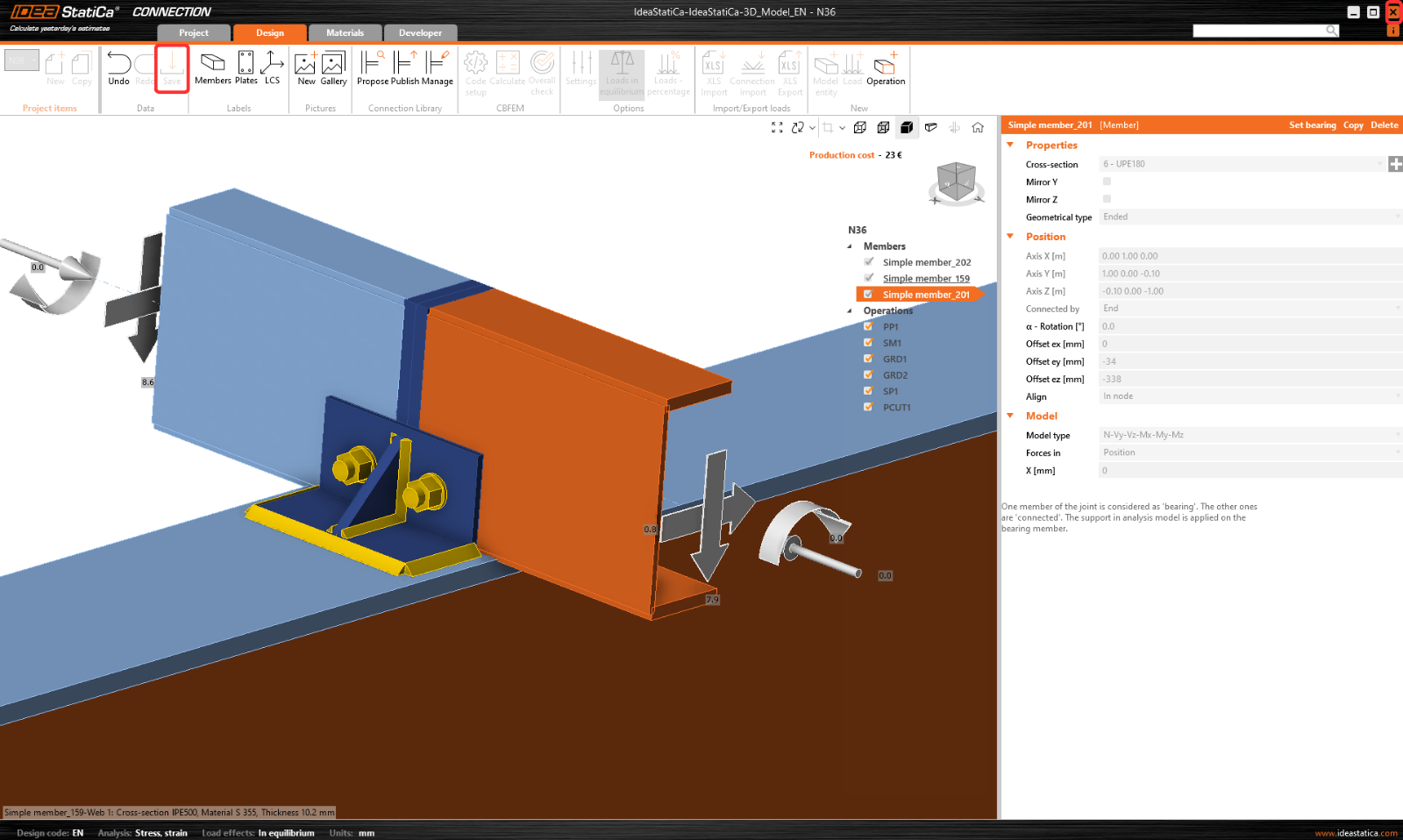
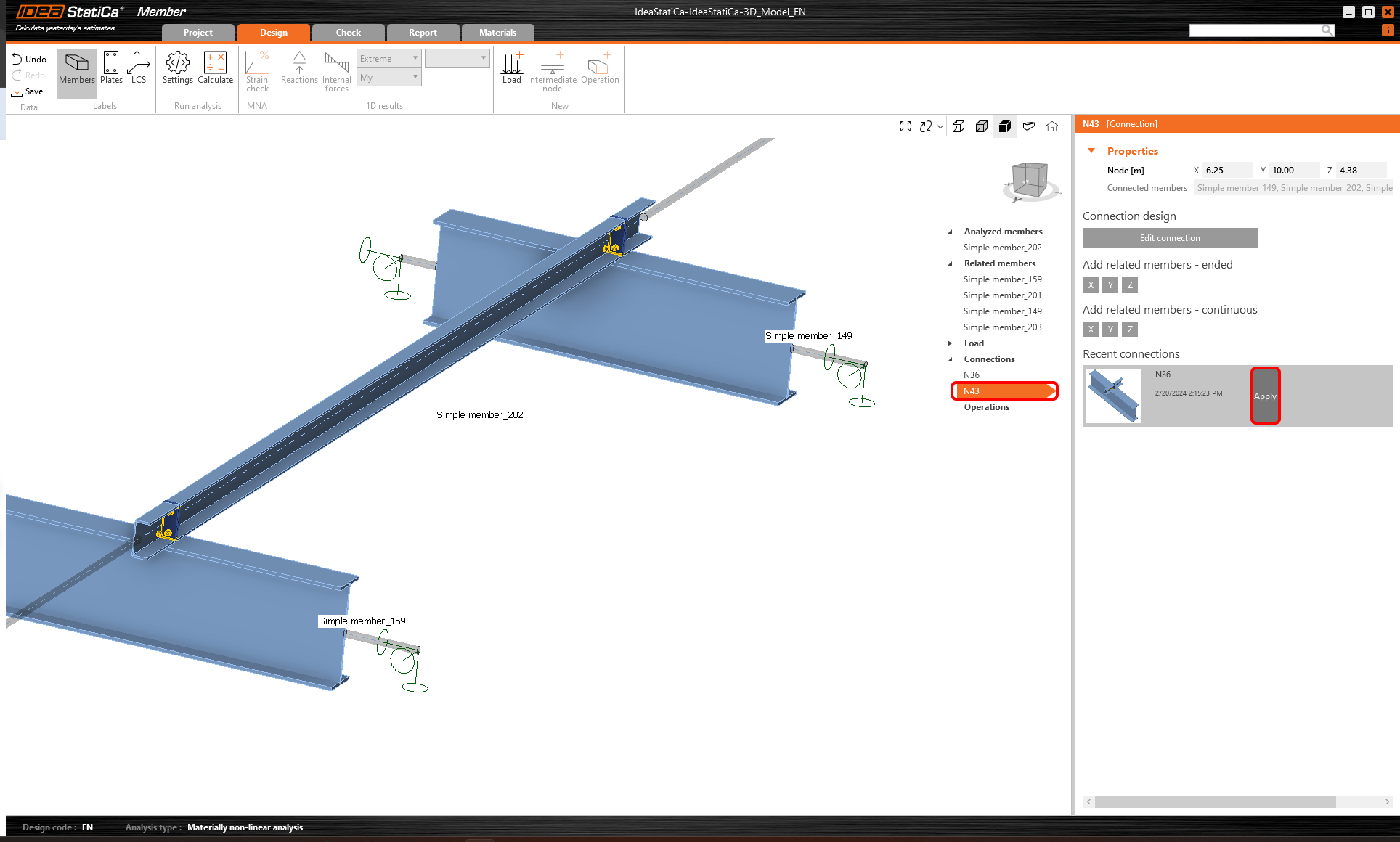
As we have a similar connection in both nodes, you can copy the finished design to node N43 by clicking Apply.
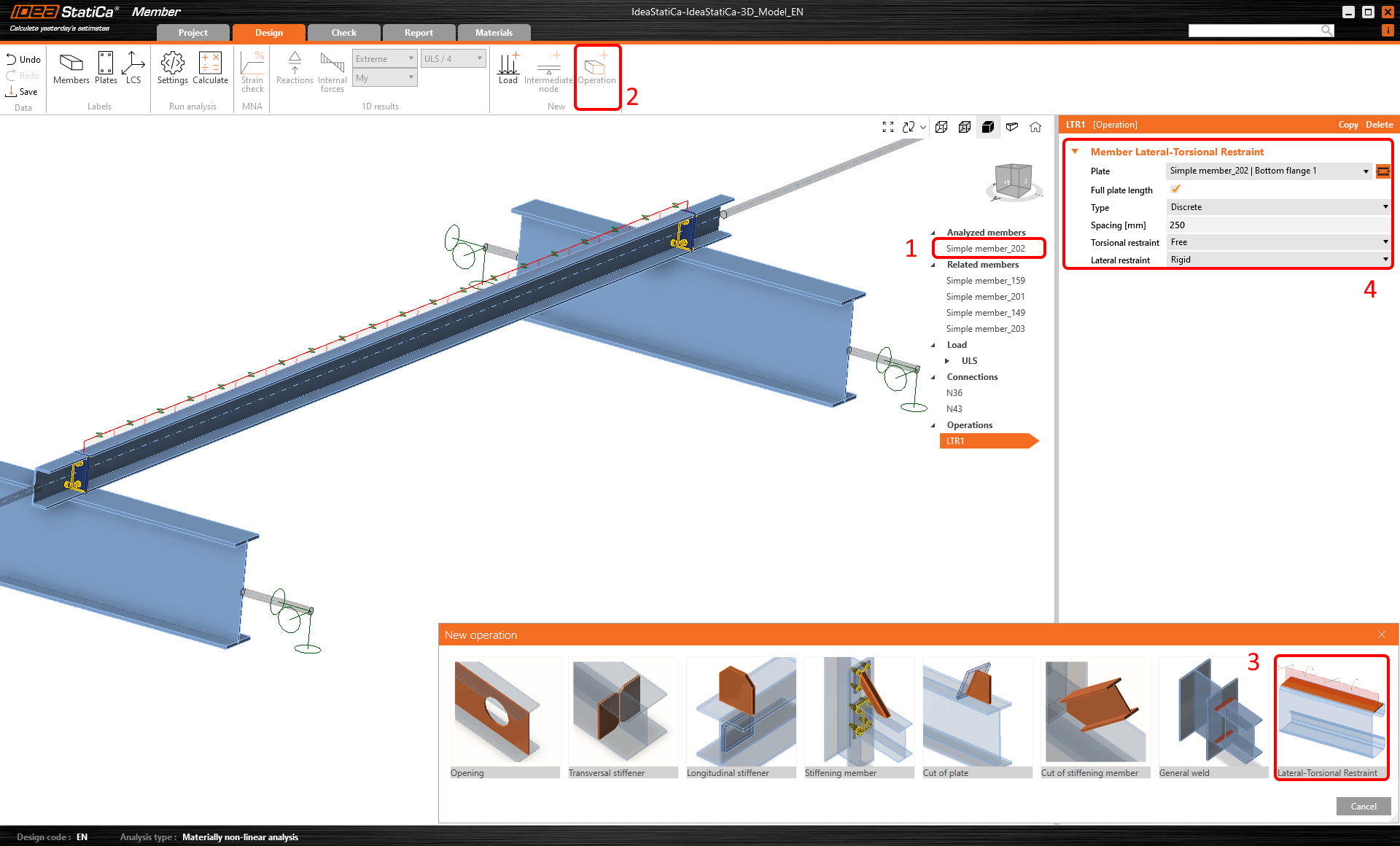
Because there are roof panels stabilizing the analyzed purlin, add the operation Lateral-Torsional Restraint to simulate it and set the parameters.
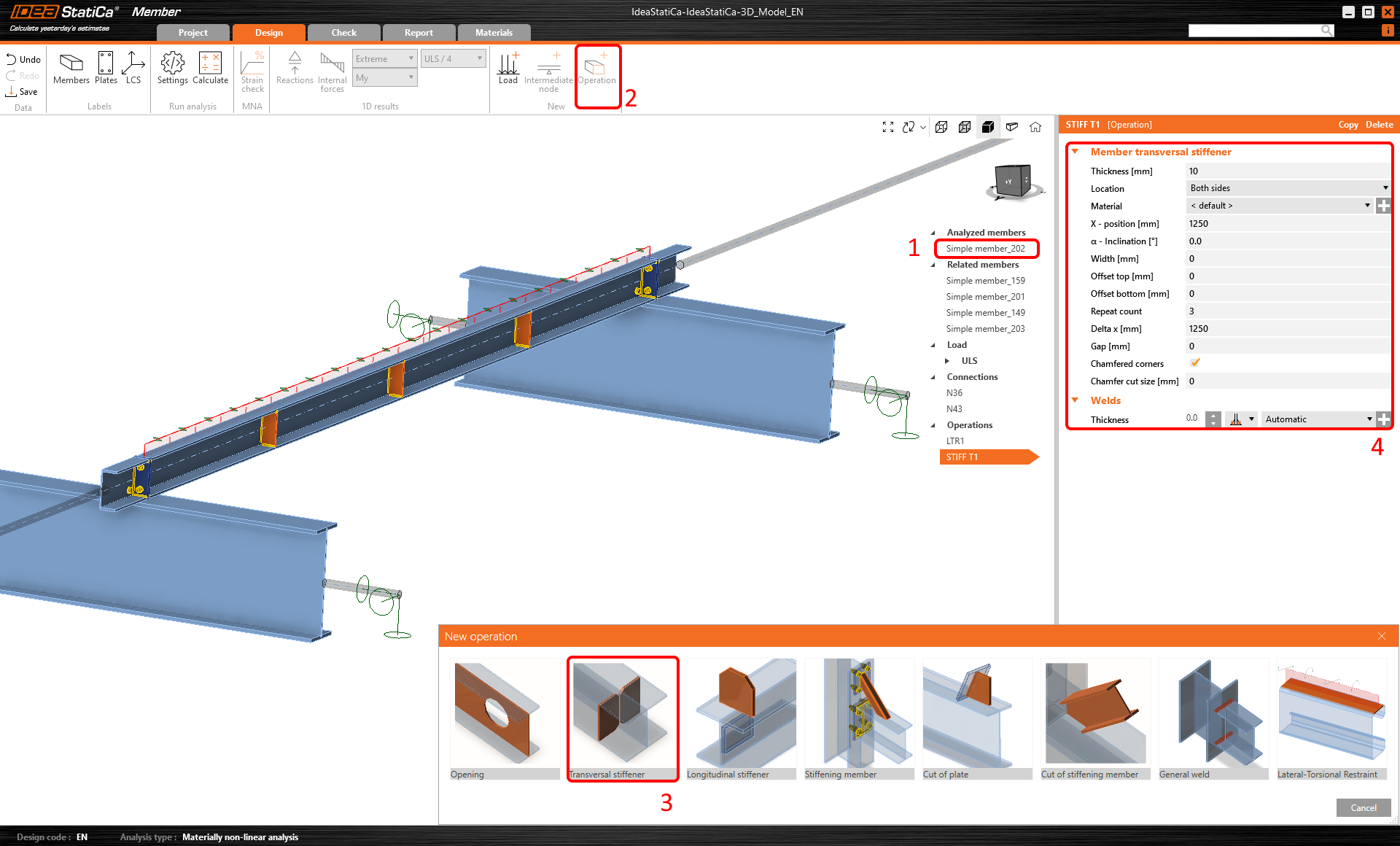
Then add the operation Transversal stiffener.
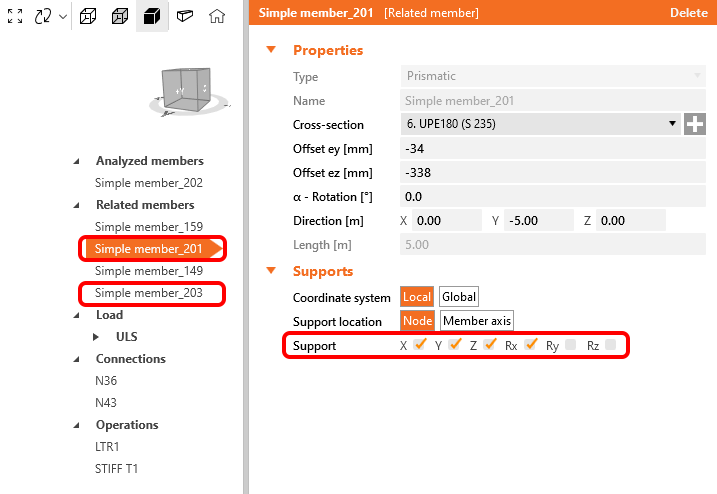
For the proper structural behavior of related members, set the supports of the connecting purlins 201 and 203 to X, Y, Z, and Rx.
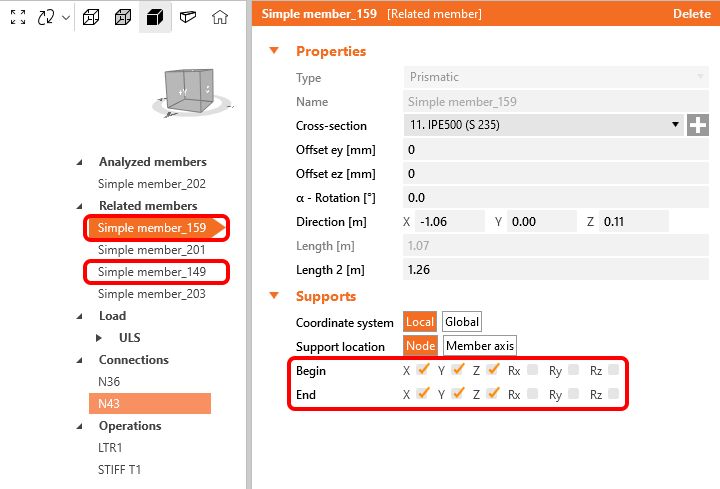
As well as for the supporting members 149 and 159 set supports to X, Y, Z.
Code-check
Now, the member model is ready for the analysis.
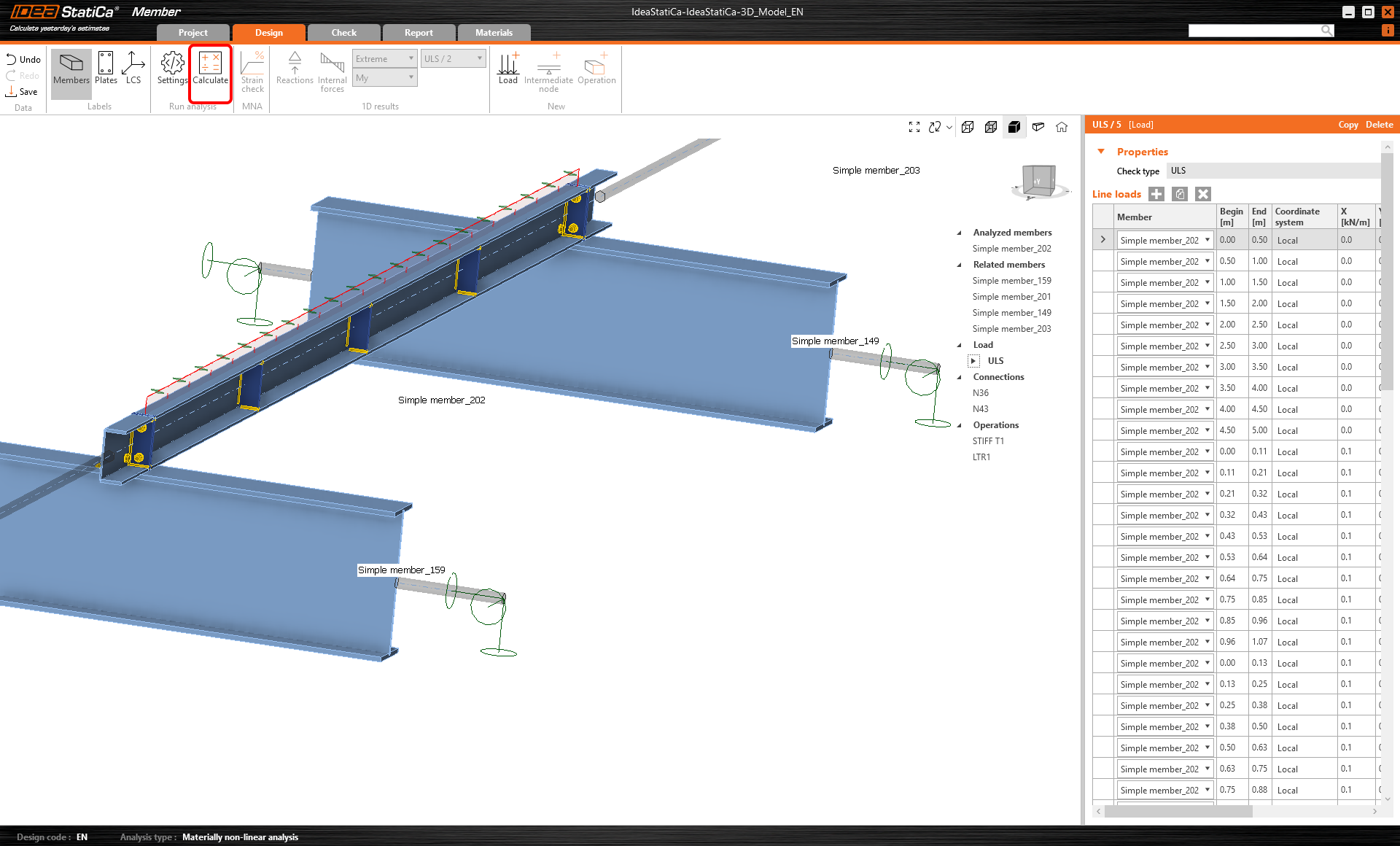
Run the MNA (materially non-linear) analysis with the Calculate button.
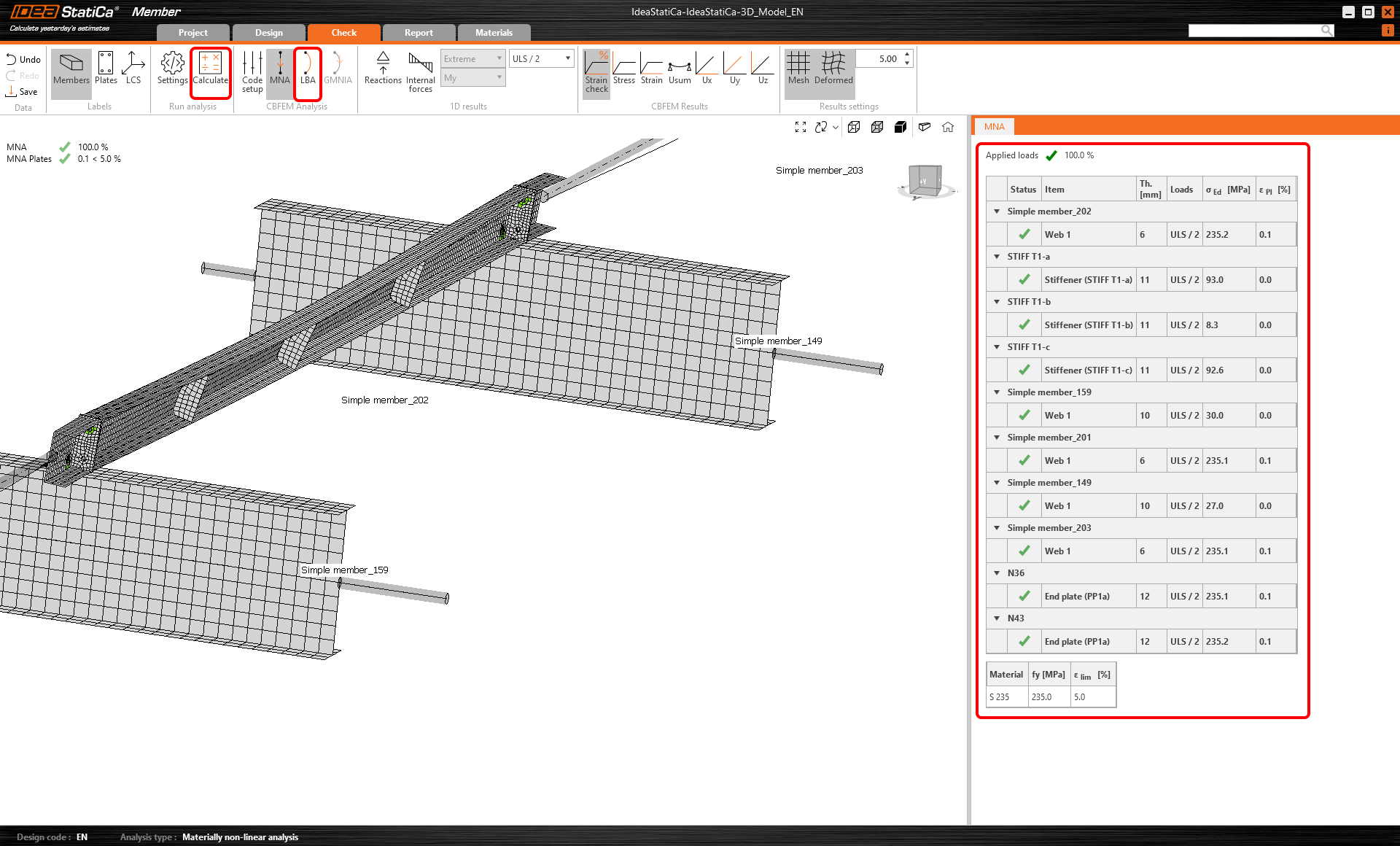
The second analysis is LBA (lateral buckling analysis), where we get a critical factor of less than 15. This result shows the necessity of running the GMNIA (geometrically and materially non-linear analysis).
Before running the GMNIA (geometrically and materially non-linear) analysis, fill in the Imperfection amplitude value. Because lateral-torsional buckling is investigated here, factor k0 = 0.5 may be used. Amplitude 0.5x5000/200 = 12,5 mm can be applied to the first buckling mode.
Read more about:
- Member stability in IDEA StatiCa Member.
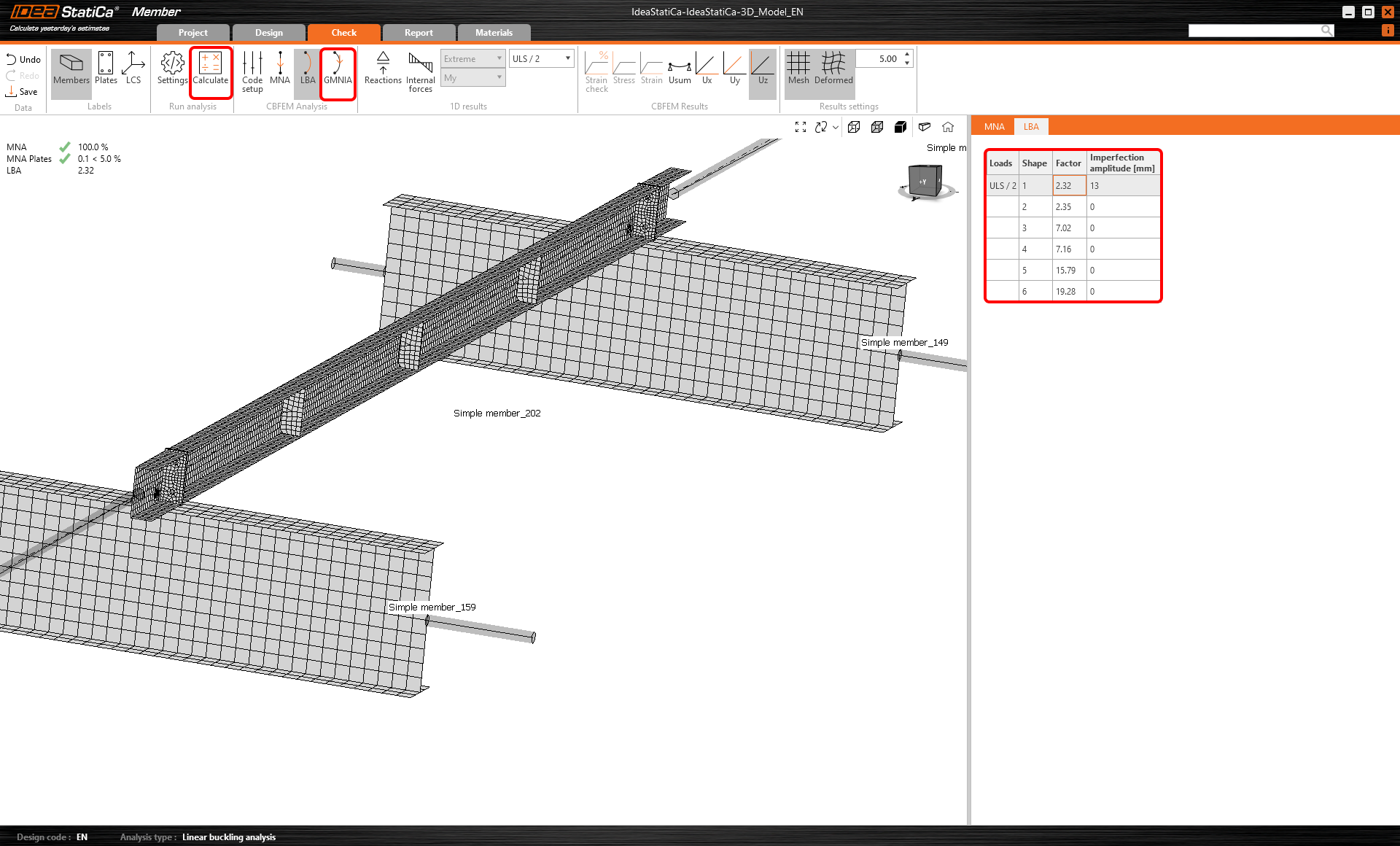
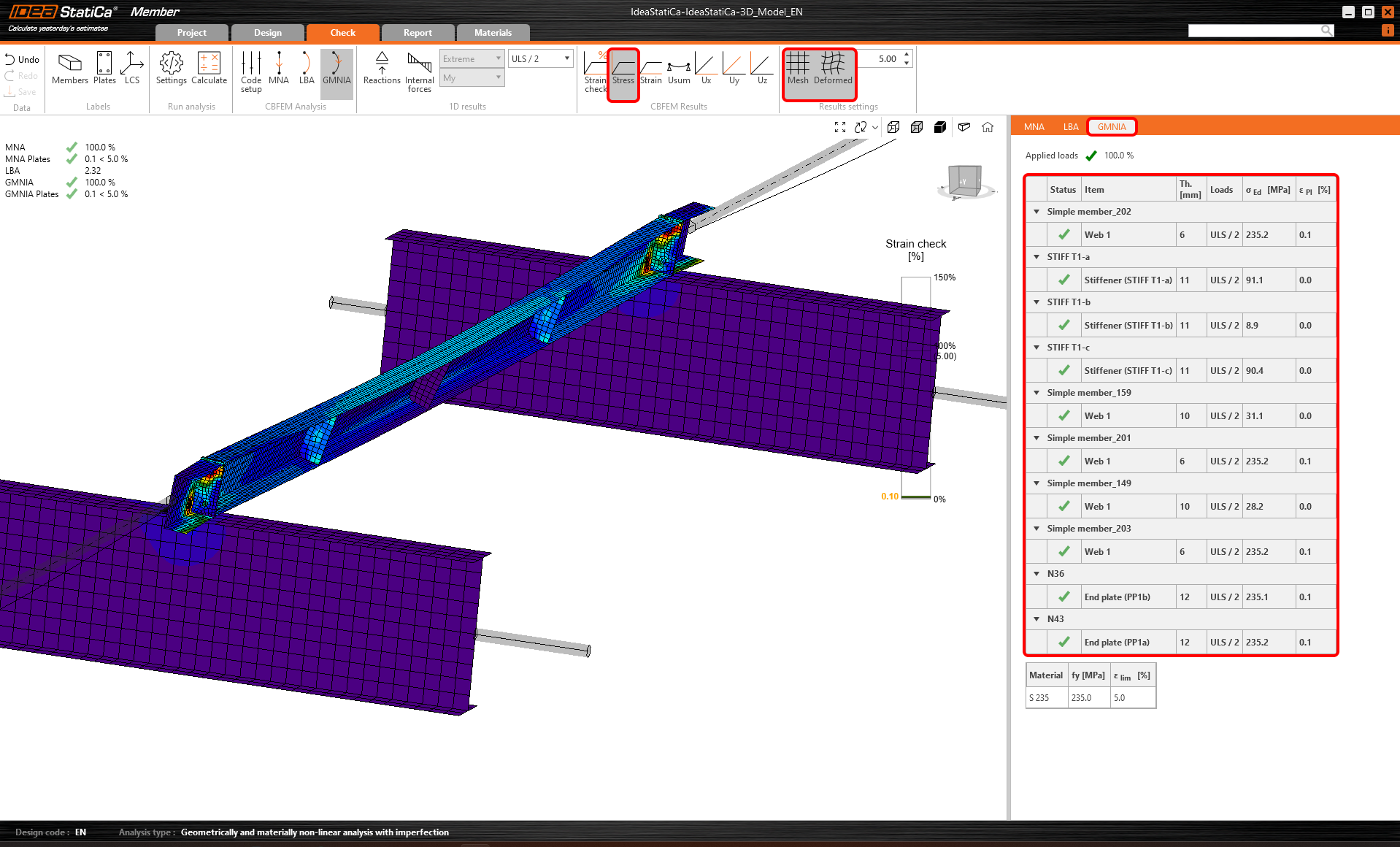
Once the analysis is finished, you can read the final code-checks, including the imperfections.
Report
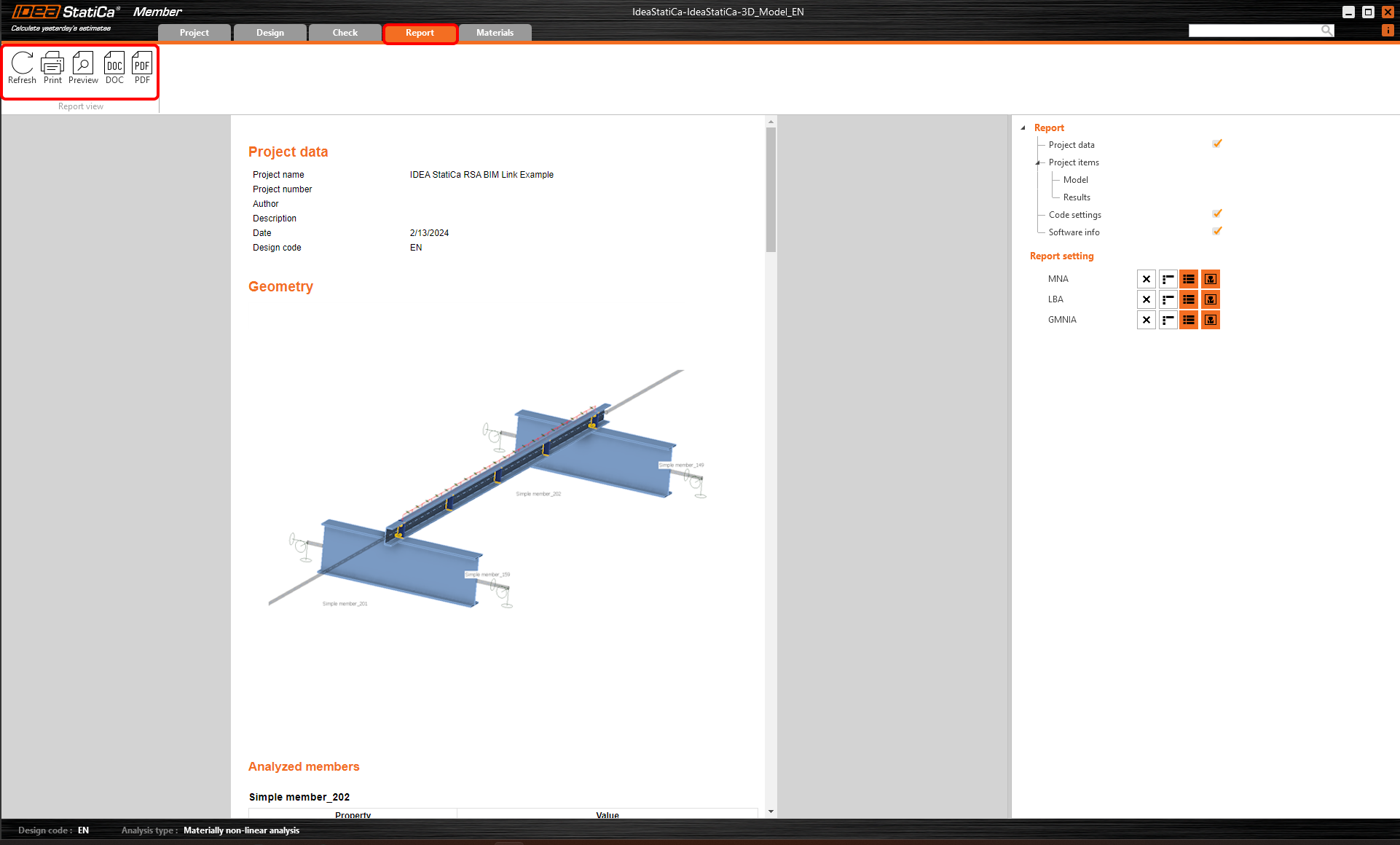
At last, go to the tab Report. IDEA StatiCa offers a fully customizable report to be printed out or saved in .doc editable format.
Widget #NaN: support_center_article
Name: General BIM Link member tutorial - Synchronize model
ID: ba63d425-6bf2-44d7-bfe4-02ea3f1e18bb
Show Raw Data
{
"title": {
"name": "Main headline (H1)",
"type": "text",
"value": "Synchronize members"
},
"preview_image": {
"name": "Preview image",
"type": "asset",
"value": []
},
"post_date": {
"name": "Post date",
"type": "date_time",
"value": null,
"displayTimeZone": "Europe/Prague"
},
"perex_content": {
"name": "Lead paragraph",
"type": "text",
"value": ""
},
"content": {
"images": [
{
"description": null,
"imageId": "06d20ca4-2fb6-4f94-882d-66634084d102",
"url": "https://assets-us-01.kc-usercontent.com:443/28eac049-c8ed-00e2-220c-12142a968dff/ff009b18-fc87-4bf8-990c-1f3d5a554cd0/Synchronize1F.png",
"height": 161,
"width": 862
},
{
"description": null,
"imageId": "f202df4f-0593-40d6-b361-f20080577eeb",
"url": "https://assets-us-01.kc-usercontent.com:443/28eac049-c8ed-00e2-220c-12142a968dff/bea9c80e-daed-4b0e-b0db-eb2f2cfaf00f/Changing%20cross-section%20in%20rfem.png",
"height": 861,
"width": 1593
},
{
"description": null,
"imageId": "71463cba-cfa4-4ca9-befe-b950b7382b7d",
"url": "https://assets-us-01.kc-usercontent.com:443/28eac049-c8ed-00e2-220c-12142a968dff/99600a93-8a5e-4f1f-82be-b49059656ce1/selecting%20nodebox%20in%20checkbot.png",
"height": 1160,
"width": 1920
},
{
"description": null,
"imageId": "a23d712c-16e8-431f-8316-68073700b668",
"url": "https://assets-us-01.kc-usercontent.com:443/28eac049-c8ed-00e2-220c-12142a968dff/d7c73df0-df73-42f5-971f-8abbe75866fd/checikng%20of%20sync.png",
"height": 1160,
"width": 1920
},
{
"description": null,
"imageId": "44bf104d-2a0e-46d2-bb11-31a35f37d1a7",
"url": "https://assets-us-01.kc-usercontent.com:443/28eac049-c8ed-00e2-220c-12142a968dff/602d9426-058c-42e9-9b4a-979a30176f2f/Synchronize4B.png",
"height": 202,
"width": 331
}
],
"linkedItemCodenames": [],
"linkedItems": [],
"links": [
{
"codename": "checkbot",
"linkId": "caeb1a6c-2621-446f-8005-4d2799496a39",
"urlSlug": "checkbot",
"type": "landing_page"
}
],
"name": "Content",
"type": "rich_text",
"value": "<p>Sometimes, there are changes to your FEA/BIM model, such as different member section size or loads. These can be synchronized between <a data-item-id=\"caeb1a6c-2621-446f-8005-4d2799496a39\" href=\"\">Checkbot</a> and the FEA/BIM model.</p>\n<p>There are two possible alternatives:</p>\n<ul>\n <li>Synchronize the Current item (if one or more joints are selected)</li>\n <li>Synchronize the whole imported Structural model</li>\n</ul>\n<figure data-asset-id=\"06d20ca4-2fb6-4f94-882d-66634084d102\" data-image-id=\"06d20ca4-2fb6-4f94-882d-66634084d102\"><img src=\"https://assets-us-01.kc-usercontent.com:443/28eac049-c8ed-00e2-220c-12142a968dff/ff009b18-fc87-4bf8-990c-1f3d5a554cd0/Synchronize1F.png\" data-asset-id=\"06d20ca4-2fb6-4f94-882d-66634084d102\" data-image-id=\"06d20ca4-2fb6-4f94-882d-66634084d102\" alt=\"\"></figure>\n<p>To test this feature, you can change a member section size or shape in your FEA/BIM application or amend a load case or combination etc: <strong>change columns to a bigger section</strong>. Remember to<strong> re-analyze the FEA model</strong>.</p>\n<figure data-asset-id=\"f202df4f-0593-40d6-b361-f20080577eeb\" data-image-id=\"f202df4f-0593-40d6-b361-f20080577eeb\"><img src=\"https://assets-us-01.kc-usercontent.com:443/28eac049-c8ed-00e2-220c-12142a968dff/bea9c80e-daed-4b0e-b0db-eb2f2cfaf00f/Changing%20cross-section%20in%20rfem.png\" data-asset-id=\"f202df4f-0593-40d6-b361-f20080577eeb\" data-image-id=\"f202df4f-0593-40d6-b361-f20080577eeb\" alt=\"\"></figure>\n<p>In Checkbot select the changed members (there may be more than one) and from the Current item panel, select <strong>Sync</strong>.</p>\n<figure data-asset-id=\"71463cba-cfa4-4ca9-befe-b950b7382b7d\" data-image-id=\"71463cba-cfa4-4ca9-befe-b950b7382b7d\"><img src=\"https://assets-us-01.kc-usercontent.com:443/28eac049-c8ed-00e2-220c-12142a968dff/99600a93-8a5e-4f1f-82be-b49059656ce1/selecting%20nodebox%20in%20checkbot.png\" data-asset-id=\"71463cba-cfa4-4ca9-befe-b950b7382b7d\" data-image-id=\"71463cba-cfa4-4ca9-befe-b950b7382b7d\" alt=\"\"></figure>\n<p>The Checkbot project will be updated, member (and connections) design is preserved, but the results will be invalidated. You can see that the column is now updated - matching the change in the FEA model.</p>\n<figure data-asset-id=\"a23d712c-16e8-431f-8316-68073700b668\" data-image-id=\"a23d712c-16e8-431f-8316-68073700b668\"><img src=\"https://assets-us-01.kc-usercontent.com:443/28eac049-c8ed-00e2-220c-12142a968dff/d7c73df0-df73-42f5-971f-8abbe75866fd/checikng%20of%20sync.png\" data-asset-id=\"a23d712c-16e8-431f-8316-68073700b668\" data-image-id=\"a23d712c-16e8-431f-8316-68073700b668\" alt=\"\"></figure>\n<p>Simply code-check the highlighted member again by selecting <strong>Calculate </strong>from the Current item panel. Please remember that bigger changes in the model might require additional validation steps with the affected members (as above).</p>\n<figure data-asset-id=\"44bf104d-2a0e-46d2-bb11-31a35f37d1a7\" data-image-id=\"44bf104d-2a0e-46d2-bb11-31a35f37d1a7\"><img src=\"https://assets-us-01.kc-usercontent.com:443/28eac049-c8ed-00e2-220c-12142a968dff/602d9426-058c-42e9-9b4a-979a30176f2f/Synchronize4B.png\" data-asset-id=\"44bf104d-2a0e-46d2-bb11-31a35f37d1a7\" data-image-id=\"44bf104d-2a0e-46d2-bb11-31a35f37d1a7\" alt=\"\"></figure>\n<p>If the members do not give the desired results, then you can open them again to optimize the design (i.e. strengthen if they fail the code-check or lighten if the utilization is too low).</p>"
},
"regions": {
"name": "Region",
"type": "taxonomy",
"value": [
{
"name": "AMER",
"codename": "amer"
},
{
"name": "EMEA",
"codename": "emea"
},
{
"name": "APAC",
"codename": "apac"
}
],
"taxonomyGroup": "region"
},
"product_groups": {
"name": "Product group",
"type": "taxonomy",
"value": [
{
"name": "Member design",
"codename": "member_design"
},
{
"name": "Steel",
"codename": "steel"
}
],
"taxonomyGroup": "product_group"
},
"support_center_article_types": {
"name": "Support center article",
"type": "taxonomy",
"value": [
{
"name": "Knowledge base",
"codename": "knowledgebase_article"
}
],
"taxonomyGroup": "support_center_article"
},
"expertise_levels": {
"name": "Expertise level",
"type": "taxonomy",
"value": [
{
"name": "Beginner",
"codename": "beginner"
},
{
"name": "Intermediate",
"codename": "intermediate"
}
],
"taxonomyGroup": "expertise_level"
},
"labels": {
"name": "Labels",
"type": "taxonomy",
"value": [
{
"name": "Member",
"codename": "member"
},
{
"name": "Checkbot",
"codename": "checkbot"
}
],
"taxonomyGroup": "labels"
},
"linked_items": {
"name": "Linked items",
"type": "modular_content",
"value": [],
"linkedItems": []
},
"attachments__files": {
"name": "Attachments",
"type": "asset",
"value": []
},
"content_priority__value": {
"name": "Content priority value",
"type": "number",
"value": null
},
"options": {
"name": "Options",
"type": "multiple_choice",
"value": []
},
"url_slug": {
"name": "Url slug",
"type": "url_slug",
"value": "synchronize-members"
},
"unique_url_slug": {
"name": "Unique URL slug",
"type": "custom",
"value": "[\"synchronize-members\",\"[autogenerated]\"]"
},
"content_settings__sitemap": {
"name": "Show in sitemap",
"type": "multiple_choice",
"value": [
{
"name": "default",
"codename": "default"
}
]
},
"content_settings__robots": {
"name": "Search engine indexing",
"type": "multiple_choice",
"value": [
{
"name": "default",
"codename": "default"
}
]
},
"content_settings__is_hidden": {
"name": "Hidden nested content",
"type": "multiple_choice",
"value": [
{
"name": "yes",
"codename": "yes"
}
]
},
"metadata__page_title": {
"name": "Page title",
"type": "text",
"value": "Steel member model synchronizing between CAD/FEA and Checkbot"
},
"metadata__page_description": {
"name": "Page description",
"type": "text",
"value": "IDEA Statica Step-by-step tutorial for synchronizing steel members between FEA/CAD and Checkbot. Structural design of members connected by welded and bolted steel connections."
},
"metadata__page_keywords": {
"name": "Page keywords",
"type": "text",
"value": ""
},
"metadata__canonical_url": {
"name": "Canonical URL",
"type": "text",
"value": ""
},
"metadata__og_title": {
"name": "OG:title",
"type": "text",
"value": ""
},
"metadata__og_description": {
"name": "OG:description",
"type": "text",
"value": ""
},
"metadata__og_image": {
"name": "OG:image",
"type": "asset",
"value": []
},
"translation__translation_connector": {
"name": "Translation Connector",
"type": "taxonomy",
"value": [],
"taxonomyGroup": "languages"
},
"translation__force_translation": {
"name": "Force translation",
"type": "multiple_choice",
"value": []
},
"translation__last_translation": {
"images": [],
"linkedItemCodenames": [],
"linkedItems": [],
"links": [],
"name": "Last translation",
"type": "rich_text",
"value": "<p><br></p>"
},
"translation__ai_translated": {
"name": "AI translated",
"type": "multiple_choice",
"value": []
},
"page_tree_settings__page_label": {
"name": "Page label",
"type": "text",
"value": ""
},
"page_tree_settings__path_segment": {
"name": "Path segment",
"type": "text",
"value": ""
},
"page_tree_settings__breadcrumb_style": {
"name": "Breadcrumb style",
"type": "multiple_choice",
"value": []
},
"page_tree_settings__hide_in_breadcrumbs": {
"name": "Hide in breadcrumbs",
"type": "multiple_choice",
"value": []
}
}You have successfully linked Robot Structural Analysis with IDEA StatiCa Member via Checkbot.
Read more about the known limitations of the Robot Structural Analysis BIM link.