Widget #NaN: support_center_article
Name: General BIM Link tutorial - How to activate the link
ID: dd351d35-2833-4fa2-a88f-9c0c8769c77d
Show Raw Data
{
"title": {
"name": "Main headline (H1)",
"type": "text",
"value": "How to activate the link"
},
"preview_image": {
"name": "Preview image",
"type": "asset",
"value": []
},
"post_date": {
"name": "Post date",
"type": "date_time",
"value": null,
"displayTimeZone": null
},
"perex_content": {
"name": "Lead paragraph",
"type": "text",
"value": ""
},
"content": {
"images": [
{
"description": "IDEA start up window 25.0",
"imageId": "4a678807-07f6-408f-ae20-26c6a018d269",
"url": "https://assets-us-01.kc-usercontent.com:443/28eac049-c8ed-00e2-220c-12142a968dff/649a6f99-4ce2-4fa9-9ccf-876c0578ab47/IDEA%20start%20up%20window.jpg",
"height": 857,
"width": 1680
},
{
"description": null,
"imageId": "7633f2b4-f9be-41c3-9208-3f7031d8b5ab",
"url": "https://assets-us-01.kc-usercontent.com:443/28eac049-c8ed-00e2-220c-12142a968dff/5d2e07d6-e3ba-4c8d-b7cc-3d2e765eb5c4/bim-link.png",
"height": 1200,
"width": 1143
}
],
"linkedItemCodenames": [],
"linkedItems": [],
"links": [
{
"codename": "landing_page___downloads",
"linkId": "0dff6482-3e17-4ca2-bb66-b4abc6a8dde4",
"urlSlug": "product-downloads",
"type": "landing_page"
},
{
"codename": "bim_links__supported_versions",
"linkId": "eeb85fd1-4708-4f88-ad36-cbe30ac41eb7",
"urlSlug": "bim-links-supported-versions-of-3rd-party-applications",
"type": "support_center_article"
}
],
"name": "Content",
"type": "rich_text",
"value": "<ul>\n <li>Download and install the <a data-item-id=\"0dff6482-3e17-4ca2-bb66-b4abc6a8dde4\" href=\"\">latest version of IDEA StatiCa</a></li>\n <li>Make sure that you are using a <a data-item-id=\"eeb85fd1-4708-4f88-ad36-cbe30ac41eb7\" href=\"\">supported version</a> of your FEA solution</li>\n</ul>\n<p>IDEA StatiCa integrates BIM links into your FEA software during its installation. You can check the status and eventually integrate more BIM links by running IDEA StatiCa and opening the <strong>BIM links</strong>. Please note that some FEA software require additional steps to fully activate their BIM link to IDEA StatiCa.</p>\n<figure data-asset-id=\"4a678807-07f6-408f-ae20-26c6a018d269\" data-image-id=\"4a678807-07f6-408f-ae20-26c6a018d269\"><img src=\"https://assets-us-01.kc-usercontent.com:443/28eac049-c8ed-00e2-220c-12142a968dff/649a6f99-4ce2-4fa9-9ccf-876c0578ab47/IDEA%20start%20up%20window.jpg\" data-asset-id=\"4a678807-07f6-408f-ae20-26c6a018d269\" data-image-id=\"4a678807-07f6-408f-ae20-26c6a018d269\" alt=\"IDEA start up window 25.0\"></figure>\n<p>A notification \"<em>Do you want to allow this app to make changes to your device?</em>\" may appear, if so, please confirm with the <strong>Yes</strong> button.</p>\n<p>By clicking <strong>Install</strong>, the BIM link for the selected software is integrated. The screen also tells you the status of other BIM links.</p>\n<figure data-asset-id=\"7633f2b4-f9be-41c3-9208-3f7031d8b5ab\" data-image-id=\"7633f2b4-f9be-41c3-9208-3f7031d8b5ab\"><img src=\"https://assets-us-01.kc-usercontent.com:443/28eac049-c8ed-00e2-220c-12142a968dff/5d2e07d6-e3ba-4c8d-b7cc-3d2e765eb5c4/bim-link.png\" data-asset-id=\"7633f2b4-f9be-41c3-9208-3f7031d8b5ab\" data-image-id=\"7633f2b4-f9be-41c3-9208-3f7031d8b5ab\" alt=\"\"></figure>"
},
"regions": {
"name": "Region",
"type": "taxonomy",
"value": [
{
"name": "EMEA",
"codename": "emea"
},
{
"name": "AMER",
"codename": "amer"
},
{
"name": "APAC",
"codename": "apac"
}
],
"taxonomyGroup": "region"
},
"product_groups": {
"name": "Product group",
"type": "taxonomy",
"value": [
{
"name": "Steel",
"codename": "steel"
}
],
"taxonomyGroup": "product_group"
},
"support_center_article_types": {
"name": "Support center article",
"type": "taxonomy",
"value": [
{
"name": "Knowledge base",
"codename": "knowledgebase_article"
}
],
"taxonomyGroup": "support_center_article"
},
"expertise_levels": {
"name": "Expertise level",
"type": "taxonomy",
"value": [
{
"name": "Beginner",
"codename": "beginner"
},
{
"name": "Intermediate",
"codename": "intermediate"
}
],
"taxonomyGroup": "expertise_level"
},
"labels": {
"name": "Labels",
"type": "taxonomy",
"value": [
{
"name": "BIM link",
"codename": "bim_links"
}
],
"taxonomyGroup": "labels"
},
"linked_items": {
"name": "Linked items",
"type": "modular_content",
"value": [],
"linkedItems": []
},
"attachments__files": {
"name": "Attachments",
"type": "asset",
"value": []
},
"content_priority__value": {
"name": "Content priority value",
"type": "number",
"value": null
},
"options": {
"name": "Options",
"type": "multiple_choice",
"value": []
},
"url_slug": {
"name": "Url slug",
"type": "url_slug",
"value": "how-to-activate-the-link"
},
"unique_url_slug": {
"name": "Unique URL slug",
"type": "custom",
"value": "[\"how-to-activate-the-link\",\"[autogenerated]\"]"
},
"content_settings__sitemap": {
"name": "Show in sitemap",
"type": "multiple_choice",
"value": [
{
"name": "default",
"codename": "default"
}
]
},
"content_settings__robots": {
"name": "Search engine indexing",
"type": "multiple_choice",
"value": [
{
"name": "default",
"codename": "default"
}
]
},
"content_settings__is_hidden": {
"name": "Hidden nested content",
"type": "multiple_choice",
"value": []
},
"metadata__page_title": {
"name": "Page title",
"type": "text",
"value": ""
},
"metadata__page_description": {
"name": "Page description",
"type": "text",
"value": ""
},
"metadata__page_keywords": {
"name": "Page keywords",
"type": "text",
"value": ""
},
"metadata__canonical_url": {
"name": "Canonical URL",
"type": "text",
"value": ""
},
"metadata__og_title": {
"name": "OG:title",
"type": "text",
"value": ""
},
"metadata__og_description": {
"name": "OG:description",
"type": "text",
"value": ""
},
"metadata__og_image": {
"name": "OG:image",
"type": "asset",
"value": []
},
"translation__translation_connector": {
"name": "Translation Connector",
"type": "taxonomy",
"value": [],
"taxonomyGroup": "languages"
},
"translation__force_translation": {
"name": "Force translation",
"type": "multiple_choice",
"value": []
},
"translation__last_translation": {
"images": [],
"linkedItemCodenames": [],
"linkedItems": [],
"links": [],
"name": "Last translation",
"type": "rich_text",
"value": "<p><br></p>"
},
"translation__ai_translated": {
"name": "AI translated",
"type": "multiple_choice",
"value": []
},
"page_tree_settings__page_label": {
"name": "Page label",
"type": "text",
"value": ""
},
"page_tree_settings__path_segment": {
"name": "Path segment",
"type": "text",
"value": ""
},
"page_tree_settings__breadcrumb_style": {
"name": "Breadcrumb style",
"type": "multiple_choice",
"value": []
},
"page_tree_settings__hide_in_breadcrumbs": {
"name": "Hide in breadcrumbs",
"type": "multiple_choice",
"value": []
}
}How to use the link
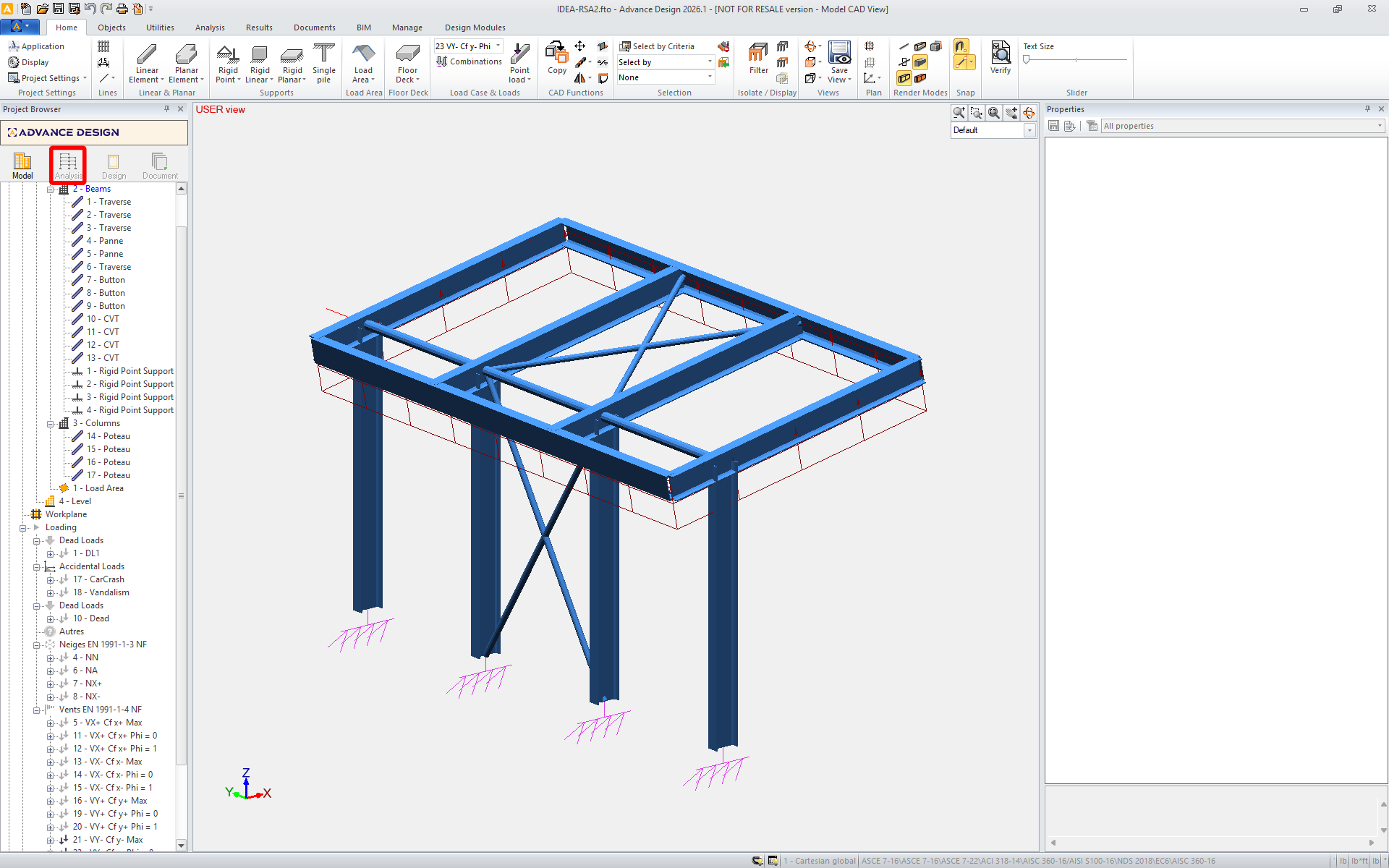
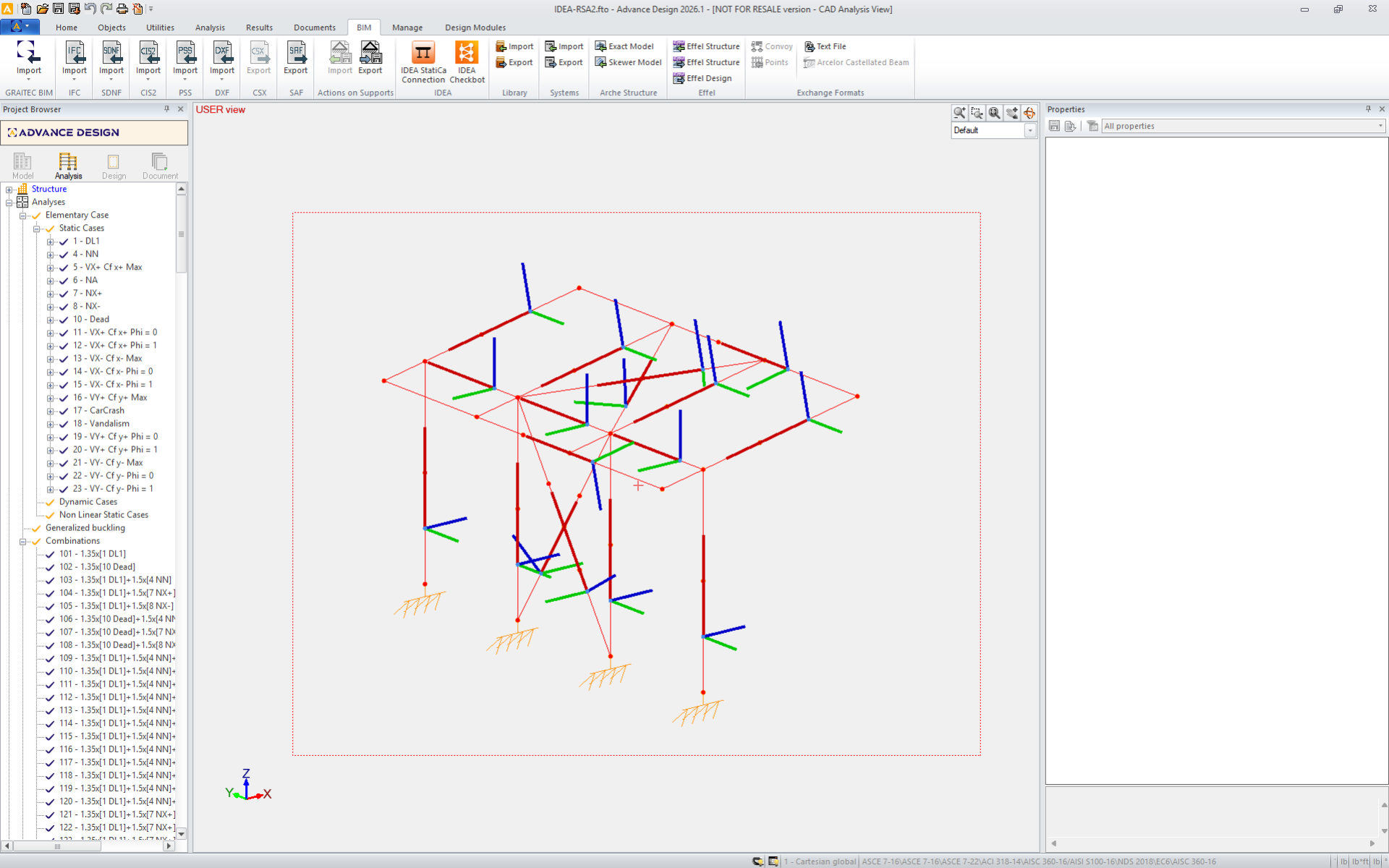
Download the attached project, open it in Advance Design, and run the linear analysis to get the internal forces over the structure.
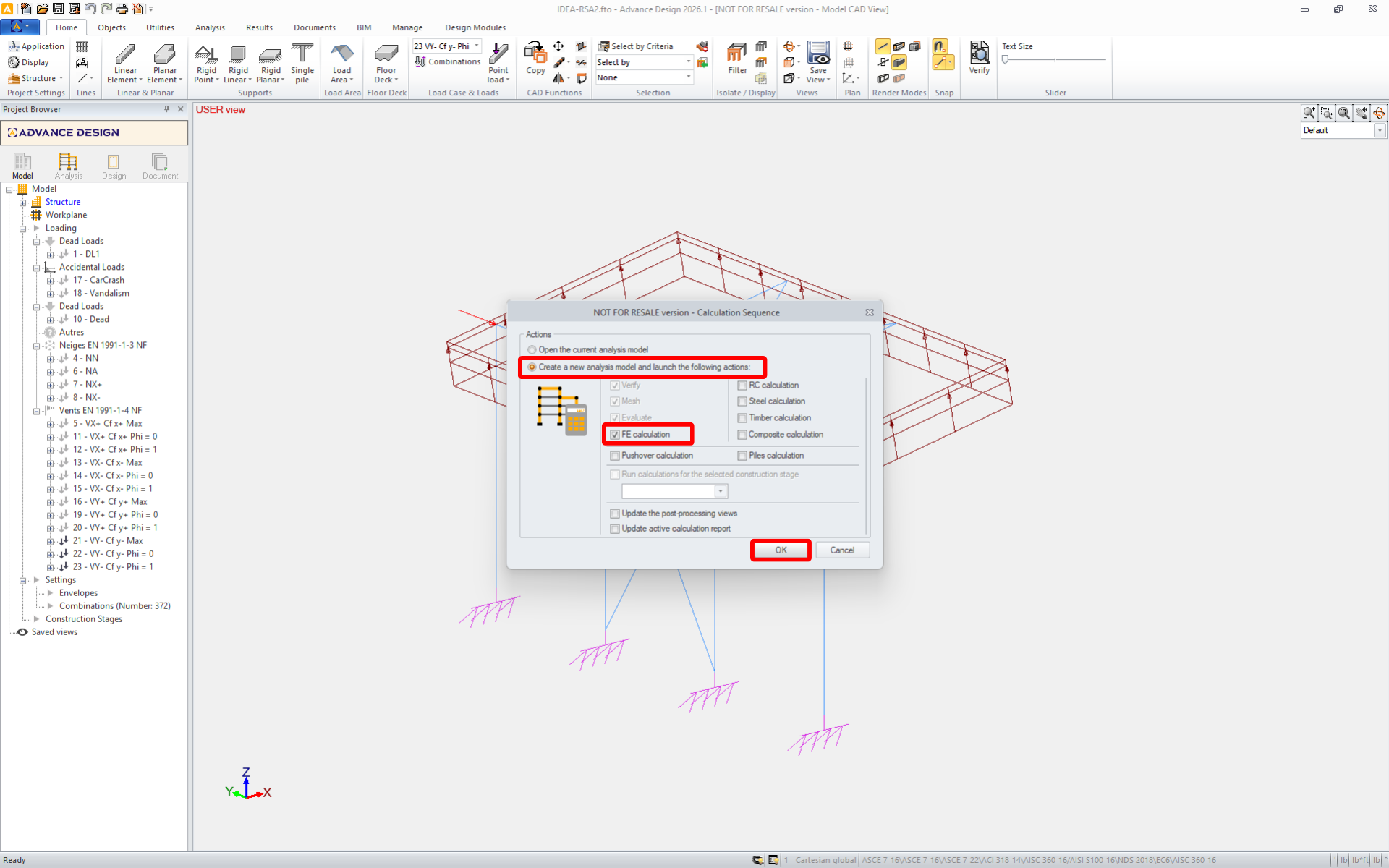
The BIM link is automatically integrated. You can find it in the top ribbon under BIM -> IDEA -> IDEA Checkbot.
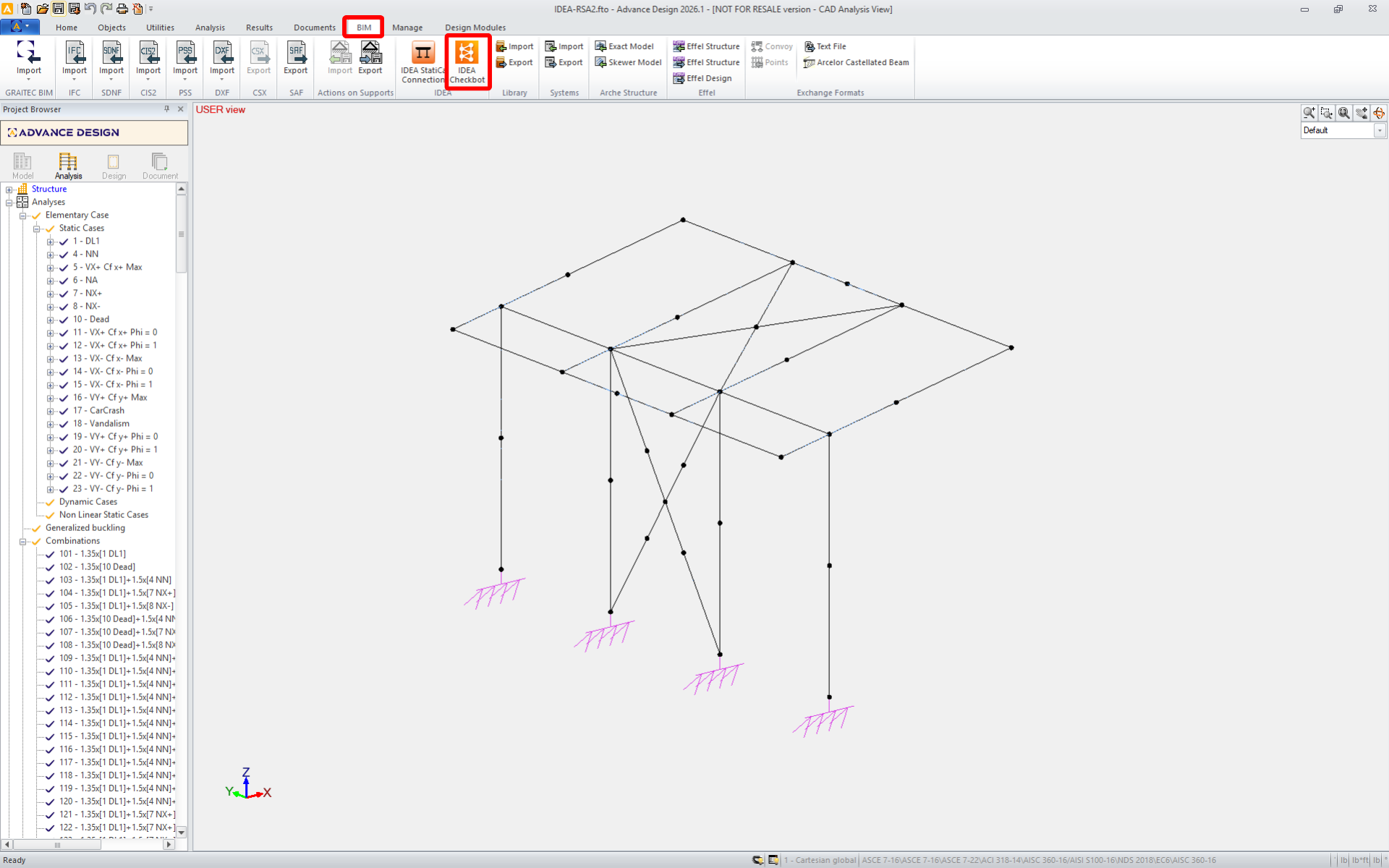
This will open the Checkbot application.
Select the New option with project type Steel and design code EN. Then select Create project.
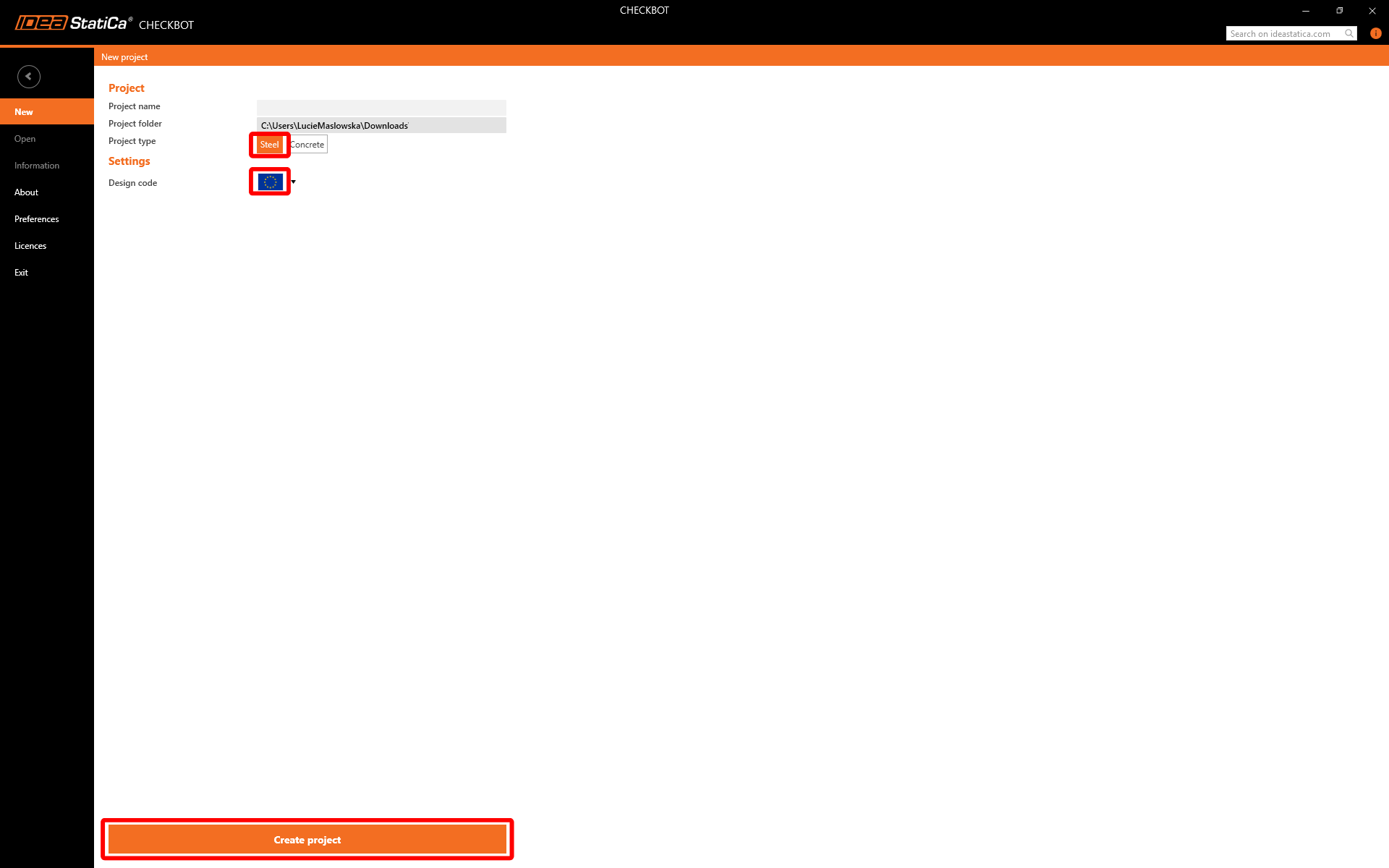
The new Checkbot project is ready to import connections.
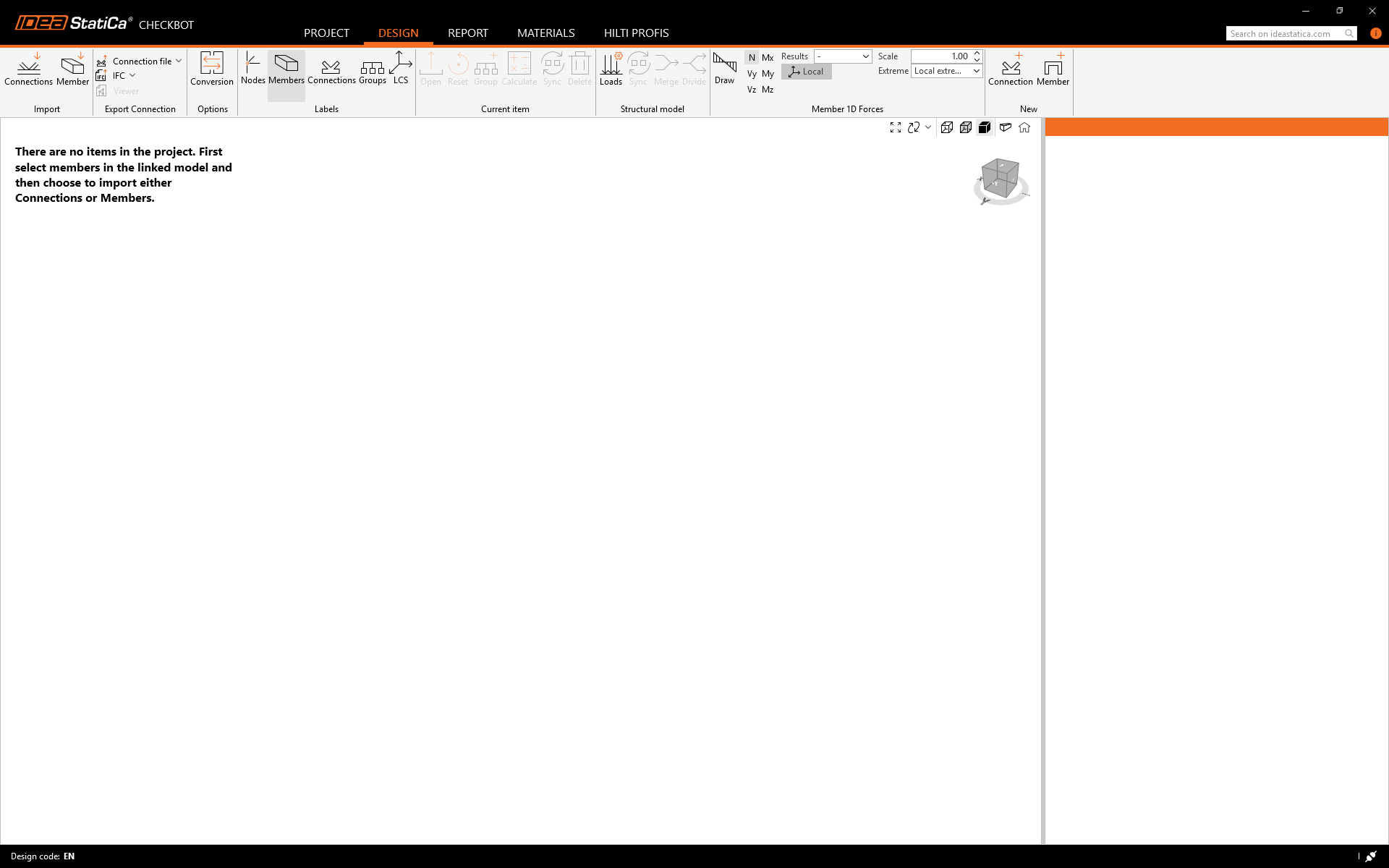
Select the structure in Advance Design and press Connections in Checkbox.
This will import the structure and its load effects into Checkbot - with the same coordinates, orientations, and section sizes as per the FEA model. Please note that your node and member numbering might be different.
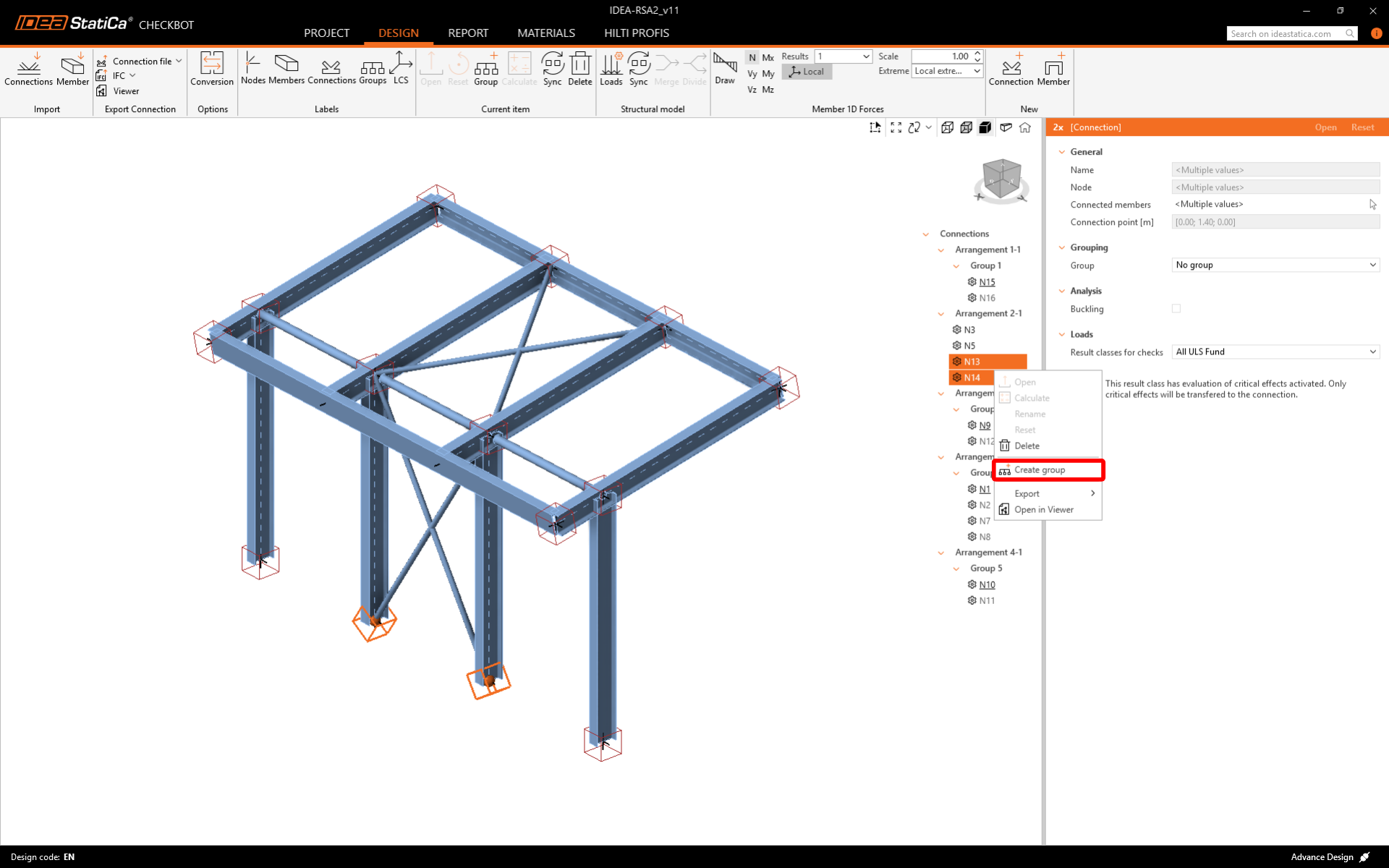
The grouping functionality automatically creates groups of connections based on typology and/or cross-sections. Every group is represented by the reference connection (underlined in the tree), which is automatically designated as the parent connection that drives the design for the whole group. All other connections are treated as child connections.
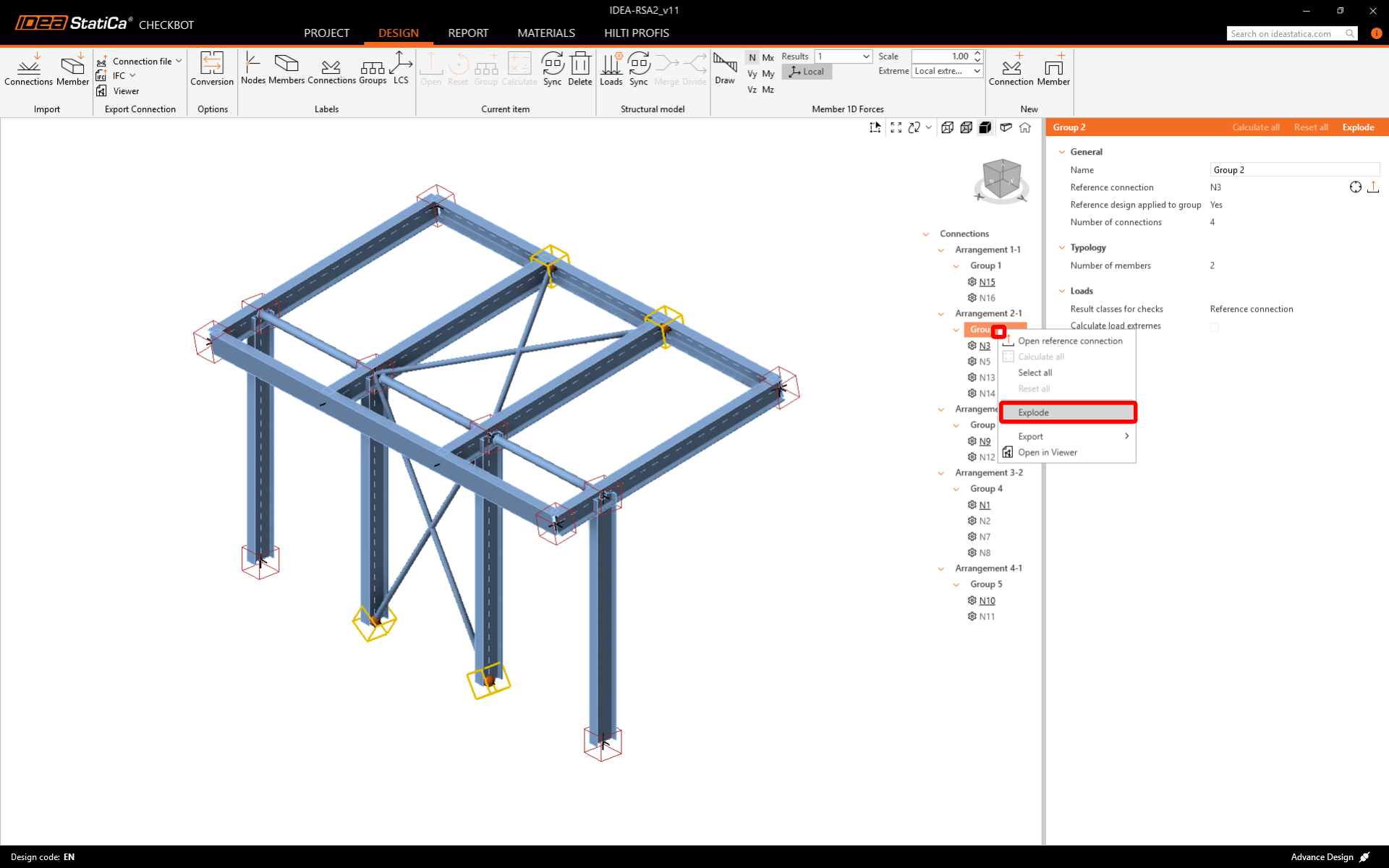
If the groups aren´t created correctly, like in this case, you can Explode them and create new ones.
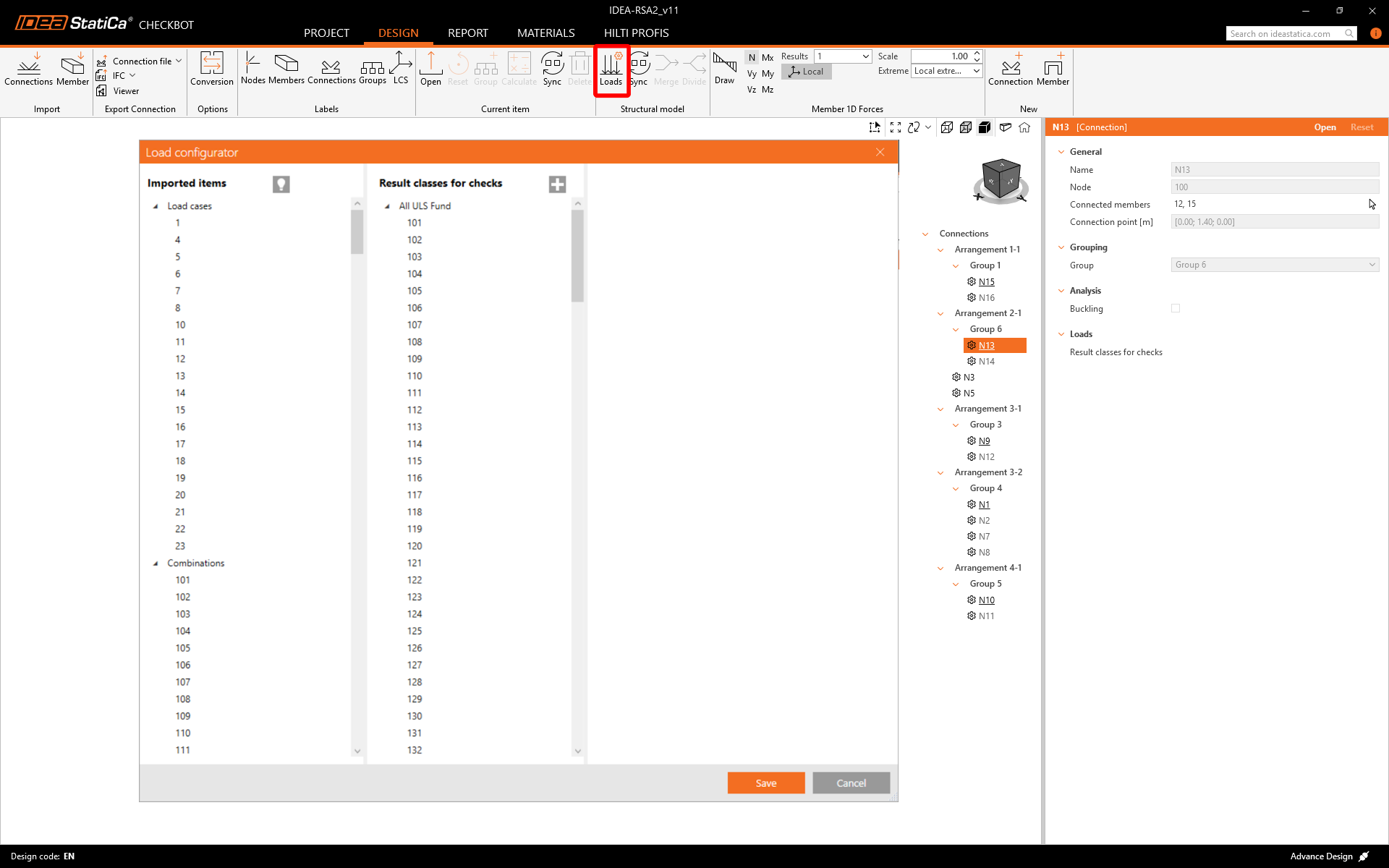
You can review and adjust the imported load cases and combinations in the Loads dialog. All imported load cases and load combinations are listed on the left side and the result classes used for checks in the middle. If some load cases are not relevant for your design verification, exclude them by right-clicking on the selected loads and removing them from the result classes list.
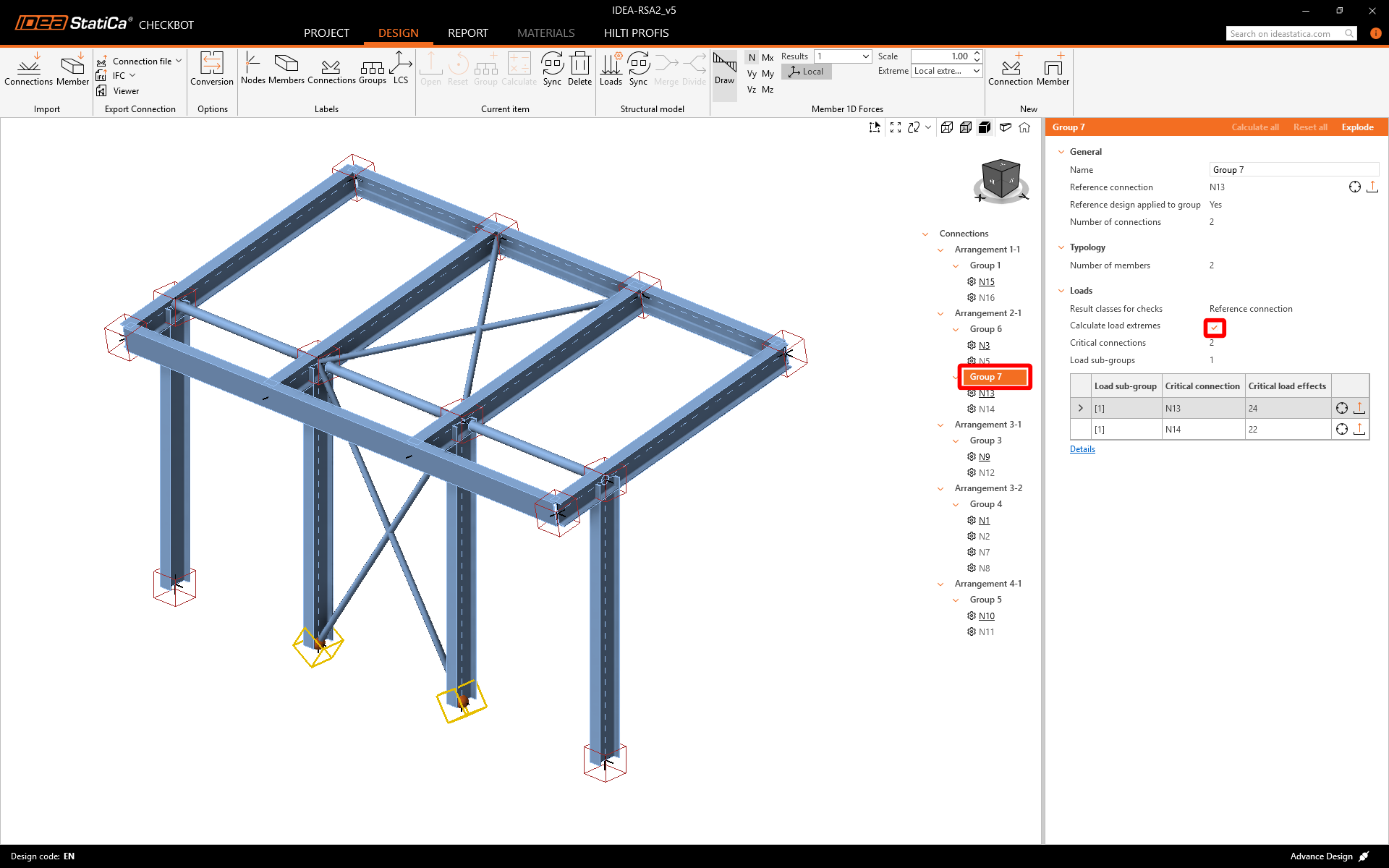
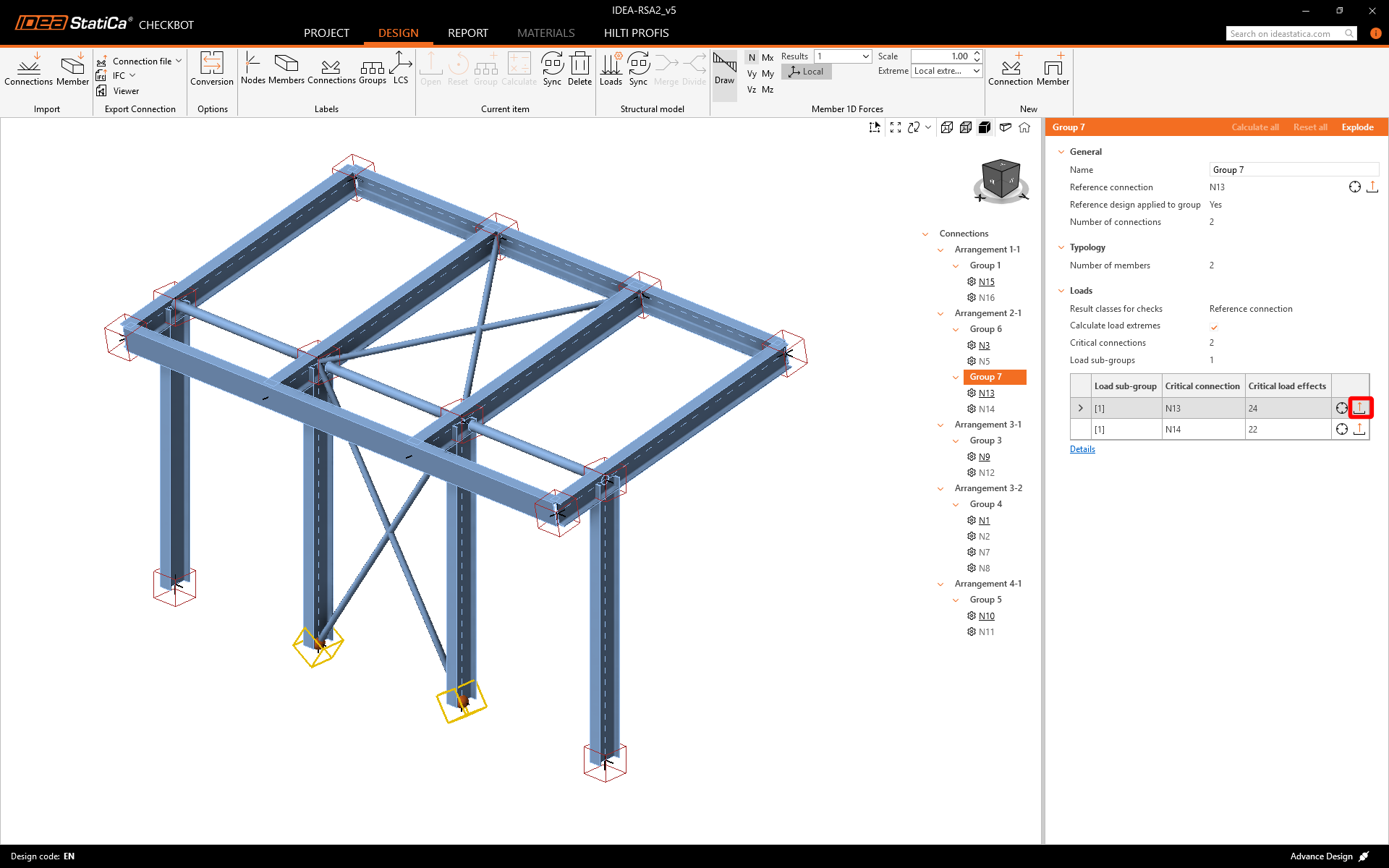
Before designing and analyzing the connections, you can activate Calculate load extremes for any group. This allows you to design and check the connections faster for only critical load effects.
Design
Click on Open to start designing, code-checking, and reporting. The imported connection is opened in the IDEA StatiCa Connection application.
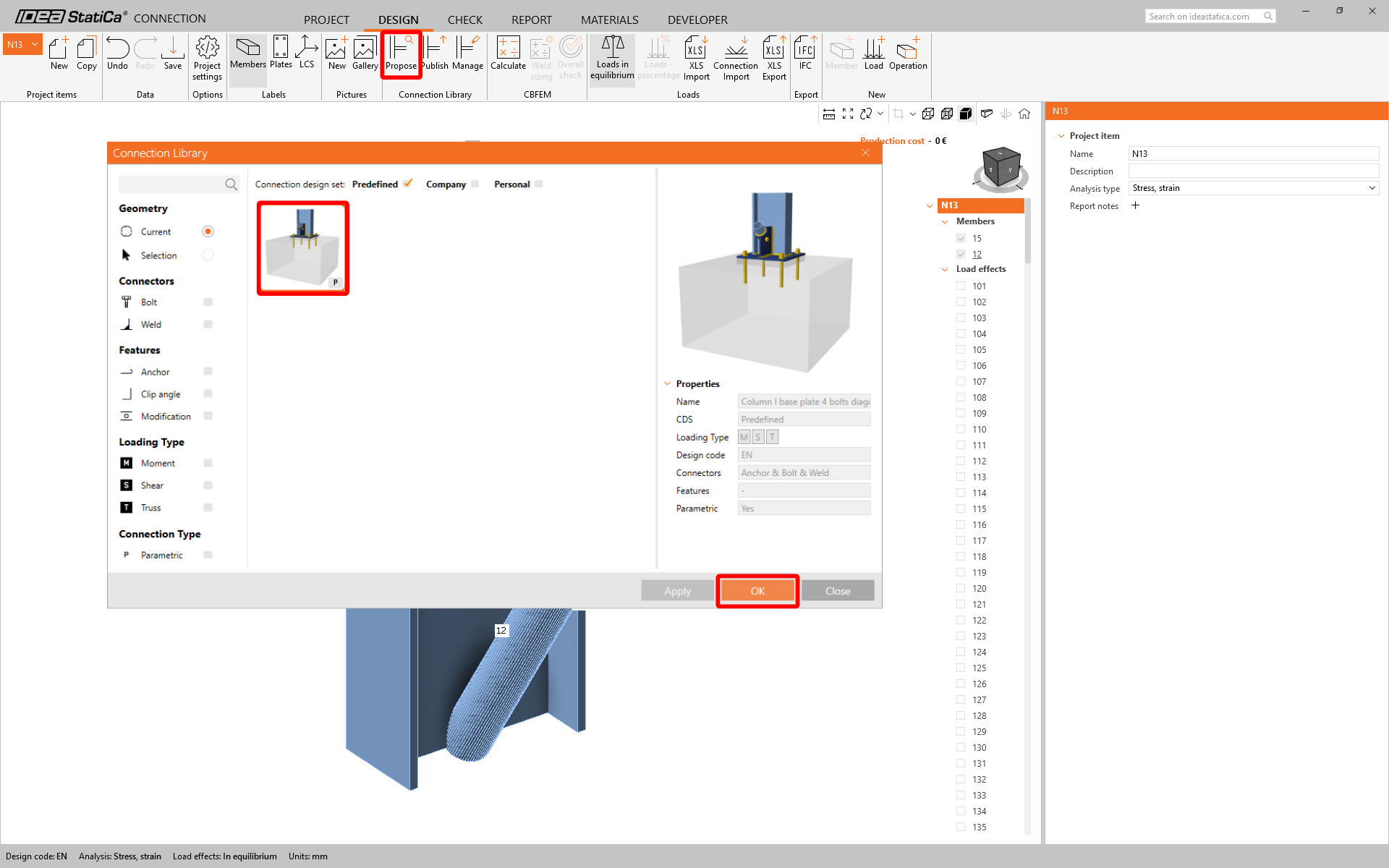
In this tutorial we are going to use the Connection Library to generate a connection. Select Propose and IDEA StatiCa will put forward possible solutions for the current geometry.
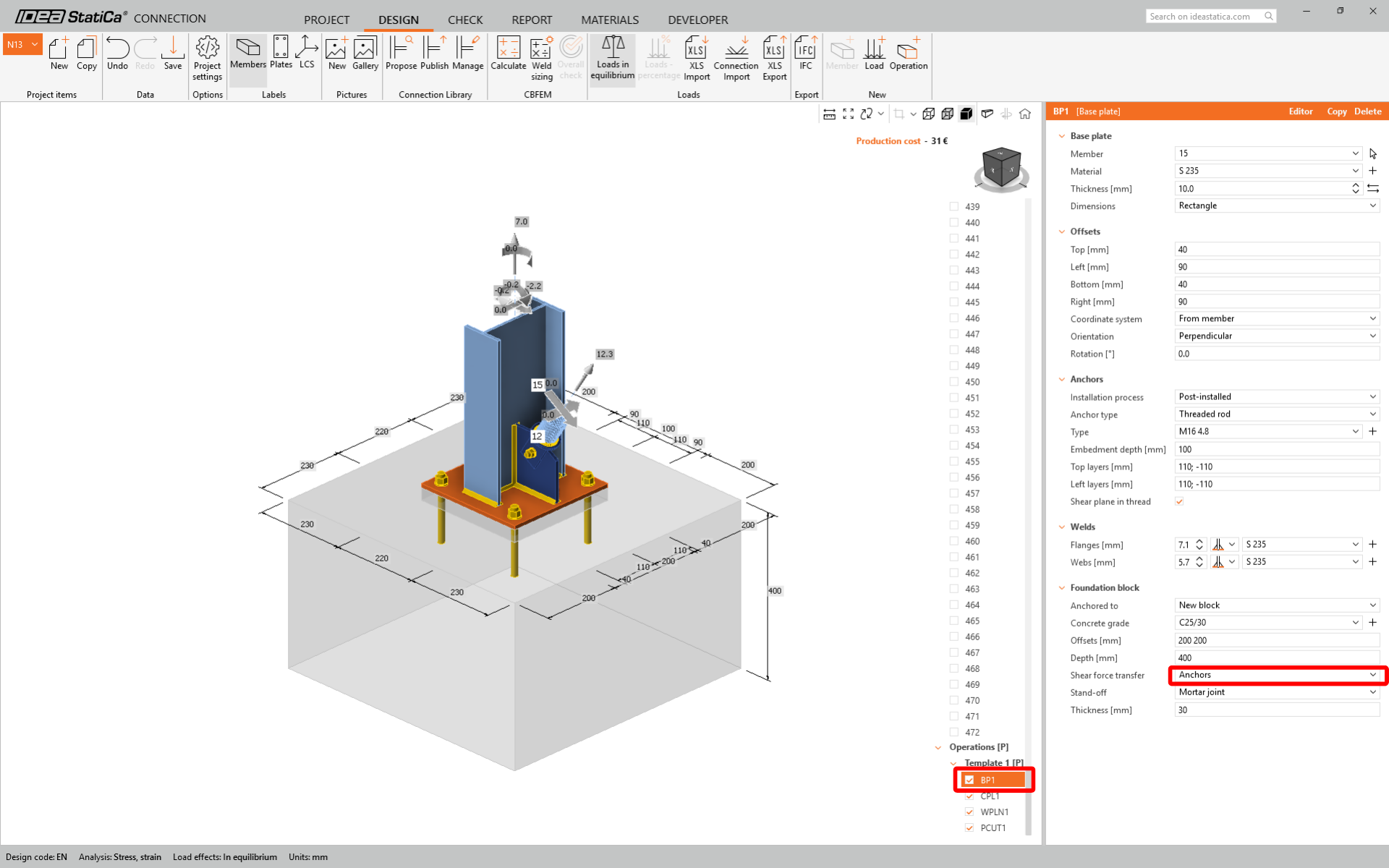
Under BP1 change the Shear force transfer type to Anchors.
Code-check and Report
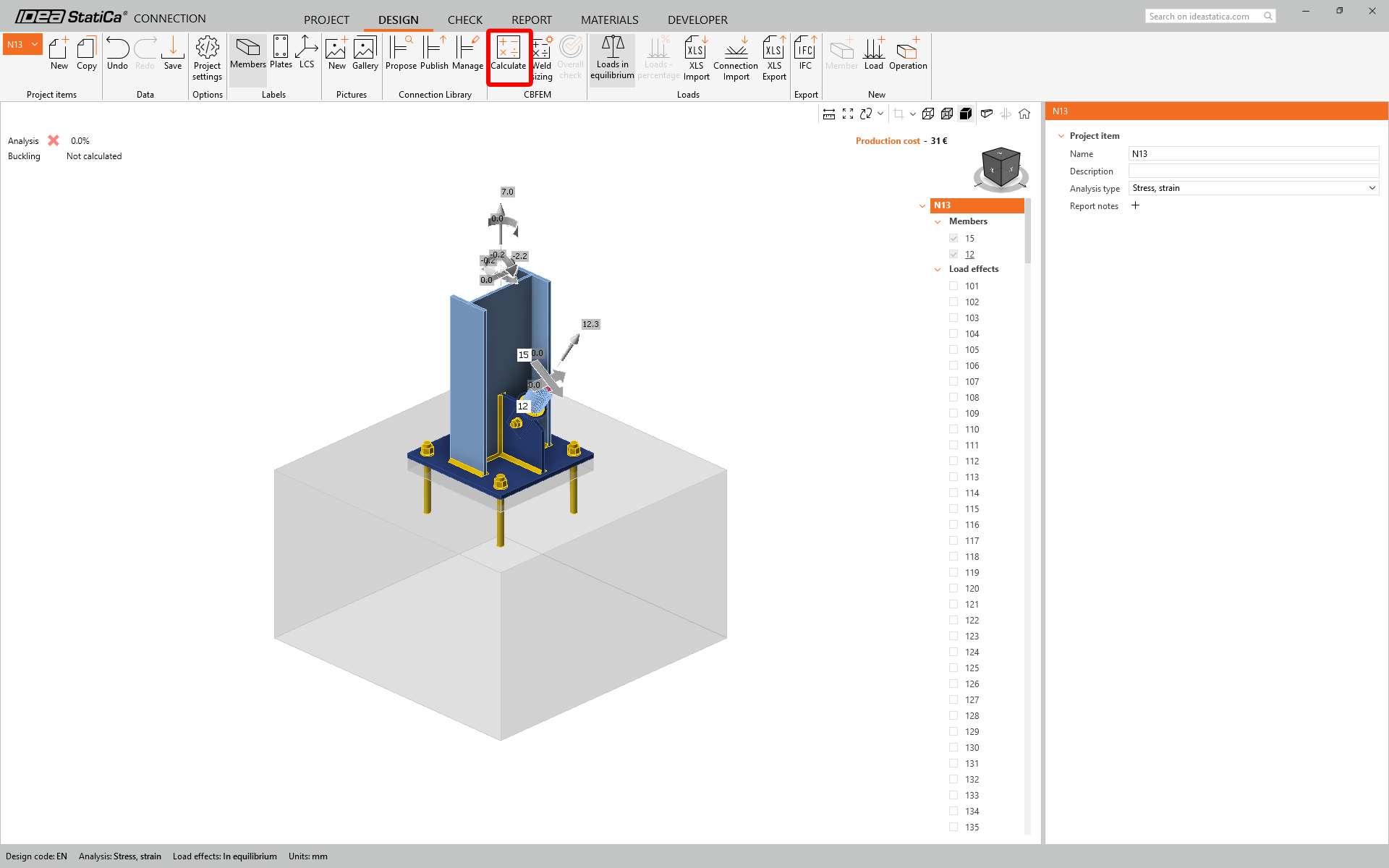
Now run a code-check using the Calculate icon in the CBFEM panel from the top ribbon. Within IDEA StatiCa Connection, you can carry out many different types of analysis and code-checks.
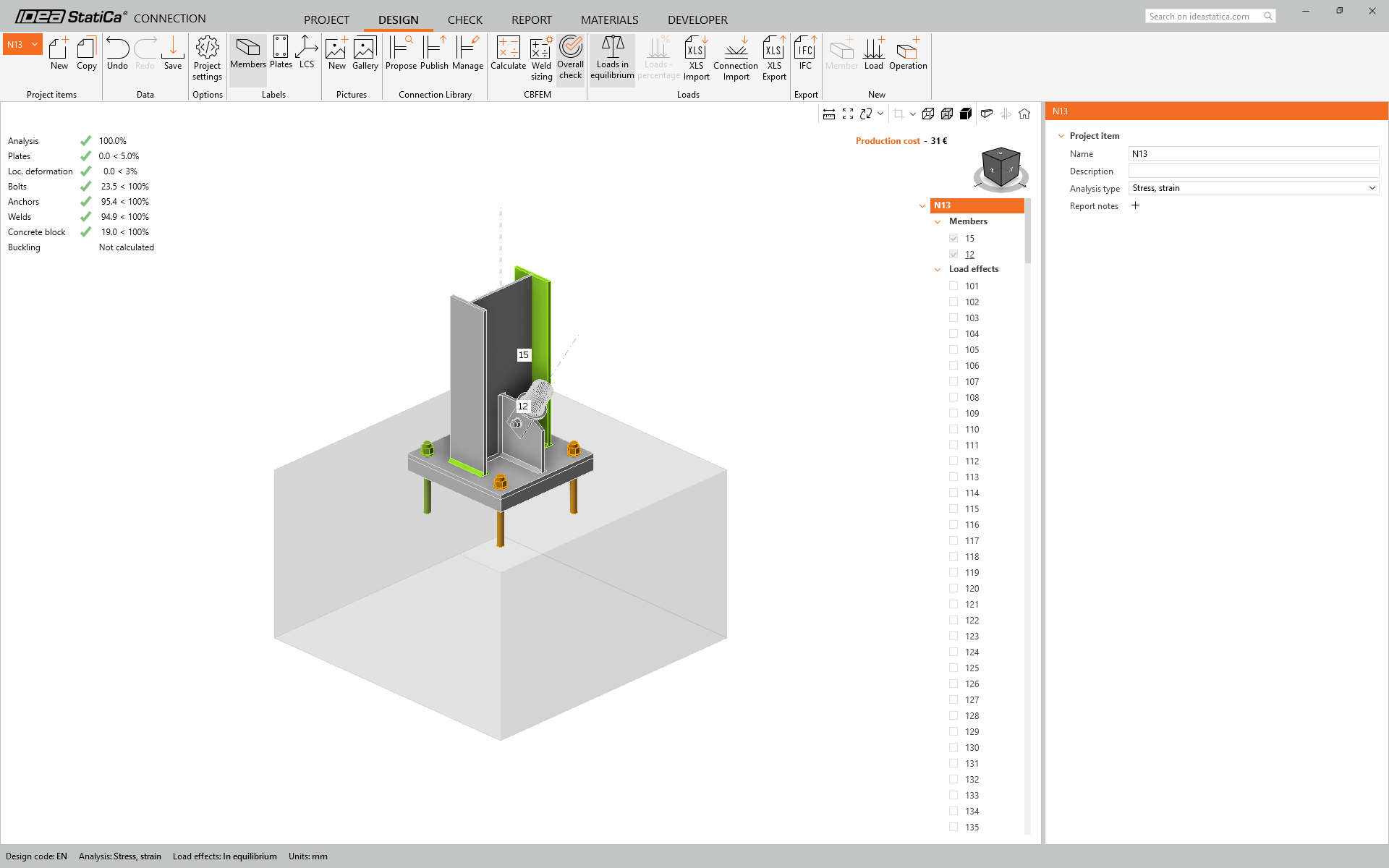
You can go to the Check tab to review the results in details for both the FEM analysis and the code-checks.
Once the code-check is finished in the Report tab, you can create the report containing results and diagrams for your connection model.
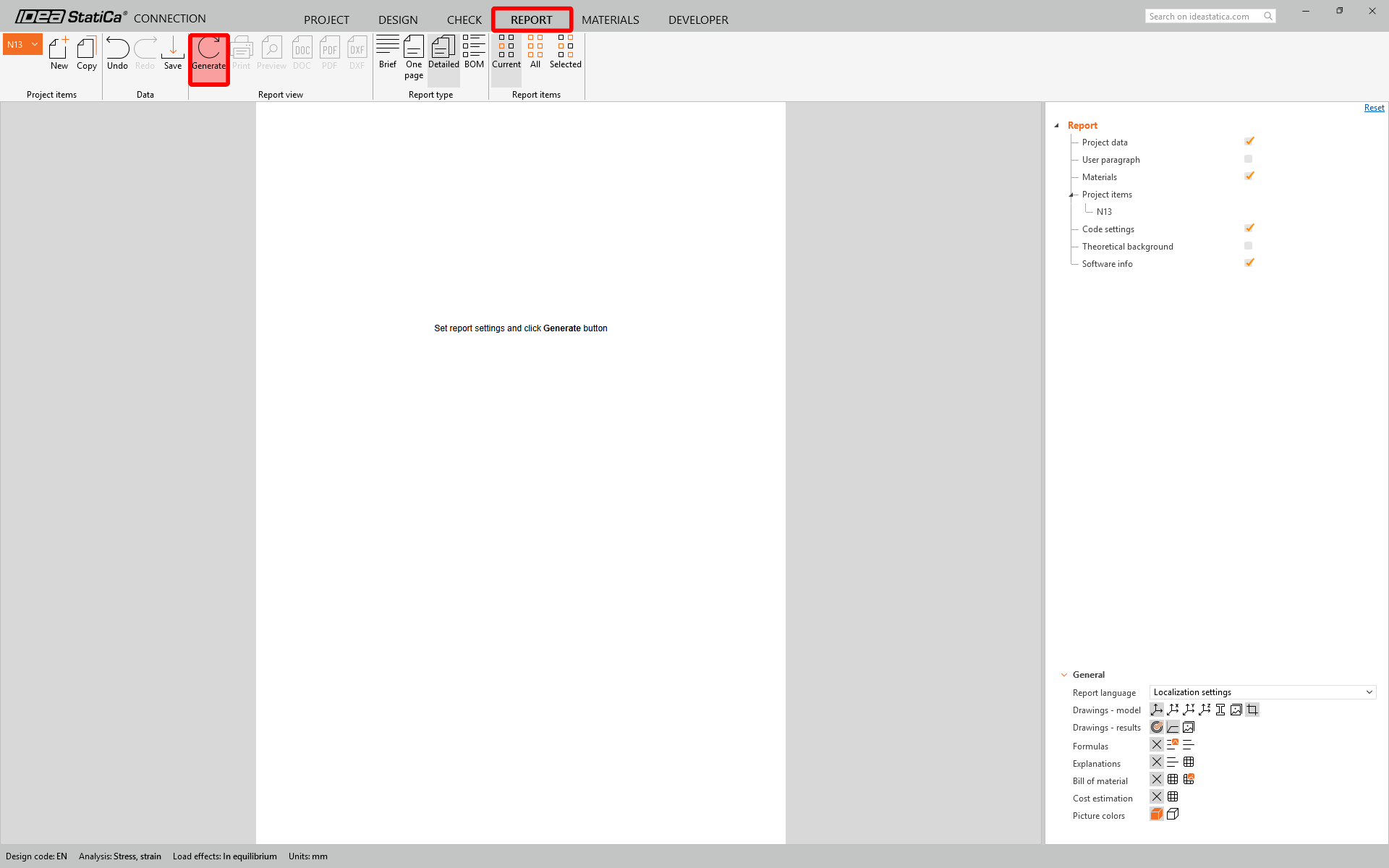
Save this connection and switch back to the Checkbot window (you can keep the Connection window open).
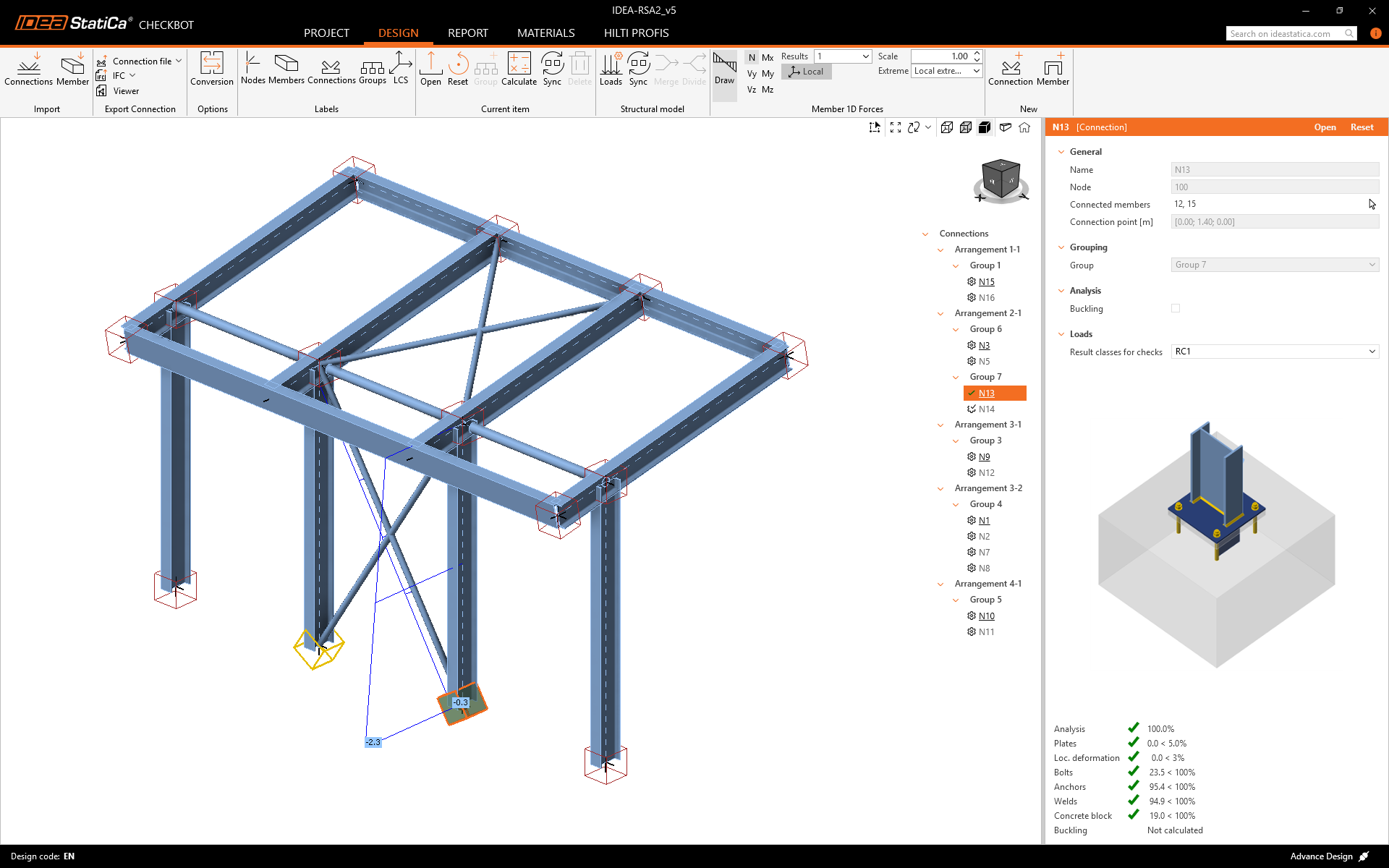
In Checkbot, you will see a green tick next to the connection and the node box filled with green color. This means that the connection has passed all code-checks. In the Connection panel, you can also see a representation of the connection and a summary of the code-check results.
You can see that only one connection has passed the respective code-check while the remaining connections have yet to be designed.
You have successfully linked Advance Design with IDEA StatiCa Connection via Checkbot.
Learn how to use IDEA StatiCa effectively with our self-paced e-learning courses
Start learning